- Centralize backups on NAS with versioning, snapshots, and GFS retention for maximum resiliency.
- Combines methods: system images, file-based copy, and NAS-to-NAS or cloud replication.
- Choose agentless for simplicity or agented for consistency and critical recoveries.
- Validates restorations (bare metal and granular) and applies 3-2-1 with automation.
When it comes to protecting a Windows PC , a well-integrated NAS makes all the difference between a scare and a disaster. Centralizing automatic, versioned network backups reduces the risks of hardware failures , theft, or ransomware, and speeds up recovery when something goes wrong.
In this practical guide, we've gathered and organized everything you need to integrate your NAS with Windows backup tools and popular ecosystem solutions: Backup and Restore ( Windows 7 ), File History, Synology Active Backup for Business, Synology Drive Client, Vinchin, and NAKIVO . You'll also see 3-2-1 backup strategies, NAS-to-NAS replication, cloud deployment, NDMP, agent-based and agentless backups, and real-world scenarios for full and granular restores.
Why a NAS is a better destination than a local disk
Using a NAS as a backup destination offers clear advantages over local drives. The most important: if the drive is connected to the same computer, it can suffer the same failure . A power outage, a motherboard failure, or malware can crash the PC and its local backup simultaneously.
With a NAS, the probability of losing both the source and destination files is drastically reduced. Ransomware, for example, shouldn't encrypt immutable snapshots or offline versions , and restoring from a centralized network is much more convenient than searching through scattered USB drives.
Common risks mitigated by a NAS include ransomware attacks, device theft, hardware failures in the PC itself, and uncontrolled copying. Furthermore, modern NAS devices offer deduplication, compression, snapshots, and RAID options , which reduce storage space and accelerate recovery.
If you want to go a step further, you can combine it with replication or cloud deployment to comply with the 3-2-1 rule: three copies, on two different media and one off-site.
Native Windows Methods for Saving to Your NAS
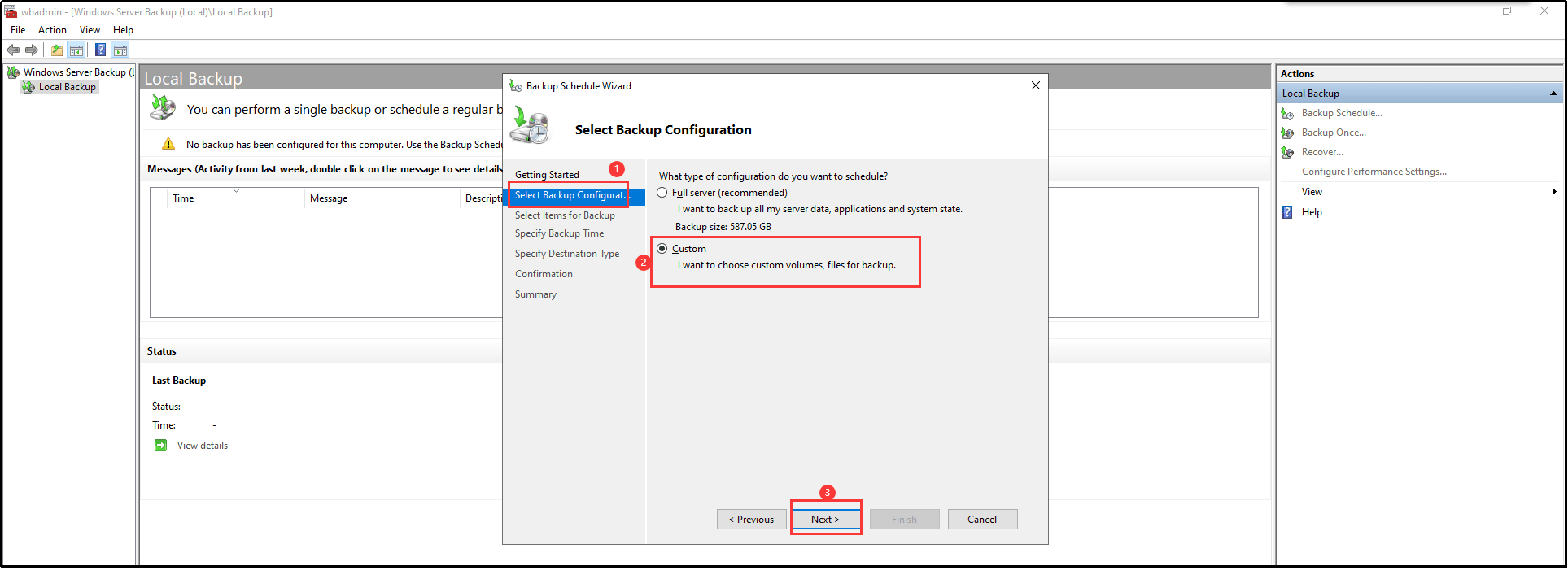
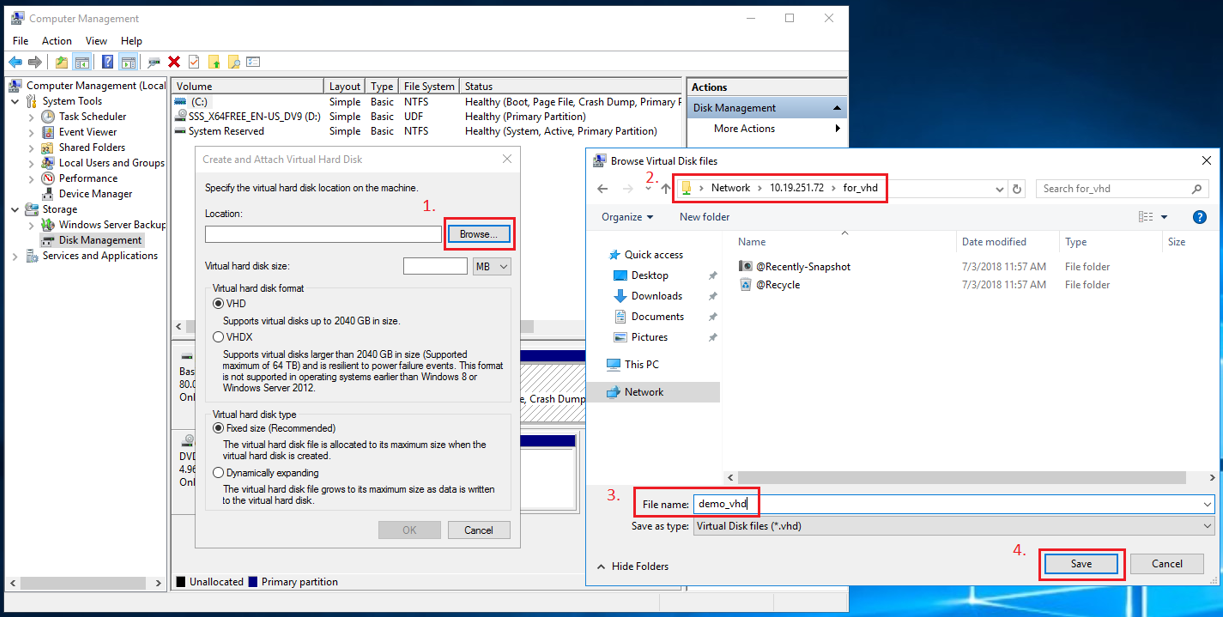
Windows offers two built-in methods for backing up to an SMB network share on the NAS. These methods do not require additional software installation and remain valid on Windows 10/11.
Backup and Restore (Windows 7) . This component creates system images and scheduled file backups. It allows you to choose a shared folder on the NAS as the destination . In case of a critical failure, you can boot into the Windows Recovery Environment, connect to that network path, and restore the complete image.
File history . Ideal for users who need document versioning. It connects to an SMB resource on the NAS and saves file versions at intervals . It's not a system clone, but it excels at undoing changes or recovering deleted files.
Practical tip: In both cases, it's important to use accounts with minimal permissions on the share. Enabling snapshots and versioning on the NAS significantly increases your recovery options in the event of ransomware or mass deletions.
Synology: Activate Backup for Business and Drive Client
If you have a Synology, you have two key components: Active Backup for Business (ABB) for full backups (bare metal) and Synology Drive Client for file-by-file backups with versioning.
Active Backup for Business covers Windows PCs and servers: it installs the agent, registers the computer on the NAS, defines templates (calendar, compression, retention), and launches tasks. It allows you to select partitions or the entire system , generating recovery points that facilitate quick restorations, even after a critical failure.
Synology Drive Client, on the other hand, is ideal for documents, projects, and working folders. You configure a "backup" task (not a synchronization) to send only relevant files to the NAS, with versioning to revert to previous states of each file.
Both tools are easy to use, scalable, and offer good visibility from the console. Centralization simplifies audits, GFS-type holds, and monitoring the status of protected devices.
Vinchin: Continuous Protection and Advanced Recovery
For enterprise or high-availability environments, Vinchin Backup & Recovery adds higher-level features. Its Continuous Data Protection (CDP) replicates in real time to a standby machine; if the primary system fails, the secondary can take over with minimal data loss.
In addition, it offers perpetual incremental backups, compression and deduplication, limiting policies, and Changed Block Tracking (CBT) , which reduces copy windows and storage consumption . The typical workflow is: select partitions, choose the Synology NAS as the destination, define policies, and submit the job.
The web console is intuitive and allows deployment on multiple Windows and Linux platforms . If you want to test it thoroughly, a 60-day free trial with full functionality is available to validate CDP and disaster recovery.
3-2-1 Strategy, NAS to NAS and Disaster Recovery
A common scenario: a student or professional with a PC at home, a local Synology NAS, and another NAS at a relative's house. The idea is to back up the PC to the home NAS and replicate that NAS to the remote one . This fits perfectly with the 3-2-1 rule.
How do you orchestrate this? Create backups of your PC using ABB to your local NAS and use Hyper Backup to replicate to the remote NAS (the parent NAS, for example). If your home PC and NAS are destroyed, you can boot a new machine using ABB's recovery media , connect to the remote NAS, and restore the complete image.
Important: Hyper Backup replicates data from the NAS; it does not "transform" a PC backup into something else. To restore a PC, you will need the backup created with ABB . Alternatively, if you used "Backup and Restore (Windows 7)" to a remote share, you can restore that image from the Recovery Environment by connecting to the network path.
For those who only need file backups, Drive Client plus replication with Hyper Backup is sufficient. Versioning on the remote NAS adds an extra layer of resilience against human error or mass encryption.
Other NAS backup paths: USB, cloud, and NDMP
A NAS isn't just a destination; it's also a good idea to back it up. You can do this to a USB drive, another NAS, or the cloud , and in more advanced environments, using NDMP.
- USB: Simple to implement, but manual and limited by capacity. Not practical for large volumes or automation.
- NAS to NAS: flexible, scalable, and with automation options. With specialized solutions, you win incremental, compression, encryption and GFS.
- copy to the cloud: Virtually unlimited, highly resilient, and off-site. Cons: Cost per GB and possible exit fees.
- NDMP: Standard protocol for NAS/file server backup. Separates control and data traffic, allows centralized management and offloads backup traffic; beware of format incompatibilities between platforms.
Agented and Agentless Copies: Consistency and Copy Windows
There are two approaches to backing up shared resources. The agentless method uses SMB/NFS and copies files as is. It's easy, but if files are open by applications, you may encounter inconsistencies or have to temporarily close sessions.
The agent-based method installs a component on the source server or NAS. This allows for application-consistent snapshots, freezing the state during the copy process , and reducing backup times thanks to efficient CBT and incremental backups.
NAKIVO: From Shared Resources to Physical Equipment
NAKIVO Backup & Replication covers both worlds. For shares, it adds the resource to the inventory via SMB/NFS and creates a job with source, destination, schedule, retention (GFS), compression, and encryption . This way, you can back up a shared NAS folder and save it to an optimized repository.
The wizard guides you step by step : you choose the share, specify folders if you want granularity, select the repository, and schedule the job. The Jobs view simplifies version control and restore points , and allows you to run complete assets at your defined cadence.
Another strength of NAKIVO is its support for Windows and Linux hardware. You can install it on a NAS (for example, QNAP), add your PC with IP address and credentials , connect Wasabi as a cloud repository, schedule a daily backup with 31 days of retention, and a full backup every 31 cycles for maximum data integrity.
NAKIVO also handles the worst-case scenario: it creates a FAT32 recovery USB drive that boots a Linux environment on another computer. You connect to the NAKIVO instance on the NAS and restore the backup (full or incremental). In minutes, your computer is up and running again after a total failure.
If you don't need a bare metal drive, you can mount the backup disk and perform granular restoration: recover the Desktop, Documents, or individual files without overwriting everything, or mount the backup as an extra drive so the user can retrieve what they need.
What if I just want a monthly “rsync for Windows”?
Some people only need a small monthly backup. In that case, you can schedule one-off backups to the NAS using Windows sync/backup tools or Synology's own software.
Options: Use Hyper Backup from the NAS to a Windows PC as the destination via rsync/SMB (less common), or vice versa, use Windows tasks that upload to the NAS via SMB/SFTP. With Synology Drive Client, you can schedule differential backups per file; if you prefer rsync-style backups, there are ports like cwRsync/DeltaCopy for Windows.
If you had trouble with WoL on TrueNAS or your Raspberry Pi was returning "destination too small" despite having 1 TB for 5 GB, check: path and permissions, file system, quotas and block size , as well as the rsync mode (daemon vs SSH ) and whether the tool was trying to clone a snapshot or a complete dataset.
For remote access, enable QuickConnect or VPN on the NAS, and if you're using Remote Desktop/XRDP on an intermediate Linux system, check the ports, firewall, and RDP encryption policy . Often, a "connection terminated" error is due to version or TLS issues.


Passionate writer about the world of bytes and technology in general. I love sharing my knowledge through writing, and that's what I'll do on this blog, show you all the most interesting things about gadgets, software, hardware, tech trends, and more. My goal is to help you navigate the digital world in a simple and entertaining way.