The "err network access denied" error in the Chrome browser can be due to a variety of reasons, ranging from the firewall, antivirus settings, browser extensions to network-related problems.
Err network access denied in Chrome
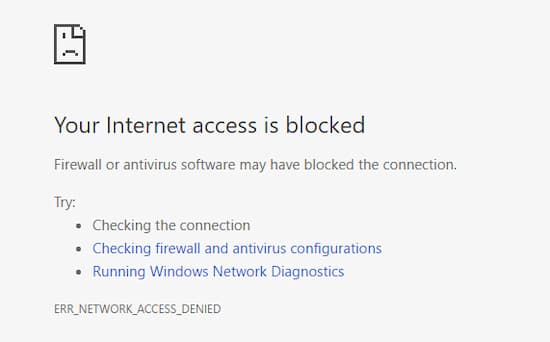
This network access denied error in Chrome appears with the error code ERR_NETWORK_ACCESS_DENIED and an error message that says “The network cannot be accessed.”
In addition to this error message, you may also see a suggestion to allow access to the Chrome browser in your Firewall or Antivirus settings.
If there is no reference to Antivirus or Firewall in the error message, the problem could be caused by an incompatible browser extension or other network-related issues.
Err network access denied. Solutions
Below we will give you a guide with some methods that you can use to fix this error on your browser. The effectiveness of each of these methods will depend on the underlying cause of the error appearing on your system.
Method 1. Clear browsing history
The first method to fix err network access denied issue is to clear the browser's browsing history. To clear the browsing history, follow the steps below:
- Press Ctrl + h in Chrome to open your browsing history.
- Click on the link that says Clear browsing data.
- Select the All drop-down menu There in the time range.
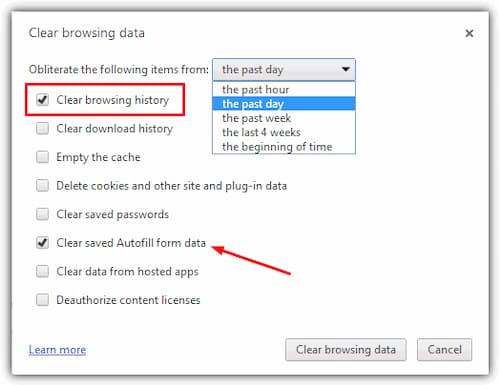
- Check the following options: Browsing History, History of downloads, Cookies and other site and plug-in data, Cached images and files, Autocomplete form data, and Passwords.
- Click on Delete data.
- Close the browser and restart the pc.
Method 2. Reset Google Chrome
If the method described above doesn't fix the "err network access denied" error, use the following methods to reset Google Chrome . Resetting Google Chrome will return it to its factory settings. This is the recommended option when Chrome extension settings have been changed without the user's knowledge. Resetting Chrome will not delete or alter saved passwords in any way. With that said, let's proceed and reset Chrome by following these steps:
- Launch Chrome and click the button options.
- Click on setting.
- In the search bar above, search for restore.
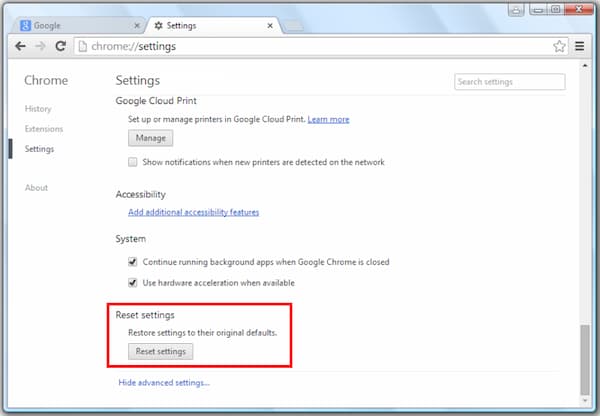
- Scroll to the bottom until you find the options for Restore settings to their original default value.
- Click on Reset Settings to continue in the pop-up window.
Method 3. Temporarily disable your antivirus and firewall
Antiviruses are supposed to prevent any malicious activity that might occur in the background. If you suspect something is wrong with Chrome, it is most likely preventing Chrome from connecting to the Internet. To check for a false positive alarm, try disabling your antivirus and try again. To try to resolve err network access denied this way, follow the steps below:
- Press the keys Windows +i to go to settings.
- Search virus and threat protection.
- Choose the option from the drop-down menu.
- Now click on Manage settings.
- Disables real-time protection, cloud-based protection, and automatic sample submission.
- Restart the PC and try opening Chrome again.
Hopefully, this will have solved the problem, but if it doesn't, try disabling the firewall. Remember to turn it back on after you're finished. Disabling the firewall and Windows Defender will leave your computer vulnerable to attacks. We recommend turning them on as soon as possible.
Now that we have tried to disable the antivirus, we still have to try to disable the Firewall. To disable the firewall, follow the steps below:
- Press the home button and type Configuration.
- In the search bar Settings, look for Firewall.
- Select the Windows Defender Firewall.
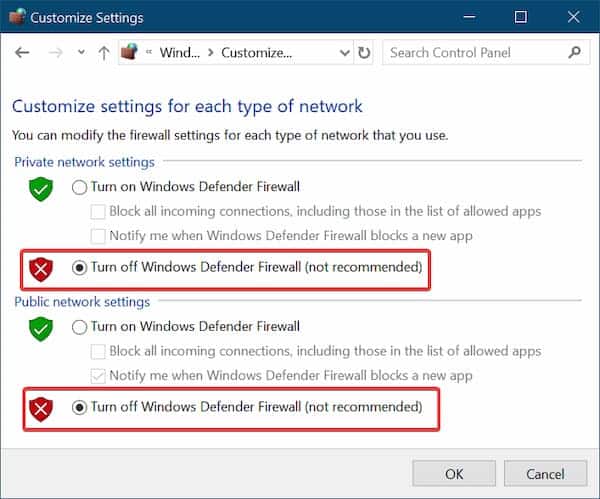
- Select Turn Windows Defender Firewall on or off in the left pane.
- Choose Disable Windows Defender Firewall in a public and private network.
This will disable the firewall. We do not recommend leaving the firewall disabled for a long time. But check if Chrome still throws the err network access denied error or not.
Method 4. Disable the proxy
The proxy is used as an intermediate server between the client and the actual server. Proxies are enabled in organizations to protect employees from malicious sites. But if the organization does not configure the proxy properly, it can cause the err network access denied error in Chrome.
Follow the steps given to disable the proxy on the computer:
- Press the keys windows+r to open the Run dialog box.
- Login inetcpl.cpl in the dialog box.
- Now go to the tab Connections.
- Go to the Lan configuration.
- Uncheck the checkbox.
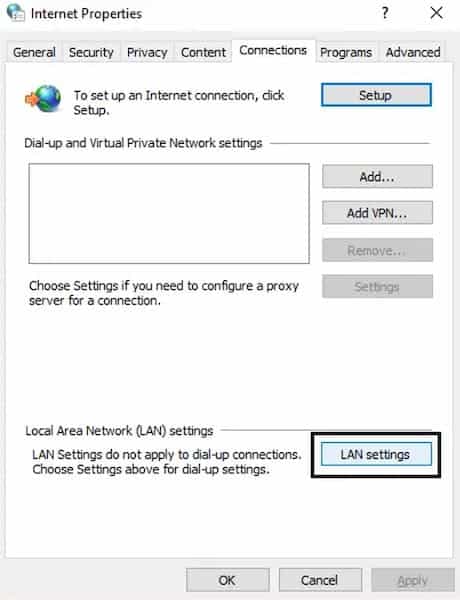
- Click on Accept y restart the pc.
Method 5. Disable third-party extensions
Some extensions may be causing unnecessary or malicious traffic and the firewall may block Chrome due to this. This will cause the err network access denied issue in the browser. To stop this error, it is recommended to disable all unnecessary items and to do so, you just need to follow the below steps:
- Click on the options provided in the top right corner of Chrome.
- Click on More tools.
- Click on Extensions.
- Now remove unnecessary extensions.
You might be interested in: How to Set Google Chrome as Your Default Browser
Method 6. Delete Chrome User Profile
This is another method you can use to try to get rid of the network access denied error in Chrome. What you need to do is follow the steps below:
- Press the keys Windows + R, then type the following and press Enter:
- %LOCALAPPDATA%\Google\Chrome\User Data\
- Right click on the default folder and select Rename or you can delete if you're comfortable losing all your preferences in Chrome.
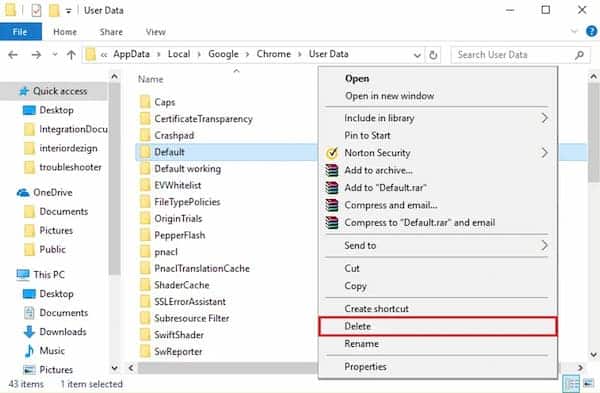
- Rename the folder to default.old and press Enter.
- Note: If you are unable to rename the folder, make sure to close all instances of chrome.exe from the Task Manager.
- Restart your pc and see if this fixes err network access denied in Chrome.
Method 7. Use a third-party tool
Finally, you can try a third-party tool or software like CCleaner, which can help resolve these types of network errors. Simply download CCleaner to your device and run a scan and cleanup as instructed in the program.
Final words
The "network access denied" error is a very common problem, and the reason is that it can happen easily. But the good news is that it can also be fixed quite easily. This network access denied error can be resolved using the various methods provided above. You can try the methods one by one until you find one that works, as each method addresses a specific cause of the error.

My name is Javier Chirinos and I am passionate about technology. Ever since I can remember, I have been interested in computers and video games, and that passion has turned into a job.
I have been publishing about technology and gadgets on the Internet for over 15 years, especially in mundobytes.com
I am also an expert in online marketing and communication and have knowledge in WordPress development.