- The UEFI BIOS configuration allows you to unleash the true power of the hardware by avoiding conservative factory restrictions.
- Activating memory profiles and communication technologies between CPU and GPU is key to stabilizing FPS in games.
- Preventive maintenance through firmware updates and temperature monitoring extends the lifespan of components.
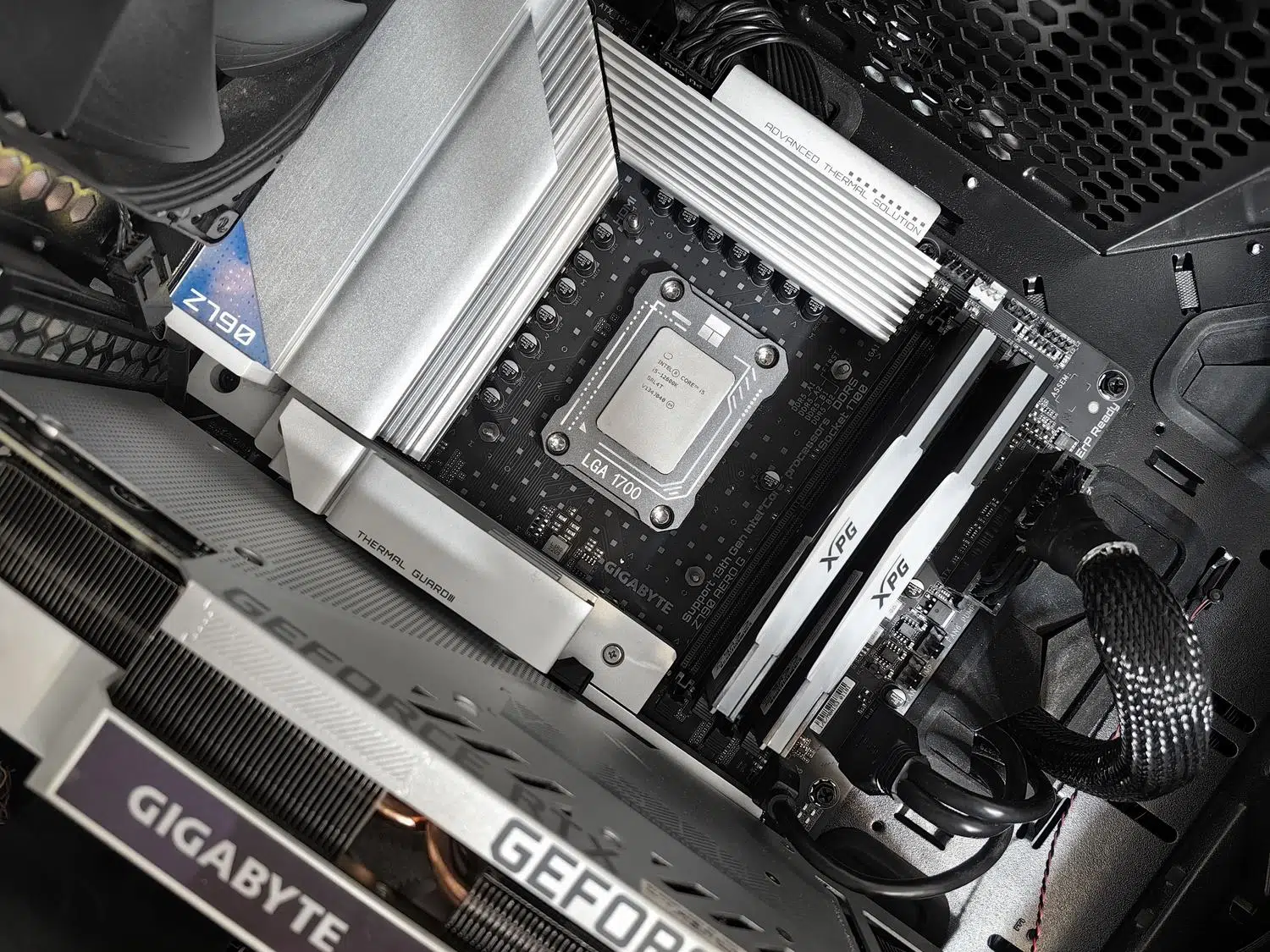
Sometimes you spend a fortune on a cutting-edge processor or a powerful graphics card, and when you turn on your computer, you notice that the performance isn't what you expected . It's frustrating to think the problem is Windows or the drivers, when in reality the culprit is usually the BIOS, that technical menu that almost no one accesses but which decides how your components communicate and what their limits are.
Many people think that to improve speed you need extreme overclocking, but the reality is that manufacturers configure motherboards very conservatively to avoid problems. This means your hardware is essentially running at half capacity . With a few simple and safe tweaks, you can optimize the BIOS or UEFI on your gaming PC to remove the bottlenecks and make games run more smoothly without spending a penny on new parts.

First things first: Update and Base Values
Before you start making any changes, it's essential to check if a newer BIOS version is available for your motherboard model. Updating the firmware isn't just a matter of preference; it fixes critical bugs, improves compatibility with newer CPUs, and, in many cases, optimizes power management. Depending on your motherboard brand, you can use tools like Q-Flash, M-Flash, or USB BIOS Flashback.
Once updated, or if you prefer to start from scratch, it's best to select the "Load Optimized Defaults" option . This clears any unusual settings that may have been saved and ensures you start from a stable base, preventing your PC from malfunctioning due to conflicts between old and new settings.
Unlocking RAM speed
If you've purchased 3200 MHz or 3600 MHz RAM, it's very likely that it's running at a much lower speed by default. To fix this, you need to enable the memory profile, which is called XMP (Intel), EXPO (AMD), or DOCP (ASUS) depending on the brand . Enabling this option forces the RAM to stop using the base frequency and operate at the actual speed advertised by the manufacturer.

Maxing out your RAM is vital to avoid lag in demanding games like Cyberpunk or Elden Ring. However, keep in mind that compatibility is key ; make sure your motherboard and processor support that frequency to prevent system instability and the dreaded blue screens of death.
Maximizing communication between CPU and GPU
There's a feature called ReBar (or Smart Access Memory on AMD) that's a real gem for gamers. Normally, the processor can only access a small portion of the graphics card's memory at a time. By enabling ReBar, the CPU can manage all of the GPU's VRAM at once, resulting in improved FPS and much greater stability in modern games.
For this to work, simply checking one box isn't enough. You must first enable Above 4G Decoding and disable CSM (Legacy Boot) mode to switch to a pure UEFI boot. This technology is compatible with NVIDIA's RTX 3000 series and AMD's RX 6000 series and above, making it an essential setting for optimizing your streaming and gaming PC and eliminating hidden bottlenecks.
Thermal management and system safety
Speed isn't everything; stability depends directly on temperatures. Adjusting the fan speed curve allows the PC to avoid sounding like a jet engine when it's not needed, while still reacting quickly when the temperature rises. A balanced configuration would be to keep the fans at 60% below 50°C and increase them to 100% if they exceed 70°C to protect the hardware.

Furthermore, it's important to pay attention to security. Enabling Secure Boot and UEFI mode is not only a requirement for installing Windows 11, but it also protects the system startup against malware. Remember that having an optimized PC is useless if you install corrupted drivers or pirated software that compromises system integrity and ruins the performance you've achieved.
Adjusting the BIOS is fundamental to any serious optimization, as it allows the processor, RAM, and graphics card to work in perfect harmony. From updating the firmware and enabling XMP to enabling the Resizable Bar and monitoring temperatures, every small tweak contributes to a more efficient system. If done carefully and with constant monitoring for overheating, any user can transform their computer's performance and extend the lifespan of its components without needing to replace hardware.

Passionate writer about the world of bytes and technology in general. I love sharing my knowledge through writing, and that's what I'll do on this blog, show you all the most interesting things about gadgets, software, hardware, tech trends, and more. My goal is to help you navigate the digital world in a simple and entertaining way.