- Windows 11 incorporates presence sensors and advanced power options that are configured from the system without extra software.
- The System Monitor (integrated Sysmon) allows you to log processes, network and file changes for diagnostics and security.
- Native tools can be complemented with professional monitoring solutions when remote control or advanced reporting is required.
- Controlling which apps access the sensors improves both privacy and device performance.
If you use Windows 11 daily, you've probably already noticed that the system goes far beyond simply opening programs. Beneath the surface lies a wealth of native sensors and tools that allow you to understand what your computer is doing, how the hardware is behaving, and even improve both security and battery life.
The problem is that many of these functions go completely unnoticed. Many users install dozens of external utilities to measure temperature, battery life, presence, or CPU load , unaware that Windows 11 already integrates much of what's needed to monitor the system quite accurately without burdening the computer with third-party software.
Presence detection in Windows 11: what exactly is it?
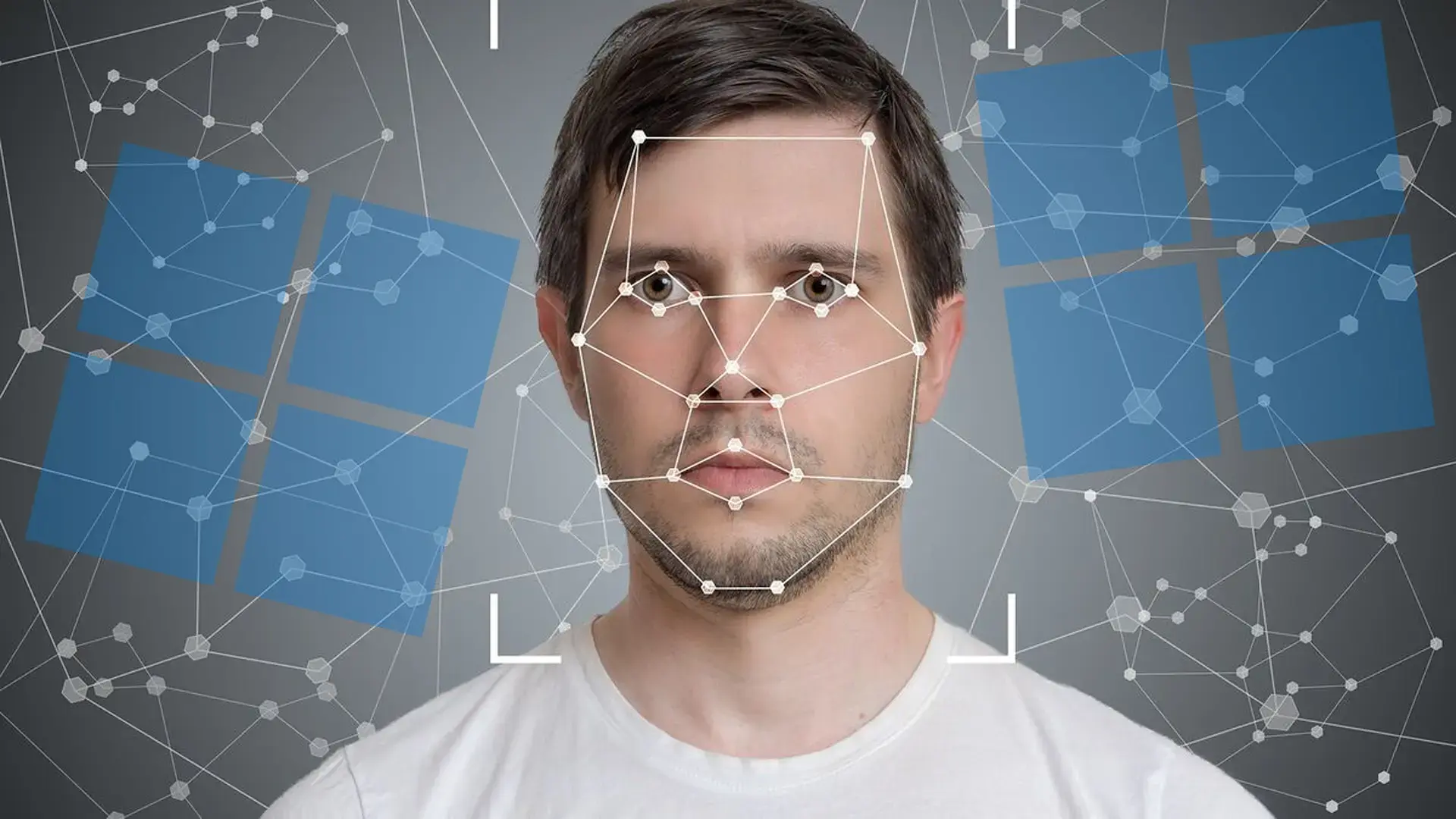
Windows 11 introduces a set of features known internally as Presence Detection . This includes functions such as automatic locking when you walk away , quick unlocking when you approach , and adaptive brightness , which adjusts the screen based on whether you are paying attention or not.
In practice, these functions rely on a new family of sensors known as human presence sensors . This hardware can detect whether one or more people are in front of the device, how far away they are, and, in some cases, even their intention to interact with the device.
These sensors can use different technologies: from computer vision with specialized cameras to radar-based systems. However, Microsoft sets a very clear line: processing must be done locally , and image metadata cannot be sent to the operating system's sensor stack—a measure to prevent Windows 11 from sharing your data with Microsoft.
Windows 11's own sensor stack doesn't integrate its own artificial intelligence models to interpret that data. The system provides the infrastructure, but leaves it up to sensor manufacturers and OEMs to use AI in the hardware itself , always within the framework of responsible AI standards set by Microsoft.
Types of presence sensors and key terminology
When discussing monitoring system sensors in Windows 11, it's helpful to understand the categories and names Microsoft uses. Official documentation distinguishes several types of presence-related sensors , each with different capabilities.
On one hand, there's the generic term " human presence sensor ," which encompasses any hardware (or combination of hardware) capable of indicating whether people are near the device and, in some cases, estimating their distance or movements. The commercial name for this entire set of functions within Windows is simply " Presence Detection ."
Within that family there are two main categories:
- Category I: presence sensor (facial detection)It is hardware capable of scanning a scene to locate a face and return a bounding box. It does not identify who the person is or analyze specific facial features; it only detects that there is a face and where it is located.
- Category II: Human presence sensor with trackingIn this case, the device can detect and track the movements of one or more individuals, maintaining continuous information about who is in the field of vision.
Furthermore, some sensors only return a binary signal. These so-called distance-independent sensors or distance-independent presence sensors simply report "there is someone" or "no one is there," without providing any information about how far away the person is.
Finally, there are the classic proximity sensors , which can report distance to the operating system with varying degrees of accuracy. Human presence sensors, used for presence detection, are actually a subset of these proximity sensors specifically designed for the human body.
Advanced concepts of presence: main user, head and attention
In slightly more advanced scenarios, Windows 11 handles a series of additional definitions to correctly interpret sensor information. One of the most important is the concept of primary user : the person who occupies the predominant position in the sensor's field of view.
If multiple people are in front of the computer, the vectors and derived states exposed by the API (e.g., bystander presence values) assume that the first element of the vector always corresponds to the primary user . When that person leaves the field of view, the system automatically reassigns who becomes the primary user.
Another key distinction is the difference between head position and head orientation . Position indicates where the user is physically located relative to the device, using azimuth (-90° to +90°) and altitude (-90° to +90°) angles. Orientation, on the other hand, describes how the head is rotated: roll (0° to 360°), pitch (-180° to +180°), and yaw (-90° to +90°).
This information is essential for functions such as adaptive dimming. In this context, user "attention" is typically defined as the head remaining within a ±45° cone relative to the sensor's perpendicular, provided the user is facing the device.
Hardware and software requirements for presence detection
Just because Windows 11 recognizes human presence doesn't mean all computers support it. To enable these features, you must have compatible hardware that meets Microsoft's definition of a presence sensor.
The "lock when you walk away" and "unlock when you approach" features are available in all editions of Windows 11, but can only be used on computers that have the specific sensor integrated into the system. Other presence detection and adaptive brightness features are being added in later versions of the operating system, as indicated in the technical documentation.
At the driver level, Windows 11 supports both internal sensors (physically mounted on the device) and external sensors (connected via USB or other interfaces). Standard integration is achieved through the Windows sensor stack and, in many scenarios, via HID drivers.
HID components are optional but recommended. OEMs can choose a custom sensor class extension driver if they require specific behavior or need to integrate additional logic before exposing data to the operating system.
Entry points and basic presence settings in Windows 11
The good news is that, as a user, you don't need to wrestle with drivers or the API . Windows 11 offers very clear entry points for enabling, disabling, and adjusting presence detection directly from the system interface.
One of these is the dedicated settings page: typing ms-settings:presence in the search box or in Run directly opens the Presence Detection section. From there, you can activate the main functions and adjust parameters such as distance, times, and behavior with external displays.
There's also a link to privacy settings. Through ms-settings:privacy you can access the settings that control which apps can use the presence sensor, which is crucial if you're concerned about who can access that data stream.
In new devices, presence detection may appear during the initial system setup (OOBE). The manufacturer can decide whether the options are enabled or disabled by default , but the final decision always rests with the user, who must explicitly authorize the device to use these sensors.
Depending on the Windows 11 version (for example, from the 25H2 branch onward), the OOBE switch can have several states depending on how the OEM has defined it and whether third-party applications are allowed access. Essentially, it combines two decisions: whether apps can read the sensor and whether system features are enabled or disabled.
Centralized management: companies and OEMs
In corporate environments, it doesn't make sense to configure presence detection on each individual computer. For these situations, Windows 11 offers configuration options for human presence through Configuration Service Providers (CSPs).
IT administrators can use the HumanPresence CSP to set default behaviors, usage policies, and restrictions. This allows, for example, all laptops in an organization to lock when the user leaves, but prevents the screen from automatically reactivating when they approach if stricter security requirements exist.
Original equipment manufacturers (OEMs), for their part, can customize the factory behavior using the settings documented in the "Not Present" or "Not Attentive" reference within Microsoft-Windows-Sensors-Core . This setting controls details such as the default state and certain sensitivity parameters.
Another factor to consider is power settings. Windows 11 includes new presence-related power settings within the Adaptive Power subgroup. These parameters determine, for example, how presence sensors interact with screen timeout, sleep mode, and battery saver mode.
How to use presence detection from Settings
If your device has a compatible sensor, you can manage the basics from the Settings app without too much trouble. The most direct way is to go to Start > Settings > System > Power & battery.
Within this section you will find the Display and Sleep block . This is where the two main functions are activated:
- Automatically turn off the screen when I leave: Use the presence sensor to turn off the screen as soon as it detects that you are no longer in front of it.
- Automatically reactivate the device when I approach: turns on the screen when it detects that you are back in front of the device.
Next to each of these options is a " More options" link . From there, you can access the detailed Presence Detection settings, where you can define:
- Distance at which you are considered to have leftIn other words, how far you can go before the system assumes you've left your post.
- Timeout before turning off the screen after detecting that you are no longer there.
- Behavior when an external monitor is connected, both for blocking when you move away and for reactivation when you approach.
- Reactivation limitation in battery saver modeto prevent the device from turning on while you're running low on battery.
It's a fairly straightforward way to monitor and leverage the presence sensor to balance security, convenience, and energy consumption , without having to install anything additional.
Application access control to the presence sensor
Beyond the operating system, there may also be applications that want to read the status of the presence sensors. To maintain control over what happens to this data , Windows 11 includes a specific section within the privacy settings.
The path to follow is: Home > Settings > Privacy and security > Presence detection . Once there, you will see several toggles:
- Presence detection access: activates or deactivates access to the sensor at a global level.
- Allow apps to access presence detection: controls whether UWP apps (modern apps from the Microsoft Store, to put it simply) can read the sensor.
Below is a list of apps that have requested access. For each app, you can decide individually whether to allow it to use the sensor or not , much like you would with the camera or microphone.
Traditional desktop applications cannot be controlled individually, but they can be controlled as a group using the "Allow desktop applications to access presence detection" switch . If you disable this switch, no traditional apps will be able to use the sensor data.
If you notice that presence detection isn't working as it should (the screen turns off even when you're still in front of it, it doesn't respond when you return, etc.), you can use the Windows Feedback Hub to report the problem. This is the official way to report these types of issues directly to Microsoft.
Sysmon integrated into Windows 11: the native System Monitor
In addition to physical sensors, Windows 11 includes another very powerful "sensor" at the logical level: the integrated System Monitor, or Sysmon . This tool, which was previously installed separately, now comes standard in modern versions of the system, although it is usually disabled by default.
Sysmon functions as a device driver and system service . Its purpose is to log in detail what happens in Windows at the process, file, and network levels, generating events that can then be analyzed for diagnostics, auditing, or security purposes.
Among other things, Sysmon is capable of:
- Record the creation and completion of processes, including hashes of the executables.
- Control the loading of DLL libraries and drivers that are incorporated into the processes.
- Monitor network connections performed by the system and applications.
- Monitor changes in file creation date and other relevant metadata.
All this information makes Sysmon a very useful tool for detecting anomalous behavior, investigating incidents, or locating errors that are difficult to reproduce . It is a very popular component among security teams and administrators precisely because it allows them to "see" in detail what background processes are doing.
How to enable native Sysmon in Windows 11
Although Sysmon is included in recent versions of Windows 11, it doesn't activate automatically . And if you previously installed it separately from the official Microsoft Sysinternals website, you must first remove that older version before using the integrated one.
The recommended process is:
- Check and uninstall old Sysmon if you had installed it manually in the past.
- Open the Settings app with Win + I and enter the section System.
- Ir a Optional features > More Windows features, which will open the classic Windows Functions window.
- In that list, locate the entry for System Monitor and check the box to enable it.
- Once the feature is installed, Open a Command Prompt or PowerShell window as administrator.
- Run the command Sysmon -i to start the integrated service with the default configuration.
From that point on, Sysmon will begin logging system events according to your configuration. Keep in mind that, although it's designed to have a moderate impact, it does consume resources , especially on older or less powerful hardware, because it's constantly monitoring activity.
If you ever no longer need it, you can always disable it by running `Sysmon -u` from a console with administrator privileges. This will stop the service and prevent it from logging events.
Professional PC monitoring: hardware and software sensors
Windows 11's native features cover a lot of ground, but in professional environments or large networks, something more is often needed. In those cases, PC monitoring tools designed to control many computers simultaneously come into play.
These types of solutions allow you to monitor not only what each machine is doing, but also its hardware status in real time : CPU load, memory usage, disk activity and space, component temperature , drive health (via SMART), battery status, etc.
Among the most valuable features are remote monitoring, automatic report generation , and the configuration of custom alerts when certain thresholds are exceeded. This way, if a disk starts to fail or a CPU overheats, the IT team is notified before the problem escalates into a system failure.
Tools such as Paessler PRTG, SysGauge, Nagios XI, SolarWinds Network Performance Monitor, Zabbix, TeamViewer Remote Management, HWiNFO, AIDA64, HWMonitor PRO or Open Hardware Monitor rely on standard technologies such as WMI, SNMP or SSH to extract data from systems, including Windows 11, and present it in centralized dashboards, thus revealing your PC's specifications.
Many of them offer free evaluations and limited versions at no cost, allowing you to see if they fit your infrastructure before investing. Ideally, they should combine hardware monitoring, remote capabilities, advanced alerts, and automated reports , especially if you manage dozens or hundreds of devices.
Ultimately, Windows 11 provides many of the necessary building blocks for monitoring system sensors: presence detection, adaptive power settings, sensor access control, and an integrated Sysmon for logging low-level activity. Add to that professional monitoring tools when needed , and you can have precise control over how your PCs are performing, what's happening internally, and how to detect system degradation before it becomes a major problem.


Passionate writer about the world of bytes and technology in general. I love sharing my knowledge through writing, and that's what I'll do on this blog, show you all the most interesting things about gadgets, software, hardware, tech trends, and more. My goal is to help you navigate the digital world in a simple and entertaining way.