- Integration of autonomous agents capable of performing complex tasks directly from the taskbar.
- Implementation of an isolated workspace to ensure system security and performance.
- Advanced access to local files and applications via context protocols to optimize productivity.
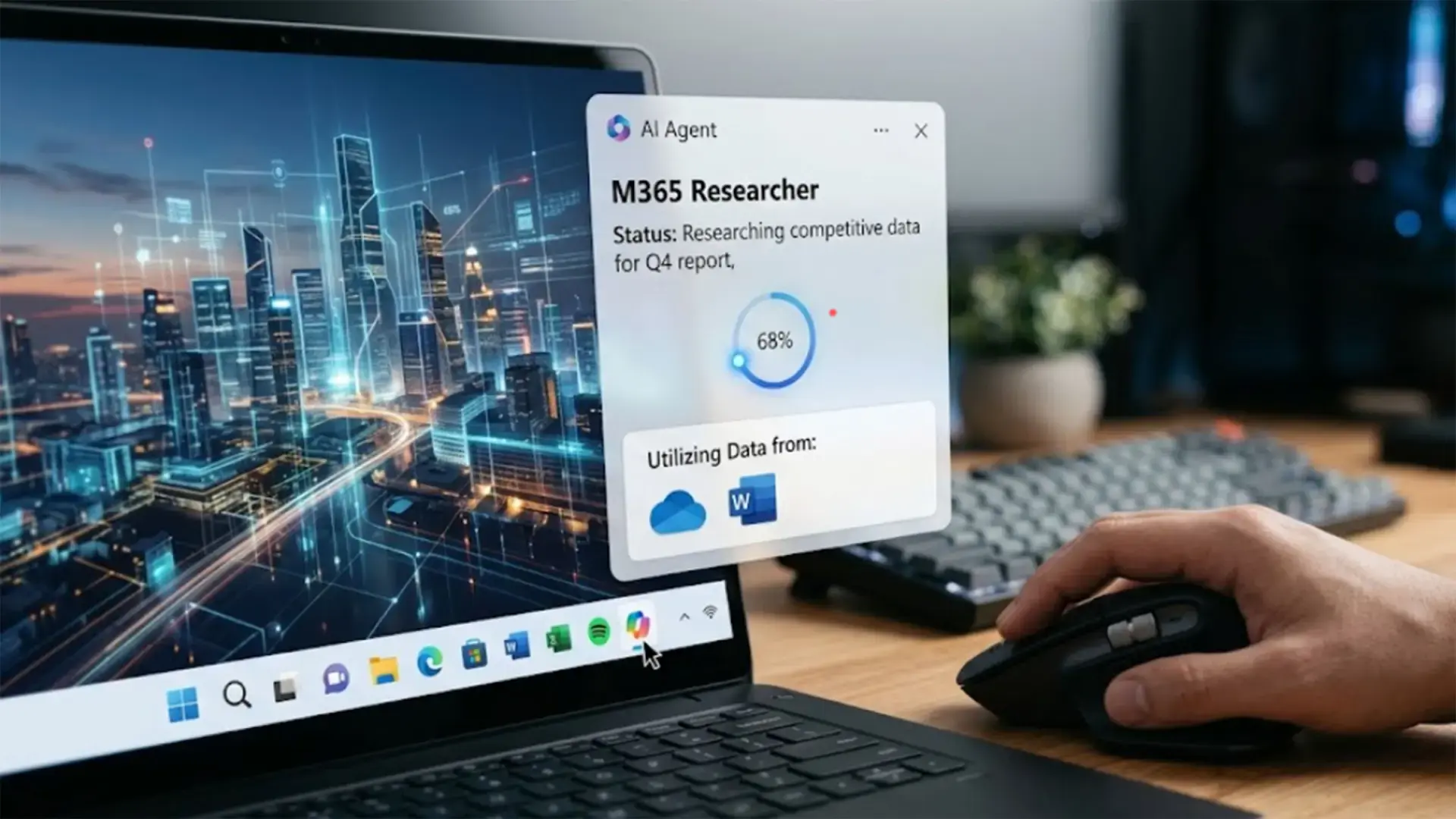
Microsoft has gone all out, transforming Windows 11 into an environment where artificial intelligence isn't just an add-on, but the core of the system. The biggest innovation is the arrival of an agentic experience , meaning we can now have assistants capable of reasoning and acting on their own, integrated directly into the taskbar so we don't have to keep switching between windows.
Unlike traditional chatbots that only spout text, these agents are designed to plan and execute real actions. Although this feature is not currently enabled by default and is optional, it is already being rolled out to members of the Insider program, specifically in build 26200.8313 and later, marking a paradigm shift in how we interact with our PCs.

Integrating AI Agents into the taskbar
To launch these assistants, the process is quite intuitive. Simply type the request or prompt into the Copilot search box and select the appropriate agent from the list. Once done, the agent sits in the taskbar like any other application, allowing you to monitor its activity simply by hovering your mouse over the Copilot icon.
One of the most interesting new features is "Ask Copilot ," which lets you call specific agents using the "@" symbol. This opens a menu with all the available options on the team, making it easy to choose the expert you need for each specific task. A practical example is Microsoft 365 Researcher , a tool that can analyze OneDrive data and generate detailed reports without requiring your intervention at every step.

To make all of this work, Microsoft has implemented the Model Context Protocol (MCP) . This protocol is the key component that allows agents to interact with other applications and system contexts, ensuring seamless communication and that the agent understands exactly where it is and what tools it can use to achieve its goals.
The Agent Workspace and File Management
If we delve into the realm of experimental features, specifically in build 26220.7262, we find the so-called Agent Workspace . This option, available in the AI Components section of Settings, essentially creates a separate Windows session. It's as if the agent has its own user account and desktop to operate in the background without disturbing the user.
The most striking aspect is that these agents don't remain in the cloud; they have access to critical local folders. We're talking about read and write permissions in directories like Desktop, Pictures, Videos, Music, and Downloads. This capability allows them, for example, to manage real files or organize our information autonomously, simulating the behavior of a human navigating the operating system.

To prevent the system from becoming chaotic, Microsoft has opted for a model similar to Windows Sandbox, albeit more flexible. The agents operate in an isolated execution environment , meaning their actions are restricted to certain rules and they cannot break the main system. This also allows multiple agents to work in parallel without interfering with each other.
System security and performance risks
It's not all good news, as delegating tasks to an AI that can write files to our hard drive opens the door to serious privacy problems . There's a possibility that malicious attackers could manipulate the user interface to trick the agent into performing unwanted actions or extracting sensitive personal data.
Furthermore, it's important to note that these processes aren't hardware-free. Running continuously in the background, AI agents consume a considerable amount of RAM and CPU power . This could cause noticeable performance drops on computers with more modest specifications, becoming a significant drawback if not managed properly.
The big question remains whether Microsoft will be able to convince the average user that this ecosystem is completely secure . Although the agents' activity is logged and they operate in protected environments, the idea of an AI having full access to our image or document folders still raises concerns among the more cautious.
Windows 11 is thus transformed into a platform where autonomous assistants take control of tedious tasks, integrating into the taskbar and operating in isolated spaces to balance efficiency with security, although the cost in resources and privacy remain the weak points of this evolution.


Passionate writer about the world of bytes and technology in general. I love sharing my knowledge through writing, and that's what I'll do on this blog, show you all the most interesting things about gadgets, software, hardware, tech trends, and more. My goal is to help you navigate the digital world in a simple and entertaining way.