- The stop 0x0000003B indicates an exception when running a system service in kernel mode.
- The most common causes are faulty controllers, memory or system corruption, and specific battery failures.
- WinDbg (.cxr, kb, !analyze) and Driver Verifier help identify the culprit driver.
- Hotfixes exist for specific cases (IEEE 1394 in Windows 7) and a range of practical solutions.
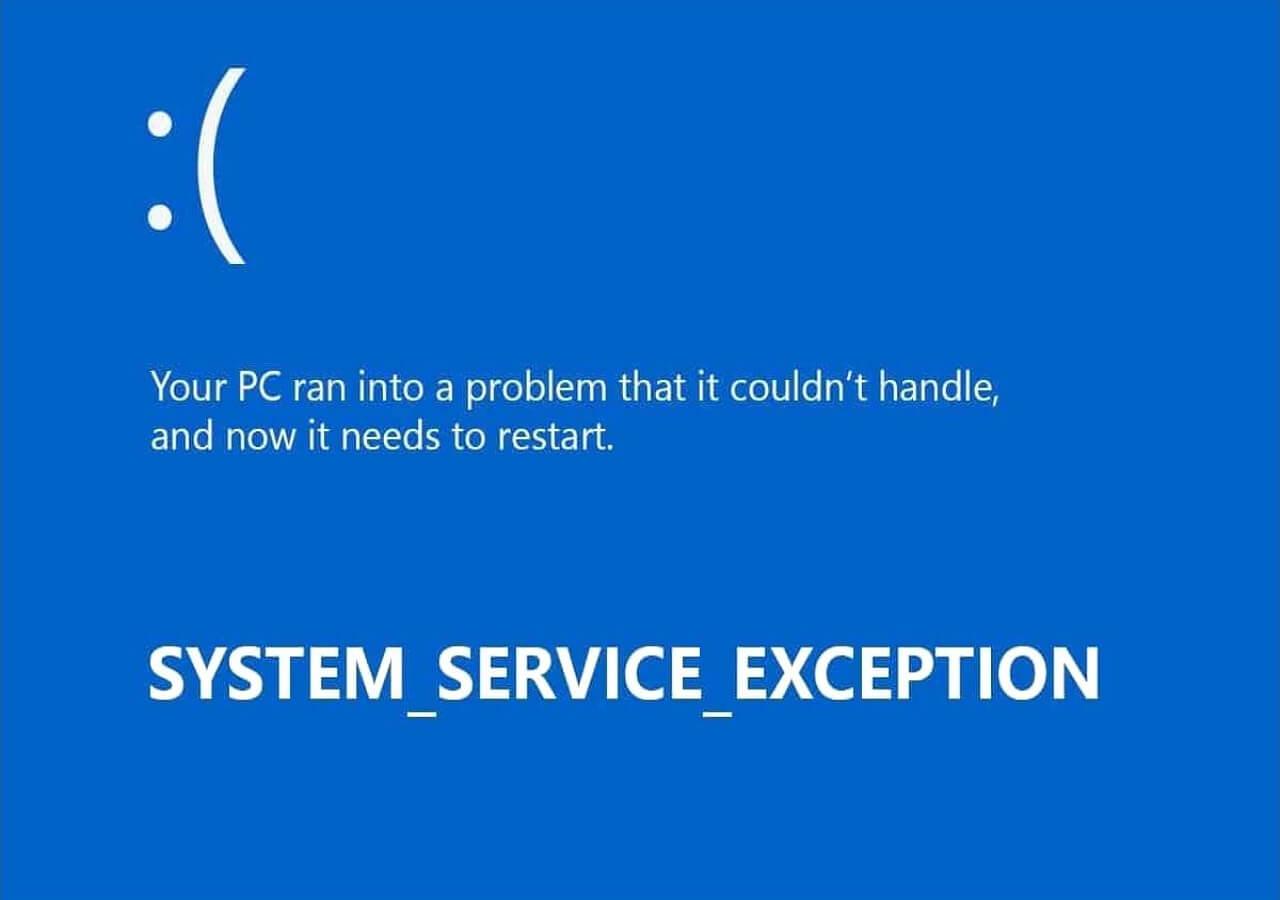
When Windows displays a blue screen with the message SYSTEM_SERVICE_EXCEPTION and the code 0x0000003B, it's warning that something serious has gone wrong when switching from user-mode code to kernel-mode code. This stop code appears when a system service routine throws an exception and the involved thread belongs to the system, not just a regular app.
If you've seen this error on your PC or server, you're not alone. It's a relatively common BSOD that can be caused by faulty drivers, memory or system corruption, incompatible utilities, or even specific bugs in certain driver stacks (such as IEEE 1394 in older versions of Windows). Below you'll find a complete guide with causes, symptoms, advanced diagnostics using WinDbg, a known case with an official hotfix, and practical solutions for both technicians and users.
What SYSTEM_SERVICE_EXCEPTION (0x0000003B) means
This bug check has a value of 0x0000003B and indicates that an exception occurred while a system service routine was running . In other words, something went wrong during the transition from user mode to kernel mode, and Windows is halting the machine to prevent further damage.
Exception codes are expressed in NTSTATUS format and are defined in ntstatus.h of the WDK. Two common codes associated with this stop are:
- 0x80000003 (STATUS_BREAKPOINT): A breakpoint/ASSERT was found without a connected kernel debugger.
- 0xC0000005 (STATUS_ACCESS_VIOLATION): memory access violation (invalid read/write/execution).
In practical terms, the issues usually involve NULL pointer dereferences, random addresses, or corrupted data structures , sometimes due to premature memory releases or drivers passing incorrect data to the kernel.
Parameters of bug check 0x0000003B
When you analyze the dump, you'll see four parameters. These are key to focusing your efforts when debugging:
| Parameter | Description |
|---|---|
| 1 | NTSTATUS exception code which triggered the bug check. |
| 2 | Direction of instruction that caused the bug check. |
| 3 | Context record address of the exception (CONTEXT). |
| 4 | 0 (unused). |
With this data, you can reconstruct the execution state. Parameter 1 will tell you exactly which NTSTATUS exception occurred , and parameter 3 allows you to load the context to view the logs and stack at the point of the crash.
common causes
In practice, this BSOD appears due to a combination of software and hardware issues. Typical causes include :
- Poorly written, outdated or corrupt drivers (graphics, storage(network, USB, etc.).
- Memory (RAM) corruption, NULL dereferences, or use of freed memory.
- Corrupted system files or inconsistent kernel configuration.
- Corrupted or manipulated Registry entries by malware/adware.
- Disk problems (bad sectors, file system errors).
- Specific driver stack cases (e.g., IEEE 1394 on Windows 7/Server 2008 R2).
It may also coincide with recent changes: installation of new software/hardware, driver updates , system updates, or overclocking adjustments.
Symptoms and behavior
Beyond the blue screen, it's common to see periodic freezes, general slowness, unexpected restarts, and random app closures . Sometimes the computer takes a long time to boot after the BSOD (apps like Discord launch very slowly), and quite often, the problem occurs while the PC appears to be idle.
In a case study described by a user, crashes occurred once a day with 4-5 day periods without issues , and were accompanied by Steam closing , Discord restarting, or Firefox tabs freezing. The machine was running Windows 11 24H2 with modern hardware ( Intel Core i7-14700K, RTX 4080, Z790 DDR5, NVMe SSDs), and the mini-dumps required review to isolate the true source. This type of pattern is consistent with drivers, third-party utilities, or intermittent memory corruption.
Advanced diagnostics with WinDbg
If you have access to symbols and are comfortable using WinDbg, you can get straight to the point. The basic sequence for 0x3B is usually :
- Usa ! analyze -v to obtain a summary of the bug check, suspected module, and stack.
- Load the context of parameter 3 with .cxr and then remove the battery with kb.
- Disassemble around parameter 2 instruction with u, ub, uu and observe memory access.
An example of (summarized) output might look like this; note how key arguments and addresses are listed :
SYSTEM_SERVICE_EXCEPTION (3b)
An exception happened while executing a system service routine.
Arguments:
Arg1: 00000000c0000005, Exception code
Arg2: fffff802328375b0, Faulting IP
Arg3: ffff9c0a746c2330, Context record
Arg4: 0000000000000000, Reserved
To identify the responsible driver, the kernel exposes KiBugCheckDriver . You can check it with dx:
dx KiBugCheckDriver
// Ejemplo de salida: "nvlddmkm.sys" (cadena UNICODE)
When arg1 is an NTSTATUS, !error translates the code for you:
!error 00000000c0000005
(NTSTATUS) 0xC0000005 - The instruction at 0x%p referenced memory at 0x%p.
Other useful commands during the session include: `lm tn` to enumerate modules, `!memusage` to view the global memory status, and `!pte` or ` !pool` to drill down into pages and pools. The STACK TEXT section provides clear clues about what code was running and how it got there.
Practical tip: If you suspect excessive paged pool consumption due to a crossover between user-mode and kernel drivers (historically common with graphics), enable Driver Verifier with pool rules to capture violations right at the point of failure.
Driver Verifier
Driver Verifier runs in real time to monitor driver behavior, proactively forcing exceptions when it detects improper memory usage, IRQLs, or synchronization . It's integrated into Windows and can be launched from a command prompt or PowerShell using `verifier`.
Basic steps: Choose Create a standard configuration , prompt it to select unsigned or newer drivers , and limit the list to suspected issues (graphics, storage, network). Avoid selecting absolutely everything to prevent excessive system performance. If Driver Verifier finds problems, the system will generate an immediate BSOD with more helpful information.
Support for analysis and memory
If you need to delve deeper into the Windows memory subsystem, Windows Internals (7th Edition, Part 1) is an excellent resource for understanding how and where to look. In WinDbg, remember to use !memusage for a general overview, and then refine with !pte and !pool when the fault points to corruption in paging or pools.
Known case: BSOD with IEEE 1394 in Windows 7/Server 2008 R2
There is a documented issue in Microsoft where computers running Windows 7 or Windows Server 2008 R2 would crash when using certain IEEE 1394 devices , displaying a "Stop" message. The cause was a bug in Microsoft's IEEE 1394 driver stack: the allocated buffer was not being initialized correctly.
Microsoft released a specific hotfix for this issue. Official recommendations: apply it only if you are experiencing this exact error, as it may include additional checks . If the download does not appear, you should contact Microsoft Support. A restart is required after installation, and it does not replace any previous hotfixes.
Details of key files included (representative selection): 1394bus.sys, 1394ohci.sys, ohci1394.sys . For reference, these were some versions/dates per platform:
- x86 (Windows 7): 1394bus.sys 6.1.7600.16385 (~54 KB, 13-Jul-2009), 1394ohci.sys 6.1.7600.20649 (~164 KB, 20-Feb-2010), ohci1394.sys 6.1.7600.16385 (~62 KB, 13-Jul-2009).
- x64 (Windows 7 / Server 2008 R2): 1394bus.sys 6.1.7600.16385 (~68 KB, 14-Jul-2009), 1394ohci.sys 6.1.7600.20649 (~228 KB, 20-Feb-2010), ohci1394.sys 6.1.7600.16385 (~72 KB, 14-Jul-2009).
- IA-64 (Server 2008 R2): 1394bus.sys 6.1.7600.16385 (~182 KB, 14-Jul-2009), 1394ohci.sys 6.1.7600.20649 (~509 KB, 20-Feb-2010), ohci1394.sys 6.1.7600.16385 (~172 KB, 14-Jul-2009).
In addition, architecture-specific manifests and MUM packages were distributed (for example, X86_1394.inf_…_6.1.7600.20649…, AMD64_1394.inf_… and IA64_1394.inf_…), along with their corresponding catalog signatures (.cat). There were no prerequisites for installation beyond a subsequent reboot, and Microsoft confirmed the issue in the specified products.
Practical solutions (from most common to most technical)
You can still make a lot of progress without access to WinDbg. Start with the basics and work your way up if the problem persists:
1) Check for recent software and drivers
If the problem started after installing something, uninstall that software or revert to the previous driver. In Device Manager , check for devices with an exclamation mark , and review their properties for any events or errors. Try updating or rolling back drivers (graphics, storage, network, USB, monitors), and if the problem started after an update, use the "Roll Back Driver" option when available.
2) Check for malware
Run a full scan with your antivirus software or Microsoft's solution. Quick scans can leave traces ; a full scan is best to clean registry entries and binaries altered by malware/adware.
3) Repair system files
Open a command prompt as administrator and first run `sfc /scannow` . When it finishes, run `DISM /Online /Cleanup-Image /RestoreHealth` . SFC repairs from the local cache , and DISM fine-tunes the system image to correct deeper inconsistencies.
4) Verify the disk and file system
Open Command Prompt as administrator and run chkdsk /f (or chkdsk c: /r from recovery mode). If it finds bad sectors , it will mark them as unusable; this can prevent the kernel from crashing when loading corrupted drivers or DLLs.
5) Test the RAM
Start the Memory Diagnostic tool with mdsched.exe and select Restart and Check. If it reports errors, consider replacing the faulty module or lowering XMP/overclocking . If you're using DDR5 at custom frequencies, try the factory JEDEC settings.
6) Clean boot
Using msconfig , hide Microsoft services and disable all others; in Task Manager , disable the startup of apps. This isolates third-party software (antivirus, RGB utilities, overlays, etc.) that might attach to the kernel.
7) Update BIOS and chipset
Download the latest BIOS/UEFI and chipset drivers from your motherboard manufacturer's support website . Improvements to microcode, power management, and memory/PCIe compatibility reduce BSODs related to timings and ACPI.
8) Disable overclocking or reset UEFI
Revert to default values for CPU, GPU, and RAM. Aggressive timings or low voltages often result in memory corruption that is very difficult to trace. Save and test for stability at stock settings.
9) System Restore
If the problem started recently, run rstrui.exe and restore to a previous point. It's a quick way to undo changes to drivers/registry without reinstalling.
10) Startup and BCD repairs (when it does not start)
From the Recovery Environment: Startup Repair . If that's not enough, open Command Prompt and run bootrec /fixmbr and bootrec /fixboot . This is useful when the BSOD is accompanied by startup problems or installation interruptions.
11) Optional: Temporarily disable Secure Boot
In some specific scenarios, disabling Secure Boot in UEFI allows you to boot with alternative drivers to isolate the conflict. Remember to re-enable it when you finish testing.
12) Reinstalling Windows (last resort)
If nothing else works, a clean install will remove persistent corruption and problematic drivers. Back up your data first, as it will be erased. If the installer also displays a BSOD toward the end, try a different USB ISO , a different M.2 drive, and the default BIOS .
Recover data if you can't start
Data loss after a 0x0000003B error is relatively common, especially if the system enters crash loops. Before reinstalling, consider extracting files using bootable recovery media .
Tools like Recoverit allow you to create a bootable USB drive from another PC, boot the affected machine, and copy documents, photos, and videos to a safe location. The typical workflow is to create the USB drive, boot from it, and select the drive to scan for recovery data.
Another option is EaseUS Data Recovery Wizard WinPE , which offers booting without touching the installation media and safe mode for damaged system disks . Its advantages include not overwriting data, file preview, and not requiring a Windows reinstallation to begin recovery. If your computer frequently freezes or restarts , booting from its recovery media will allow you to extract critical data.
Additional troubleshooting tips
In addition to the above, it's worth reviewing some basics. In the Event Viewer (System Log) , look for critical errors in the same window as the blue screen; these usually point to services or drivers. If you recently added hardware, try removing it or contacting the manufacturer for signed updates. In Device Manager , any exclamation mark is a clue. And when you identify a driver in the blue screen, make a note of the exact .sys filename.
SYSTEM_SERVICE_EXCEPTION (0x0000003B) indicates a critical exception during kernel transition. With WinDbg, the parameters from the bug check, !analyze, .cxr, and kb are usually sufficient to pinpoint the failure; otherwise, Driver Verifier will help identify the culprit driver. For known cases like IEEE 1394 in Windows 7/2008 R2, Microsoft provides hotfixes with specific file versions . For other issues, a step-by-step approach—drivers, SFC/DISM, disk, RAM, BIOS/UEFI, clean boot, and, if necessary, reinstallation—restores stability, and it's always possible to back up your data with recovery media before taking drastic measures.

Passionate writer about the world of bytes and technology in general. I love sharing my knowledge through writing, and that's what I'll do on this blog, show you all the most interesting things about gadgets, software, hardware, tech trends, and more. My goal is to help you navigate the digital world in a simple and entertaining way.