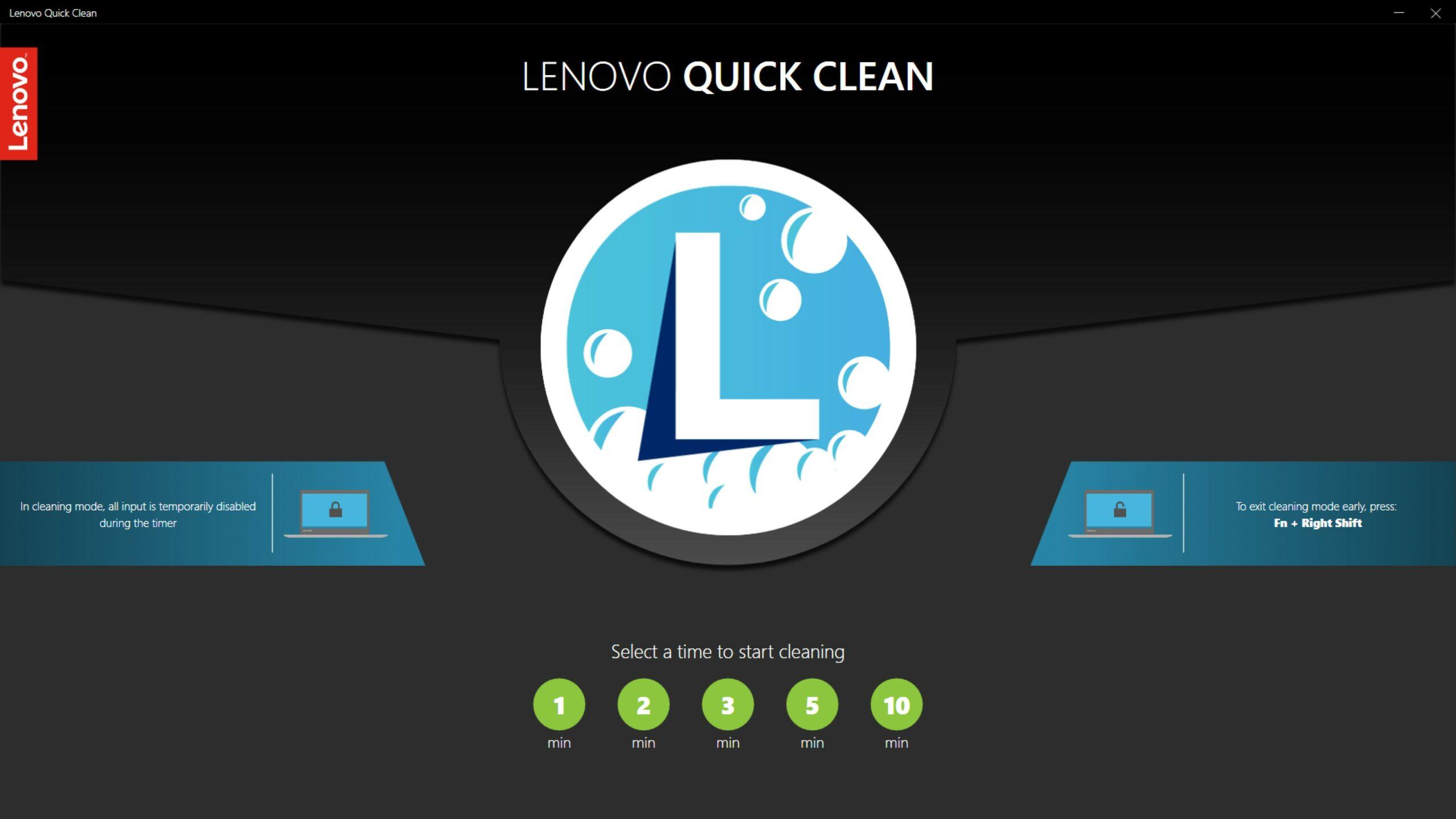
- Lenovo Quick Clean temporarily locks the keyboard and touchpad to facilitate physical cleaning of the device without accidental presses.
- On some modern ThinkPads, it no longer appears as a standalone app and is activated via keyboard shortcuts integrated into the system.
- The feature may cause conflicts with Filter Keys and other accessibility options if it is accidentally enabled in Windows 10 or 11.
- Review Windows accessibility, Lenovo Vantage, drivers and the software environment helps to minimize inconveniences and potential conflicts.
When working with a modern Lenovo laptop, such as a latest-generation ThinkPad X1 Extreme, you may encounter features designed for facilitate the physical maintenance of the equipmentOne of the most striking features in professional environments is Lenovo Quick Clean, integrated into many models designed for healthcare, education, or shared use. However, in everyday use, minor headaches can also arise, such as overly sensitive keyboard shortcuts or conflicts with accessibility features. Windows 11.
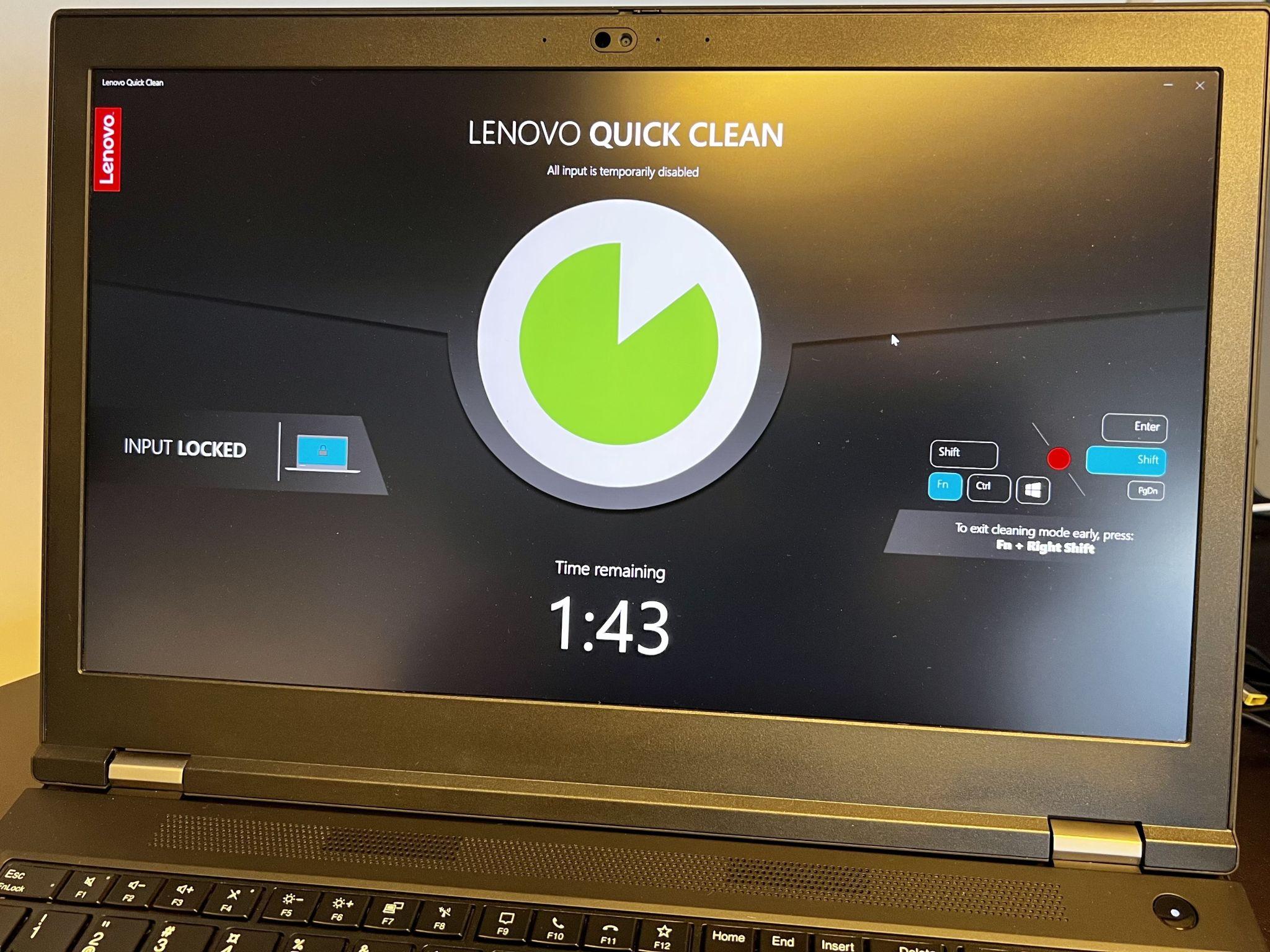
In some models, Quick Clean is activated with a combination such as Fn + right shift keyThis is theoretically practical for locking the keyboard and touchpad while cleaning the surface, but if the shortcut is too easy to press accidentally, it ends up being a constant nuisance. To make matters worse, some users have noticed that every time Quick Clean is launched, the feature also triggers. Windows filter keyswhich adds more confusion because it changes the way the keyboard responds.
What is Lenovo Quick Clean and what is it used for?
Lenovo Quick Clean is a feature designed to allow you to Disinfect and clean the keyboard and palm rest area without registering accidental keystrokes. It is especially designed for equipment used in hospitals, clinics, classrooms, or environments where several people handle the same laptop or convertible throughout the day.
In its early versions, Quick Clean was distributed as a standalone application for WindowsYou could open it from the Start menu, start a timer, and during those seconds, the system would ignore input from the keyboard, touchpad, and even, in some models, the screen. touch screenIn Windows 10 and Windows 11 the same concept still exists, but in certain modern ThinkPads Lenovo has integrated the function more deeply into the firmware or utility package, so you no longer see it as a traditional app.
In the context of Windows 11, what Quick Clean basically does is intercept the input from certain input devices for a limited time. It doesn't uninstall anything or touch system files. It simply locks the keyboard and mouse so you can wipe down your computer with isopropyl alcohol or a disinfectant cloth without pop-ups, file deletions, or unexpected shortcuts.
The idea is good, especially now that more attention is being paid to the hygiene and disinfection of surfacesHowever, the problem arises when the manufacturer decides to assign a shortcut that's too easy to press accidentally, such as Fn + Right Shift. This causes the cleaning mode to activate unintentionally when adjusting the keyboard or typing with any force.
It should be noted that many portable Lenovo combines Quick Clean with other software layers such as Lenovo Vantage, keyboard specific drivers and resident services that load when Windows starts. All of this is reflected in the lists of installed programs and loaded modules that you can see in advanced diagnostic tools, and it's part of the ecosystem of pre-installed utilities for managing hardware Lenovo.
How Quick Clean works internally in Windows 11
Under Windows 11, Lenovo Quick Clean acts as a sort of intermediary between the input hardware and the operating systemWhen cleaning mode is initiated, the software, or in some cases the device's firmware, sends a command to the keyboard and touchpad controller to ignore keystrokes for a preset period of time.
In models where Quick Clean was a classic app, it was managed through a visible executable file with a configurable timer and a fairly simple interface. On newer devices, Quick Clean may only be documented in the ThinkPad manual or on the Lenovo support page, and may be managed exclusively through [the appropriate app/tool]. keyboard shortcuts or an option in Lenovo VantageThis aligns with the changes Lenovo has been introducing to its tools for Windows 10 and Windows 11.
During the period that Quick Clean is active, the system maintains its session open normally: No programs are closed and the equipment is not suspendedSimply put, no keyboard or mouse input is registered from the affected devices. This allows background processes to continue running, maintains an internet connection, and even allows security updates to download while you are physically cleaning the laptop.
Another interesting consequence is that, being an additional layer, Quick Clean can interact indirectly with other Windows accessibility featuresSometimes, when certain key combinations are sent or blocked, Windows interprets that the user wants to activate options such as Sticky Keys or Filter Keys, resulting in the typical dialog box asking if you want to activate that feature.
When this happens repeatedly, it becomes a considerable annoyance. Some users have noticed that every time Quick Clean is triggered, the system also launches the accessibility pop-ups of Windows 10 or 11, and in certain cases these functions end up being permanently activated, which alters the usual behavior of the keyboard (for example, changing the key repeat or ignoring rapid keystrokes).
Common problems: accidental activation and filter keys
One of the most frustrating behaviors is that the shortcut assigned to Quick Clean is Too easy to press accidentallyIn the example of the ThinkPad X1 Extreme G4, the Fn + Right Shift combination can be activated while typing, organizing the device, or even when picking it up by a corner. As a result, the keyboard seems to suddenly become unresponsive for a few seconds.
When this happens, many users also find that Windows displays the typical accessibility message regarding the Filter KeysThis feature is designed to help people with motor difficulties by ignoring repeated or excessively rapid keystrokes. The problem is that if it's accidentally activated, the keyboard stops behaving normally: the keys respond with a delay, some combinations seem not to work, and certain long keystrokes are interpreted differently.
In some systems, this scenario is further complicated by other pre-installed software layers: specific keyboard drivers, utilities from manufacturers like AMD, maintenance tools such as Glary Utilities, CCleaner or Driver Easy, and even browser extensions in Chrome and Firefox. All of this is reflected in technical reports such as those generated by Farbar Recovery Scan Tool (FRST), which show an exhaustive list of loaded programs and modules, including entries associated with Lenovo hardware such as the "Lenovo Blacksilk". USB Keyboard Driver.
These reports can also reveal potential conflicts with Windows services such as Volume Snapshot Service (VSS)SideBySide errors related to common control libraries or code integrity warnings. Although these problems are not directly related to Quick Clean, they reveal a system environment overloaded with programs, drivers, and components that can influence the overall behavior of the computer.
In equipment with various safety and maintenance tools, such as Windows DefenderMalwarebytes, adwcleaner, or older software activators may show the event log. detections of malware, security signature update errors and service lockouts. All of this can make it more difficult to diagnose why a shortcut like Quick Clean triggers unwanted effects, as accessibility symptoms, Lenovo OEM features, and system alerts all come into play.
Relationship between Quick Clean and the team's software environment
When reviewing system reports in detail, it is common to find a very long list of installed programs and UWP packages (Microsoft Store applications) that coexist with Lenovo utilities. Typical examples include Realtek audio drivers, AMD Radeon Settings graphics suites, Microsoft Officebrowsers like Chrome and Firefox, and a good number of games and apps pre-installed such as Microsoft Solitaire Collection, MSN Weather or advanced calculators.
In such a context, Lenovo Quick Clean is just one more piece, but it has the peculiarity of interacting directly with the user input layerWhile other tools like Glary Utilities or CCleaner focus on cleaning Temporary files, registry entries or startup processes, Quick Clean fully affects how the user communicates with the computer when keyboard lock mode is active.
Technical reports also contain entries relating to Manager Bootfirewall services, application rules and additional drivers that may or may not be signed. In some cases, integrity warnings are described for files such as GUBootStartup.sys, associated with boot functions of certain maintenance suites. Although not directly related to Quick Clean, they do show how a system can become significantly modified compared to the original clean installation.
The coexistence of so many different layers (manufacturer drivers, Lenovo OEM utilities, third-party software, and standard Windows 11 features) increases the chances of problems arising subtle conflictssuch as the activation of accessibility features when keyboard signals are blocked or modified. Therefore, when diagnosing problems arising from Quick Clean, it's important to consider not only the function itself, but also the entire computer environment.
Furthermore, if tools such as Farbar Recovery Scan Tool are used, a detailed list of user accounts, firewall rules, scheduled tasks, restore points, application errors and other advanced data. This information is very useful for technicians and advanced users who need to understand why a Lenovo laptop behaves in a specific way after pressing a particular key combination.
How to manage Lenovo Quick Clean and minimize hassles
Although Lenovo's documentation for Quick Clean focuses primarily on use in corporate and healthcare environments, in practice many home users prefer reduce the impact of this function or adjust its behaviorIdeally, you should first check how Quick Clean is presented in your specific model: as a standalone app, as a Lenovo Vantage option, or only through a shortcut documented in the user manual.
In models where there was a proprietary executable, it could be uninstalled or, at least, prevent it from loading when Windows starts modifying the startup entries in the Task Manager or in maintenance tools. On newer ThinkPads, where Quick Clean is more integrated at a low level, there isn't always an obvious option to disable the feature, but there may be settings in the BIOS/UEFI or Lenovo Vantage that allow you to modify shortcuts or disable special keyboard features.
On the Windows 11 side, a practical way to minimize the Filter Keys problem is to review the accessibility settings. In the Keyboard section of Settings, you can disable them. shortcuts that activate Special Keys, Filter Keys, or Persistent KeysIn this way, even if Quick Clean or some other combination generates a strange sequence of keystrokes, the system should not open accessibility dialog boxes or activate these functions without clear confirmation from the user.
It is also advisable to keep up to date Windows updates, Lenovo drivers and the device's firmwareManufacturers typically correct problematic keyboard shortcut behavior or operating system integrations over time. Sometimes, a simple update to the Lenovo utility suite or keyboard driver can change how Quick Clean is handled or even alter the associated shortcut.
If the problem persists and is very intrusive, some users choose to review advanced keystroke and event logging tools to identify exactly which key sequence is sent when Quick Clean is activated, and adjust the settings accordingly. However, these types of solutions are geared towards more technical users, as they involve analysis. event logs, group policies or even modify parameters in the Windows registry, something that should be done with caution.


Passionate writer about the world of bytes and technology in general. I love sharing my knowledge through writing, and that's what I'll do on this blog, show you all the most interesting things about gadgets, software, hardware, tech trends, and more. My goal is to help you navigate the digital world in a simple and entertaining way.