- Updating macOS regularly improves the security, performance, and stability of your system. Mac.
- Before installing a new version, it is key to back up your data, free up space, and check compatibility.
- The “Software Update” panel centralizes system updates and allows them to be activated automatically.
- There are specific solutions when the download fails, the installation gets stuck, or compatibility errors appear.
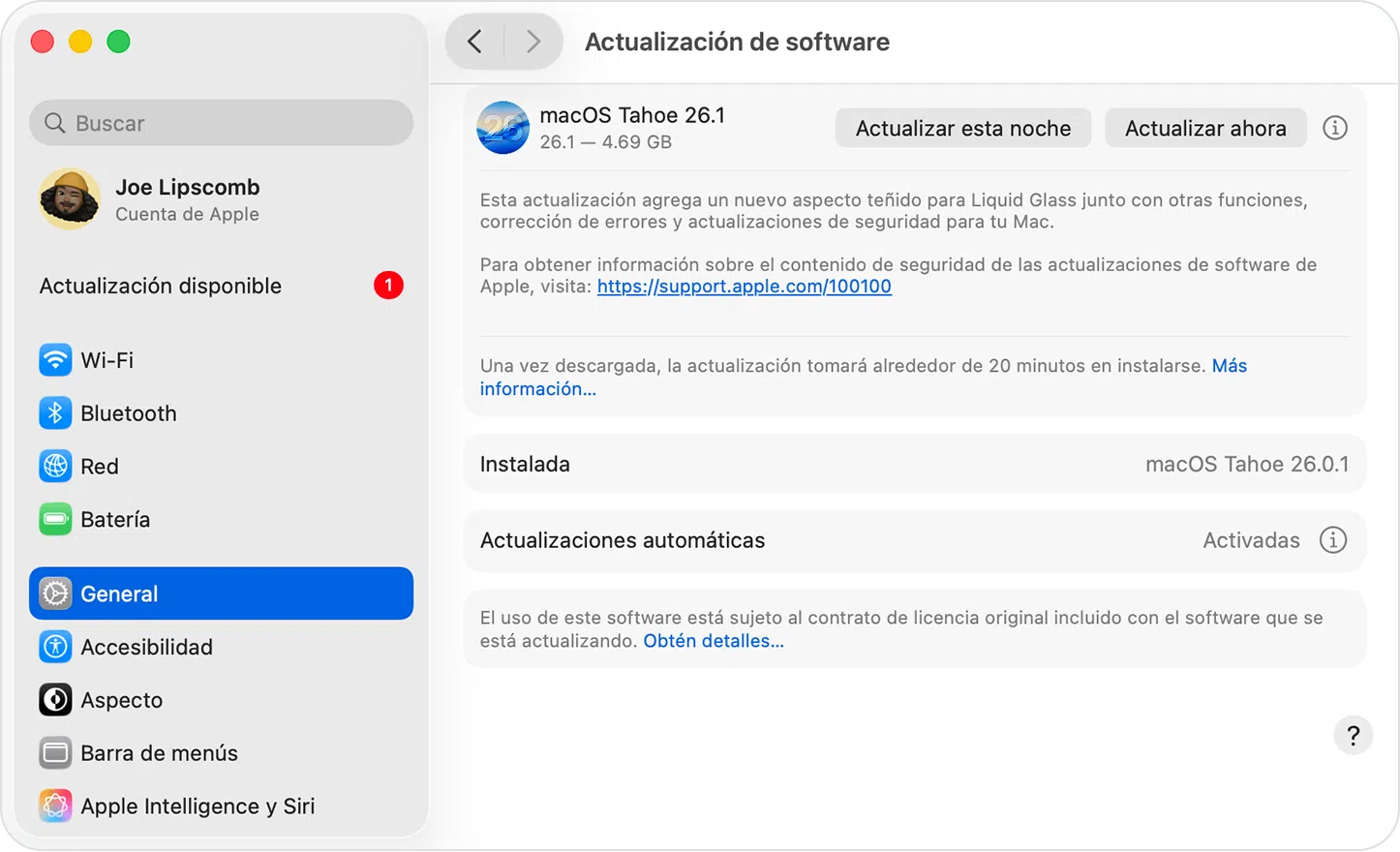
Keeping your Mac up to date with the latest version of macOS isn't just about having new features and a prettier interface; it's primarily about security, stability, and performance. Each update fixes bugs, patches vulnerabilities, and polishes details that, in the long run, make a real difference in your daily experience.
The good news is that updating macOS these days is a highly automated and fairly straightforward process : you can let the system handle almost everything or take control and manually review each update. In this comprehensive guide, you'll see, step by step, how to update to a new version of macOS, how to prepare beforehand, what to do if something gets stuck along the way, and how to check if your Mac is compatible with the latest system.
Why macOS is worth updating regularly
Regularly updating macOS is practically essential if you want a secure and running Mac . Each new version of the system includes security patches, internal changes that improve energy efficiency, and fixes for software bugs that can cause crashes, unexpected shutdowns, or other unusual behavior.
In addition to security, updates bring new features : revamped lock screens, more customization options, improvements to Safari, changes to Photos, Mail, and Messages… If you haven't updated in two or three years, you're probably missing out on many of these new features even if your Mac is fully compatible.
Ignoring updates for too long can leave your Mac exposed to publicly known vulnerabilities that attackers exploit. It can also cause modern applications to become incompatible with your version of macOS, forcing you to stick with older versions of essential programs for work or study.
Another point to consider is that Apple releases major macOS updates once a year , and in between, it releases minor versions (point updates) that fix bugs and improve performance. While these minor updates don't radically change the system, they are often very important for stability.
Keeping your system and apps up to date also helps everything integrate better : features like Continuity, Handoff, AirDrop, or improvements between iPhone , iPad , and Mac usually require relatively recent versions to work at 100%.
How to tell if your Mac can install the latest version of macOS
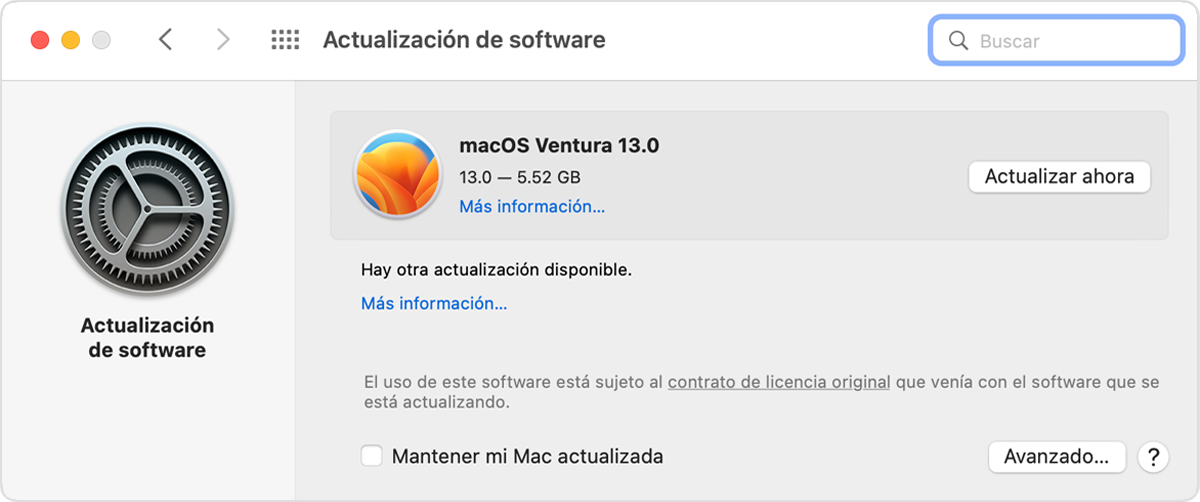
Before you rush to update to a new version of macOS, the first thing to do is check if your Mac is supported . Apple only offers the latest versions of the system for relatively recent computers; older models eventually become stuck on a higher version.
To check compatibility, you have two options : first, see what exact Mac model you have, and second, check on the Apple website if that model appears among the computers compatible with the version of macOS you want to install.
To see which Mac you have, click the Apple menu > “About This Mac” . This window displays the model name (for example, “MacBook Pro (13-inch, 2017, two Thunderbolt 3 ports)”), the processor, and the current version of macOS. With this model information, you can search the official compatibility list on Apple's support website.
If your Mac isn't listed as compatible with the latest version of macOS , you'll have to stick with the most recent version that is supported for your computer. In many cases, this happens with computers released before 2017, which are gradually being phased out to avoid performance or driver issues.
A typical example is users on macOS High Sierra 10.13.6 with 2017 or earlier models who, when clicking on "Software Update," are redirected to the App Store and see nothing new. If your model is compatible with later versions (for example, macOS Monterey, Ventura, Sonoma, or Sequoia), you should be able to find them in the updates section or on the dedicated macOS page in the App Store or on Apple's website; if they don't appear, your model is likely no longer supported by those recent versions.
Essential preparations before updating macOS
Updating macOS is usually a simple process, but it's a good idea to make a few basic preparations to minimize risks and avoid unpleasant surprises in the middle of the installation.
The first and most important thing is to have a recent backup . The easiest way is to use Time Machine, the backup system built into macOS, which creates automatic backups and allows you to recover individual files or restore your entire system if something goes wrong.
To create a backup with Time Machine, connect a compatible external drive , go to System Settings > General > Time Machine, click "Select Backup Disk," and choose the drive. From there, Time Machine will automatically begin backing up your Mac, without you having to worry about it.
It's also advisable to ensure you have enough free disk space, for example by clearing the cache and temporary files . Recent versions of macOS (such as Sonoma or Sequoia) can easily require 20 GB or more of space to download and install the update without any issues. A good goal is to keep at least 15% of your total storage free to allow the system to operate smoothly.
Another essential detail is to keep your Mac plugged in during installation , especially if it's a laptop. Installing a large macOS version with a low battery or during a thunderstorm is not a good idea, because if the computer shuts down mid-process, you could corrupt the installation.
Before upgrading, it also helps to run Disk Utility (Applications > Utilities > Disk Utility) and perform "First Aid" on the main disk. This checks the volume structure and corrects minor errors that could cause problems during the installation process.
Finally, close any applications you don't need and save all open documents . Closing programs frees up resources and prevents conflicts while the installer is running, and saving files prevents you from losing changes if the system needs to restart.
How to update macOS from System Settings
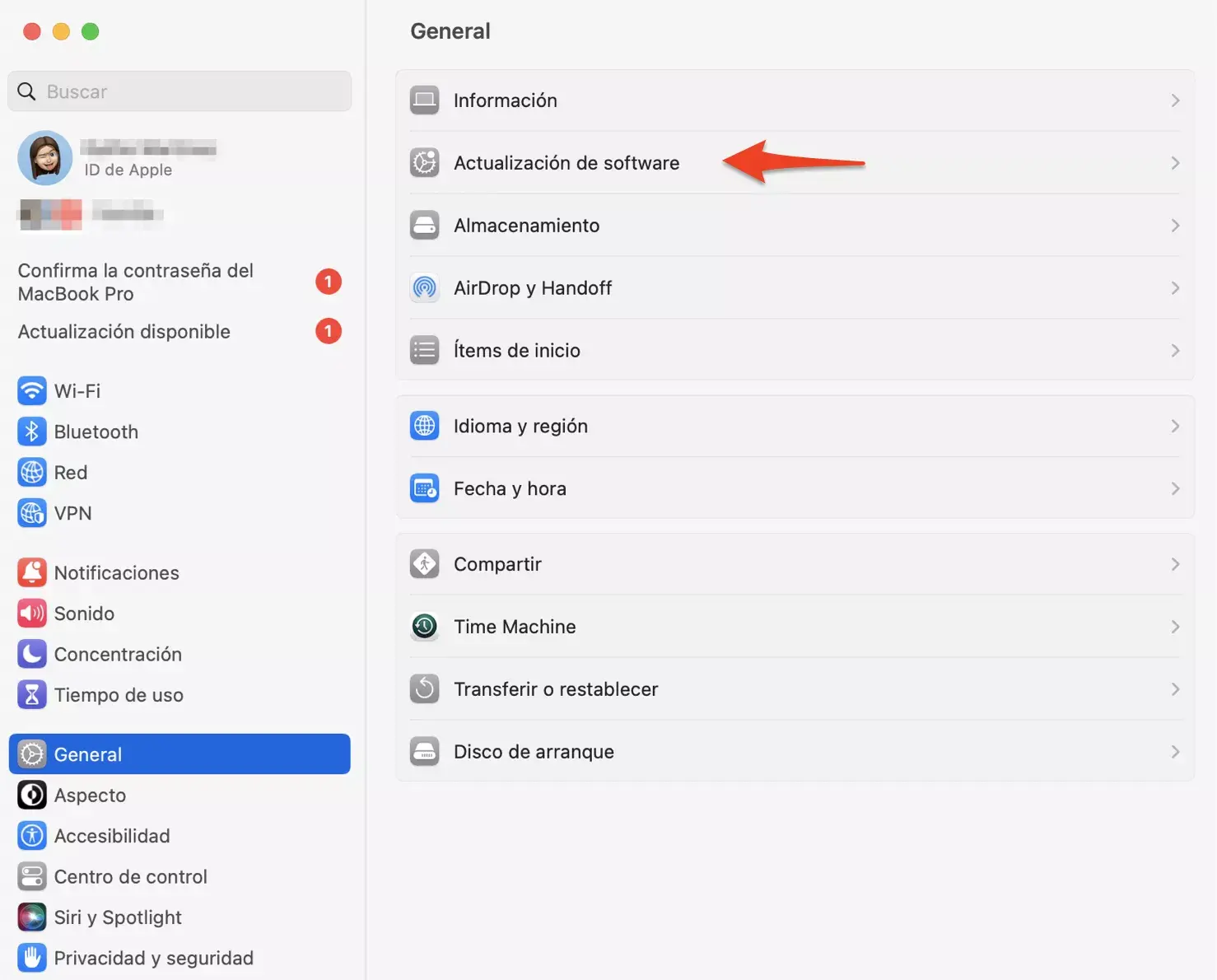
In modern versions, such as macOS Sequoia and its immediate predecessors, the command center for updating is the "Software Update" panel , which you'll find in System Settings.
To open it, you have several options : you can use Spotlight (the magnifying glass icon in the menu bar), type “Software Update” and press Enter on the result; or manually go to Apple menu > System Settings > General > Software Update.
As soon as this panel opens, your Mac automatically checks for available updates . If an update is ready for your model, you'll see version information and one or more buttons such as "Update," "Upgrade," or "Restart Now," depending on whether the download is already complete or if it's a major version.
If there are no pending updates, the system will display a message such as “Your Mac is up to date .” If you want to force a check again, you can click the “Check for Updates” button, use the shortcut Command + R, or close and reopen the Software Update panel.
When you start the installation, the system will ask for your administrator password , which is the password you use to log in to your user account. Without this password, you will not be able to authorize the update.
During the installation, do not put your Mac to sleep or close the lid . It's normal for the computer to restart several times, display a progress bar, and sometimes a blank or black screen for a few minutes. This is all part of the normal process.
Update macOS from previous versions: System Preferences and App Store

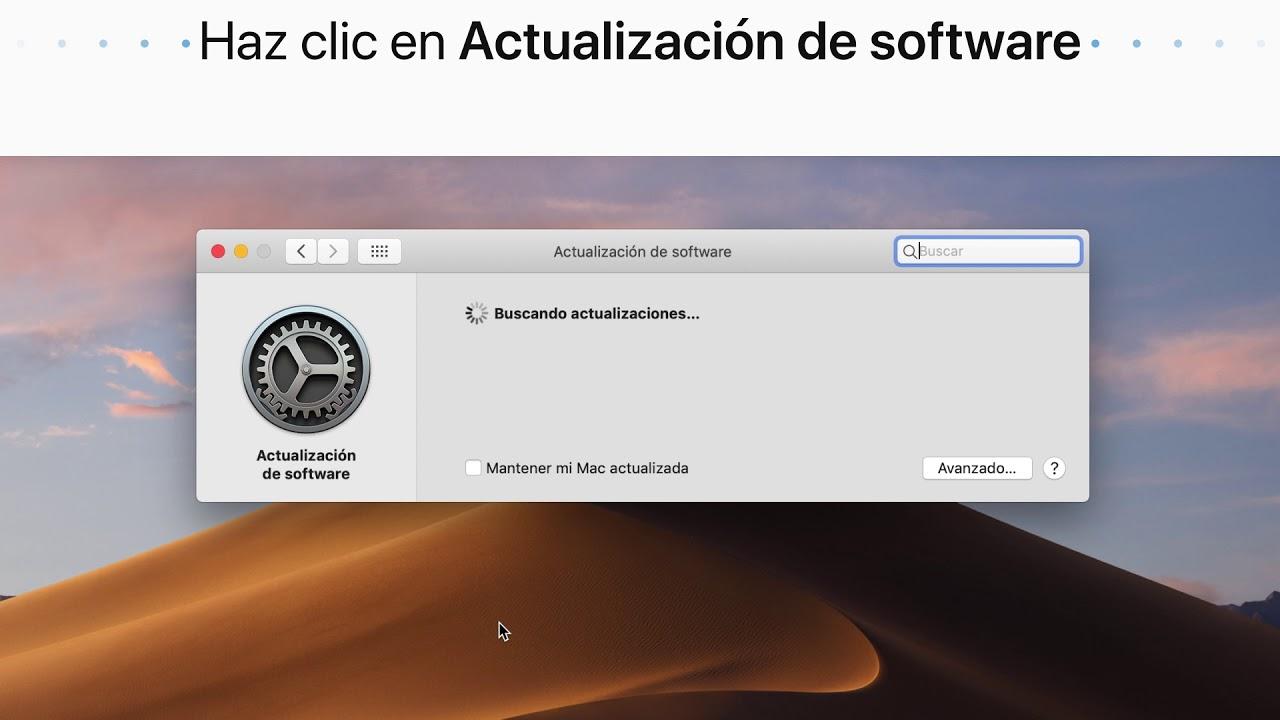
If you're using an older macOS, such as Monterey or earlier versions with the classic panel, the path changes slightly . Instead of System Settings, you'll find "System Preferences."
On those systems, to update go to Apple menu > System Preferences > Software Update . From that panel, the process is very similar: the system checks for new versions, shows you the available ones, and offers buttons to download and install.
In older versions, the system may take you directly to the App Store when you click "Software Update" in "About This Mac." In that case, you'll need to go to the "Updates" tab in the App Store or search directly for the macOS version you want to install.
When the update is downloaded from the App Store, the installer is usually located in the Applications folder with a name like “Install macOS Sonoma” or “Install macOS Sequoia.” Opening it will guide you through the installation wizard just like any other program.
It's important not to delete the installer until you've finished updating and verified that everything is working correctly . If something goes wrong and you need to repeat the process, you'll save yourself from having to download several gigabytes of data again.
Activate and manage automatic updates on your Mac
If you don't want to manually check for each new version, you can enable automatic updates . This way, macOS will search for, download, and install many of them in the background.
To enable automatic updates, go to System Settings > General > Software Update and make sure the “Automatic updates” option is checked. There you can choose whether you want it to only download updates, or also install security updates, app updates from the App Store, etc.
When enabled, your Mac typically checks for new versions periodically and installs them when you're not using your computer , usually overnight. However, major macOS updates can take a few weeks to arrive via this automatic system, as Apple usually rolls them out gradually to ensure there are no serious bugs.
If you prefer to have more control, you can leave only security and app updates active , and reserve major system updates to do manually at a time that suits you best.
Whichever method you choose, remember that the key remains having a recent backup . Automations are very convenient, but they don't replace a good backup of your important data.


Passionate writer about the world of bytes and technology in general. I love sharing my knowledge through writing, and that's what I'll do on this blog, show you all the most interesting things about gadgets, software, hardware, tech trends, and more. My goal is to help you navigate the digital world in a simple and entertaining way.