- The cache speeds up macOS, but excessive cache buildup consumes space and can slow it down.
- Key paths: ~/Library/Caches and /Library/Caches; deletes files, not folders.
- Quick fixes: Clear your browser cache and use reliable cleaning tools.
- Regular maintenance: update, manage storage and check downloads/duplicates.
If your Mac has become sluggish and storage is running low, there's a common suspect: cache and temporary files . With daily use, macOS and your apps store tons of data to speed up processes, but that speed sometimes comes at a price in the form of gigabytes of storage.
The good news is that you can reclaim space and improve performance in a few simple steps. This guide will tell you how, when, and why, with manual and automatic methods , tips for Safari, Chrome, and Firefox, basic maintenance, and warnings to avoid deleting anything critical.
What are temporary files and cache in macOS?
macOS uses several types of temporary data: those created by apps, system files, and browser files. All of these are designed to speed up content loading, reduce repeated downloads , or leave a useful "snapshot" of a document.
Among the most common examples are browser cookies (small texts that save preferences and session), application caches (images, scripts, catalogs, intermediate databases ), old system logs , and intermediate versions of documents that make it easy to go back at a given time.
It's worth remembering that some of these caches help things run more smoothly, so deleting them indiscriminately isn't always a good idea. However, when they accumulate excessively, they can cause slowdowns, errors , and unnecessary disk space consumption.
Cached files regenerate automatically if the system or an app needs them. Therefore, clearing your browser cache is usually harmless and even recommended; however, you should be more cautious with system and user caches to avoid affecting anything essential.
Where are and how to access the cache folders?
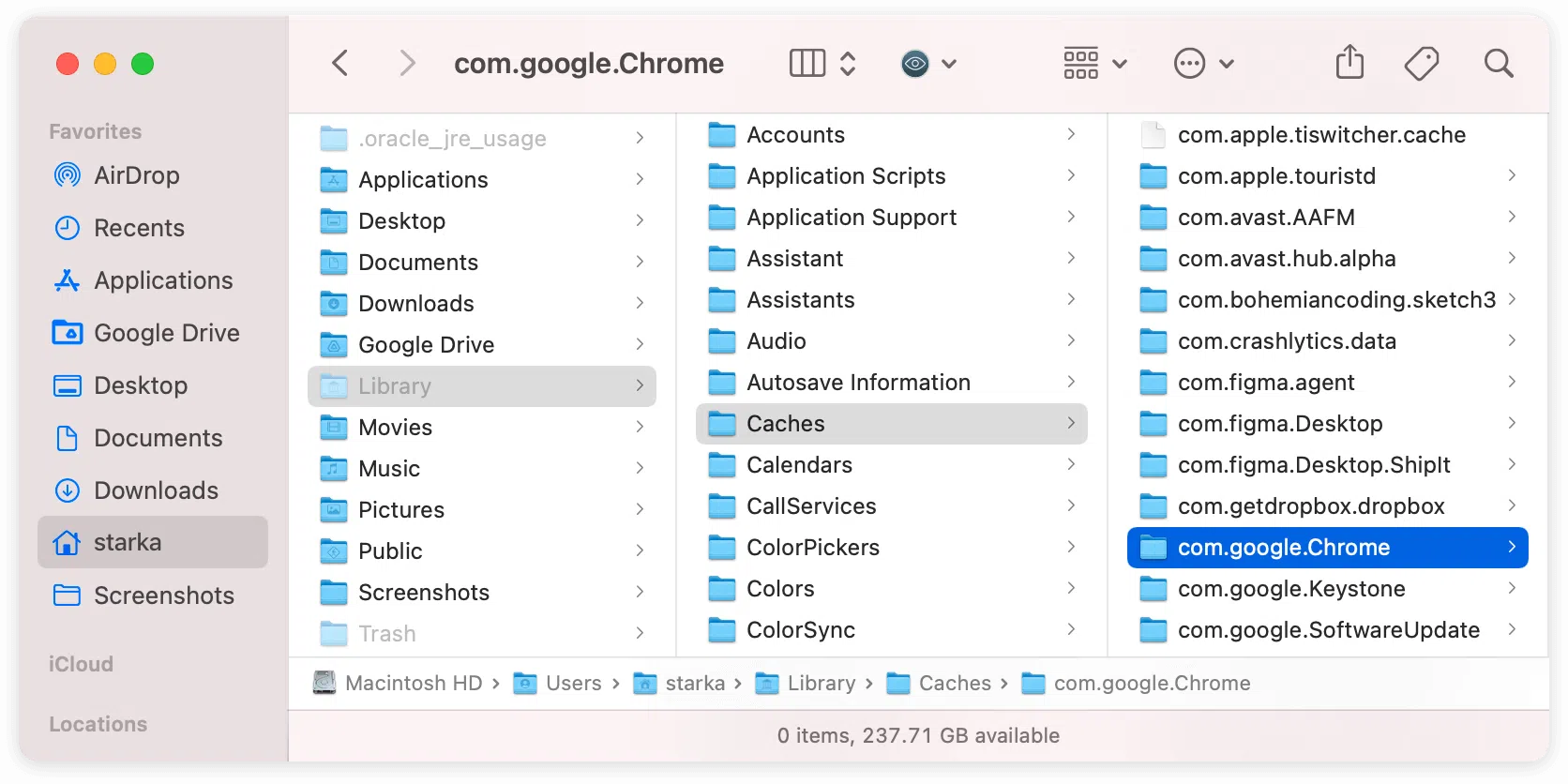
macOS centralizes much of this data in standard folders. To view them in the Finder, close any open apps and use Go > Go to folderThe most important routes are ~/Library/Caches (user cache) and /Library/Caches (system cache). You'll find subfolders for each app, many in the format com.app.manufacturer.
If you only want to inspect, simply sort by size and see how much space they occupy. To delete, it's recommended to delete only the files within each subfolder, not the folders themselves. This allows the system to regenerate what it needs without encountering unusual errors.
Before doing anything important, create a backup using Time Machine or your preferred method. It only takes a minute and will save you from unpleasant surprises if you accidentally delete something your Mac has been missing. Keep in mind that some actions may require administrator privileges.
Another useful trick: restart your Mac. A restart allows automatic maintenance processes to run that don't occur while the computer has been idle for a long time, and it can clear up temporary, frozen states.
Delete cache and temporary files automatically
If you're in a hurry or don't feel like digging through system folders, there are utilities that safely locate and remove unnecessary files. These tools save you time by eliminating the need to check caches, registry entries, unfinished downloads , and more.
CleanMyMac: its cleaning module analyzes macOS and its apps to detect "system junk" and expired caches. The developer indicates that, on an average Mac, it can clear up to tens of gigabytes (they even mention 74 GB) . Typical steps: open the app, go to Cleanup, click Analyze, and then Clean, reviewing the results if you wish.
Avast Cleanup for Mac: In addition to caches and registry entries, it adds features to detect duplicates and low-quality photos . Its workflow includes a quick junk scan, a duplicate finder, and finally a "photo cleaner" to group similar and blurry photos before deleting them.
MacKeeper includes "Safe Cleanup," which scans and suggests deleting caches and temporary files in just a few clicks. The process is straightforward: launch the program, go to Safe Cleanup , run the scan, select the files you want to delete, and confirm. You can also empty the Trash by selecting that option.
These tools are especially helpful when apps leave behind hard-to-trace remnants (incomplete downloads, outdated support data). Even so, review what they suggest deleting and keep your backup up to date.
Clear browser cache on Mac (Safari, Chrome, Firefox, and others)
Your browser cache fills up quickly with images, scripts, and website data. Clearing it frees up space and fixes loading problems. In some cases, it also improves privacy by removing session information and trackers.
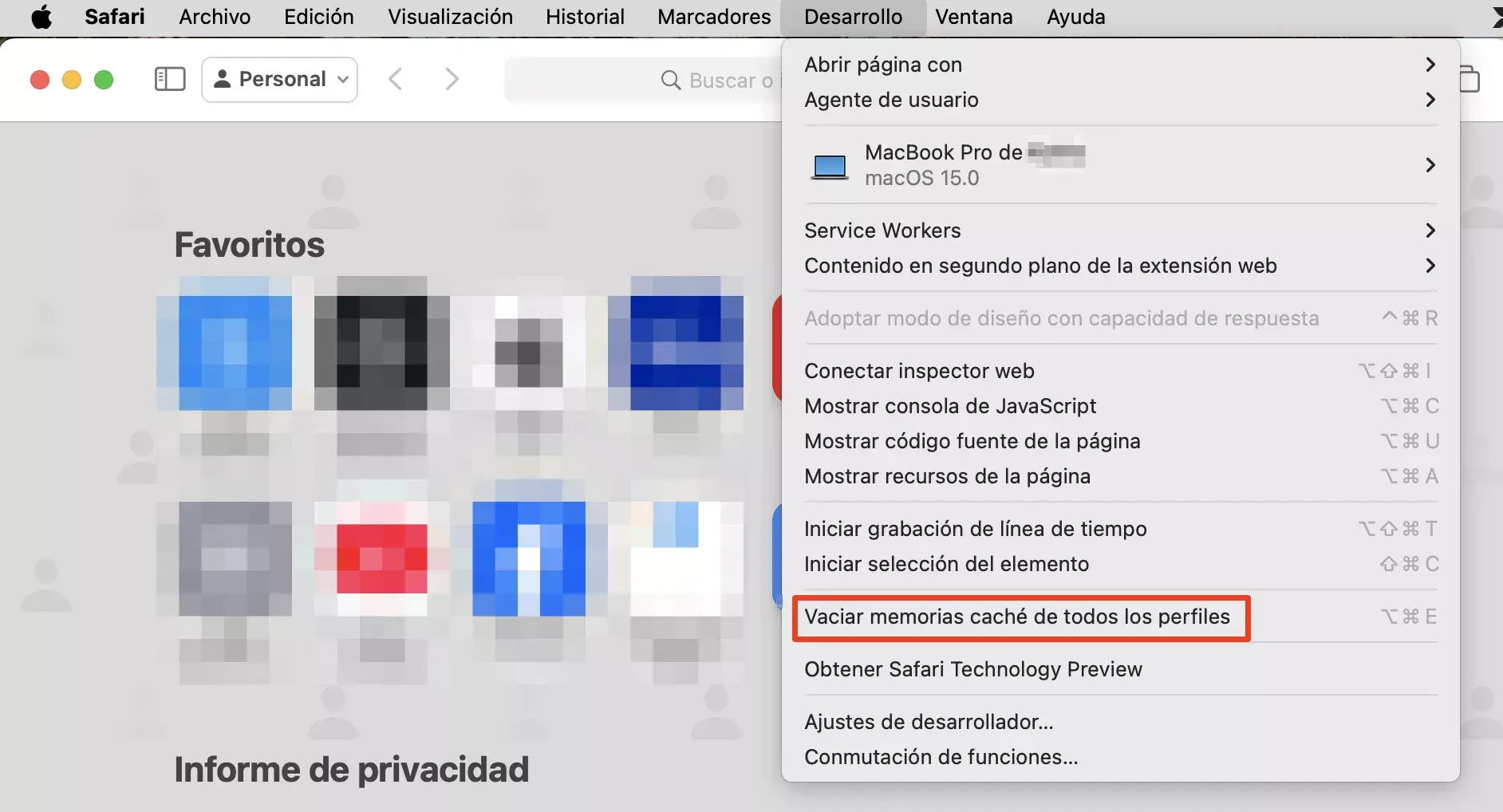
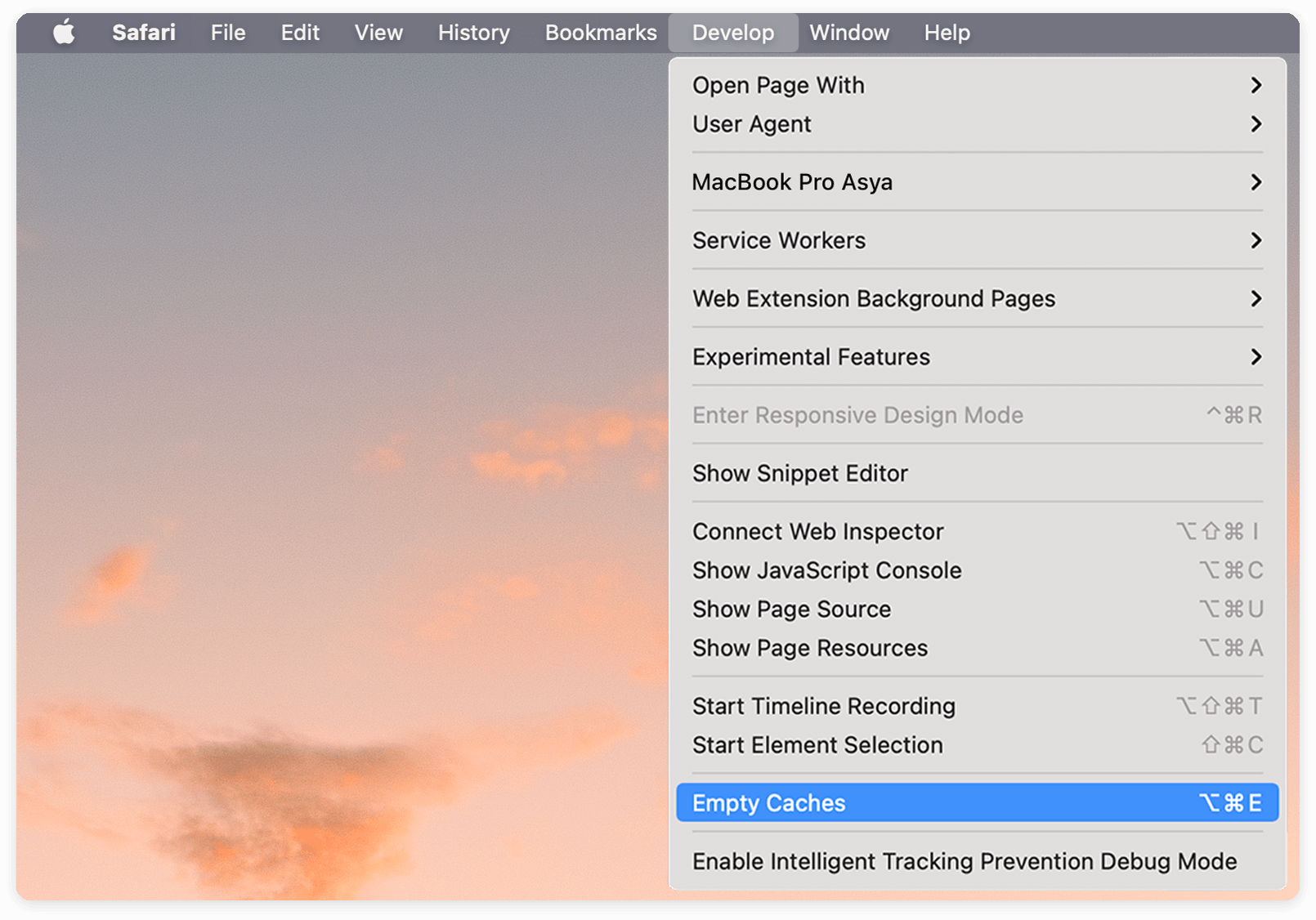
Safari (Ventura, Sonoma, or Sequoia): Open Safari and go to Settings. On the Advanced tab, enable "Show Develop menu in menu bar" (in newer versions, it may be called "Show web developer features"). Close Settings and go to Develop > Empty caches. Shortcut: Command + Option + E.
Safari (Monterey and earlier): Go to Preferences > Advanced, check "Show Develop menu," close it, and then go to Develop > Empty cache . It has the same effect with a couple of different names. After emptying the cache, it's a good idea to restart your browser.
Google Chrome: open Settings or paste chrome://settings/. Go to Privacy & Security > Clear Browsing Data. Check "Cached Images and Files," set the time range (if you're looking for a deep clean, "All Time"), and tap Clear Data. Shortcut: Command + Shift + Delete.
Mozilla Firefox: type about:preferences In the address bar, go to Privacy and Security, scroll down to Cookies and site data, and click "Clear data." Select "Cached web content" (or "Temporary cached files and pages") and confirm. Shortcut: Command + Shift + Delete opens the quick clean menu.
Avast Secure Browser: Go to Settings > Privacy and security > Privacy cleaner. Select "All time," check "Cached images and files," and tap Clear data. You can also use the shortcut Command + Shift + Delete to open the cleaner.
Clear system and user cache (manual method)
Before you start, make sure you have a backup . System caches regenerate, but deleting something at the wrong time can force unexpected shutdowns or strange service behavior.
System Cache: Open Finder > Go > Go to Folder and enter /Library/Caches/. You will see several folders, many starting with com.appleThe safest method is to open each subfolder and delete only the files inside that are clearly temporary. Don't delete the "Caches" folder or its entire subfolders.
User Cache: From Finder > Go to Folder type ~/Library/Caches. You will review caches created by your applications. You can select their contents and send it to the Trash, leaving the structure as is. If you have doubts about a file, it's best to leave it alone or temporarily move it to another folder to test.
After cleaning, empty the Trash and restart your Mac. This forces macOS to recreate only what's essential and ensures you've truly freed up space.
Keep in mind that some elements require administrator privileges. If the system doesn't allow it, don't force it with external tools unless you know exactly what you're doing; it's preferable to use a specialized cleaner.
Clear cache of specific applications
There are especially “green” programs generating cache: photo/video editors, IDEs or apps that store huge catalogs (for example, Spotify, Xcode or Steam). In ~/Library/Caches locate folders like com.spotify.client and cleans its internal contents.
If an app malfunctions after a cleanup, reinstalling it usually regenerates its support data correctly. For stubborn cases, deleting the app and reinstalling it cleans up remnants that are impossible to locate manually and restores performance.
It's not recommended to clear an app's cache in the middle of a critical project (editing, compiling, etc.). Do it when you can close the app without rushing, and always make a backup in case you need to recover useful temporary files.
Remember that the cache exists to speed up frequent loading times. If you clear the cache of an app you use daily, you'll notice a slight initial slowdown until the program "warms up" its cache again.
iCloud Content Caching
macOS has a "content caching" system that speeds up iCloud downloads to your local network. Data is received and stored encrypted , and the cache cannot decrypt it. It's configured in System Settings.
To enable or adjust this feature, open the Apple menu and go to the Caching settings. In the "Cache" dropdown menu, you can choose "All Content" or "iCloud Content Only" to turn it on, or "Shared Content Only" to turn it off. When you turn it off, the iCloud data stored there is instantly deleted.
If you change this setting, you may need to restart the client devices on your network so they detect the change immediately. Otherwise, they will discover it on their own, but it will take a while for the new configuration to take effect.
This component is not essential for all users, but it helps a lot in environments with multiple machines frequently downloading documents and data from iCloud.
Basic maintenance and space optimization
Updating macOS and the software you use is one of the easiest ways to keep your computer running smoothly. Many updates fix bugs, improve security, and fine-tune storage management . Check System Settings > Software Update frequently.
In About This Mac > Storage > Manage, you'll see recommendations for optimizing storage , saving to iCloud, and automatically emptying the Trash. You can also browse by category, locate large files, and make quick decisions.
The storage panel differentiates between "free space" and "available space," including expendable disk caches. Keep in mind that some space may be "occupied" and yet reusable if the system needs it.
Uninstall apps you no longer use (in Finder > Applications you can sort them by "Last opened date"), review login items in System Settings > General > Login Items and remove any you don't need to speed up startup.
The Downloads folder is a classic gigabyte hog. In Finder > Downloads, sort by size and delete old installers, disk images, and duplicates you no longer need. Empty the Trash afterward.
The 12 most effective ways to free up space: 1) uninstall unnecessary apps, 2) update software, 3) clean up startup items, 4) delete large files, 5) organize Downloads, 6) adjust iCloud, 7) delete temporary macOS files and apps, 8) purge old backups (Time Machine), 9) delete old messages in Mail/Messages, 10) organize the desktop, 11) clear caches, 12) empty the Trash.
If you use tools like Avast Cleanup, in addition to cleaning caches and registry entries, you can find and delete duplicates , blurry photos, and large files saved twice. It's a quick way to recover several gigabytes without any hassle.
Compressed air and a microfiber cloth? They won't free up gigabytes, but a physically clean Mac performs better. Turn off your computer and remove dust from vents and ports; cooler hardware extends its lifespan.
What happens when you clear your cache? Security and best practices
Clearing your cache frees up space , forces content to update, and sometimes fixes strange app behavior. It also reduces browsing history, cookies, and data that could affect your privacy.
Don't blindly delete "the entire cache." Browser cache is fine; system and user caches, only clear if you're sure what you're doing or if you're troubleshooting a problem. Otherwise, you could cause temporary slowdowns or unexpected crashes until the cache is regenerated.
Useful shortcuts? Safari: Command + Option + E. Chrome/Firefox: Command + Shift + Delete. These save you several clicks and make it easy to clean up when a website isn't loading properly.
For advanced support issues, clearing the DNS cache from the Terminal removes temporary name resolution entries. This helps rule out problems with private browsing or websites that have recently changed their IP address.
How to identify what's really taking up space
On Macs, the usual suspects are: 1) temporary files (caches, logs), 2) duplicates (videos, photos, ISOs), 3) items you thought were deleted but are still in the Trash, and 4) photo collections with blurry or repeated images . Detecting and addressing these makes all the difference on computers with small SSDs .
If you see the "startup disk almost full" alert, macOS and your apps won't be able to allocate virtual memory normally, and you'll experience performance drops. Always maintaining a margin of several gigabytes of free space prevents these bottlenecks.
Even if you clean up today, the cache will grow again as soon as you use your Mac. Ideally, you should integrate these tasks into your monthly maintenance routine : browser cleanup, downloads, forgotten apps, and reviewing large files.

Passionate writer about the world of bytes and technology in general. I love sharing my knowledge through writing, and that's what I'll do on this blog, show you all the most interesting things about gadgets, software, hardware, tech trends, and more. My goal is to help you navigate the digital world in a simple and entertaining way.