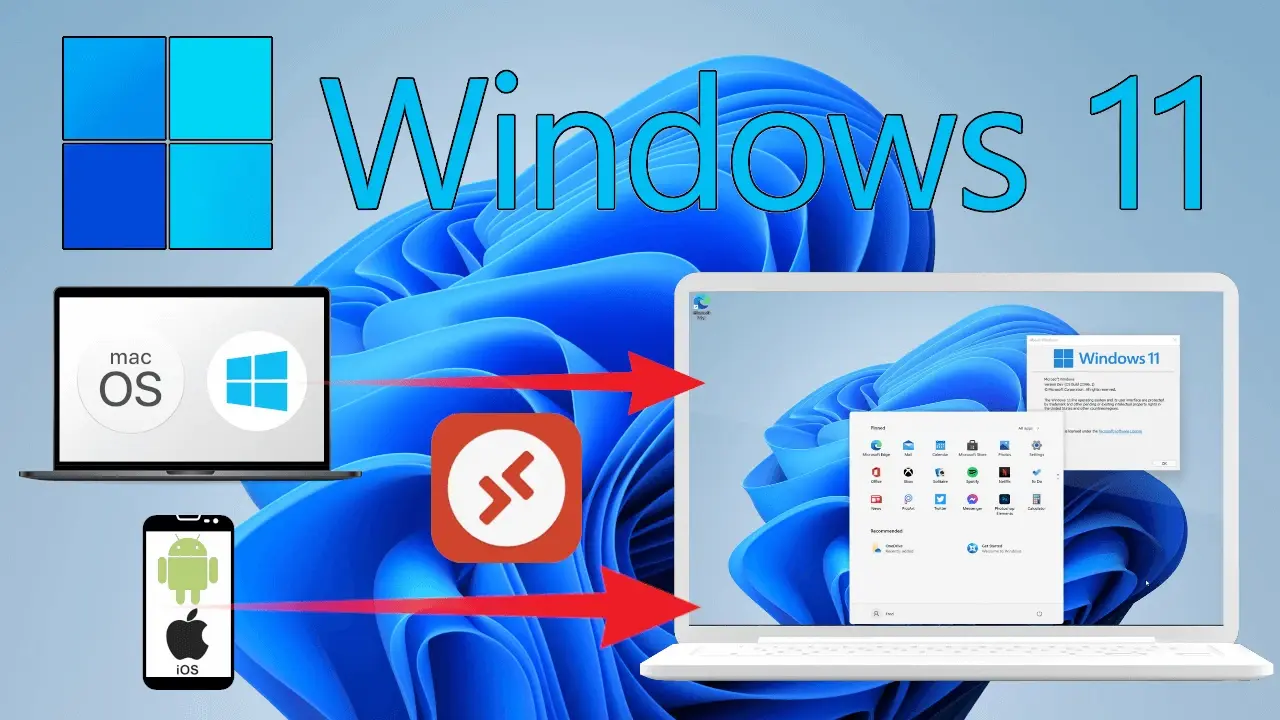
- Remote Desktop in Windows 11 requires Pro/Enterprise as server; clients in Windows, macOS, iOS y Android.
- Secure connections with NLA, VPN for external access and correctly configured ports.
- Support for Microsoft Sign in: Log in with web account or classic credentials depending on the scenario.
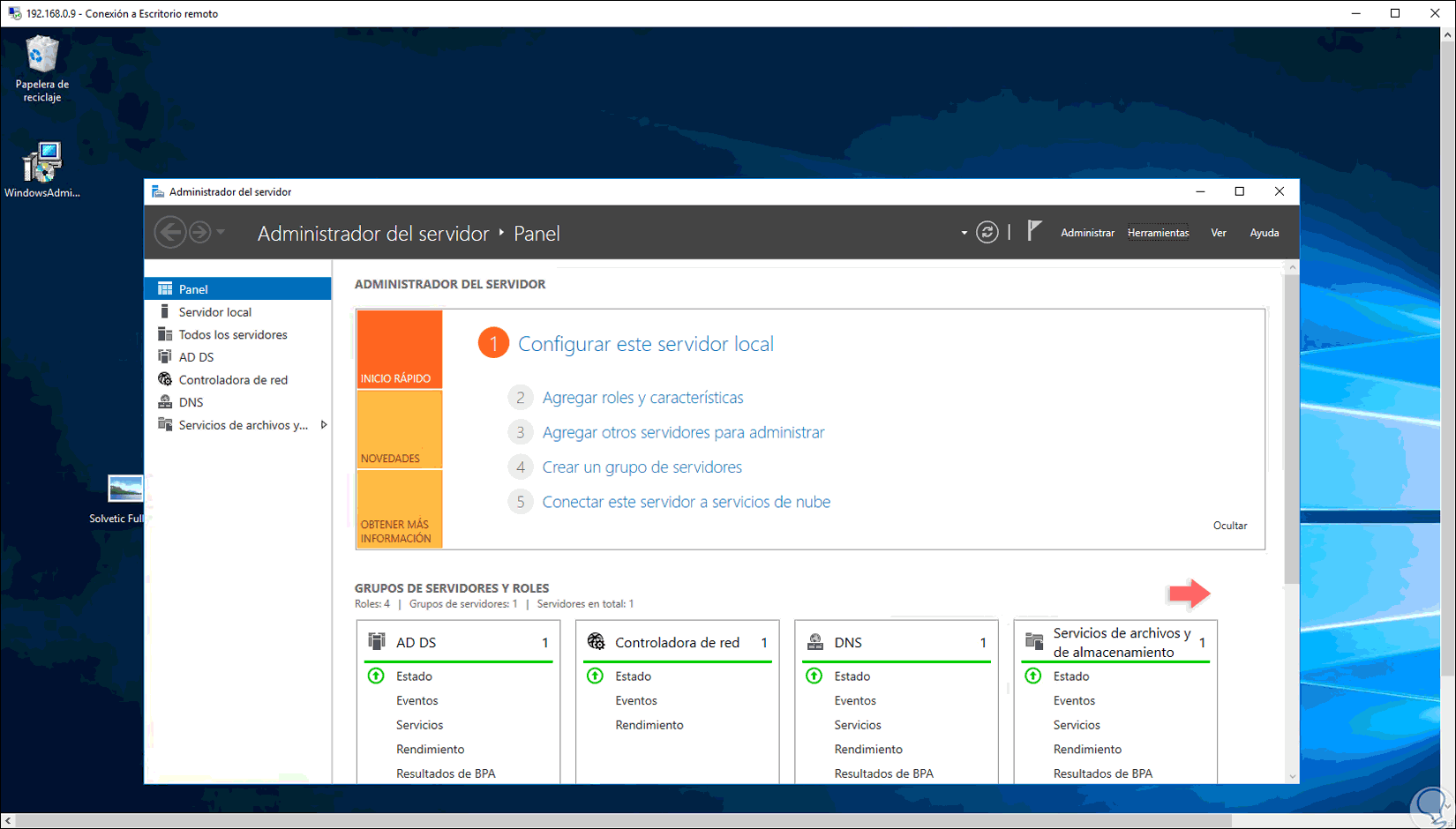
Controlling your PC from anywhere is easier than it seems if you know the pieces of the puzzle. Windows 11 Remote Desktop lets you manage applications, files, and resources as if you were sitting in front of your computer, whether from another Windows PC, macOS, iOS, or Android.
In this guide, you'll learn how to configure it as a server (the computer you connect to) and as a client (the computer you connect from), how to use it securely inside and outside your network, and how to troubleshoot common errors. We'll cover native methods (Settings, Control Panel, CMD , PowerShell ), authentication with Microsoft Entra, VPN options and port forwarding, as well as alternatives when RDP isn't suitable.
What is Remote Desktop and what you need to use it
The Remote Desktop Protocol (RDP) works with two distinct roles: server (the PC you access) and client (the device you connect from). In Windows 11, the server component is available in Pro and Enterprise editions; incoming RDP connections are not officially supported in Home editions.
Before you begin, confirm your installed edition. Go to Start > Settings > System > About and check the Windows Edition section. If you're using Windows 11 Pro or Enterprise, you can enable the RDP server. If you're using Home, you can install client apps to connect to other computers, but you won't be able to receive incoming sessions natively.
In enterprise environments, Windows supports connections to Active Directory-joined computers and Microsoft Entra ID- joined devices via RDP. It's recommended to enable Network Level Authentication (NLA) , which requires credentials before establishing a session. Also note that for certain Entra scenarios, you should ensure Remote Credential Guard is disabled on the computer you're connecting from, and check the maximum number of connections allowed.
An important note: some people mention third-party methods for enabling the RDP server in Home editions using unofficial DLLs. This is not recommended due to security and licensing issues ; the best course of action is to upgrade to Pro/Enterprise or use reliable alternative solutions, which we discuss below.
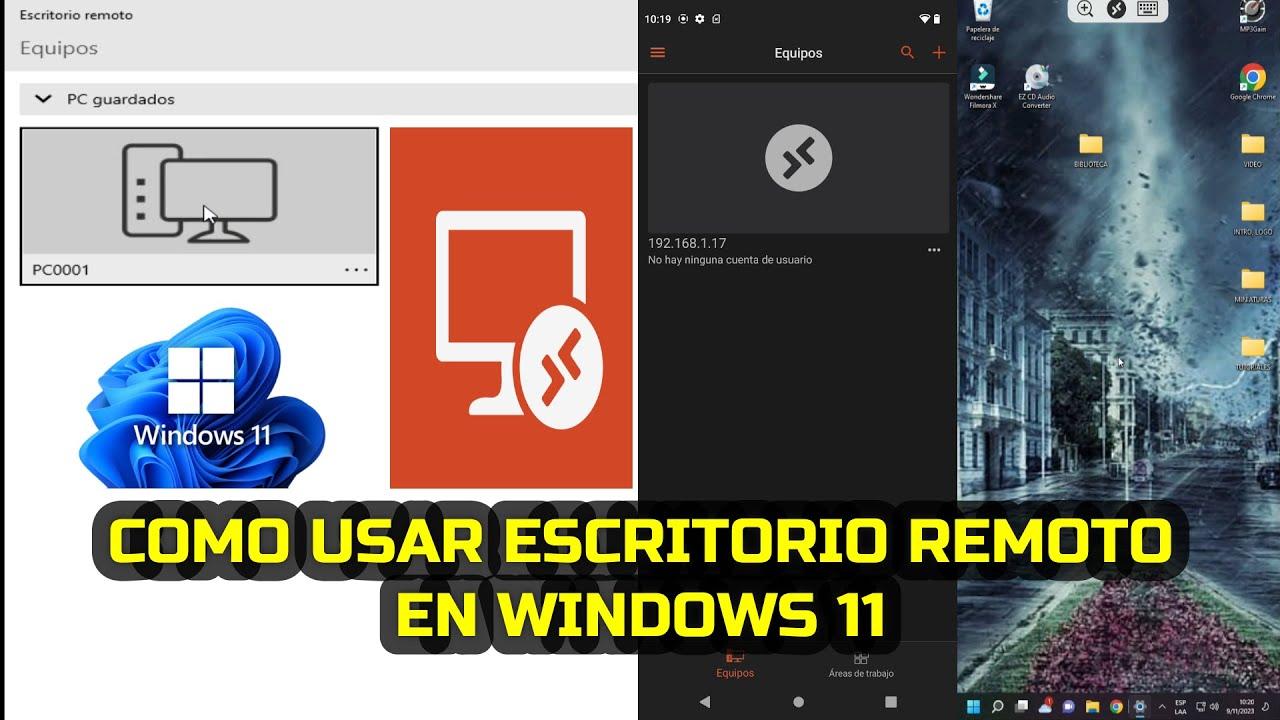
Enable the Server: Methods to Activate Remote Desktop
To allow a computer to accept RDP connections, you must securely enable the feature. Note the computer name when you enable it; you will need it when connecting from the client.
Simple Configuration Method . Go to Settings > System > Remote Desktop and turn on the Enable Remote Desktop switch. Confirm the prompt and, under Advanced settings, check Require devices to use Network Level Authentication (NLA). Also enable the options to keep the PC accessible on private networks.
Method using Control Panel . Open Control Panel > System and Security > System and click Allow remote access. On the Remote tab, enable Allow remote connections to this computer and ensure the NLA box is checked. Apply and accept the changes.
Method with Symbol of the system (DCM). Run as administrator and use:
reg add "HKEY_LOCAL_MACHINE\SYSTEM\CurrentControlSet\Control\Terminal Server" /v fDenyTSConnections /t REG_DWORD /d 0 /f
To open the firewall to RDP: see how to open the firewall or use:
netsh advfirewall firewall set rule group="remote desktop" new enable=Yes
Method with PowerShell. Open PowerShell as administrator and run:
Set-ItemProperty -Path 'HKLM:\System\CurrentControlSet\Control\Terminal Server' -name "fDenyTSConnections" -value 0
and for the firewall:
Enable-NetFirewallRule -DisplayGroup "Remote Desktop"

Connect as a client from Windows, macOS, iOS, and Android
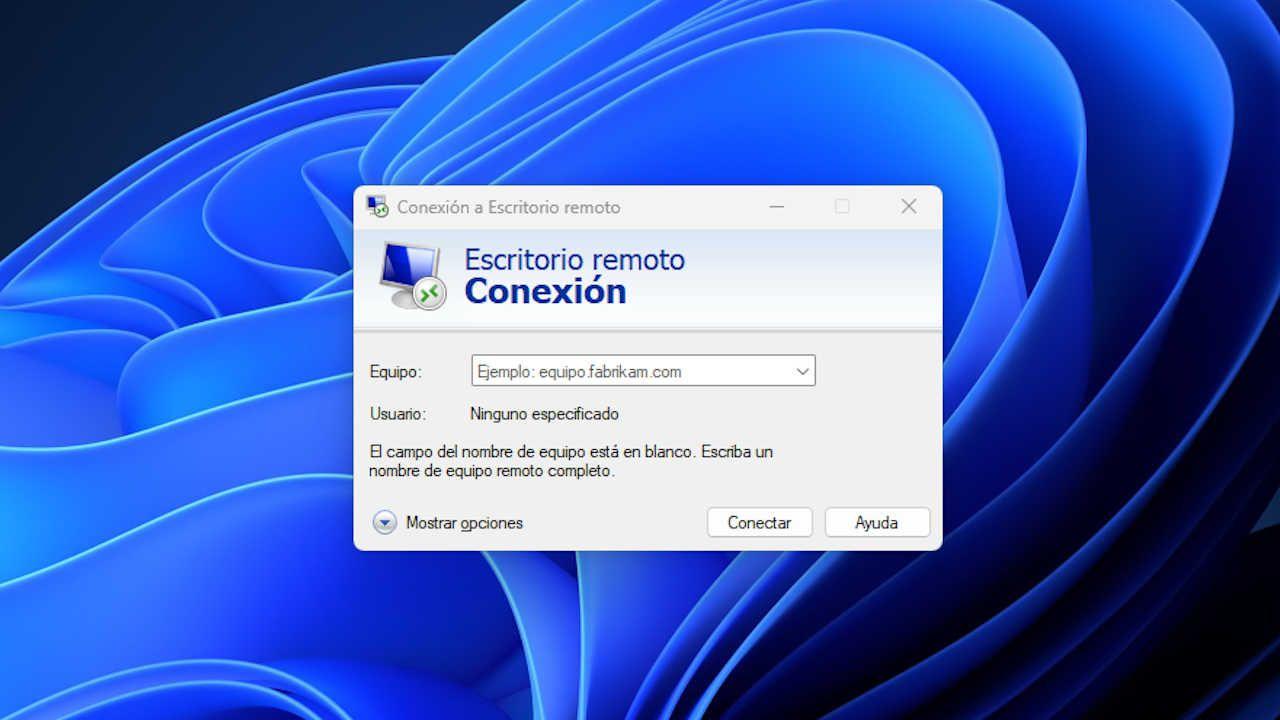
On Windows, the classic tool is Remote Desktop Connection (MSTSC). Open it by searching for "Remote Desktop Connection" in the Start menu or by running mstsc.exe. Enter the computer name (or IP address) and press Connect.
If the server is joined to Microsoft Sign In and you want to use your corporate account, in MSTSC open Show Options > Advanced tab and activate Use a web account to log in to the remote computer (equivalent to the RDP property enablerdsaadauth). Enter the user in format [email protected]The first time, you may see a dialog box to allow the connection to the new host: confirm with Yes; Enter will remember up to 15 teams for 30 days.
Without Microsoft Login authentication (classic method), with the remote computer joined to Login or hybrid, you can also connect by indicating the user as [email protected] o AzureAD\[email protected]. Support varies depending on the type of joint and the Windows version of the client, but always with valid credentials (password, smart card, or Windows Hello for Business in supported scenarios).
On macOS and iOS, you can use the new Microsoft Windows App (available for free on the App Store and Microsoft Store). Add your PC by name or IP address and connect; the app manages credentials and provides a modern experience. On Android, install the Microsoft Remote Desktop app from Google Play, add your PC, and select the connection to log in. You can also learn how to control Windows 11 from your mobile device.
Mobile network? It's viable, but its performance will depend on coverage, latency, and congestion. A stable connection makes all the difference in mouse/keyboard responsiveness and smoothness.
Internet access: VPN or port forwarding
When connecting from outside your local network, you have two official options: use a VPN or configure port forwarding on your router . A VPN is the recommended option for security, as it encrypts traffic and prevents RDP from being exposed to the internet.
VPN connection. On Windows, go to Settings > Network & Internet > VPN and click Add a VPN connection. Enter the server, the protocol (SSTP, L2TP/IPSec, IKEv2, OpenVPN, or PPTP), and the credentials provided by your VPN service. Once the VPN is established , open MSTSC, enter the name or IP address of the remote computer, and connect as you would on a LAN.
Port forwarding (NAT). If you choose to expose RDP, take extra precautions with strong passwords and NLA. On the server PC, ensure it has a static local IP address . You can assign it and configure DNS in the network adapter properties (TCP/IPv4). Note your public IP address (search "what is my IP") and access the router's default gateway to create a Port Forwarding rule: TCP protocol, external port 3389 to internal port 3389, pointing to the PC's IP address.
To confirm network settings in Windows, open Run (Win+R), type cmd and run ipconfig to see IPv4 Address and Gateway. After creating the rule, from the client use the public IP of the router (or a Dynamic DNS if you have one) to connect. Remember that the default RDP port is TCP 3389.
If your ISP blocks ports for security reasons, contact support or consider using a VPN. Exposing port 3389 to the internet carries risks if the configuration isn't strengthened.
Recommended Security: NLA, Passwords, Updates, and 2FA
Mark NLA on the server to enforce authentication before the session. Network-level authentication reduces the attack surface against automated attacks and anonymous connections.
Use unique and complex passwords for accounts with remote access and change them regularly. Avoid reusing credentials across services and consider using password managers to manage them.
Keep Windows and RDP clients up to date. Security updates patch vulnerabilities in protocols and system components. Check Windows Update and also update Remote Desktop apps on all devices; and consider local security policies to improve system security.
If your organization uses 2FA, apply it wherever supported (for example, when authenticating with a corporate account). Two-step verification adds a very effective extra layer of protection against password theft.
Note on remote session locking: When locking the remote session, Microsoft Login tokens and passwordless methods (such as FIDO keys) are not supported for unlocking the screen; the session is deliberately disconnected to re-evaluate conditional access policies upon reconnection.
Troubleshooting: Common Errors and How to Fix Them
Firewall. If it doesn't connect, check Allow an app through Windows Firewall and confirm that Remote Desktop has the Private and Public Networks checkboxes selected. Remote Desktop not working It also includes common steps for diagnosing faults. You can also reactivate the rule with Enable-NetFirewallRule -DisplayGroup "Remote Desktop".
Services. On the remote machine, open Services, locate Remote Desktop Service, and verify that its status is Running. Start it if it is stopped to accept incoming sessions.
Hostname vs. IP address. Sometimes name resolution fails. Try connecting by IPv4 address. Verify the IP address with ipconfig and use it temporarily to rule out DNS problems.
ISP and ports. If you're connecting from outside your network, your provider may be filtering ports. Call to confirm or use a VPN. Check that port forwarding is correctly configured (TCP 3389 pointing to the correct IP address of your PC).
IPv6. In some environments, the IPv6 stack may interfere. In the adapter properties, uncheck Internet Protocol Version 6 (TCP/IPv6) and restart your computer. Test the connection again after restarting.
Accounts. Passwordless security or certain Microsoft Account policies may block RDP in home environments. Create a local administrative account for quick testing. Then revert to the corporate flow with managed credentials and 2FA when possible.
Diagnosis. Check the Event Viewer (Windows Logs > Application and System) for errors related to TermService and authentication. Update the client and server network drivers if you detect any outages or abnormal latency.
Connectivity with Microsoft Sign in: with and without authentication Sign in
With Microsoft Authentication Sign in. In MSTSC, go to Advanced Options and enable Use a web account to sign in to the remote computer (enablerdsaadauth). Enter [email protected], Connect and authorize the host if it is new. Enter remember up to 15 hosts for 30 days before asking again.
Without Entra authentication (traditional method). Even if the remote computer is joined to Entra or hybrid, you can use credentials in the format [email protected] o AzureAD\[email protected]. Featured Supported Configurations:
- Windows 10 2004+ Client on Device Login: Password or Smart Card.
- Windows 10 1607+ client on device Sign in with: password, smart card, or Windows Hello for Business (certificate trust).
- Windows 10 1607+ client on hybrid device: password, smart card, or Windows Hello for Business (certificate trust).
Access permissions. If more users will be joining an Entra computer via RDP, add them to the local Remote Desktop Users group. You can automate this for individual Entra accounts using CMD .
If you're looking for reliable and well-configured remote access, combine the basics (enabling RDP, NLA, a proper firewall, and user permissions) with best practices (VPN for internet access, strong passwords, updates, and 2FA where applicable). With MSTSC or the official apps on macOS/iOS/Android, you'll have a smooth workflow; and if your needs are different, solutions like AnyViewer, AirDroid, or TSplus cover scenarios where native RDP falls short.


Passionate writer about the world of bytes and technology in general. I love sharing my knowledge through writing, and that's what I'll do on this blog, show you all the most interesting things about gadgets, software, hardware, tech trends, and more. My goal is to help you navigate the digital world in a simple and entertaining way.