- The local security policy allows you to strengthen passwords and restrict access.
- Configuring secpol.msc protects against brute force attacks and unauthorized remote access.
- It's key to combine strict policies with education and proper use of two-factor authentication.

Today, ensuring your computer's security is more important than ever . The number of threats, attacks, and risks has grown exponentially, and of course, Windows offers many ways to protect us. However, many of these advanced settings are largely unknown to most users, yet they can make a huge difference to your digital peace of mind.
In this article, you'll discover, in detail and with a practical and straightforward approach, how to improve your system's security using secpol.msc , the Windows Local Security Policy tool. Here you'll learn how to access it, its purpose, all the parameters you can modify, the advantages and disadvantages of applying certain policies, and how to avoid common problems. We'll also provide tips, considerations, and best practices so you can truly get the most out of this powerful Windows feature.
What is secpol.msc and why is it so important?
Secpol.msc is the shortcut to the Local Security Policy Editor in Windows , a kind of advanced control panel for security policies that affect both individual users and the entire system. Although its name might sound technical, the truth is that anyone with the desire and curiosity can use it to protect their computer against external and internal threats.
This tool is essential in environments where user protection and management are key , such as businesses, organizations, or even for those who use their computer at home but want more control. Its options range from requiring stronger passwords to limiting who can access the system remotely or deciding how long a password is valid.
The great advantage is that, with just a few clicks, you can control everything related to passwords, locks, permissions, and access audits . This way, you don't just rely on Windows' built-in security, but you can adjust it to your own level of security.
Ways to access the Local Security Directive
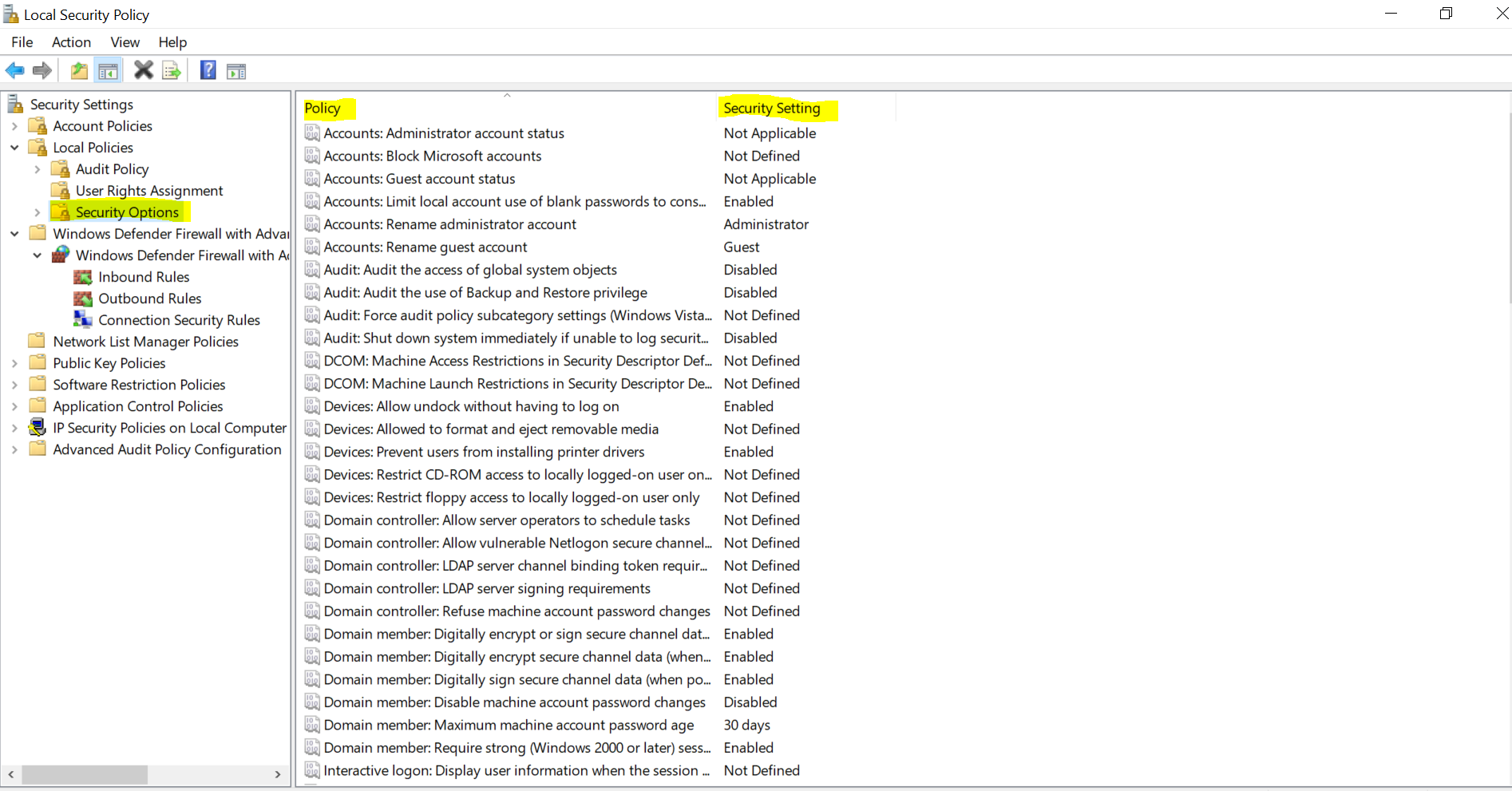
There are several ways to access the Local Security Policy in Windows, all of which lead to the same utility, but they may vary depending on your preferences or your operating system version. Here are the most common methods:
- Using Run: Press Win + R keys, type secpol.msc and hit EnterIt is the most direct and fastest way.
- From Windows Search: Click the magnifying glass (or press the Windows key) and type "Local Security Policy." Select the option in the result.
- Via Control Panel: Go to Windows Tools (in the large icons view) and search for “Local Security Policy.”
- Group Policy Editor: If you have Windows Pro or Enterprise, you can also use gpedit.msc, where the path is Computer Configuration / Windows Settings / Security Settings / Account Policies.
Once inside, you'll see a tree of options on the left, and depending on what you configure, you can change the password policy, account lockout, access rights, security auditing, and much more.
What you can control with the Local Security Policy
The power of secpol.msc lies in the large number of parameters you can modify . These are, broadly speaking, the most important areas:
- Password Policies: To require stronger passwords and monitor their use.
- Account Lockout Policy: Sets how long it takes for an account to be locked after errors and how long that lock lasts.
- Assigning user rights: Decide which users can do which actions (log in remotely, install software, etc.).
- Audit Guidelines: Keep a record of access, changes and possible intrusion attempts.
Remember that these parameters affect both individual and global levels , so any change will affect all users of that computer (or even a network if it is a corporate computer).
Password Policies: How to Strengthen Security
One of the key sections within the Local Security Policy is the password policy. Here you can change the behavior and minimum requirements for the passwords that users use on the system . Let's look at each setting:
- Password complexity: Enable the rule to force passwords to mix uppercase, lowercase, numbers and SymbolsThis helps avoid predictable passwords like “abcd1234”.
- Minimum length: Ensure all passwords are at least a certain length. The recommended minimum for good security is 10-12 characters.
- Password history: Prevents users from re-entering old passwords. You can configure how many previous passwords the system remembers (for example, the last 5, 10, or 20).
- Maximum validity: Defines how many days the same password can be used without changing it. After this period, Windows will require a new password.
- Minimum validity: Establishes There minimum amount that must pass before allowing the password to be changed again. This is usually left at 0 to avoid unnecessary restrictions.
- Storage with reversible encryption: Optionally, you can enable reversible saving of passwords for compatibility with certain applications. However, It is not recommended to activate this option because it compromises security..
Implementing these policies forces all users to comply with stricter rules, thus hindering unauthorized access and reducing the risk of brute-force attacks or data theft.
Account Lockout Policy: How to Respond to Failed Attempts
In this section, you can decide how Windows reacts when a user enters the wrong password multiple times . This is an excellent measure against brute-force attacks, where an intruder tries thousands of passwords until they find the correct one.
- Account lock threshold: Number of failed attempts allowed before the account is locked. A low value (such as 3 or 5) increases security.
- Duration of the block: The length of time the lockout lasts before you can retry. You can choose a specific value (for example, 15 minutes) or leave it set to 0 so only an administrator can unlock.
- Reset the counter after: Interval after which, if there are no new failed attempts, the error counter is reset to zero.
Setting up a lockout after several failed login attempts is especially useful in business environments or with shared computers . This way, even if someone tries to guess the password through trial and error, they will eventually lock the account.
Key settings to strengthen Remote Desktop security
Remote Desktop Protocol (RDP) is widely used in businesses and by advanced users to access their computers from another location. However, it poses a significant risk if not configured correctly . Here are some best practices:
- Use strong, unique passwords on all authorized Remote Desktop accounts.If the keys are weak, an attacker could gain access by brute force.
- Learn how to use AccessChk to manage permissions. and control who can access system resources.
- Keep the system and all Remote Desktop components up to date. This way you close potential vulnerabilities (like the famous BlueKeep).
- Block port 3389 (RDP default) using a firewall, allowing only the necessary connections, ideally through a VPN o Secure RDP Gateway.
- Remove default accounts or groups that do not require remote access and add only the truly essential users. This is easily done from secpol.msc, within local policies.
- Change the RDP port to a different one than the standard one can mitigate automated attacks or mass scans targeting port 3389.
- Require encrypted communication and network level authentication (NLA) in Remote Desktop connections to prevent session hijacking.
Step by step: How to add or remove permissions using secpol.msc
One of the frequent tasks is granting or revoking the right to connect via Remote Desktop , or to perform other critical functions. These are the basic steps to do so from the Local Security Policy:
- Open secpol.msc and go to Local Policies > Assigning user rights.
- Look up the policy Allow logon through Remote Desktop Services.
- Here you can add or remove users and groups, making sure that only trusted people have access.
- Repeat the process in politics Deny logon through Remote Desktop Services to explicitly block users who should never connect.
This process applies to most user rights: installing programs, accessing administrative folders, etc. If you have multiple people using the same computer, it's a good idea to limit these permissions as much as possible.
Advantages and disadvantages of applying strict directives
As with everything in computing, strengthening security has pros and cons . Here are the key points to consider before configuring very rigid policies:
- Advantages:
- You require strong passwords to be changed periodically., making life difficult for hackers.
- You prevent someone from reusing old compromised passwords, closing the door to dictionary attacks.
- You block access after failed attempts, which reduces exposure to brute force attacks.
- You promote good practices among users, getting everyone used to using long and diverse passwords.
- You allow monitoring and auditing of accesses, something mandatory in many companies.
- Disadvantages:
- People tend to forget complex passwords or frequently change them., which increases support calls.
- Some users look for shortcuts, such as changing only one number at the end of the key, which can make the policy less effective.
- It can be annoying in domestic environments where so much control is not strictly necessary.
- Compatibility with older programs may be affected if you require very complex passwords.
- A false sense of security can cause some users to relax., thinking that the rules cover everything.
Implementing strict security policies can be very beneficial in high-risk organizations or environments, but at home, a more balanced approach may suffice.
How to create a strong password using security policies
Strong passwords are the first and most important line of defense in Windows and any other service. Here are some tips for creating truly secure (and policy-compliant) passwords:
- Make it unique for each site and user. No need to repeat the password in different places.
- Avoid any personal references such as names, dates or phone numbers.
- Use a mix of uppercase, lowercase, numbers and symbols. Example: B5!v7z$T9qL.
- Go for a minimum length of 10-12 characters. The more, the better.
- If you have trouble remembering passwords, use a password manager or long random phrases.
Remember that Windows can help you by showing you if the password you choose is too simple or doesn't meet the requirements.
The role of two-factor authentication and complementary security
In addition to password and lock policies, implementing two-factor authentication (2FA) takes security to another level . Many modern services, including Windows itself and enterprise applications, allow you to add an extra step before granting access:
- Codes sent to mobile (SMS or apps authentication as Google Authenticator).
- Digital certificates that are stored on cards or devices USB.
- Alternative email for recovery.
- biometrics (fingerprint, facial recognition, etc.).
This type of protection is especially useful for remote access, critical accounts, or services with sensitive data, and it is recommended to implement it whenever available.
Common considerations and problems with classic passwords
Traditional passwords present a number of problems despite being the most widely used method of protection. The most common are:
- Keys too simple (just letters and numbers, simple words) that can be cracked in seconds with software and a modern GPU.
- poor management: People write down data on post-its, unencrypted documents, or repeat passwords across multiple services.
- Phishing and credential stuffing: Attackers obtain leaked keys and use them on other services, exploiting the “domino effect.”
- Frequent forgetfulness that cause blockages and inconveniences. Security and usability must be balanced.
Using strong password policies, changing passwords regularly, and avoiding repetition is the best medicine.
Policies for external applications and management in enterprise environments
In large companies the challenge is multiplied because there are usually dozens of applications that use the same password system (for example, integrated with Active Directory).
- Some external applications may not be compatible with very strict policies, which forces us to seek balance.
- There are systems like Citrix that "replicate" users and validate access via the same policies, but confusion can arise. if the users do not exist or there are desynchronizations.
- In these environments, it is essential to document policies well, educate users, and be prepared for blockages or specific problems..
If you apply global changes, do so gradually and monitor the impact before rolling them out to all groups or users.
Recommendations for creating effective password-neutral policies
While the temptation is to implement increasingly stringent policies, a balance must be struck to avoid discrimination or bias among users . Here are some recommendations:
- Do not impose excessive restrictions on length or symbols if your workforce is very diverse.
- Avoid personal data in passwords by educating users about the dangers.
- Establish reasonable periods of change, so as not to make the daily lives of your employees difficult.
- Includes training and reminder materials, so everyone understands the reasons for the policies.
- Facilitates accessibility to change and recovery systems, considering all capabilities and needs.
- 2FA can make up for having less complex passwords if you're afraid of overwhelming tech support..
The key is to adapt the policies to the user profile and the risk level of the protected systems.
How to change the password in Windows and verify that the policy is working
Once the policies have been customized, it's essential to verify that they are actually being applied . To do this, simply try changing your password from:
- Start > Settings > Accounts > Sign-in options > Password.
- Click Change and try entering a password that doesn't meet the requirements. The system will prevent you from doing so and warn you.
If everything is correct, the new passwords should comply with the rules you've set . Also remember that on devices with PIN or biometric authentication, you can manage those options from the same menu.
Auditing and Monitoring: How to Detect Suspicious Attempts
The Local Security Policy also lets you configure audits that record who accesses the system, when, and with what permissions. This is very useful for detecting unauthorized attempts or analyzing security incidents.
- Login Audit: Records all attempts to log into the system, both successful and unsuccessful.
- Account Change Audit: Note any changes to users, passwords, or permissions.
- Object Access Audit: Monitor access to critical files and folders.
You can activate and customize these audits from secpol.msc in the relevant section. This way, in the event of an attack, you'll have clues to act quickly.
Daily management and best practices for administrators and users
Managing security policies is not just a "set it and forget it" situation . There are some key recommendations for maintaining long-term security:
- Periodically review the policies and their compliance, as threats evolve and user habits change.
- Educate and raise awareness among your usersGood management begins with awareness of threats and risks.
- Use password management tools and two-factor authentication whenever available.
- Limit permissions to the bare minimumOnly those who truly need it should be able to access critical functions.
- Avoid overloading regulations and changes if they are not essential so as not to saturate the support and reduce productivity.
- Take advantage of the opportunity to automate processes (password renewal, reminders, etc.) and make life easier for everyone.
A secure system is one where rules are followed, not only because they are mandatory, but because users understand their value and respect them.
By intelligently applying all the possibilities offered by secpol.msc, you can customize and strengthen your Windows security to suit your needs. From more complex passwords and account lockouts to advanced auditing and Remote Desktop controls, you don't need to be an expert to protect your computer. Simply understand, analyze, and take advantage of the options Windows already has built in, avoiding common mistakes and always maintaining a balance between security and convenience. This way, your computer and your data will be much better protected against any current or future threat.

Passionate writer about the world of bytes and technology in general. I love sharing my knowledge through writing, and that's what I'll do on this blog, show you all the most interesting things about gadgets, software, hardware, tech trends, and more. My goal is to help you navigate the digital world in a simple and entertaining way.
Table of Contents
- 1 What is secpol.msc and why is it so important?
- 2 Ways to access the Local Security Directive
- 3 What you can control with the Local Security Policy
- 4 Password Policies: How to Strengthen Security
- 5 Account Lockout Policy: How to Respond to Failed Attempts
- 6 Key settings to strengthen Remote Desktop security
- 7 Step by step: How to add or remove permissions using secpol.msc
- 8 Advantages and disadvantages of applying strict directives
- 9 How to create a strong password using security policies
- 10 The role of two-factor authentication and complementary security
- 11 Common considerations and problems with classic passwords
- 12 Policies for external applications and management in enterprise environments
- 13 Recommendations for creating effective password-neutral policies
- 14 How to change the password in Windows and verify that the policy is working
- 15 Auditing and Monitoring: How to Detect Suspicious Attempts
- 16 Daily management and best practices for administrators and users