- In-game integration: Browse, chat, and watch videos without leaving the game.
- Quick Setup: Game Bar + Edge with your profile and extensions.
- Expanding Compatibility: Support for major franchises and per-game suggestions.
- Key improvements: shortcuts, PiP, history, menus, and reduced performance impact.
If you spend your life between games and guides, Edge Game Assist will sound like music to your ears: it's the browser that appears within the game so you don't have to keep switching between them with Alt+Tab every few seconds. Browse, look up tips and tricks , open Discord or Spotify , and keep playing without losing sight of the action, all on a single overlay screen without interrupting your gameplay.
Microsoft has been strengthening the gaming side of its ecosystem for some time now, and, as expected, Edge has joined the trend with a feature that changes the dynamics of PC gaming. Game Assist began as a new feature in beta channels and is now reaching more users, with continuous improvements to the interface, game compatibility , and extension support. The idea is simple: to allow you to multitask without leaving your game, with your Edge profile synced to keep passwords, bookmarks, and everything you use daily at your fingertips.
What is Microsoft Edge Game Assist
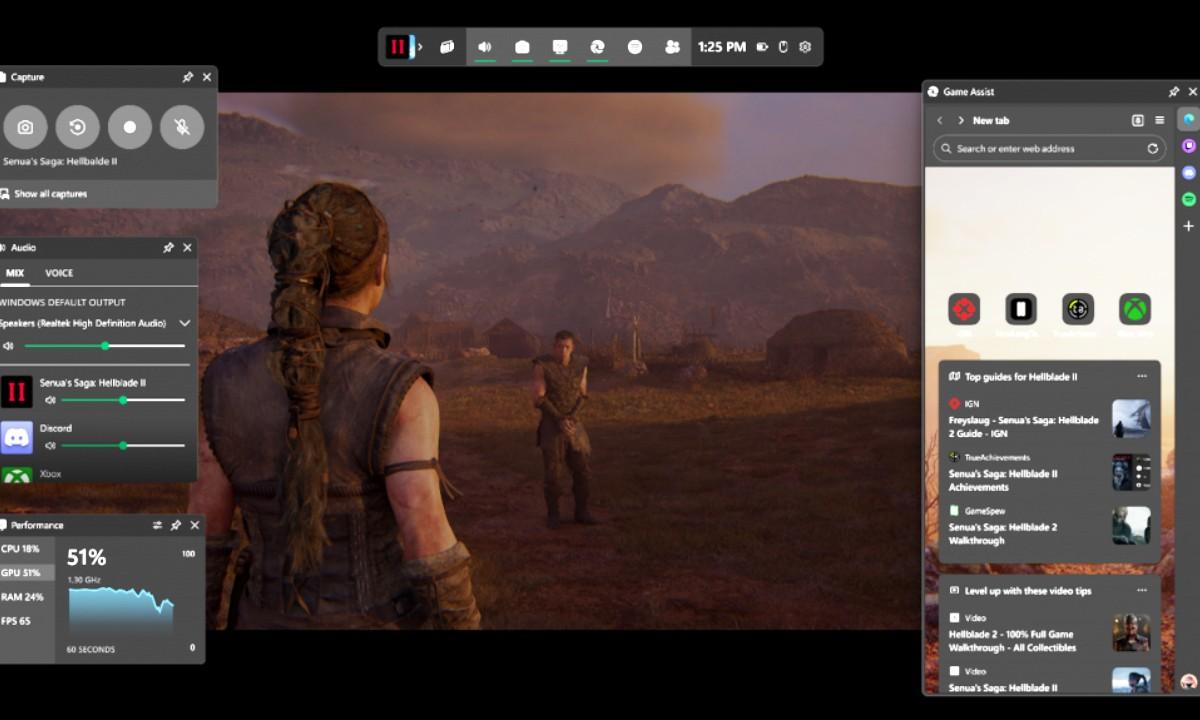
Game Assist is essentially an overlay browser that attaches to your game, allowing you to open websites, videos, and apps like Discord, Twitch, or Spotify without leaving the main window. It's the first in-game browser designed for PC gaming , and it can be pinned to the screen, moved, and resized so it doesn't obstruct the game's interface.
Microsoft itself acknowledges that most gamers keep their browser open while playing, and if you don't have multiple monitors, that's a real pain. With Game Assist, navigation is integrated into the Windows Game Bar and uses your same desktop Edge profile, so everything you need —login, bookmarks, autofill, passwords—is instantly available, just like you would be using your regular browser.
Beyond simply navigating, Game Assist is optimized to "understand" the game's context. In some compatible games, when you open a new tab, the browser can suggest guides, maps, or other useful resources within the game itself, without you having to search for them from scratch. It's a very practical way to access strategies, builds, or tutorials with minimal effort.
The overlay is designed to be resource-efficient and not affect the frame rate. You can position it wherever you like, adjust its size and transparency, and even fix it so it floats while you control your character or sits to the side to view a real-time map. This approach reduces distractions and avoids the typical alt-tab interruptions that disrupt the flow of the session.
In its recent evolution, Microsoft has been refining the in-game interface and adding native support for more features: from audio managers and Xbox Social for viewing achievements and friends, to screenshots, clips, and system monitoring via the Game Bar. All of this comes with a configuration layer that is becoming increasingly comprehensive.
Requirements and availability
To use it, you need Windows with the Game Bar (Windows 10 or 11) and Microsoft Edge . At launch, Game Assist was initially available only in the Insider channels (Beta, Dev, or Canary), and has gradually been rolled out to the stable version of Edge for more users. However, you'll receive the new features sooner if you use Edge Beta/Insider, as that's where Microsoft tests features before releasing them to everyone.
There are two things to keep in mind based on current experience: firstly, much of the Game Assist interface is in English in its preliminary phase; secondly, some new features are being rolled out gradually. The good news is that Edge uses your existing profile, so logging in and syncing with bookmarks/passwords is seamless and requires no extra steps.
Keep in mind that Edge may reinstall Game Assist with major updates (for example, with certain browser builds). If you uninstall it from "Installed apps" and it reappears after the next update, it's not a bug: it's part of the package. Below you'll see how to disable it without uninstalling it so it doesn't run in the background when you don't want it to.
Regarding performance and stability, Microsoft continues to gather community feedback to refine the experience. Recent updates have added keyboard shortcuts , improved Picture-in-Picture (PiP), properly saved browsing history , and a reduced minimum widget size, along with fixes that smooth its performance across various screens and resolutions.
Finally, remember that Game Assist opens as a widget within the Game Bar. This means it may behave differently than a traditional desktop tab, but it inherits many capabilities from Edge, including support for multiple extensions and context menus (right-click) that are now present in the in-game experience.

How to activate it step by step
The quickest way to install it from Edge is through its settings. In the current stable version, you can go to Settings and navigate to the Appearance section, where you'll find the "Game Assist" option. From there, install the widget and configure it to appear in the Game Bar when you activate it during a game.
If you prefer the classic workflow recommended by many Insider users, follow these basic steps: 1) Update Windows and the Game Bar to their latest versions; 2) Install Edge Beta/Preview; 3) Set Edge Beta as your default browser in Settings > Apps > Default apps > Edge > Edge Beta; 4) Open Edge, go to Settings > Game Assist, and tap "Install widget." This will display the Game Assist panel, ready to use, by pressing Win+G .
Remember that the Game Assist window can close automatically when it detects inactivity. This is a feature designed to prevent overlays from remaining open when you're not using them. If you're consulting guides and want to return to combat, you won't have to close anything manually if you pause the game for a while, as the widget will minimize its presence so as not to be intrusive.
Once activated, the widget will appear in the Game Bar Widgets list. There you can pin it, rearrange it, and choose whether you want it to be accessible every time you access the overlay. Over time , Microsoft has added a "Settings and more" menu with typical browser controls for opening a new tab, moving the current tab to the desktop, copying links, or adding the current tab to the sidebar.
If you have multiple Edge editions (stable and beta) running on your PC, make sure you're enabling Game Assist in the correct profile. Using the same profile for gaming and desktop syncs bookmarks, passwords, and autofill, reducing friction when you open your usual guides and community sites.
Use it in-game: navigation, apps, and PiP
With the game underway, press Windows + G to open the Game Bar and launch the Game Assist widget. From there, you can search the web, open a specific guide, join Discord to chat with your team, or play music on Spotify without losing sight of the game. You can move the window, resize it, and adjust its transparency so it doesn't obscure important HUDs.
If you enjoy watching streams or tutorials, picture-in-picture mode is fantastic: you can keep a video floating while you play and position it where it's least distracting. Microsoft has improved the PiP when the video is in full screen, and overall, playback is solid even when the action gets intense. The idea is to provide a lightweight "viewer" that doesn't eat up your FPS.
When the game supports it, opening a new tab can suggest relevant resources from the game itself (builds, maps, guides). This saves time and prevents you from typing repeated searches. Additionally, Game Assist integrates with Xbox Social to quickly view contacts, check achievements, and manage audio, which is especially useful when playing in a team and needing quick adjustments on the fly.
For effective multitasking, pin the widget with what you need in view (for example, a dungeon route or a collectible map) and leave the rest of the screen free. If a boss fight gets tough, you can check strategies in a flash, or watch a clip while rehearsing your attack pattern. All of this works using your Edge profile, so autocomplete makes it quick to access your favorite sites.
Furthermore, the widget works well with other common PC overlays, so if you already use overlays for performance monitoring or voice chat, Game Assist shouldn't interfere. Microsoft has put a lot of work into making the integration seamless, reducing conflicts and offering clear controls right from the in-game menu.
Personalization, Sidebar, and Tabs
Game Assist adds a "Settings and more" menu with the essentials: open a new tab, move the tab to the desktop, copy the current link, or add the tab to the Edge sidebar. If you pin a site to the sidebar and then anchor it, you'll always have that resource at hand, both in-game and on the desktop, with a single click. It's an elegant way to create your own permanent " guide panel ."
Beyond tabs, you can organize shortcuts to your apps and remove those you don't use, so the widget doesn't get cluttered with unnecessary icons. The minimum panel resizing has been reduced, allowing for finer adjustments so the window only occupies the essential screen space.
In Insider channels, productivity features have been added, such as opening links in the background with Ctrl+Click or a scroll wheel click, and a bug that caused too many new tabs to open in certain situations has been fixed. There's also a change in the default rendering mode (from mobile to desktop) in some builds, which improves how pages look in the overlay.
If you ever want to bring the overlay tab's navigation to the desktop, you can do so from the same menu. This is useful when you find something you'd prefer to read at your leisure outside of the game or that you want to save to another bookmarks collection .
Current game compatibility
Game Assist works with any game that supports the Game Bar, but it offers dedicated recognition and suggestions for certain titles. The list grows with each update and includes popular games like Diablo IV , Valorant, and Baldur's Gate 3, as well as recently added titles such as Dragon Age: The Veilguard, Indiana Jones and the Grand Circle, Marvel Rivals, Metaphor: ReFantazio, and STALKER II.
Microsoft has also announced support for more major franchises: Call of Duty : Black Ops 6, Avowed, Civilization VII, Grand Theft Auto V, and Rocket League are among the latest additions. The company says it will continue to expand the catalog, so more and more games will receive integrations and specific suggestions.
Remember that, although the widget can be opened in any game, it's these "popular" games that benefit most from recommendations by opening new tabs or integrating relevant content on the fly. Even so, the core benefits ( browsing, watching videos, chatting ) are available across your entire library.
- Featured Compatibles: Diablo IV, Valorant, Baldur's Gate 3.
- Latest additions: Dragon Age: The Veilguard, Indiana Jones and the Great Circle, Marvel Rivals, Metaphor: ReFantazio, STALKER II.
- Extended support: Call of Duty: Black Ops 6, Avowed, Civilization VII, GTA V, Rocket League.
Useful keyboard shortcuts and menus
The recent Game Assist update has brought a host of shortcuts that greatly streamline navigation. Among the most practical are opening a new tab (Ctrl+T), closing the current tab (Ctrl+W or Ctrl+F4), duplicating the current tab (Ctrl+Shift+K), reopening the last closed tab (Ctrl+Shift+T), and reloading (Ctrl+R or F5). If you need to force a reload while ignoring the cache, Ctrl+Shift+R or Shift+F5 will get you out of a bind.
In addition, Edge has added right-click context menus within the overlay: you can now open menus on pages, links, and images, just like you would on the desktop. There are also small quality-of-life improvements such as displaying favicons in the address bar autocomplete and a dropdown menu with page information, including privacy settings and permissions for the current site.
If you work with many tabs, take advantage of the support for opening links in the background (Ctrl+Click or scroll wheel click) when available. And when you want to send a tab to the desktop, use the "open current tab to desktop " menu to keep it there without the Game Bar overlapping.
In the sidebar apps channels , Microsoft is testing specific improvements for sidebar apps and how their links open within Game Assist, preventing the accidental proliferation of tabs. These tests typically make their way into the stable version later if they work well.
Extensions, blockers and privacy
One of the biggest requests from gamers was support for extensions, especially ad blockers. Now, Game Assist supports many extensions that run automatically on the page and are managed from the desktop Edge browser. This means your in-game browsing experience can be almost identical to your desktop experience, using your usual tools.
Similarly, the issue with saving your browsing history to your profile has been resolved, so you can return to pages visited in Game Assist as if you were browsing in regular Edge. This is a significant improvement over initial testing, where history wasn't saved in some cases. Right-click menus for pages and items have also been added, making it easier to copy, open in a new tab, or save images when needed.
Regarding privacy, the page information dropdown helps you control permissions (such as background playback) and security options. If you're someone who pays attention to every detail, take advantage of the settings to reduce noise, eliminate annoying notifications with compatible extensions, and minimize distractions while you play.
To complete the picture, remember that using the same Edge profile keeps things organized: passwords, collections, favorites, and extensions all work as expected. This minimizes setup time and lets you focus on the game instead of struggling with multiple settings.
Performance and interface improvements
The Edge team has optimized the in-game experience to ensure performance isn't compromised. The minimum width and height of the widget have been reduced, allowing for more precise placement, and an issue where the sidebar appeared too large on certain screens has been fixed. These improvements are invisible until you need them, but they make a significant difference during long sessions and with varying resolutions.
In addition to improved picture-in-picture for full-screen videos, Game Assist has refined memory management, overlay responsiveness, and integration with other software layers. If you experience any lag, check that your Game Bar and Edge are up to date and that you don't have other resource-intensive overlays competing for resources. Generally, the experience should be smooth even with multiple widgets active.
In practice, the pleasure lies in the small details: opening a tab, dragging it to the desktop with a click, pinning the site to the sidebar for the next day's farming, and all the while having a video player that doesn't get in the way. This seamless integration between the in-game experience and the "normal" browser is what makes Game Assist something you end up using daily without even realizing it.
Another subtle improvement is the autocomplete with favicons in the address bar, which speeds up selecting the right site when you're in the middle of a task and don't feel like typing extra. Combined with keyboard shortcuts, navigation becomes effortless , almost automatic.
Process control and how to disable it if you don't use it
Some users have noticed that Game Assist remains in the background or reinstalls itself after updating Edge. If you don't want it to launch with the Game Bar, you can disable it by clicking the Game Bar gear icon > More settings > Widgets and turning off all Game Assist options . This prevents the process from starting when you launch the Game Bar, even though the component is still installed on your system.
There are reports that if EdgeGameAssist.exe is active, opening the desktop version of Microsoft Edge may cause a process to hang after closing it. Disabling the widget in the Game Bar settings usually prevents this. If you prefer to uninstall it completely, keep in mind that certain versions of Edge may automatically reinstall it after a major update; in that case, the most effective approach is to keep it installed but disabled in Widgets.
If you encounter unusual behavior (e.g., too many new tabs opening automatically), check if you're on an active Insider channel and update to the latest build. Microsoft has been addressing these issues in recent builds, as well as providing options to open links in the background and better control tab flow.
Finally, if you're worried about resource consumption, let automatic shutdown after inactivity do its job and avoid keeping videos open at maximum quality when you don't need them. These are obvious tips, but they help maintain a stable experience without performance drops.
Practical tips to get the most out of it
Organize your resources: pin your favorite guides and databases to the sidebar so they're always just a click away, and create a collection of "must-haves" for each game. That way, every session starts with what you use most already prepared without having to search on Google every time.
Take advantage of Picture-in-Picture (PiP) for bosses and complex routes. A short video showing a boss's attack pattern or a speedrun route can make all the difference, especially if you place it in a corner that doesn't interfere with the HUD. Remember to adjust the transparency and size so the viewfinder is an aid , not a hindrance.
If you're going to be farming for hours, keep Spotify or your favorite podcast handy within the overlay. Controlling playback without leaving the game saves you from interruptions. And if you're coordinating with friends, having Discord integrated into the widget, with quick access to channels, simplifies the logistics of each raid.
Extensions are your friend: a good ad blocker and some productivity tools (translation, screenshot, quick notes) can greatly improve your daily life. Install them and manage everything from the desktop Edge browser so Game Assist can inherit them in your games with the synced profile.
When a game supports suggestions, try opening a new tab before searching manually. Often, the recommendations will take you directly to the guide you need. And if you notice a page isn't displaying correctly, use the menu to open it on your desktop or change its presentation, taking advantage of Edge's improved rendering mode in Insiders.
Game Assist has evolved from a novelty to a truly well-rounded tool: it combines navigation, apps, and productivity without forcing you to leave the game screen, and it does so with features that make a real difference, such as shortcuts, a solid picture-in-picture mode, saved history, and genuine extension support . If you value pacing and hate wasting time with Alt+Tab, this feature will become a natural part of your PC gaming sessions.


Passionate writer about the world of bytes and technology in general. I love sharing my knowledge through writing, and that's what I'll do on this blog, show you all the most interesting things about gadgets, software, hardware, tech trends, and more. My goal is to help you navigate the digital world in a simple and entertaining way.