
Want to know how to unlock Facebook on your iPhone ? Facebook is one of the most widely used social networks worldwide, and in fact, it's one of the platforms with the most active users.
Thanks to social media, communication has improved for many people, as communication between people has become possible, no matter where you are.
Undoubtedly, this has been a great advantage for many, but it also has its drawbacks . Being on a social network makes your profile public in one way or another, providing this information to anyone registered on Facebook.
This is why in some cases you may decide to block someone because you do not want them to continue viewing your profile and sending messages through the social network.
However, you might later want to unblock this contact for some reason. The problem is that they've stopped appearing in search results. Below, we'll show you all the steps you need to follow to unblock someone on Facebook from your iPhone , other devices like Android , and your PC.
Method 1: Unblock Facebook from iPhone to unwanted contacts
Here's how to unblock Facebook from your iPhone. Blocking a contact on Facebook is a great way to protect yourself against online abuse , cyberbullying, or even Facebook hacking.
You might be interested in learning about: Resolving the "Administrator has prevented you from running the application" warning
Most people know how to block someone on Facebook . All you need to do is go to the person's profile, and in the bottom left corner, you'll find " Report or block this person ." Select "Block" in the window that appears. And that's it; the person won't be able to bother you anymore.
But what if you change your mind? Maybe you'll meet this person and be forgiven. This action can be reversed. Here are the steps to unblock Facebook from iPhone to unwanted contacts:
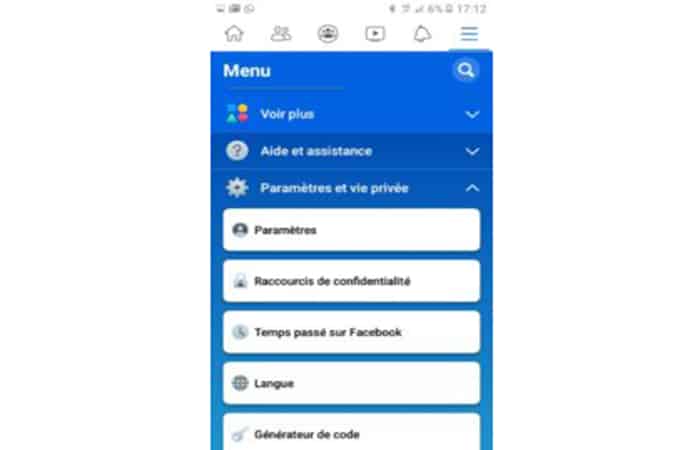
- Step 1:: The first thing you need to do is enter the application and select the menu from the top three rows.
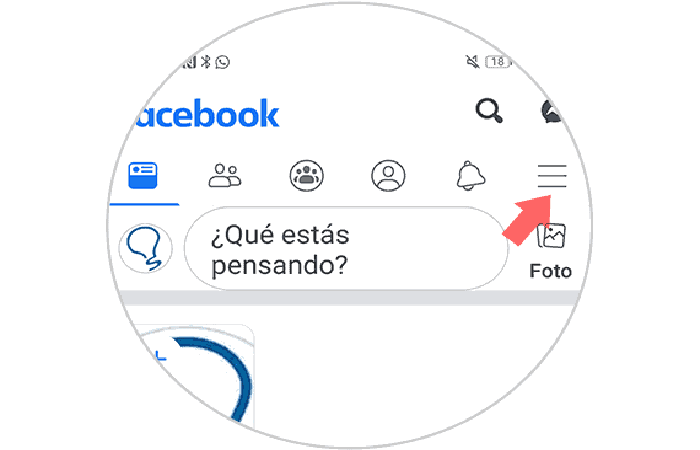
- Step 2:: Next, you need to go to the section "Settings and privacy".
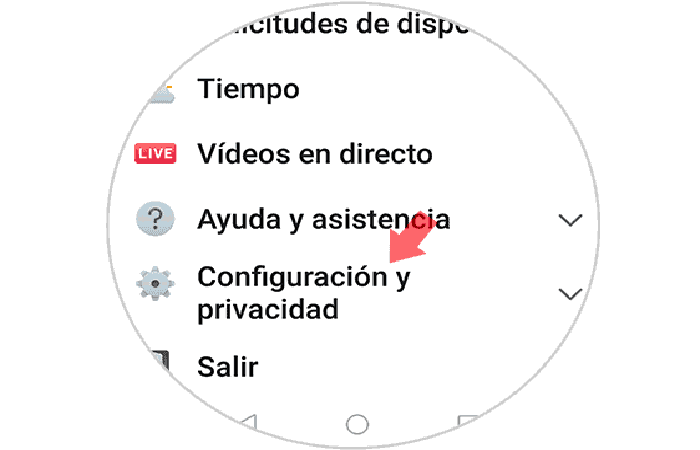
- Step 3:: Now, in the drop-down menu, click on "Settings"
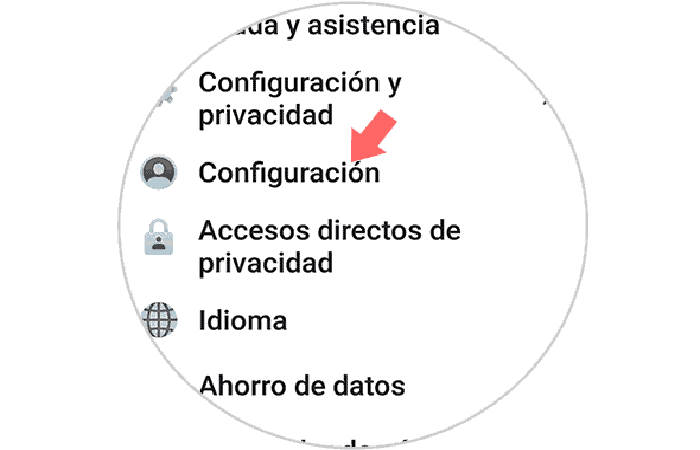
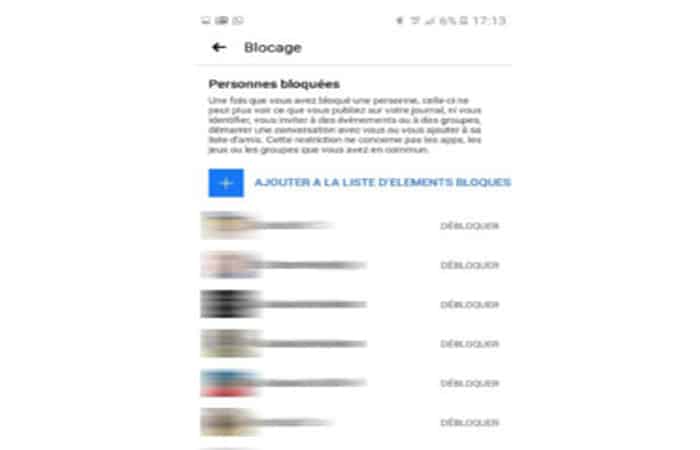
- Step 4:: Once inside, you will see a new menu. In this case, you must select in the section "Privacy" from the search section "Lockdowns".
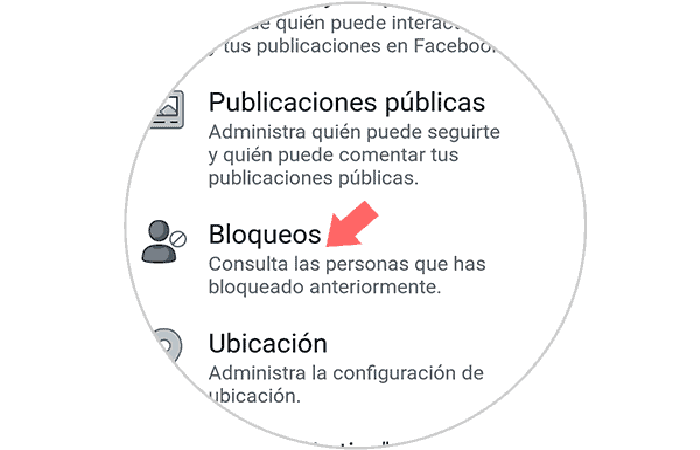
- Step 5:: Here you will see all the people you have blocked. Select "To unlock".
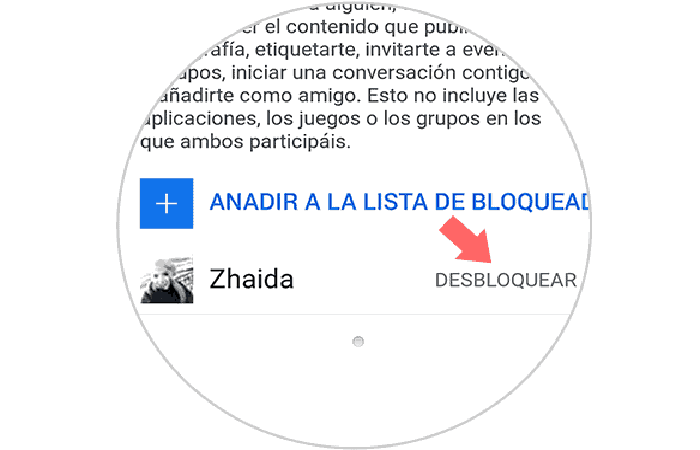
- Step 6:: You will see a pop-up window to confirm this action.
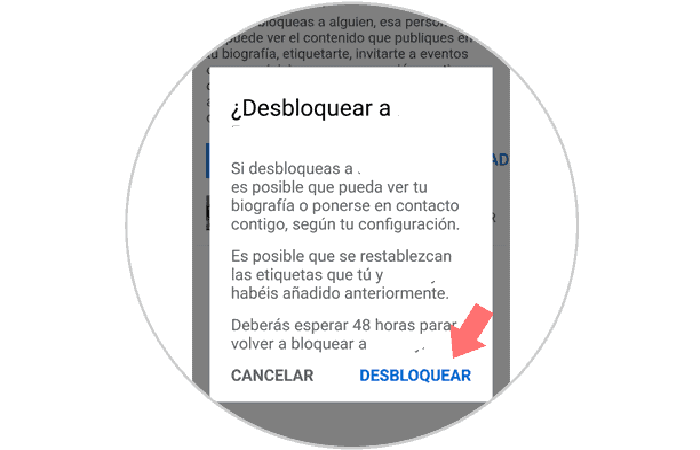
NOTE : Keep in mind that if you unblock someone on Facebook, you won't be able to block them again for 48 hours. This way, you'll know how to unblock all the contacts you've blocked on Facebook directly from your iPhone.
Method 2: Unblock Someone on Facebook iPhone
To unblock someone unwanted on Facebook for iPhone , simply follow these easy step-by-step instructions:
- Step 1:: Start the application Facebook on your mobile
- Step 2: Click the Menu button (3 horizontal lines) at the bottom right.
- Step 3: Toca Settings and privacy.
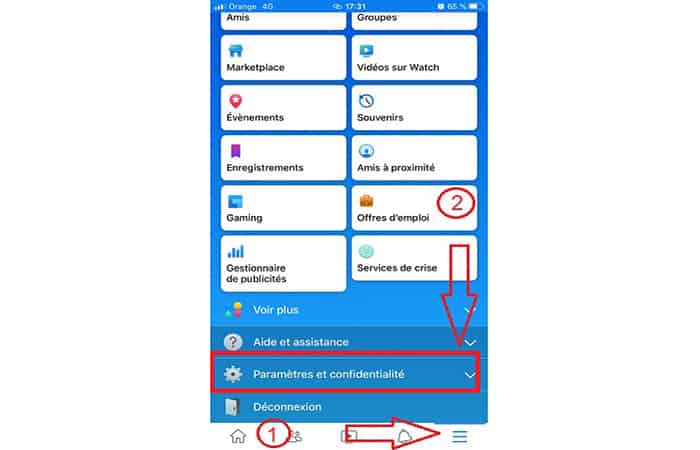
- Step 4:: Then tap on Configuration.
- Step 5: Then, scroll down the page a little and select the option
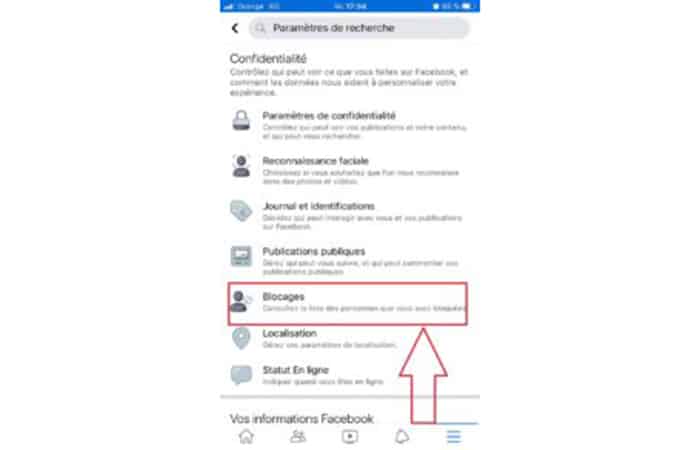
- Step 6:: Finally choose the person you want to unblock and click on the button To unlock.
Method 3: Unblock Facebook on iPhone/iPad?
If you have an iPad , you can easily unblock people by following these steps:
- Step 1:: Connect to your Facebook on iPhone/iPad.
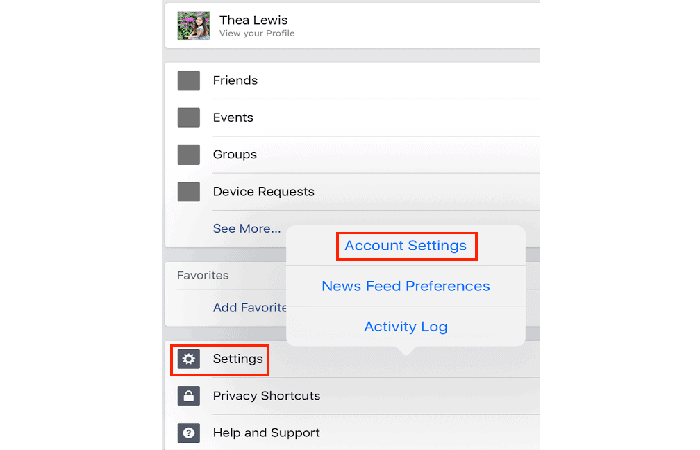
- Step 2:: Press the menu button and scroll to Configuration.
- Step 3: search and touch Account settings.
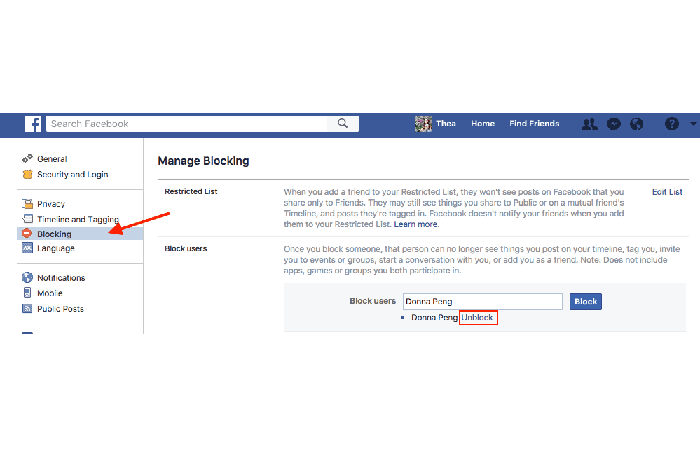
- Step 4: Tap the option Blocking
- Step 5: Find the name of the friend you want to unblock and press the button.
The problem, however, is that you will no longer be automatically friends on Facebook unless you send them requests. This is Facebook's latest update.
Other methods to unlock
It's also possible to unlock accounts; you can unlock Facebook not only from an iPhone, but also from other devices such as Android, laptops , tablets, PCs, or Macs . Here are the alternative methods for other operating systems :
Alternative Method 1: Unblock Someone on Facebook with Android
The method for unlocking a Facebook contact on Android is virtually the same, except for a few minor details.
- Step 1:: Open the Facebook app on your Android phone.
- Step 2:: Click the Menu button (3 horizontal lines) at the top right.
- Step 3:: Choose Settings and privacy y Parameters.
- Step 4:: Then, in the section on the left, tap
- Step 5:: From there, you can unblock your contacts by pressing the key next to their names.
- Step 6:: Finally click on RSVP.
When you unblock someone, you should keep in mind that they will be able to find you again, contact you, and send you messages. Most importantly, you will have to wait 48 hours before you can block them again.
Alternative Method 2: Unblock Facebook Friends from Your PC or Laptop Desktop.
You can also unblock using your computer. If you are on a desktop and want to unblock Facebook friends, you can follow the methods below:
- Step 1:: Launch Facebook in your preferred browser.
- Step 2:: Then, you must go to the Facebook settings.
- Step 3:: Afterwards, you have to find a lock among the options in the left menu.
- Step 4:: Then, search for the name of the contact you want to unblock.
- Step 5:: Finally you must confirm the unlock request.
When you unblock someone on Facebook, you may not be able to block them after 48 hours.
Alternative Method 3: How to Monitor Your Friends and Followers on Facebook?
We have some friends that we really can't get rid of and there are others that are so annoying that we don't want them to see our posts because they might ruin them.
Better yet, delete them and control your own account's privacy settings. By controlling your own account, you can customize the visibility of your posts, know who can contact you, who can add you as friends, and even send you messages.
You can easily change and customize who can add your Facebook profile. To learn these settings, just follow these steps:
Manage your circle of friends on the desktop
- Step 1:: Access your account settings by clicking the down arrow button.
- Step 2:: Choose
- Step 3:: Find who you can send friend requests to and click on edit.
- Step 4:: Choose the friends of your friends instead of the default ones.
That's all! For more friend requests, you can use names familiar to your circles.
Adjust privacy settings on iPhone:
Open a Facebook app on your iPhone.
- Step 1:: Press the button Menu .
- Step 2:: Search and touch Configuration.
- Step 3:: Touch Account settings.
- Step 4:: Tap Privacy.
- Step 5:: Customize according to your preferences
Change public messages
Another good thing you can do is change the public posts on your Facebook calendar. Follow the steps below:
- Step 1:: Again, launch the Facebook application.
- Step 2:: Press Menu and go to Configuration.
- Step 3:: Find the account settings.
- Step 4:: Touch Public messages.
- Step 5:: Choose between Public, Friends of Friends, and Friends Only.
Set privacy shortcuts
- Step 1:: Access the menu in your Facebook app.
- Step 2:: Find and tap Privacy shortcuts.
- Step 3:: Play the phrase Who can see my stuff?
- Step 4:: Choose between audience, friends and friends of friends.
This includes everything in your activity logs, your posting preferences, reactions, and comments. You can also set approval for who can post on your Facebook wall and even comment when tagging photos and posts.
Approve friends to review their photos and messages
- Step 1:: First, you need to go to your account settings on Facebook.
- Step 2:: Search and tap Chronology y labeled.
- Step 3:: Touch Review tags.
- Step 4:: Click Edit and customize.
- Step 5:: Click Activate Once customization is complete
NOTE : After turning this page, each time you're tagged in a post, you'll receive a notification asking if you want to show or hide it on your calendar. If you click Hide , only people you and your friends have tagged in the post will be able to see it.
Bonus Tip: How to Unblock Facebook Site on Chrome?
Do you have restricted sites on your computer and finally want to unblock them? If so, Facebook might be on the list. We'll give you some tips on how to unblock Facebook from Google Chrome 's restricted sites.
- 1 Council: Delete or add the letter "S" to the site URL: HTTP/s to see which one is accessible. If without s It works, the https it crashes and vice versa.
- 2 Council: If the error message appears "Due to restrictions on this account", it may mean that parental controls are set up on the computer. If you are the administrator, you can easily remove the restrictions yourself.
- tip 3: When there is no error message, you can go to Control Panel > Internet Options > Security > Search and click on Restricted Websites > If Facebook appears on the screen, you can select the site and click on Delete.
- 4 Council: For the safety of the family, you can go to the Content Advisor or Child Protection en Internet Options and customize settings. This option provides user-level blocking for all URLs.
- Step 5:: Use a proxy browser to view and access Facebook or you can use a different DNS. You can do this by going to Open network and sharing. Double-click your network name, then change the DNS to IPv4. You can use the public DNS of Google.
Recommendation.
Now that you've learned how to unlock Facebook on your iPhone, including the website, you can confidently browse your calendar without any worries. This is especially helpful if you need to back up your Facebook photos on your iOS device.
Here you can learn about: 5 Best Programs to Stream Live on Facebook
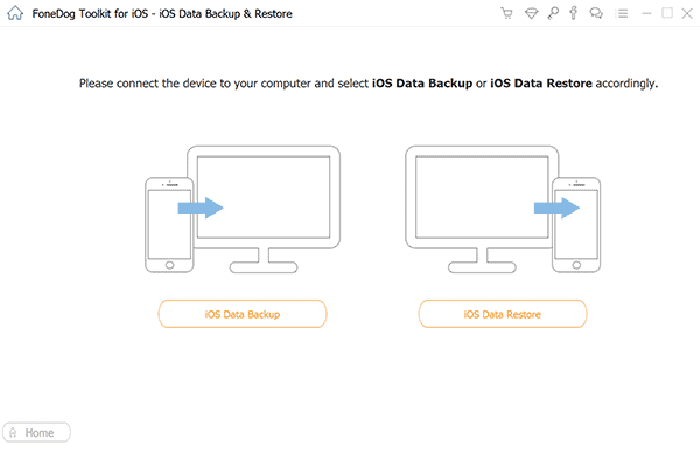
You can opt for a comprehensive mobile software solution called FoneDog Toolkit to back up and restore iOS data. This product allows you to export and back up all your iPhone/iPad files to your computer and retrieve them at any time. We hope this helps.

My name is Javier Chirinos and I am passionate about technology. Ever since I can remember, I have been interested in computers and video games, and that passion has turned into a job.
I have been publishing about technology and gadgets on the Internet for over 15 years, especially in mundobytes.com
I am also an expert in online marketing and communication and have knowledge in WordPress development.