- Enable supported protocols (SFTP/WebDAVs or VPN+SMB/NFS) to play in VLC without transcoding.
- DLNA makes browsing easier on TV; for remote use, prioritize SFTP or WebDAV for security.
- Video Station organizes, shares and manages subtitles, but its direct reproduction depends on the format.
If you have a NAS at home (Synology, QNAP, or another) and connect from outside using a DynDNS domain or services like QuickConnect/myQNAPcloud, you'll naturally want to open videos directly with VLC without relying on transcoding. The good news is that VLC supports various network protocols for playback without downloading, and you can safely configure it to view 4K without overloading your NAS's CPU.
In real-world scenarios like a Synology DS215j or a home-range QNAP, the bottleneck is usually transcoding on Plex or web servers. The key is direct play using standard protocols (SMB, NFS, FTP/SFTP, WebDAV, or HTTP/HTTPS), and when you want to browse your library from a TV, enable DLNA so that VLC or your TV's app can locate the files on the fly.
What you need to play from a NAS with VLC
To play files from VLC without using Plex or web interfaces that only download, enable one or more file services on your NAS : SMB/CIFS ( Windows ), NFS (Unix/Linux), FTP/FTPS, SFTP, or WebDAV. All of these are compatible with VLC for opening a network URL and streaming directly.
If your goal is to watch 4K without transcoding because your NAS is modest, opt for the protocol best suited to your environment and consider connecting via VPN when you're out and about. DLNA/UPnP is also a convenient option for local networks: on QNAP, simply activate the DLNA server, and on your TV, use VLC to "Discover Network."
On Synology, even though you can view files in the browser when logging in with DynDNS, clicking on a video will usually download it. To open that same file with VLC, you must use a network URL with the protocol you've specified (e.g., smb://, sftp://, or https:// via WebDAV), or mount the drive in the operating system and open it from VLC as if it were a local drive.
If you prefer a library experience with metadata, QNAP offers Video Station for categorizing videos, creating collections, and even sending links. However, direct playback without transcoding will depend on the format ; even their documentation notes that, without transcoding, MP4 plays best in the browser, and that for DLNA/Chromecast you need the Media Streaming plugin.
Supported protocols and syntax in VLC
VLC allows you to open a "Network Media" with different URLs. These are the practical syntaxes you can use depending on the service exposed on your NAS and your scenario (local or remote):
Sometimes, simply scanning the network automatically detects the NAS. If not, read on…
SMB/CIFS (Windows/Samba)
Recommended for local networks, but also usable over the Internet if you encapsulate it with a VPN. In VLC, use:
smb://usuario:contraseña@dominio-o-IP/compartida/ruta/archivo.mkv
If you have special characters, escapes the Symbols or let VLC ask you for credentials when opening smb://dominio-o-IP/compartida/....
NFS
Very efficient on LANs, typical of Unix/Linux environments and some TVs and media players. In VLC:
nfs://dominio-o-IP/ruta/exportada/archivo.mkv
It requires having the export configured on the NAS and, if it is remote, The ideal is to use VPN.
FTP/FTPS
Easy to enable; for internet security, FTPS (TLS) is preferable. Examples:
ftp://usuario:contraseña@dominio:21/ruta/archivo.mkv
ftps://usuario:contraseña@dominio:990/ruta/archivo.mkv
Note that FTP involves multiple connections; may be affected by NAT if it is not configured correctly.
SFTP (SSH)
Simple and secure for remote access. VLC supports this:
sftp://usuario@dominio:22/ruta/archivo.mkv
If you don't put the password in the URL, VLC will ask for it. It is one of the most robust options for 4K if your bandwidth allows it.
WebDAV/HTTPS
Ideal if you already use a subdomain with TLS (e.g., DynDNS + Let's Encrypt). Syntax:
dav://usuario:contraseña@dominio:puerto/ruta/archivo.mkv
davs://usuario:contraseña@dominio:puerto/ruta/archivo.mkv
With “davs” you travel encrypted. This is the typical method when you publish your NAS via HTTPS. without exposing SMB.
Direct HTTP/HTTPS
If you are serving the video folder over the web, you can point to the file URL:
https://dominio/ruta/archivo.mkv
It's simple, but depending on how the server is configured, some browsers force download while VLC will play the stream.
DLNA/UPnP
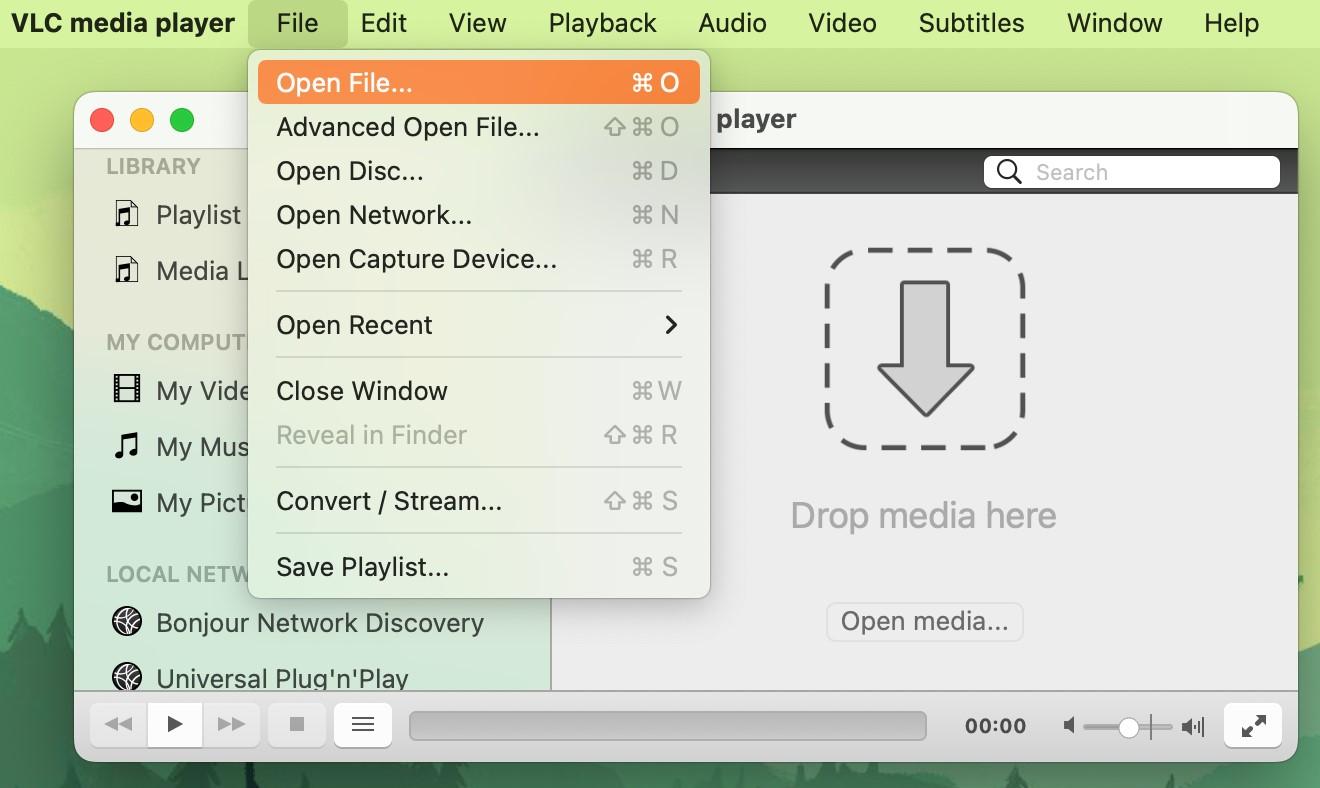
It doesn't open with a URL; it's discovered. In VLC, go to "Media > Open Network Location > Local Network", and explore home DLNA servers to select the video. Requires enabling the DLNA server on the NAS.
Folders and credentials with spaces, accents, or symbols may need URL encoding (%20, etc.). If in doubt, just enter the host and let VLC ask for your username/password.. Where possible, prefer SFTP or HTTPS/WebDAV when accessing from the Internet for security reasons.
Secure remote access to the NAS: DynDNS, ports, and VPN
With a DynDNS domain, you can access the NAS's web interface, but that doesn't mean you can open videos in VLC. You need to expose a compatible service (SFTP, WebDAV/HTTPS, FTPS, etc.) or connect via VPN to use SMB/NFS as if you were at home.
Best practices for 4K and security :
- VPN of the router or from the NAS (OpenVPN/WireGuard) to map SMB/NFS and pull “direct play”.
- SFTP or WebDAVs if you can't set up VPN.
- Avoid exposing SMB/AFP to the Internet; better to encapsulate it in VPN.
- Check ports on the router with UPnP disabled or specific rules.
- TLS/HTTPS with valid certificates for WebDAV.
Bandwidth is key: a 4K video with a high bitrate can require 60–100 Mbps of actual bandwidth. If your connection isn't up to the task , consider using H.265 copies with a lower bitrate or playing 1080p mobile versions.
Synology: Practical Options with VLC
On Synology, you can access the web via DynDNS, but clicking on a video will download it. For VLC, enable the following services in Control Panel > File Services : SMB, NFS, FTP/FTPS, SFTP, and WebDAV. WebDAV + HTTPS will provide direct, encrypted URLs for VLC.
If your NAS (like the DS215j) cannot transcode, avoid using Plex outside your home if it forces transcoding , and instead open the files in VLC using SFTP/WebDAV or via VPN with SMB/NFS to play them without touching the NAS CPU.
QuickConnect allows sharing without opening ports, but it's not always compatible with VLC. For VLC, the most stable remote method is usually VPN + SMB/NFS , or SFTP/WebDAV with a direct URL.
QNAP: DLNA, Plex, and the Video Station ecosystem
If you "don't want to mess with too many settings," on QNAP you can enable DLNA and use VLC on your TV to browse your folders via "Discover Network." On many TVs and Android TV boxes , formats play without transcoding, which is perfect for LAN connections.
Alternatively, with a library and apps across multiple platforms, install Plex Server from the QNAP repository and the Plex client on your TV. If your NAS cannot transcode 4K, force Direct Play or limit remote access to smaller content.
QNAP Video Station organizes and shares videos online: movies, TV shows, home videos, and music videos, with smart collections, tags, ratings, and filters. From Video Station, you can play videos in your browser or "Open with VLC" (with the plugin), download, copy to collections, and even batch transcode from 240p to 1080p on x86 models.
To stream to HDMI or Chromecast from Video Station's Network Media Player, install the Media Streaming plugin from the App Center . If you're streaming to multiple zones, enable Bonjour in Control Panel > Network Services > Service Discovery > Bonjour.
Limitations to consider: Without transcoding, only MP4 plays directly in the browser, according to QNAP documentation. Some formats may have compatibility issues with DLNA, Apple TV, or Chromecast; in these cases, it's advisable to transcode to more universal containers.
Subtitles, playback control, and metadata in Video Station
Although we're focusing on VLC here, it's useful to know about Video Station's library management options. You can import .srt, .ass, and .ssa subtitles , saving them in the same folder and with the same base name as the video (e.g., video.eng.srt), or import them from the player ("CC" > Import) and even search for them online (OpenSubtitles, etc.).
There are options to adjust subtitles (font, size, color, background) and synchronization (whether they are ahead or behind). The player allows you to change resolution/transcoding when your NAS supports it, and offers quick controls: play/pause, stop, search bar, volume, full screen, and keyboard shortcuts (arrow keys to skip forward/backward, spacebar to pause).
To enrich your collections, Video Station downloads online movie information (poster, year, rating, director, cast). If there are errors, you can edit the English title and search again, or upload your own poster from your computer or a URL. Please note that the metadata search is designed for English keywords.
Want to share? Drag videos to the "Sharing" panel and send links via email, social media, or generate a direct link (myQNAPcloud domain, LAN/WAN IP, HTML/forum code). For email, first configure your account in QTS > Options > Email Account.
Organization, collections, and media library on QNAP
Video Station distinguishes between "Shared Videos" (folders on the entire NAS except /home and Qsync), "Private Collection" (your /home directory, just for you), "Qsync" (synchronized videos), "Video Collection" (virtual collections), and "Smart Collection" (groups items by rules: movies, TV shows, music, home videos). You'll also see "Recently" and a trash can for recovering or permanently deleting items.
The menu bar allows you to switch views (thumbnails, list, timeline, folders), multi-select, thumbnail size, search by title, date, tags, rating or color , and configure content filters, folder classification, subtitle search and security options (“Require password” for private/Qsync).
Creating collections is as simple as converting a folder into a collection or dragging videos to "Video Collection." Within collections, you can play, download, rename, share, and adjust their options (public sharing, validity period, and whether other users can edit). Smart collections are created by tapping the "+" icon on Smart Collection, setting criteria and content types.
Operations on videos include playing, opening with VLC (if you have installed the plugin), downloading, copying to collection, setting as cover , adding to transcoding, rotating 90°, adding to shared list, sending to network devices, deleting, viewing information, adding tags, rating, or assigning a color label.
File visibility depends on shared folder permissions and the folders defined as multimedia in the Media Library (shared by Photo/Music/Video Station and DLNA). On x86 models, almost all shared folders are "multimedia" by default (except /recording and /web); on ARM, /multimedia and /homes are, although you can always add more. Remember that /home is private for each user.
If you upload videos and they don't appear, force a scan in Control Panel > Media Management > Media Library. Changing the media folders affects Photo/Music/Video Station and DLNA because they share the same source.
Performance and compatibility: 4K without the headaches
For 4K without transcoding, the golden rule is simple: a stable network and the right protocol . On a LAN, use an Ethernet cable whenever possible; on Wi-Fi, at least 5 GHz with good bandwidth. Over the internet, bitrate is key: if you don't have enough, you'll experience buffering even if the NAS has plenty of bandwidth.
Remotely, SFTP and WebDAVs generally handle network hopping well; with VPN, SMB and NFS provide a "home-home" experience . DLNA shines on LAN with compatible TVs/TV boxes, but can cause problems with containers and subtitles on certain models; if this happens, try direct playback in VLC or consider transcoding to MP4/H.264 + AAC beforehand.
If you use Video Station to cast to Chromecast/HDMI, install the Media Streaming add-on and enable Bonjour for multi-region streaming. CodexPack is required on QNAP NAS devices with transcoding capabilities . And if your machine isn't powerful enough, avoid transcoding on the fly and opt for direct play.
Quick setup steps (everything connected and ready to play)
- Activate the necessary services on your NAS: On Synology, go to File Services and enable SMB/NFS/FTP(S)/SFTP/WebDAV; on QNAP, App Center/Control Panel for DLNA, WebDAV, SFTP, etc.
- Decide on the method for out of home: VPN to use SMB/NFS; if not possible, SFTP or WebDAV. Configure DynDNS or myQNAPcloud/QuickConnect, TLS certificates, and port forwarding if applicable.
- Test in VLC: Open Media > Open Network Location and enter the appropriate URL (e.g., sftp://user@yourdomain:22/path/video.mkv or davs://user:password@yourdomain:443/path/video.mp4). Adjust the buffer if necessary.
- On TVWith DLNA enabled, open VLC on your TV/Box and go to “Discover Network/UPnP” to navigate to your folders. If something isn't showing, try another container or open it via SFTP/WebDAV from a compatible app.
Those who prefer a library with metadata and link sharing can use Video Station on QNAP: organize collections, download movie information , manage subtitles, and share via email/social media or direct link. Keep in mind the transcoding limitations and native format support.
With these settings, playing content in VLC from a NAS is as simple as opening a URL or browsing via DLNA on your network. The combination of a secure protocol, a good network, and direct playback is the formula for enjoying smooth 4K without overloading the NAS's CPU, both at home and on the go.

Passionate writer about the world of bytes and technology in general. I love sharing my knowledge through writing, and that's what I'll do on this blog, show you all the most interesting things about gadgets, software, hardware, tech trends, and more. My goal is to help you navigate the digital world in a simple and entertaining way.