- Enable FIDO2 login on Windows via Intune, OMA-URI, provisioning package, or GPO.
- Learn about requirements and unsupported scenarios (RDP/VDI, S/MIME, server, offline without prior logon).
- Register and manage keys: PIN/biometrics, reset and deletion from account and Windows.
- Plan for real-world limitations (remote support, RDP, PIN UX) and compatibility on iOS/macOS.

Passwordless authentication is no longer just a promise: it's a reality you can deploy today on Windows 10 and Windows 11 with FIDO2 security keys and Windows Hello for Business. This article provides a step-by-step guide on how to enable security key login on devices joined to Microsoft Entra ID (formerly Azure AD) and on hybrid PCs. We also cover user key registration, PIN/biometric management, and unsupported scenarios.
Beyond the theory, we include real-world implementation challenges (remote support, RDP, key assignment, PIN requirements), practical recommendations, and compatibility notes for iOS and macOS. If you want to deploy FIDO2 wisely, here's everything you need to avoid surprises and achieve a smooth experience.
What is FIDO2 and how does it fit with Windows Hello?
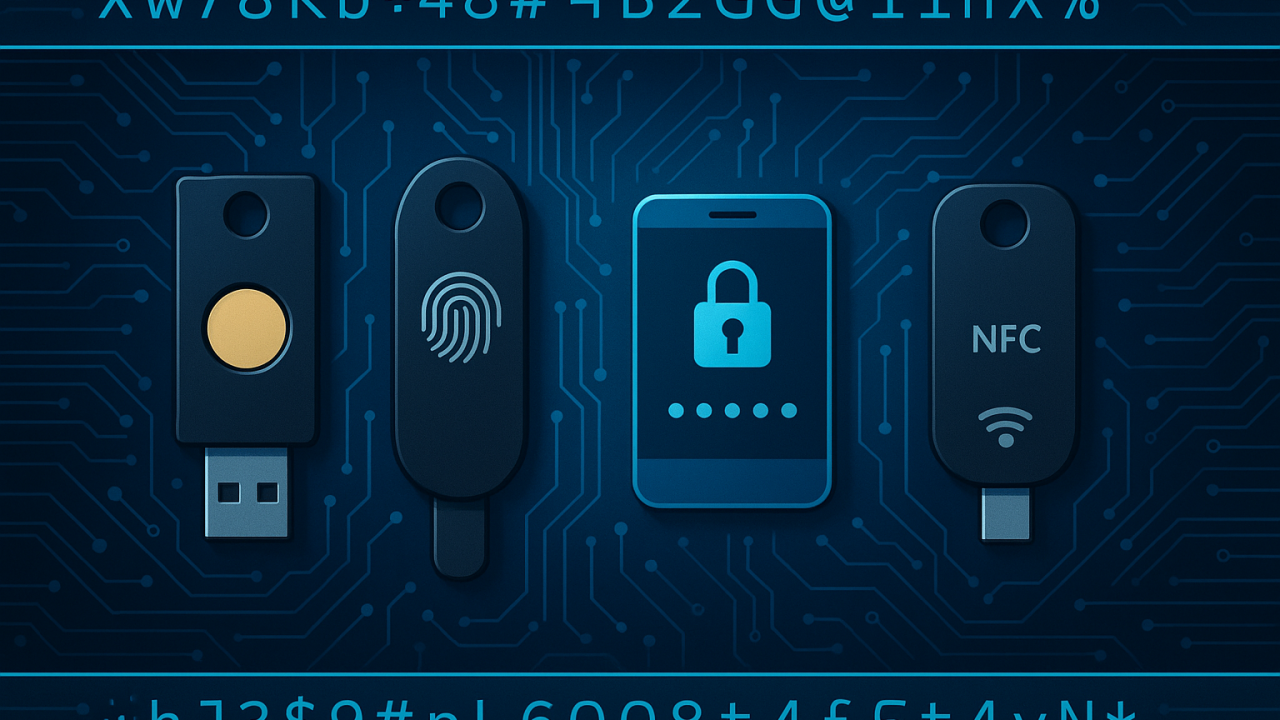
FIDO2 is an open standard for passwordless authentication that relies on asymmetric cryptography . It consists of two components: WebAuthn (a browser API defined by the W3C) and CTAP2 (a protocol between the client and the authenticator, defined by the FIDO Alliance). Security keys can be USB , NFC, or embedded readers, and the authenticator can be embedded (Windows Hello) or an external device.
When you register a key, the client generates a public/private key pair ; the public key is stored on the service (Relying Party) and the private key remains secure on your device or hardware key . Upon logging in, the server sends a challenge, and the authenticator returns a signature valid only for the authorized domain thanks to the RP ID, thus blocking phishing and the use of credentials on fake sites.
In Microsoft environments, this method integrates with Windows Hello for Business and Microsoft Entra ID, allowing passwordless access to devices and cloud apps . Passkeys can be device-bound or synchronized within the provider's ecosystem; Windows Hello acts as a local authenticator, and FIDO2 keys act as cross-platform external authenticators.
Prerequisites and unsupported scenarios
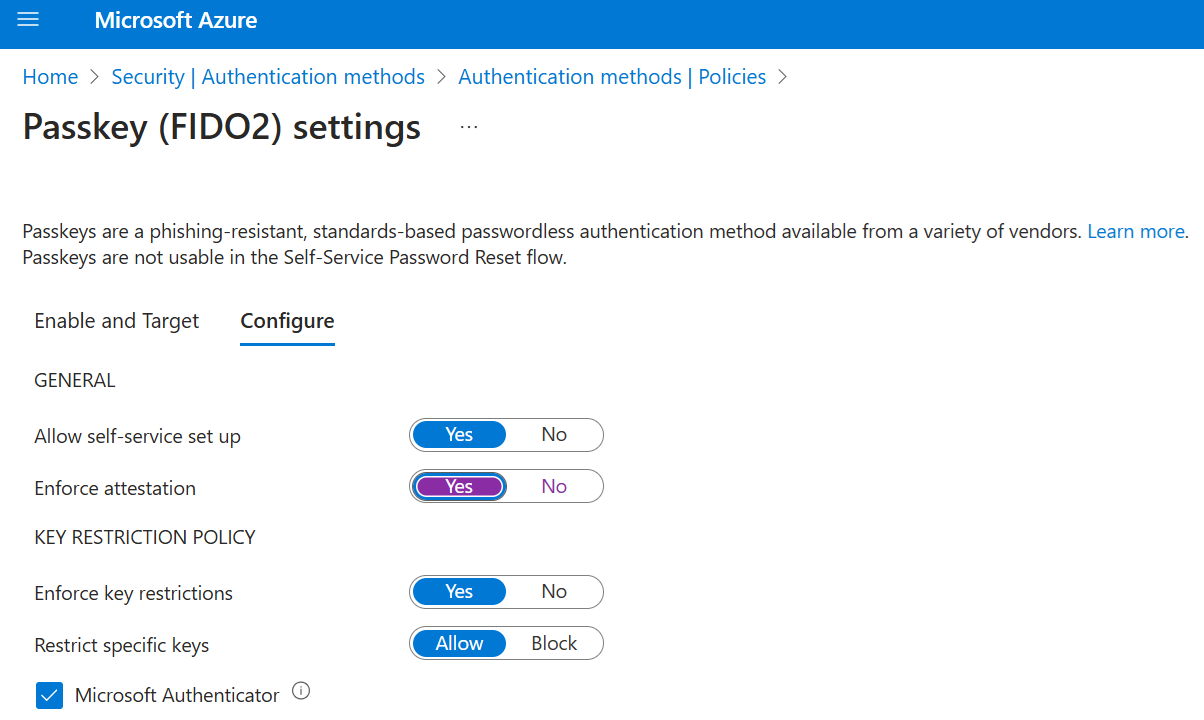
Before you begin, confirm that your organization has enabled this method and that you are using a compatible browser . For registration and use of security keys, Microsoft requires Windows 10 May 2019 Update or later, and devices approved by the organization (the key must be FIDO2 and compatible with Microsoft).
These are the relevant unsupported scenarios to consider when planning the deployment:
- Sign in or unlock Windows with a access key in Microsoft Authenticator (passkey on mobile) instead of a physical FIDO2 key for device logon.
- Environments only Domain-joined AD DS (pure on-prem) no layer Enter ID.
- Uses such as RDP, VDI, and Citrix that rely on a key other than the WebAuthn redirect.
- S/MIME signatures with the FIDO2 security key (not supported).
- Operations “Run as” with a security key (not supported).
- Login to servers with a security key (not supported).
- Use Without connection- If you don't sign in with your key while online, you won't be able to use it to sign in or unlock offline.
- Keys with multiple Login ID accounts: Windows selects the default last account added to the key for the logon, although in WebAuthn flows you can choose the account.
- Unlocking devices with Windows 10 1809 (unsupported experience). 1903 or higher recommended.
Enable Windows logon with FIDO2 keys
Organizations can enable security key login in Windows in several ways. Below, we've compiled all the supported options so you can choose the one that best suits your management style (MDM, provisioning, or GPO).
System version requirements
For devices joined to Microsoft Entra ID, Windows 10 version 1909 or later is required . For hybrid Entra ID-joined devices, Windows 10 version 2004 or later is required . In Windows 11, these capabilities are natively available with recent versions.
Enable with Microsoft Intune
If you manage your devices with Intune, you can enable the use of security keys from the Intune Admin Center by following these steps:
- Access the Microsoft Intune admin center.
- Navigate to Devices > Enroll Devices > Windows Enrollment > Windows Hello for business.
- In the settings, set “Use security keys to log in” in Enabled.
This setting does not depend on having Windows Hello for Business enabled; it enables the security key credential provider for logon.
Targeted Intune Deployment (OMA-URI)
If you need granularity, create a custom profile to activate the credential provider for specific groups of computers or users:
- Microsoft Intune admin center > Devices > Windows > Configuration profiles > Create profile.
- Configure: Platform = Windows 10 and later; Profile Type = Templates > Custom; Name and Description of your choice.
- In Settings, add an OMA-URI row with:
- Name: Enable FIDO Security Keys for Windows Logon
- OMA-URI: ./Device/Vendor/MSFT/PassportForWork/SecurityKey/UseSecurityKeyForSignin
- Data type: Integer
- Value: 1
- Assign the profile to the users/devices/groups necessary.
Enable with a provisioning package
On devices not managed by Intune, you can apply a provisioning package using Windows Configuration Designer (available in the Microsoft Store). Summary of procedure:
- Open Windows Configuration Designer and create a New project (“Provisioning Package” flow).
- Choose "All editions of Windows desktop” when asked for the configuration scope.
- In Runtime Settings > WindowsHelloForBusiness > SecurityKeys > UseSecurityKeyForSignIn, mark “Enabled”.
- Export and compile the package (.ppkg and .cat files are generated) and apply it to the target computers.
Enable with Group Policy (GPO)
For computers joined to Entra ID in a hybrid manner , there is a GPO to enable logon with a FIDO2 security key. Path: Computer Configuration > Administrative Templates > System > Logon > Enable logon with security key.
- Enabled: Allows login with security keys.
- Disabled or Not Configured: Prevents this.
It requires the updated CredentialProviders.admx policy template (included in modern Windows Server and Windows 10 20H1). You can manage it locally or from a central administrative template store.
Registration and management of the security key by the user
Before registering, ensure that the administrator has enabled the method for your organization and that your computer/device is up to date. You will need an approved FIDO2 key (USB or NFC) and a supported browser.
To add the key as a method to your work or school account: Go to My Profile > Security Information , choose “Add method,” and select “Security key.” Choose the type (USB or NFC), insert or tap the key when prompted, and follow the on-screen instructions.
In Windows 11 23H2, if the browser prioritizes a passkey on your mobile device, sign in and tap Next ; under “More options,” choose “Security key” and continue. In earlier versions, a QR pairing screen may appear for a different passkey: if you want to register the physical key, insert and tap the key to force that process.
During the process, Windows will ask you to set or enter the key's PIN in the Windows Security box. When finished, return to Security Information, give the key a descriptive name, and complete the process. You can register up to 10 keys per account.
To remove a key from your security information, use the Delete link on the key's card and confirm. Note: This prevents its use with your account, but the credentials stored on the key remain. To erase them, you must factory reset the key .
From Windows Settings > Accounts > Sign-in options > Security key > Manage, you can reset the key (return to default values) or create/change the security key PIN . Insert or tap the key to verify your identity and follow the manufacturer's instructions.
FIDO2 Windows Login and Authentication Flow
Once the provider is enabled, you can choose your security key credential provider on the Windows lock screen . Insert the key, enter your PIN, or perform the biometric gesture to access the desktop. On hybrid PCs, remember to also enable passwordless login for local resources.
The technical flow with Entra ID is as follows: Windows detects the key and sends an authentication request ; Entra ID returns a “nonce”; the key signs that nonce with its private key; Windows requests the PRT (Primary Refresh Token) attaching the signature; Entra ID verifies with the public key and returns the PRT, allowing access to resources.
To ensure the best experience and security, Microsoft requires that keys certify certain optional CTAP2 extensions . In practice: choose certified vendors that explicitly indicate Windows/Entra ID compatibility (for example, manufacturers that are members of the FIDO Alliance and MISA) to avoid conflicts.
When working offline, the key may work in certain cases, but there are limitations: if you haven't previously logged in online with the key, you won't be able to use it to log in or unlock while offline.
Which methods are valid for MFA and which are valid for password reset?
In Microsoft Entra, security information methods are used for two-step verification and/or password reset (SSPR). Not all methods work for both.
| Method | Use |
| Authentication application | Two-step verification and password reset |
| SMS | Two-step verification and password reset |
| Phone call | Two-step verification and password reset |
| Passcode / FIDO2 Key | Two step verification |
| External authentication method | Two step verification |
| Password reset only | |
| Security questions | Password reset only |
Limitations and lessons learned from real deployments
When deploying FIDO2 to production, practical issues arise. For example, if you enable Windows Hello to use FIDO2 and passkeys on websites and apps, Windows may prioritize the PIN/Hello for device logon. On local accounts, this might be undesirable if you intend to continue using your password for initial login.
In real-world scenarios, some teams report that there's no fully administrative way to assign keys to users: each person must register them in their Security Info once the method is enabled and 2FA is applied. This provides flexibility, but also requires designing an initial onboarding process (e.g., a temporary pass on the first day) and governance over key creation and deletion.
Another point: using keys requires a PIN (or biometric authentication), so the typical sequence is "insert key, enter PIN, touch key." It's more secure, but the user experience is different from a traditional password, and it's advisable to explain this to the user to avoid friction and plan for unlocking drives (BitLocker).
Enforcing the key as a second factor at the machine level by disabling passwords can break scenarios such as remote support (e.g., TeamViewer), "Run as administrator" elevation, and working with RDP if the entire environment isn't properly configured. Disabling the password without a plan could lead to dependence on the local administrator for certain tasks, such as exiting safe mode , with the resulting operational risks.
Practical recommendations: Define a recovery plan (backup key, alternative methods such as an authentication app), provide step-by-step registration guides, and establish lifecycle policies (what to do if a key is lost, how to revoke it, and how to reissue it). If your environment uses RDP extensively, review dependencies and compatibility before attempting to completely eliminate password login.
Compatibility on iOS/macOS and Microsoft 365 tools
In the Apple ecosystem, there are nuances: Microsoft's FIDO2 compatibility for iOS applies to browsers ; for native apps, the solution is certificate-based credentials ( Azure CBA ). macOS and iOS have restrictions (for example, specific BLE keys and registration flows) that should be verified.
Furthermore, not all cloud management tools (such as certain Azure PowerShell modules or MSAL clients) have consistently supported FIDO2. In advanced deployments, credential management solutions (CMS) can facilitate remote onboarding, account recovery, and hardware token distribution at scale.
If a key is lost, attempted PINs are blocked after several failed attempts, rendering the key useless to third parties. At the organizational level, a CMS or Entra's management workflows allow for the revocation of credentials registered to that key and the issuance of a new one. Meanwhile, some environments use Windows Hello or the Authenticator app as a temporary alternative.
User Tips: Registration, Usage, and Backup
Many guides recommend initializing the key and assigning a PIN before first use. Some manufacturers offer specific utilities (for example, PIN change or reset managers) that simplify this task, especially if you're going to manage two keys (primary and backup) from the start.
Golden rule: Register your primary and backup keys with critical services. The configuration may vary between providers (each service has its own path for Security/2FA/MFA), but the general pattern is to always add a "Security Key" method and complete the WebAuthn/CTAP2 flow indicated by the browser.
In Windows, you can manage your security key from Settings > Accounts > Sign-in options > Security key , where you can change your PIN, update your biometrics (if it's a biometric key), or reset it if you plan to reuse it. Resetting it erases all the key's contents and lets you start fresh.


Passionate writer about the world of bytes and technology in general. I love sharing my knowledge through writing, and that's what I'll do on this blog, show you all the most interesting things about gadgets, software, hardware, tech trends, and more. My goal is to help you navigate the digital world in a simple and entertaining way.