
Would you like to know how to use the VLOOKUP function in Excel ? In this tutorial, we'll show you how to use the VLOOKUP function to copy data from another worksheet or workbook, perform VLOOKUP across multiple sheets, and dynamically search to return values from different sheets to different cells.
When searching for information in Excel, it's rare that all the data is on the same sheet. More often than not, you'll need to search across multiple sheets or even different workbooks. The good news is that Microsoft Excel provides more than one way to do this , and the bad news is that all of these methods are a bit more complicated than a standard VLOOKUP formula. But with a little patience, you'll learn.
How to use the VLOOKUP function in Excel between two sheets
To begin, let's look at a simple example: using the VLOOKUP function in Excel to copy data from another worksheet. It's very similar to a regular VLOOKUP formula that searches within the same worksheet. The difference is that it includes the sheet name in the table_array argument to tell your formula which worksheet contains the search range.
Here you can learn about: How to Improve Your Excel Experience – 13 Useful Tips
The generic formula for the VLOOKUP function in Excel from another sheet is as follows:
- VLOOKUP (lookup_value, Sheet! Range, col_index_num, [range_lookup])
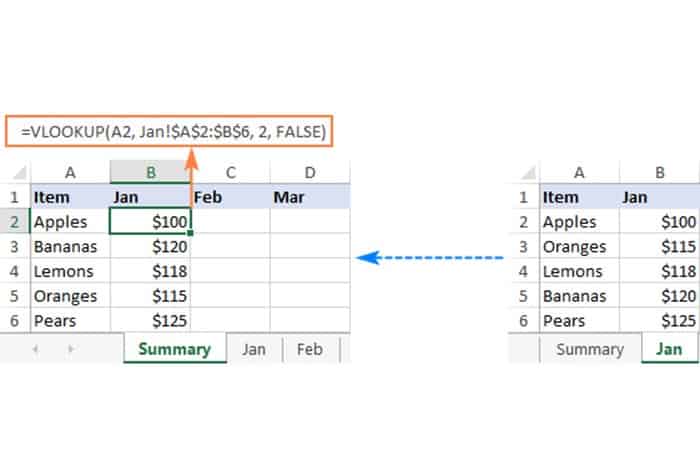
As an example, let's extract the sales figures from the January report to the Summary sheet. To do this, you need to define the following arguments:
- Search values They are in column A of the sheet Summary and we refer to the first data cell, which is A2.
- table_arrayIt is the A2 range: B6 on the January sheet. To reference it, you must precede the range reference with the sheet name followed by the exclamation mark: Jan! $A$2:$B$6.
NOTE : Here you must pay attention to locking the range with absolute cell references to prevent it from changing when copying the formula to other cells.
- Col_index_numis 2 because you want to copy a value from column B, which is the second column in the table matrix.
- Range_lookupset to FALSE to search for an exact match.
Putting the arguments together, you get this formula:
- =VLOOKUP(A2, Jan!$A$2:$B$6, 2, FALSE)
Drag the formula down the column and you'll have this result:
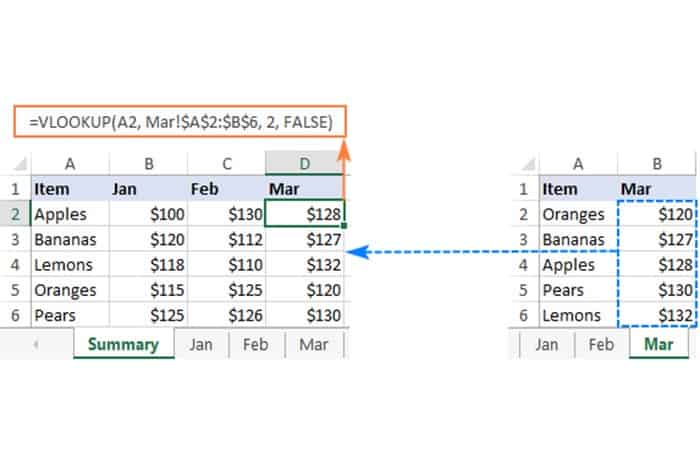
Similarly, you can use the Vlookup function to view data from the February and March sheets:
- =VLOOKUP(A2, Feb!$A$2:$B$6, 2, FALSE)
- =VLOOKUP(A2, Tue!$A$2:$B$6, 2, FALSE)
Tips and notes on the VLOOKUP function in Excel:
- If the sheet name contains spacesor characters non-alphabetic, must be enclosed in single quotes, such as 'January Sales'! $A$2:$B$6.
- Instead of typing a sheet name directly into a formula, you can switch to the Lookup worksheet and select the range there. Excel will insert a reference with the correct syntax automatically, saving you the trouble of checking the name and troubleshooting the problem.
Methods for using the VLOOKUP function in Excel
Now, let's get into the nitty-gritty of using the VLOOKUP function in Excel. Here are some options:
Method 1: Vlookup from a different workbook
To use the VLOOKUP function in Excel between two workbooks, you must enclose the file name in brackets, followed by the sheet name and the exclamation point.
- For example: To look up the value A2 in the range A2:B6 on the January sheet in the workbook xLSX, use this formula:
- =VLOOKUP(A2, [Sales_reports.xlsx]Jan!$A$2:$B$6, 2, FALSE)
Method 2: Vlookup on multiple sheets with IFERROR
When you need to search through more than two sheets, the simplest solution is to use the VLOOKUP function in Excel in combination with IFERROR. The idea is to nest multiple IFERROR functions to check multiple worksheets one by one: if the first VLOOKUP doesn't find a match in the first sheet, look in the next sheet, and so on. For example:
- ERROR (VLOOKUP(…), IFERROR (VLOOKUP(…),…, » Not found«))
To see how this approach works on real-life data, let's consider the following example:
Below is the summary table that you should complete with the item names and quantities when looking up the order number on the West and East sheets:
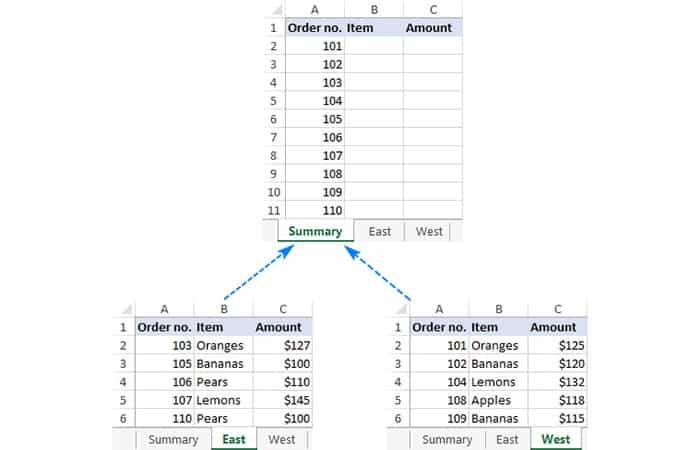
- Step 1:: First, you are going to extract the elements. To do this, we tell the formula VLOOKUP Look for the order number in A2 on the sheet This and return the value of column B (2nd column in table_array A2:C6).
- Step 2:: If no exact match is found, search the sheet West.
- Step 3:: Yes both Vlookups fail, will return the message: "Not found".
- =IFERROR(VLOOKUP(A2, East!$A$2:$C$6, 2, FALSE), IFERROR(VLOOKUP(A2, West!$A$2:$C$6, 2, FALSE), «Not found»))
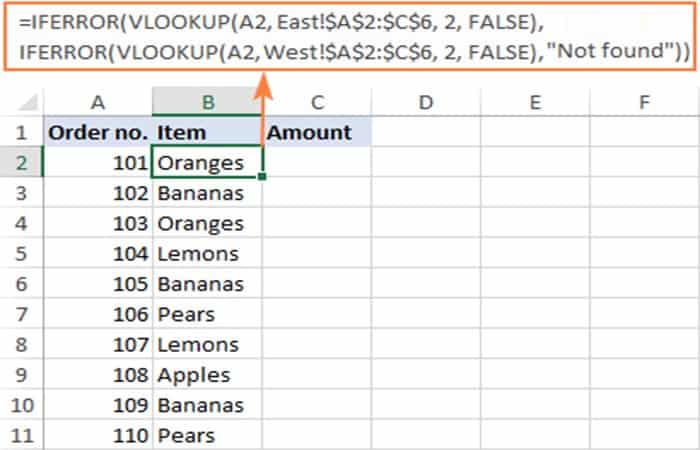
- Step 4:: To return the amount, simply change the column index number to 3:
- =IFERROR(VLOOKUP(A2, East!$A$2:$C$6, 3, FALSE), IFERROR(VLOOKUP(A2, West!$A$2:$C$6, 3, FALSE), «Not found»))
Tip: If necessary, you can specify different table arrays for different VLOOKUP functions. In this example, both lookup sheets have the same number of rows (A2:C6), but your worksheets can be of different sizes.
Method 3: Vlookup across multiple workbooks
To search between two or more workbooks, you must type the name of the workbook in brackets and place it before the name of the sheet.
- E.g.: Here's how you can use Vlookup ontwo different files (Book1 and Book2) with a single formula:
- =IFERROR(VLOOKUP(A2, [Book1.xlsx]East!$A$2:$C$6, 2, FALSE), IFERROR(VLOOKUP(A2, [Book2.xlsx]West!$A$2:$C$6, 2, FALSE),»Not found»))
Method 4: Make column index number dynamic for Vlookup multiple columns
In a situation where you need to return data from multiple columns, making `col_index_num` dynamic could save you some time. A couple of adjustments are required:
- For the col_index_num argument, use the function COLUMNS which returns the number of columns in a specified array: COLUMNS ($A$1:B$1). (The row coordinate doesn't really matter, it can be any row.)
- In the lookup_value argument, locks the column reference with the $ sign ($ A2), so it remains fixed when copying the formula to other columns.
As a result, you'll get a kind of dynamic formula that extracts matching values from different columns, depending on which column the formula is copied to:
- =IFERROR(VLOOKUP($A2, East!$A$2:$C$6, COLUMNS($A$1:B$1), FALSE), IFERROR(VLOOKUP($A2, West!$A$2:$C$6, COLUMNS( $A$1:B$1), FALSE), «Not found»))
When entered in column B, COLUMNS($A$1:B$1) evaluates to 2 and tells VLOOKUP to return a value of 2 from the second column in the table array.
When you copy the formula to column C (i.e., drag it from B2 to C2), B$1 changes to C$1 because the column reference is relative. Consequently, COLUMNS($A$1:C$1) evaluates to 3, forcing the VLOOKUP function in Excel to return a value from the third column.
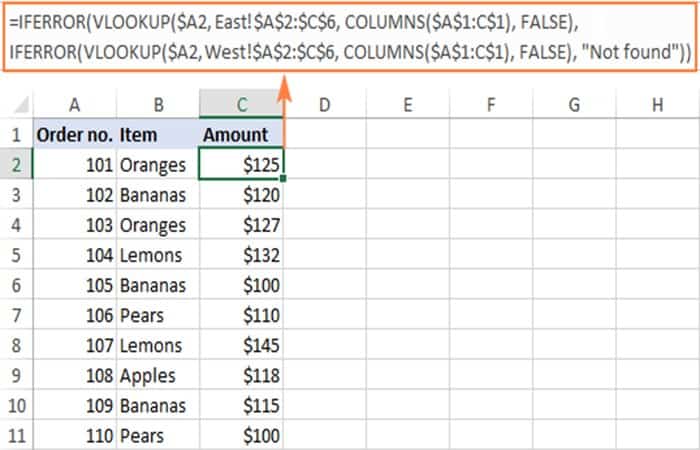
This formula works very well for 2 or 3 lookup sheets. If you have more, repetitive IFERRORs become too cumbersome. The following example demonstrates a slightly more complicated but much more elegant approach.
Method 5: Vlookup multiple sheets with INDIRECT
One more way to Vlookup between multiple sheets in Excel is to use a combination of VLOOKUP and INDIRECT functions. This method requires a bit of preparation, but in the end, you will have a more compact formula to Vlookup across any number of worksheets.
A generic formula for Vlookup on sheets is as follows:
- VLOOKUP ( lookup_value, INDIRECT («'» & INDEX ( Lookup_sheets , MATCH (1, – (COUNTIF (INDIRECT («'» & Sheet_list & «'! Lookup_range "), lookup_value )> 0), 0)) & «'! table_array "), col_index_num , FALSE)
Where:
- Lookup_sheets: A named range consisting of the names of the lookup sheets.
- lookup_value: the value to search for.
- Lookup_range: The range of columns in the lookup sheets to search for the lookup value.
- Table Matrix: the range of data in the lookup sheets.
- Col_index_num: The number of the column in the table array from which a value is returned.
For the formula to work properly, you must take into account the following warnings:
- This is an array formula, which must be completed by pressing Ctrl + Shift + Enter keys together.
- All sheets must have the same column order.
- Since you use a table array for all lookup sheets, specify the largest range if your sheets have different numbers of rows.
How to use formula for Vlookup in Sheets
To use the Vlookup function on multiple sheets at once, you must follow these steps:
- Step 1:: Write all the names of the lookup sheets somewhere in your workbook and name that range (Lookup_sheets in this case).
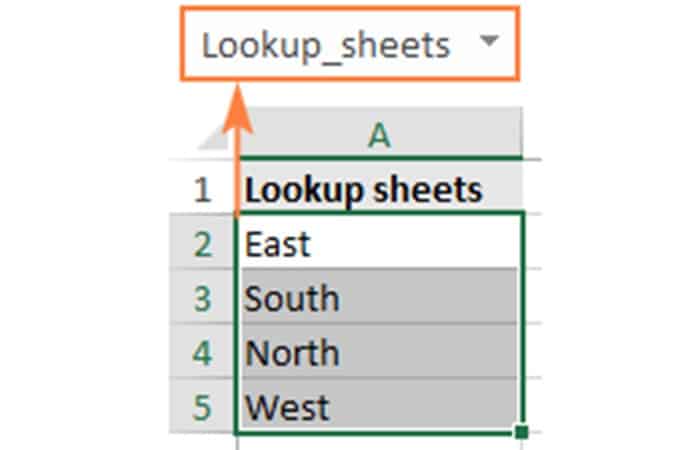
- Step 2:: Adjust the generic formula for your data. In this example, it would be:
- looking for the value A2 (lookup_value)
- in the range A2:A6 (lookup_range) on four worksheets (East, North, South and West), And
- extract matching values from column B, which is column 2 (col_index_num) in the data range A2: C6 (table_array).
With the above arguments, the formula takes this form:
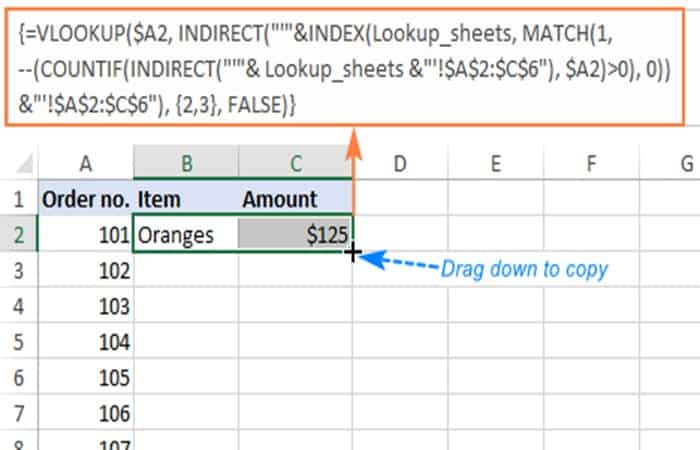
- =VLOOKUP ($A2, INDIRECT («'»&INDEX (Lookup_sheets, MATCH (1, –(COUNTIF (INDIRECT («'»& Lookup_sheets&»'!$A$2:$A$6″), $A2)>0), 0)) &»'!$A$2:$C$6»), 2, FALSE)
NOTE : Keep in mind that we locked both ranges ($A$2:$A$6 and $A$2:$C$6) with absolute cell references.
- Step 3:: Enter the formula in the cell above (B2 in this example) and press Ctrl + Shift + Enter to complete it.
- Step 4:: Double-click or drag the fill handle to copy the formula down the column.
As a result, you will have the formula to search for the order number across 4 sheets and retrieve the corresponding item. If a specific order number is not found, an #N/A error is displayed , as in row 14:
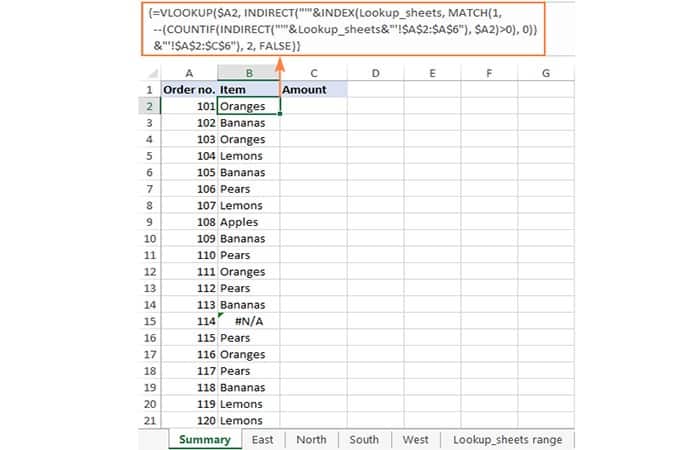
To return the quantity, simply replace 2 with 3 in the col_index_num argument since the quantities are in the 3rd column of the table array:
- =VLOOKUP($A2, INDIRECT(«'»&INDEX(Lookup_sheets, MATCH(1, –(COUNTIF(INDIRECT(«'» & Lookup_sheets & «'!$A$2:$A$6»), $A2)>0) , 0)) & «'!$A$2:$C$6»), 3, FALSE)
If you want to replace the standard error notation #N/A with your own text, wrap the formula in the IFNA function:
- =IFNA (VLOOKUP($A2, INDIRECT («'»&INDEX (Lookup_sheets, MATCH (1, –(COUNTIF(INDIRECT («'» & Lookup_sheets & «'!$A$2:$A$6»), $A2)> 0), 0)) & «'!$A$2:$C$6»), 3, FALSE), «Not found»)
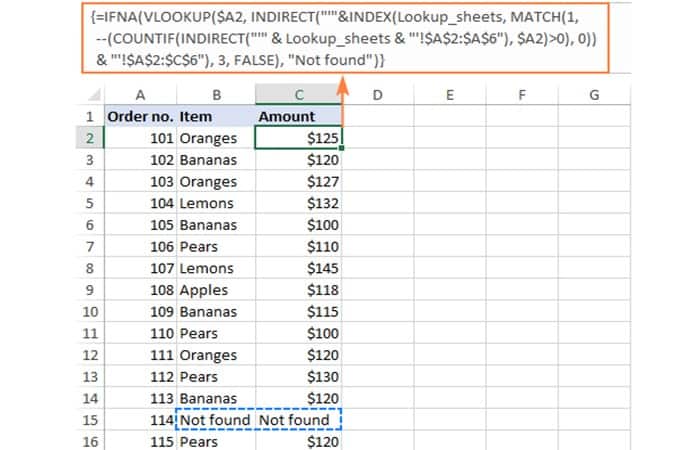
Vlookup multiple sheets between workbooks
This generic formula (or any variation) can also be used to display multiple sheets in a different workbook . To do this, concatenate the workbook name within INDIRECT as shown in the following formula:
- =IFNA(VLOOKUP ($A2, INDIRECT («'[Book1.xlsx]» & INDEX (Lookup_sheets, MATCH (1, –(COUNTIF(INDIRECT («'[Book1.xlsx]» & Lookup_sheets & «'!$A$2 :$A$6»), $A2)>0), 0)) & «'!$A$2:$C$6»), 2, FALSE), «Not found»)
Vlookup across sheets and returns multiple columns
If you want to extract data from multiple columns, you can do it all at once with a multi-cell array formula . To create such a formula, provide an array constant for the col_index_num argument.
In this example, we will return the element names (column B) and the quantities (column C), which are the 2nd and 3rd columns in the table matrix, respectively. Therefore, the required matrix is {2,3}.
- =VLOOKUP($A2, INDIRECT(«'»&INDEX(Lookup_sheets, MATCH(1, –(COUNTIF(INDIRECT(«'»& Lookup_sheets &»'!$A$2:$C$6″), $A2)>0) , 0)) &»'!$A$2:$C$6»), {2,3}, FALSE)
To correctly enter the formula in multiple cells, here's what you need to do:
- Step 1:: In the first row, select all the cells to be filled (B2:C2 in this example).
- Step 2:: Type the formula and press the keys Ctrl + Shift + Enter. This enters the same formula into the selected cells, which will return a different value in each column.
- Step 3:: Drag the formula to the remaining rows.
How the VLOOKUP Function Formula Works in Excel
To better understand the logic, let's break down this basic formula into individual functions:
- =VLOOKUP ($A2, INDIRECT («'»&INDEX(Lookup_sheets, MATCH (1, –(COUNTIF (INDIRECT («'»& Lookup_sheets&»'!$A$2:$A$6″), $A2)>0), 0)) &»'!$A$2:$C$6»), 2, FALSE)
Working from the inside out, here's what the formula does:
COUNTIF and INDIRECT
In short, INDIRECT creates the references for all lookup sheets, and COUNTIF counts the occurrences of the lookup value (A2) in each sheet:
- –(COUNTIF( INDIRECT(«'»&Lookup_sheets&»'!$A$2:$A$6»), $A2)>0)
More details:
First, concatenate the range name (Lookup_sheets) and the range reference ($A$2:$A$6), adding apostrophes and the exclamation mark in the correct places to make an external reference, and feed the resulting string to the INDIRECT function to dynamically reference the lookup sheets:
- INDIRECT ({«'East'!$A$2:$A$6»; «'South'!$A$2:$A$6»; «'North'!$A$2:$A$6»; «'West'! $A$2:$A$6»})
COUNTIF checks each cell in the range A2:A6 in each lookup sheet against the value in A2 in the main sheet and returns the match count for each sheet.
In this dataset, the order number in A2 (101) is in the West leaf , which is 4th in the named range, so COUNTIF returns this array:
- {0; 0; 0; 1}
Next, compare each element of the above array to 0:
- –({0; 0; 0; 1}>0)
This produces an array of TRUE (greater than 0) and FALSE (equal to 0) values , which coerces 1 and 0 by using a double unary (-), and you get the following array as a result:
- {0; 0; 0; 1}
This operation is an additional precaution to handle a situation where a lookup sheet contains multiple occurrences of the lookup value, in which case COUNTIF would return a count greater than 1, whereas you only want 1s and 0s in the final array (in a moment, you'll understand why).
After all these transformations, the formula looks like this:
- VLOOKUP($A2, INDIRECT(«'»&INDEX(Lookup_sheets, MATCH(1, {0;0;0;1}, 0)) &»'!$A$2:$C$6»), 2, FALSE)
INDEX and MATCH
At this point, a classic INDEX STARTING combination becomes:
- INDEX(Lookup_sheets, MATCH(1, {0;0;0;1}, 0))
The MATCH function set to exact match (0 in the last argument) looks for the value 1 in the array {0; 0; 0; 1} and returns its position, which is 4:
INDEX(Lookup_sheets, 4)
The INDEX function uses the number returned by MATCH as the row number argument (row_num) and returns the fourth value in the named range Lookup_sheets , which is West.
So the formula further reduces to:
- VLOOKUP($A2, INDIRECT(«'»&»West»&»'!$A$2:$C$6»), 2, FALSE)
VLOOKUP and INDIRECT
The INDIRECT function processes the text string within it:
- INDIRECT («'»&»West»&»'!$A$2:$C$6»)
And it turns it into a reference that goes to the table_array argument of VLOOKUP:
- VLOOKUP ($A2, 'West'!$A$2:$C$6, 2, FALSE)
Finally, this very standard VLOOKUP formula looks up the value A2 in the first column of the range A2:C6 on the West sheet and returns a match from the second column.
Dynamic VLOOKUP to return data from multiple sheets to different cells
First, let's define exactly what the word "dynamic" means in this context and how this formula will differ from the previous ones.
In case you have large amounts of data in the same format that are spread across multiple spreadsheets, you may want to extract information from different sheets into different cells. The following image illustrates the concept:
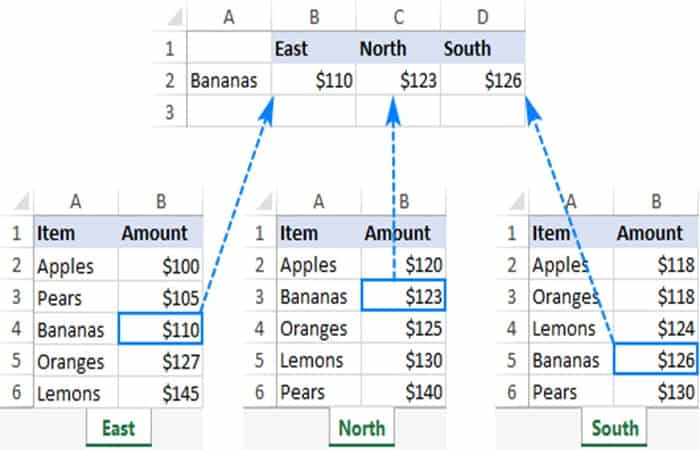
Unlike the previous formulas that retrieved a value from a specific sheet based on a unique identifier, this time you'll be looking to extract values from multiple sheets at once.
There are two different solutions to this task. In both cases, you need to do a little preparatory work and create named ranges for the data cells in each lookup sheet. For this example, we define the following ranges:
- East_Sales- A2:B6 on the East sheet
- North_Sales- A2:B6 on the North sheet
- South_Sales- A2:B6 on the South sheet
- West_Sales- A2:B6 on the West sheet
VLOOKUP and nested IF
If you have a reasonable number of sheets to search, you can use nested IF functions to select the sheet based on keywords in predefined cells ( cells B1 to D1 in this case ).
With the lookup value in A2, the formula is as follows:
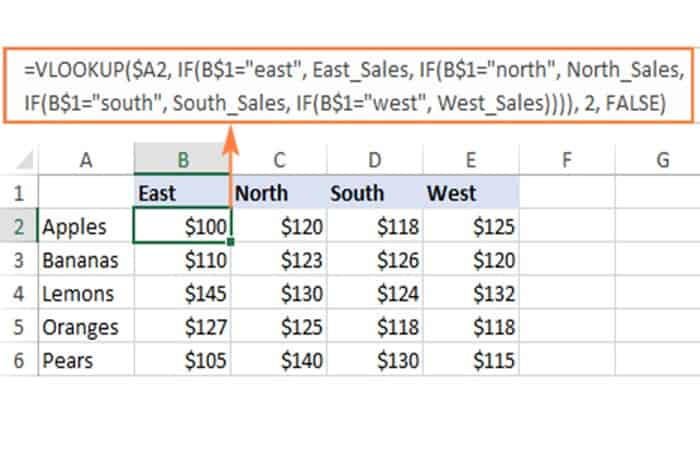
- =VLOOKUP ($A2, IF (B$1=»east», East_Sales, IF (B$1=»north», North_Sales, IF (B$1=»south», South_Sales, IF (B$1=»west», West_Sales) ))), 2, FALSE)
Translated into English, the IF part says:
If B1 is East , search in the range called East_Sales ; if B1 is North , search in the range called North_Sales ; if B1 is South , search in the range called South_Sales ; and if B1 is West , search in the range called West_Sales.
The range returned by IF goes to the table_array of VLOOKUP , which extracts a matching value from the second column in the corresponding sheet.
The intelligent use of mixed references for the lookup value ($A2 – absolute column and relative row) and the logical IF test ($B$1 – relative column and absolute row) allows you to copy the formula to other cells without any change – Excel adjusts the references automatically based on the relative position of a row and column.
So, you enter the formula into B2, copy it to the right and down as many columns and rows as needed, and you get the following result:
INDIRECT VLOOKUP
When working with many sheets, multiple nested levels can make the formula too long and difficult to read. A much better way is to create a dynamic VLOOKUP range using INDIRECT:
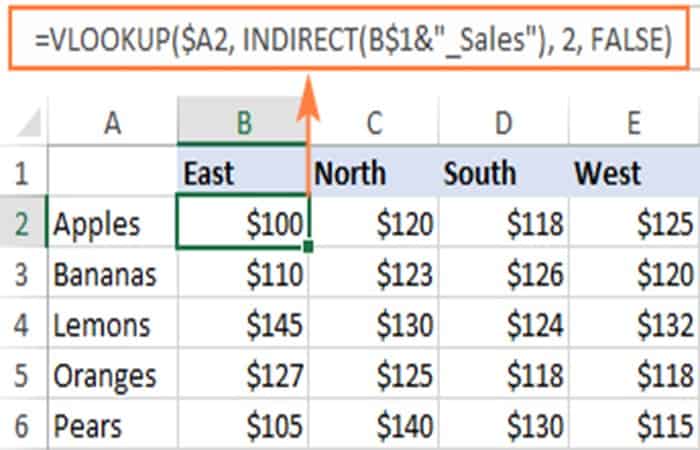
- =VLOOKUP ($A2, INDIRECT (B$1&»_Sales»), 2, FALSE)
Here, we concatenate the cell reference containing a unique part of the named range (B1) and the common part (_Sales) . This produces a text string like "East_Sales" , which INDIRECT converts into a range name understandable by Excel.
As a result, you get a compact formula that works wonderfully on any number of leaves:
You might also be interested in learning about: How to Group a Pivot Table by Months in Excel
As you can see, these are the ways to use the VLOOKUP function in Excel, along with other sheet lookup functions like VLOOKUP, which can be very helpful for finding the data you need across sheets and files in Excel. We hope this has been helpful.

My name is Javier Chirinos and I am passionate about technology. Ever since I can remember, I have been interested in computers and video games, and that passion has turned into a job.
I have been publishing about technology and gadgets on the Internet for over 15 years, especially in mundobytes.com
I am also an expert in online marketing and communication and have knowledge in WordPress development.