- Android can pause, close and revoke permissions apps that you don't use to save battery, data, and improve privacy.
- It is possible to exclude specific apps from "Unused apps" and battery optimization so that they remain active.
- Manufacturer layers (Samsung, Xiaomi, OPPO, etc.) add multitasking suspension and blocking lists that are worth reviewing.
- Controlling permissions, location, and background data helps balance performance, battery life, and privacy protection.
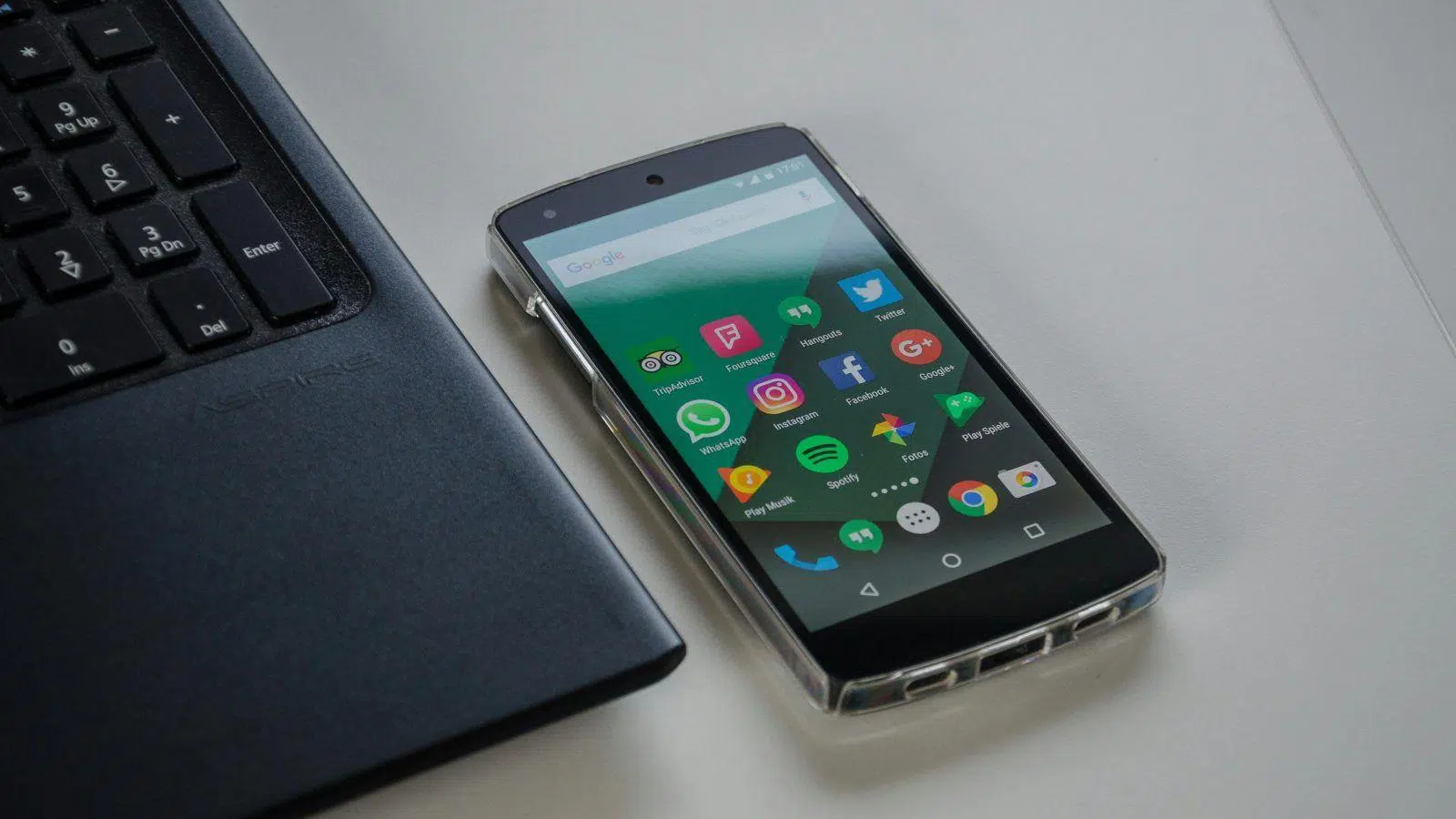
If you feel like Android is killing your apps without asking , that they stop sending notifications, or lose permissions because "you haven't used them in a while," you're not imagining things. In recent versions, the system is much more aggressive with battery saving, privacy, and memory management, and that can work against you if you want certain apps to stay active even if you barely open them.
This guide will show you, step by step, how to prevent Android from disabling, pausing, closing, or limiting apps you need . This includes disabling automatic sleep, removing them from battery optimization lists, keeping them active in the background, and controlling what permissions and data they use when you're not actively using them. It's all presented with a practical approach, using terms and menu paths exactly as they appear on real mobile devices.
What does Android do with apps you don't use?
Since Android 11, Google has been adding features like "Unused Apps" and automatic permission revocation . The idea is good: if you haven't opened an app for months, the system cleans up what's unnecessary to save resources and protect your data. The problem arises when Android lumps together apps that you want to keep working even if you rarely open them, such as Find My Device, the Assistant, calling apps, or security services.
When Android decides an app has been inactive for too long, it can automatically apply various restrictions . It's important to understand what the system is affecting, because many problems (missing notifications, lost permissions, unusual data usage, etc.) stem from these restrictions, not from the app itself being "broken."

What does it mean for an application to be considered "unused"?
When Android marks an app as "unused" or inactive for an extended period (usually around three months), several things can happen at once. You won't always see a clear notification, so it's good to know what's going on so you don't panic when something suddenly stops working.
On the one hand, the system deletes temporary files and cached app data . This frees up storage space , which is great if you're running low on internal memory, but it also means that some minor preferences or downloaded data will have to be regenerated when you open the application.
In addition, Android can automatically revoke permissions you've granted (camera, location, contacts, microphone, etc.). This is a very powerful privacy measure: if you're not using the app, it shouldn't still be able to access your information. The downside is that when you reopen it, you'll have to grant permissions again, and if it was a critical app (for example, a phone app), something might malfunction until you reactivate them.
Another consequence is that the system blocks inactive apps from running in the background . This means they stop performing silent tasks (syncing, receiving messages, updating their content) and only function fully when you manually open them. The battery savings are obvious, but you may miss important alerts or updates.
Finally, Android can prevent unused apps from sending notifications . From the average user's perspective, this is a relief (less clutter in the notification bar), but if we're talking about security, location, smart home, or banking apps, losing those alerts can be a risk or, at the very least, a nuisance.
How to view and manage “Unused Apps” on Android 11 and above
On phones running Android 11 or later, all this behavior is quite visible. The system groups some of these functions in a specific section called "Unused apps" within Settings > Apps . There you can see which apps have already been optimized and which ones are being targeted.
To check, open your phone's settings and go to Settings > Apps > Unused apps . You'll see a list of apps that have had permissions revoked or have had inactivity optimization applied. If none appear yet, it means the time limit for Android to consider them "forgotten" hasn't been reached.
The most useful information is found in each app's individual settings. When you go to Settings > Apps > All apps and select a specific app, you'll find a section related to this feature, usually called Unused apps , where you'll see a switch similar to "Remove permissions and free up space" or "Pause app activity when not in use . "
If you want an app to always be running, you need to disable that option in its app information . From that moment on, Android won't revoke its permissions or put it to sleep, no matter how long it's been inactive, even though other apps will still be under that automatic control.
On some models, you can also go to App info > Unused apps directly from the app's details page and turn off the "Pause app activity when not in use" switch . The exact name varies slightly depending on the brand, but the logic is the same: uncheck it so the system respects that app.
Control the automatic revocation of permissions in previous versions
If your phone has an older version of Android, many of these features came not with the operating system itself, but through Google Play Services and Play Protect . In these cases, the management isn't as readily available in Settings > Apps, but is handled directly through the Play Store.
To check how permissions are being revoked in these versions, open the Google Play app and go to the Play Protect section (usually by tapping your profile picture in the top right and then "Play Protect"). There you'll see the device's security status and, if present, a section related to "Remove permissions for apps you don't use . "
Within Play Protect, you can tap on something similar to " View apps ," which will show you a list of apps whose permissions have been revoked due to inactivity. At the top, you'll find filters to see which apps have automatic revocation enabled and which don't, which is very helpful if you only want to adjust a couple of specific apps.
If you want to prevent an app from losing its permissions even if you barely open it, use the "Automatically remove" filter, find the app, and open its details page. There you'll see an option like "Remove permissions if the app isn't used," which you can disable to protect it from Android's automatic cleanup.
Keep in mind that Google recommends keeping automatic revocation enabled for apps you rarely use, as it's an important barrier to protecting your privacy . In other words, you gain convenience by disabling the feature for certain critical apps, but in return, you slightly increase the possibility that those apps can continue accessing your data even if you hardly ever use them.
Suspending and closing background apps: battery, RAM, and manufacturer layers
Beyond the issue of permissions, Android and manufacturer skins also apply their own policies for closing background apps and suspending them to save battery . This is where power saving mode, battery optimization, and each brand's own tools (One UI, MIUI, ColorOS, realme UI, etc.) come into play.
The system automatically manages processes and memory, closing or limiting apps when resources are needed . This is generally a good thing: it prevents the phone from sluggish when you have a lot of things open and extends battery life. However, with some key apps (messaging, email, GPS, smart home apps, banking apps) it can be a real headache because they stop sending notifications or close just when you need them.
If you also activate aggressive battery saving mode , the behavior becomes even harsher. In Android 10, 11, and 12, this mode causes apps to close more quickly in the background and severely limits their silent tasks, so it's common for notifications or syncing to be interrupted until you unlock your phone or plug it in to charge.
The so-called "smart power management" that many phones offer is usually less harmful in everyday use, as it prioritizes apps based on your usage patterns . It's generally a good idea to leave this mode active and, above all, identify the problematic apps and mark them individually as "Do not optimize" in the battery settings.
If you notice that certain apps are closing on their own too often, you should check these settings before blaming the app itself. Often, simply changing an optimization option or removing it from a deep sleep list is enough to get it behaving as expected.
How to set an app to "Do not optimize" in battery settings
One of the most effective tools for preventing abrupt app closures is to tell the system not to optimize the battery of certain apps . Access to this setting varies slightly depending on the model, but the idea is always the same: go into the app's battery settings and change its battery management mode.
On most phones, the standard way is to go to Settings > Apps , choose the app you want to protect, and tap on the Battery section . There you'll find options like "Battery optimization," "Allow background activity," or "Restrict background activity."
When you go into "Battery Optimization," you'll usually see a list of apps that are already optimized and others that aren't . The optimized ones will close in the background when the system deems it necessary; those marked as "Don't optimize" are treated more carefully and will continue running even if they consume a little more battery.
The trick is to locate the app that's crashing in that list (for example, your email client or main messaging app) and change its "Optimize" setting to "Don't optimize." Keep in mind, however, that this will use slightly more battery, so it's not a good idea to apply it to all your phone's apps.
Some apps appear as "unavailable" for these changes, usually because they are system apps or because the manufacturer doesn't allow modifications. In these cases, you won't have an official way to disable their optimization, and your options will involve checking other settings in the app's interface or, if the problem is severe, contacting the manufacturer's support.
Block apps in multitasking on MIUI, ColorOS, realme UI and similar operating systems
Many custom Android skins include an extra feature: the ability to lock apps in the multitasking view so they don't close when you clear everything or when the system performs automatic memory wipes. This is very common on Xiaomi, Redmi, and POCO phones with MIUI, and also on OPPO with ColorOS and realme UI.
The process usually involves going to the recent apps screen, finding the app you want to keep active, and locking it with a padlock icon . This way, even if you tap "clear all" or the system performs its own cleanup, that app will remain active and always run in the background.
To use it, open the multitasking menu (dedicated button or swipe up from the bottom) and display all open app cards. Then, press and hold the card of the app you want to pin or tap the icon that appears at the top. In many interfaces, a lock symbol or a "Lock" label will appear.
By activating that lock, the app is marked as protected. It's a very quick way to ensure that your key apps (for example, WhatsApp , Telegram, email, or banking) don't disappear the moment the system decides to free up memory all at once.
While this feature is very useful, it doesn't completely eliminate battery saving policies, so it's still advisable to combine it with the "Do not optimize" setting in the battery section if you really want to protect it from locks and suspensions.
Deep sleep mode in One UI (Samsung) and how to disable it
Samsung phones with One UI have a rather aggressive feature called "Deep Sleep Apps ." Anything you put there is frozen to such an extent that it practically never runs in the background, which can be great for irrelevant apps but a disaster for important services.
To check if Samsung has included any critical apps in that category, go to your phone's settings and enter the Device Maintenance or Device Care section . There you'll see sections like Battery, Storage, Memory, and Security; the one we're interested in is Battery.
Go to Battery and look for options like Power Management, Sleep Apps, or Always Sleep Apps , depending on your specific One UI version. There you'll see several lists: apps in normal sleep, apps in deep sleep, and sometimes apps without restrictions.
If you find any apps that shouldn't be stopped (for example, messaging, banking, or smart home apps) in the Deep Sleep Apps list, remove them. This will prevent the system from freezing them and allow them to resume working properly in the background.
If you're still unsure which app is causing the problem, you can use Samsung's Safe Mode to rule out any third-party applications that might be interfering with power management or the system. It's not the most convenient method, but it's very helpful in identifying unusual conflicts.
Developer options related to background apps
Android's Developer Options contain settings that also affect how background apps are managed . It's not a menu designed for regular users, so you should proceed with caution, but it's helpful to know what these settings affect in case you've accidentally enabled them.
To enable developer options, go to Settings > About phone and tap "Build number" seven times in a row until the system confirms you are now a developer. From there, the new menu with all these advanced options will usually appear in Settings > System.
Within that menu, there's a feature called something like "Background Usage Check ," located in the Apps section. It forces certain applications to close when they haven't been used for a long time, supposedly to save battery and resources.
If you go in and see an important app listed there, you can disable its switch to stop it from being subjected to that extra control . It's another layer of optimization that, combined with the others, sometimes causes overly aggressive closures, even for apps that should always be running.
However, before you start messing around in Developer Options, it's advisable to familiarize yourself with each setting. Changing parameters randomly can cause strange behavior, excessive resource consumption, or system crashes , so use this menu only as a last resort and always know exactly what you're modifying.
Disable system apps that you cannot uninstall
Another important point to know is that some system apps come pre-installed and cannot be completely uninstalled, but you can disable them to prevent them from running and consuming resources in the background. This often happens with certain Google or manufacturer apps.
To disable them, go to your phone's Settings app, then to Apps > All apps , and select the app you want to turn off. At the top, you'll see the "Disable" button . Tapping it will stop the app from running, hide it from the app list, and prevent it from updating or appearing in the app drawer.
Keep in mind that this isn't the same as uninstalling: the app remains in your device's internal storage , but the system ignores it. Furthermore, some essential system apps can't even be disabled, so don't be alarmed if the button is grayed out or missing.
If all you want is to clean up your home screen, remember that you can always remove icons from your home screens without uninstalling anything . This reduces visual clutter without affecting how your apps work.
Settings to improve privacy and limit excessive permissions
The other side of Android being strict with apps you don't use is privacy. We often install things from Google Play or other stores and accept permissions without much thought , letting a flashlight app read our contacts or a game know our precise location even when it's not needed.
That's why it's highly recommended to quickly review permissions and sensitive options as soon as you install something new, thus avoiding problems like malicious app scams . Tap and hold the app icon and go to App info > Permissions . From there, you can deny anything that doesn't make sense for the app's main function.
For example, be wary of a photo editor that asks for microphone access or SMS access , or a flashlight app that wants your contacts. The same goes for an offline game that requests "Precise Location": it's probably unnecessary and could be used to track you. It's better to err on the side of caution, because you can always grant permission later if you see that the app really needs it.
You can also go to Settings > Privacy > Permissions Manager and review categories like Camera, Location, Microphone, or Contacts. There you'll see which apps have access to each feature, and you can limit or even remove it completely if you're unsure.
This same logic applies to features like Bluetooth and Wi-Fi scanning for improved location tracking . In Settings > Location > Location services, you can disable Bluetooth and Wi-Fi scanning if you don't need them, thus reducing the passive tracking done by some apps, at the cost of some loss of location accuracy in certain scenarios.
Precise vs. approximate location and its impact on battery life and privacy
Another setting that affects both your privacy and energy consumption is choosing between precise or approximate location for each app . Many apps don't need to know exactly which building you live in; a wider radius is enough for them to function properly.
From Settings > Location > App permissions, you can select each app and choose whether to allow "Precise location" or only approximate location. By disabling precise location, the app will use network data and cell towers instead of pinpoint GPS, which usually results in slightly lower battery consumption and added privacy.
There are cases where it's advisable to activate maximum accuracy, for example, in apps like WhatsApp or Telegram if you share your real-time location, or in map and navigation applications . But for many others (weather, news, general searches), the approximate option is more than sufficient.
Setting this up properly allows you to maintain a good user experience without giving away more data than necessary . Furthermore, combined with the automatic revocation of permissions for unused apps, it significantly reduces the scope of applications that you only opened once and that remain overly curious.
Limit background data usage by apps
Besides battery drain and permission issues, many apps take advantage of running in the background to consume mobile data without you noticing . If you've ever been shocked by your bill or data usage, it's likely because some app is syncing, uploading photos, or downloading content on its own.
Android lets you monitor this app by app. Go to your phone's settings and then to Data usage (on some models it's under "Connections" or "Network & Internet"). You'll see a graph showing total data usage for the period and, below it, a list of apps sorted by data consumed.
Tap on the app that seems suspicious to access its data sheet. There you'll find information on how much data it has used in the foreground (when you're using it) and how much in the background (when it's running on its own). If the problem is with background data usage, you'll find an option to disable "Allow background data usage . "
Disabling this option will stop the app from using mobile data when it's not in the foreground. However, keep in mind that this may limit key features : for example, you'll stop receiving messages and notifications on social media or messaging apps until you manually open the app.
That's why it's recommended to apply this block only to those applications that consume too much data in the background without providing anything essential, or when you're at the limit of your data allowance and need a drastic reduction to avoid overpaying that month.
What to do if apps keep closing on their own: memory, cache, and updates
If you notice several apps closing unexpectedly or behaving erratically, in addition to checking battery and sleep settings, it's worth reviewing the overall system health. Sometimes the problem lies in the RAM and a full cache , not in a specific power-saving policy.
A first step is to clear the cache (or use apps to clean and optimize your Android phone ) and, if necessary, the data of the problematic apps. To do this, go to Settings > Apps > See all apps , open each problematic app, tap on Storage , and select the "Clear data" and "Clear cache" options . This forces the app to start from scratch with regard to temporary files, which sometimes resolves persistent crashes.
If they continue to close after that, check that they are updated to the latest version from Google Play, as it may be a specific bug that the developer has already fixed. Especially in Android 11 and later, compatibility with the new sleep and permission systems has been greatly improved.
Once you've ruled out outdated software issues, double-check your battery settings, app sleep settings, optimization settings, and "Unused Apps" lists to make sure the system isn't interfering too much with those particular apps.
In short, before blaming the phone or the Android version, it's a good idea to perform this quick maintenance : clean, update, and review your power-saving settings. Often, the problem stems from a combination of factors, not just one.
Is it good that Android closes and suspends apps in the background?
With all this in mind, it might seem that the ideal solution would be to disable any automatic suspension or closure mechanisms , but that's not the case. Android removing unused apps from memory has many advantages, provided it's done sensibly and you decide what should be excluded from those rules.
On the one hand, closing background apps judiciously results in significant battery savings . Apps continue to consume energy even when you're not using them, so if the system closes them when you don't need them, battery life is extended and the phone stays active for longer.
This also translates into improved performance: freeing up RAM from unnecessary processes helps the phone run more smoothly, especially if it's not very powerful or is a few years old. Less load on the processor means less overheating and a more stable experience.
In terms of mobile data, limiting which apps can run in the background reduces the risk of unknowingly using up your data allowance . In times of limited data plans, this is almost as important as battery consumption itself, especially if you travel or use tethering a lot.
And, of course, there's a security and privacy component: closing and restricting malicious or untrustworthy apps minimizes the possibility of them collecting information without your consent or performing unwanted actions while you think your phone is "idle".
With all these settings under control, you can ensure that Android continues to take advantage of its optimization, saving, and protection mechanisms without losing important notifications, having your favorite apps close, or applications losing permissions willy-nilly. Ultimately, it's about finding the right balance between convenience, battery life, security, and privacy, letting the system do its job, but allowing you to decide which apps are untouchable and which can be "forgotten" when you're not using them.


Passionate writer about the world of bytes and technology in general. I love sharing my knowledge through writing, and that's what I'll do on this blog, show you all the most interesting things about gadgets, software, hardware, tech trends, and more. My goal is to help you navigate the digital world in a simple and entertaining way.