- LocalSend allows you to transfer files, folders, and text between devices over the local network, without using the Internet or external servers.
- It is a free, open-source, and cross-platform application, compatible with Android, iOS, Windows, macOS, and Linux.
- All data exchange is encrypted with TLS, with no ads or information collection, ensuring privacy and security.
- It's easy to use: you install the app on each device, connect them to the same network, and send content with just a few taps.
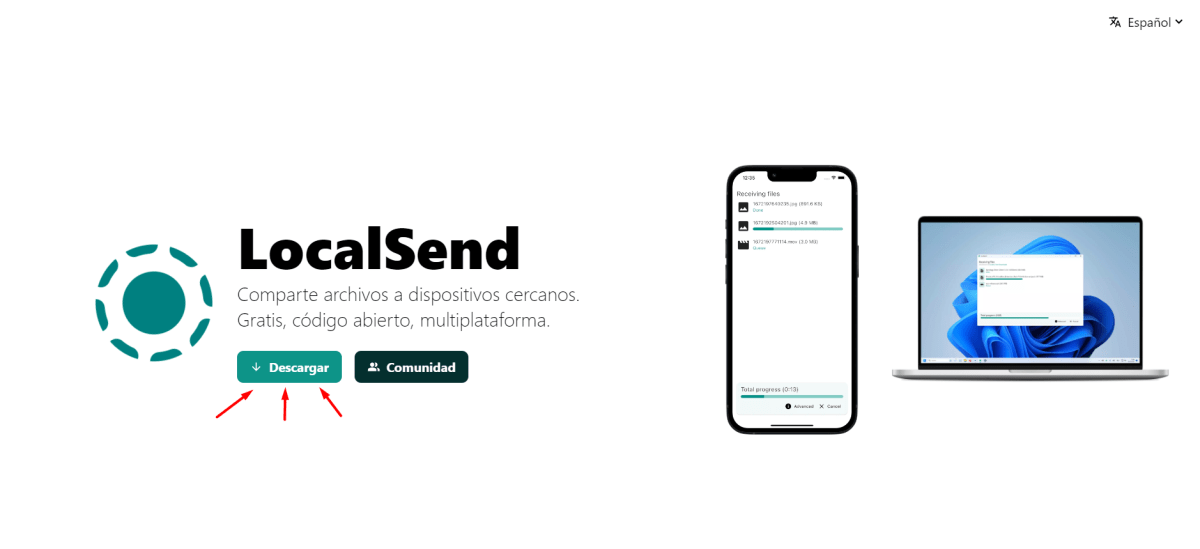
If you're tired of copying files to hard drives, cloud storage like Google Drive, or USB cables every time you want to move a photo, video, or folder between your devices, stick around. Especially if you have a bit of a mix at home: an iPhone, a Windows laptop, maybe an iPad, and an Android phone. That combination is usually a recipe for wasting time and patience trying to transfer things from one place to another. (It's also useful to know when to safely eject a USB drive .)
LocalSend simplifies all that hassle to just a few taps . It's a free and open-source application that lets you send files, entire folders, and even text between devices connected to the same local network, without relying on the internet, accounts, ads, or your data passing through third-party servers. It's the closest thing to a universal AirDrop that works with almost any combination of operating systems.
What is LocalSend and what makes it different?
LocalSend is a cross-platform file transfer tool that works over your local network (WiFi or LAN) and is designed to be fast, simple, and highly secure. The idea is simple: to be able to send any file between your devices without resorting to the cloud and without dealing with complicated configurations.
Unlike AirDrop (only on Apple devices) or Quick Share/Nearby Share (limited to Android and Windows), LocalSend works on Android, iOS, Windows, macOS, and Linux . This means you can seamlessly transfer files from your Android phone to your Mac, from your iPhone to a Windows PC, from an iPad to a Linux laptop—any combination you can think of, as long as they're all on the same network.
The application uses a REST API and HTTPS/TLS encryption to connect devices without requiring an internet connection or external servers. This means the transfer is truly peer-to-peer : data only travels from one device to another within your local network.
One of the great advantages is that LocalSend is free and open-source software (FOSS) . Its code is publicly available (for example, on GitHub), so anyone can review, audit, and contribute to its improvement. There is no hidden telemetry, no data collection, and no sale of information to third parties.
In practice, this translates into a tool that is fast, stable, and surprisingly lightweight to use , with no ads or annoying pop-ups. Many users describe it as "everything they needed" to share files between devices without any hassle.
Key advantages of using LocalSend to transfer files
If you're used to struggling with cables, cloud services, or sending videos via messaging apps like Telegram just to send yourself a couple of videos, LocalSend is a game-changer . Here are its most important advantages.
First, it works completely offline . You only need the devices to be connected to the same Wi-Fi network or router (the computer can be connected via cable and the mobile via Wi-Fi without any problem). No internet connection is required, so even if the network is disconnected from the external network, transfers will still work.
Furthermore, privacy is one of its strongest points . No remote servers are involved, there are no accounts, no usage statistics are collected, your files are not stored in the cloud or shared with third parties. Everything stays within your local network, with the added benefit of end-to-end encryption via TLS, which protects the confidentiality and integrity of what you send.
Another very interesting aspect is its cross-platform compatibility . You can mix and match virtually any combination of modern devices: Android phones, iPhones, iPads, Windows computers, Macs, or Linux distributions. For those who live in a hybrid environment (for example, a Windows PC, an Android phone, and an iPad for reading or design), it's a very convenient way to centralize all file management without any complicated workarounds.
It's also worth noting that LocalSend doesn't display ads or include in-app purchases . As a non-profit project, developed by a community of programmers and originally spearheaded by Tien Do Nam, its goal is to offer a useful and transparent solution, not to monetize your data.
Real-world examples where LocalSend makes a difference
To understand its value, it helps to imagine everyday situations where transferring files is always a struggle . Many users have been using workarounds like sending things to themselves via Telegram, storing everything in cloud services like Google Drive or Amazon Photos, or plugging and unplugging USB cables that sometimes even the system doesn't recognize properly.
Consider, for example, someone who uses an Android phone to record videos and a Windows PC to edit them . Previously, the process could involve uploading to the cloud, waiting for everything to load, and then downloading it to the computer, consuming time and bandwidth. If you also want to confirm the integrity of large files, you can verify large file transfers . With LocalSend, both devices simply need to be on the same Wi-Fi network: you select the videos on your phone, choose the PC from the list, and in a few seconds (or minutes, if it's a large file) they're ready on your computer.
Another classic scenario is that of people who work with an iPad for design or reading , a phone for everyday tasks, and a main computer running Windows or Linux. Transferring files between the iPad and the other devices is often cumbersome, especially if you don't want to rely on iCloud or third-party services. LocalSend allows for this flow to be direct, without intermediaries or accounts.
It's also very useful in family or couple settings, when each person has a different phone (for example, an Android and an iPhone) and they want to quickly share photos, videos, or documents . Instead of transferring everything via WhatsApp or the cloud, they send it directly from one phone to the other using their home Wi-Fi network.
In more professional environments, LocalSend is being used by teams that handle sensitive information , such as organizations that need to keep data within their internal network: businesses, critical infrastructure, and even defense contexts. In these environments, the software's open source nature, offline functionality, and end-to-end encryption are particularly valued.
How to download LocalSend on your devices
Getting started with LocalSend is simple: just install the application on each device you want to share files with . There's no required "central server"; any device can send and receive.
The first step is to go to the project's official website , where you'll find download links for virtually all platforms. From there, you can get the app for Android, iOS, Windows, macOS, and Linux, usually through the official app stores or via direct installers.
On a Windows computer, the process is as simple as downloading the executable file and installing it by following the typical "Next, Next, Finish" wizard. No special configuration is usually required, and in a matter of seconds, the program will be ready to use. If you want to optimize speed in Windows, see how to speed up file transfers in Windows 11.
On Android, you can search for LocalSend in the Google Play Store and install the app from there, just like any other app. After granting the necessary permissions to access storage (and, in some cases, the local network), you'll be able to send and receive files without further ado.
On iOS and iPadOS, the app is also available through the App Store . On macOS and Linux, you'll find specific versions tailored to each system, whether through packages, graphical installers, or even portable binaries. In all cases, the goal is for installation to be simple and accessible, even for those without extensive technical knowledge; and specifically for Linux, you can consult guides to speed up file transfers.
Getting started: requirements and basic setup
Once installed on your devices, the key to LocalSend working is that they are all connected to the same network . This is usually your home or office Wi-Fi network. It doesn't matter if your computer is connected to the router via cable and your mobile device via Wi-Fi: as long as they share the same local network, they will be able to see each other.
When you open the app on each device, LocalSend scans the network for other devices with the app open . Within a few seconds, you should see a list of nearby devices available to receive files. They usually appear with a name, which you can customize in the settings if you want to make them easier to identify (for example, “PC-Living Room”, “iPad-Drawing”, “Mobile-Personal”…).
In many cases you don't need to touch much more, but from the settings menu you can customize several parameters : the communication port, the device discovery method, notifications, the destination folder for the files you receive, among others.
If you're concerned about security, you can set up a PIN or other verification mechanism to authorize transfers. This way, even if someone is on the same network, they can't send you things without your approval. It's a good idea to enable this type of protection if you use LocalSend on shared or public networks.
In corporate or more advanced environments, LocalSend also allows for a more technical configuration , including the use of a command-line interface (CLI) that facilitates task automation or integration into scripts, very useful for system administrators or advanced users.
How to send files, folders, and text with LocalSend
Using LocalSend on a daily basis is very intuitive: you select what you want to send, choose the destination device, and accept the transfer . The process is very similar to sharing a file with any other app, except that everything stays within your local network.
On the device you're sending from, open LocalSend and go to the relevant section (usually a tab called something like "Send"). From there, you can choose individual files, multiple photos or videos at once, documents, or even entire folders . This last option is very useful if you want to move entire projects or image collections without having to go file by file.
Once you've selected what you want to send, the app will show you a list of nearby devices detected on the network . Simply tap or click on the destination device (for example, your Windows laptop or iPad) and the transmission will begin.
On the receiving device, a notification will appear requesting permission to accept the transfer . Depending on your settings, you can either accept manually each time or allow certain trusted connections to expedite the process. Upon confirmation, the files will begin downloading to the folder you have defined in your settings.
In addition to files and folders, LocalSend lets you send text, clipboard content, or short notes . This is very convenient for sharing links, code snippets, temporary passwords, or any information you want to have instantly on another device without resorting to email or messaging apps.
Advanced features and customization options
Beyond basic use, LocalSend includes several features that make it a very versatile tool for everyday use , both at home and in more technical or professional environments.
One of the most practical features is the ability to choose the destination folder where received files are saved . From the settings, you can modify this so that, for example, everything goes directly to your Downloads folder, a specific projects directory, or an external drive.
Another useful option is to configure the application to start automatically when your system boots up . This way, your PC or Mac will always be ready to receive files without you having to remember to open the app each time, which greatly speeds up your workflow if you use it frequently.
In desktop versions, LocalSend typically supports drag and drop . This means you can select a file from your operating system's file explorer, drop it into the LocalSend window, and choose the destination device. For those who work on their computers all day, this type of integration makes for a very seamless experience.
For advanced users, there's a command-line interface (CLI) version that allows you to integrate LocalSend into scripts and automations. For example, you could create a script that, upon completion of a video recording on a specific computer, automatically sends the raw footage to another machine responsible for editing, all within the same network.
In terms of security, in addition to TLS encryption, you can adjust file acceptance policies , PIN usage, and other parameters depending on your environment. This makes LocalSend suitable for both home users who simply want convenience and organizations where confidentiality is paramount.
Limitations and tricks to get the most out of it
Although LocalSend is very powerful, it's important to be aware of some limitations and a few tricks to get the most out of it . The main restriction is that, for now, it requires devices to be connected to the same local Wi-Fi or LAN network. It doesn't currently work over Wi-Fi Direct, which means you can't use it directly between two isolated devices without a shared network.
However, there's a simple way to overcome this obstacle in many cases: create a local Wi-Fi network from your mobile device (by sharing your internet connection or simply creating a hotspot). If you connect the other device to this hotspot, both will share the network and LocalSend will still work, even without an actual internet connection.
Transfer speeds will largely depend on the quality of your Wi-Fi network or network infrastructure . On congested or high-interference networks, performance may decrease, while on modern networks (e.g., Wi-Fi 5 or Wi-Fi 6) transfer rates can be very high and more than sufficient for moving large volumes of data. You can also improve transfers to external drives by enabling write caching on those drives.
Another helpful tip is to take a moment to give each device a clear name in your LocalSend settings. If you have multiple devices of the same type (for example, two laptops or several mobile phones), using descriptive names will prevent you from accidentally sending files to the wrong device.
Finally, while the app is very easy to use out of the box, it's worth reviewing the customization and security options right after installation. Adjusting the destination folder, notification behavior, and PIN or confirmation settings will give you a more comfortable and secure experience in the medium and long run.
LocalSend has earned a very solid reputation: millions of downloads worldwide , overwhelmingly positive user reviews from those who appreciate being able to ditch cables, cloud storage, and ads, and an active community that continues to refine the project. For anyone who moves files between multiple devices, especially those with different operating systems, it quickly becomes an indispensable tool.


Passionate writer about the world of bytes and technology in general. I love sharing my knowledge through writing, and that's what I'll do on this blog, show you all the most interesting things about gadgets, software, hardware, tech trends, and more. My goal is to help you navigate the digital world in a simple and entertaining way.