- Robocopy with multithreading and unbuffered I/O outperforms Explorer under intensive loads.
- SSD and NTFS, along with USB 3.x and deindexing, boost sustained performance.
- SMB: compression, multichannel and downloads Well-configured network solutions make all the difference.
- For thousands of small files, compressing or parallelizing reduces the cumulative latency.

If you work with a lot of documents and move them between hard drives, USB drives, or over a network, you've probably experienced the frustration of watching the progress bar crawl by at a snail's pace. (See causes of slow USB transfer .) In Windows 11 , copy speeds can be affected by small bottlenecks that, when added together, make a huge difference in daily use.
The good news is that there are several simple (and more technical) ways to reduce those times. From choosing the right USB port or compressing files, to using multi-process robocopy or adjusting SMB settings. With the tips in this guide, you can speed up local and network transfers without going crazy or spending a fortune.
Why transfers become slow in Windows 11

Many computers copy data between internal drives, external hard drives, or across the network . Slowness can stem from the network, the storage itself , or the system: older USB ports, mechanical hard drives, antivirus software running in real time, or even configurations that reserve bandwidth for system tasks.
The type of files also plays a role. Copying hundreds or thousands of small files is especially costly: creating each file involves multiple SMB and file system operations , and this repeated latency takes time compared to copying a single large file. If antivirus software is also scanning each file, the slowdown is even greater.
Network transfers involve SMB, the Windows protocol. Factors affecting transfers include latency, network errors that trigger TCP congestion , the performance of storage at the source and destination, and even whether SMB compression is enabled or download technologies (RSS, LSO, RSC) are active.
Finally, there are scenarios where the copy starts strong and then drops: when the memory cache is exhausted , the system switches to direct disk writing (write-through) and the speed is limited by the sustained performance of the medium.
Quick and basic actions that work
Close anything you're not using. Having many apps open consumes CPU, RAM, and disk access. The fewer processes competing for resources, the smoother the copy will be . If your computer is running low on resources, this is crucial: close browsers with many tabs, resource-intensive editors, and background tasks using the Task Manager.
Use compression. If you need to move multiple folders or a large number of files, compress them into a ZIP or 7z archive . This will reduce the number of file creation operations and often the overall size. On Windows, you can use "Send to > Compressed (zipped) folder" or tools like 7-Zip or WinRAR.
Choose the right port. Connect external hard drives and flash drives to USB 3.x ports (blue or with the SS logo) . Compared to USB 2.0, the difference is enormous: it avoids bottlenecks and takes full advantage of the external device's speed.
Be careful with your antivirus. If you fully trust the source and destination, you can temporarily disable real-time scanning to prevent it from inspecting every file as it happens. This is a one-off measure, and only when you're certain there's no malware risk.
Avoid heavy multitasking during the copy. Exporting a video, installing apps, or indexing will slow everything down. Prioritize the transfer and leave the rest for later , especially with less powerful hardware.
Hardware and file system improvements
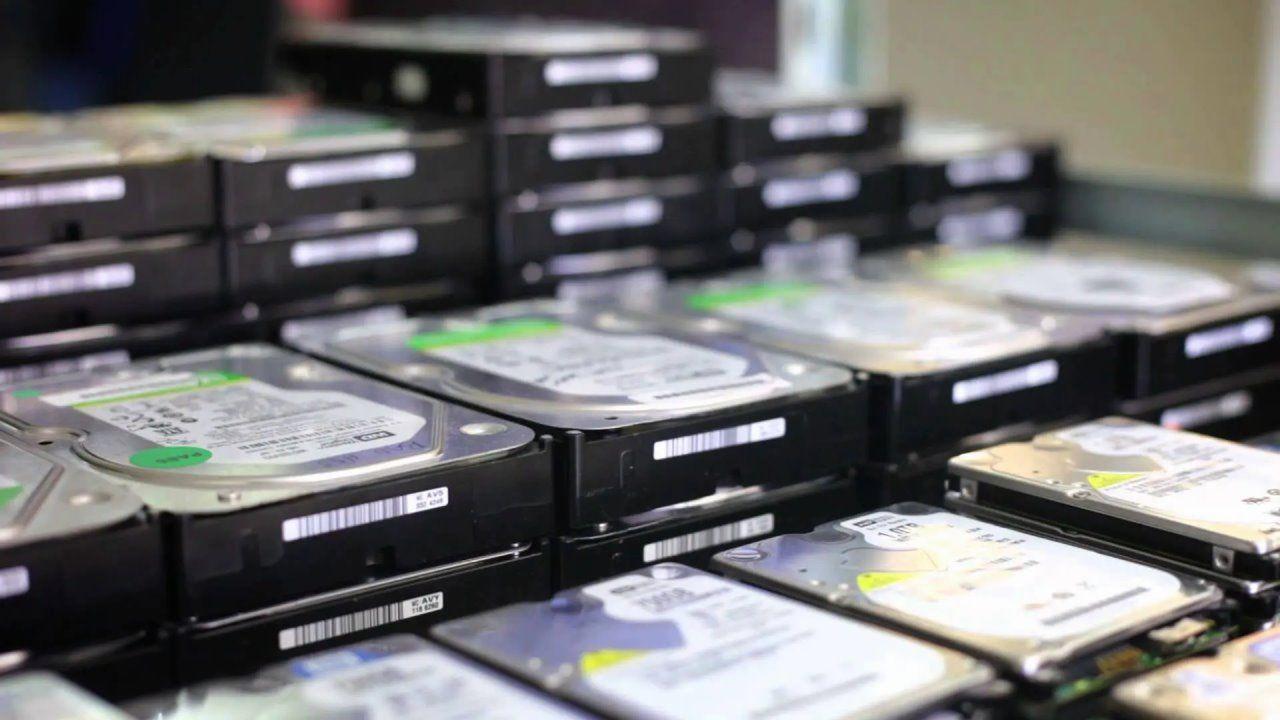
Upgrade to an SSD. An SSD, whether SATA or NVMe, offers significantly faster read and write speeds than an HDD , lower latency, and an overall more responsive system. This is noticeable when copying large volumes of files and in the performance of Windows itself.
Use NTFS instead of FAT32. FAT32 limits file size (4 GB) and performs worse in modern scenarios. Converting to NTFS makes moving large files easier and provides security and recovery. You can convert from Symbol of the system with convert F: /fs:ntfs (sets the drive letter). Although the conversion preserves data, make a copy as a precaution before touching partitions.
Adjust the performance policy for removable drives. In Device Manager > Disk drives > your USB drive > Properties > Policies, enable "Better performance" if applicable. This helps with large copying processes; remember to safely eject the drive.
Disable indexing where you don't need it. On volumes used for backups, right-click the drive > Properties > General and uncheck "Allow files on this drive to have indexed contents..." . Less background work, better sustained performance.
Optimizes network transfers (SMB) and uses robocopy with head
File Explorer is convenient, but it copies in a single thread and with buffered I/O , which limits performance. For serious workloads, use robocopy (Command Prompt or PowerShell ): it's designed for high-performance local and remote copies.
For very large files (+1 GB), try robocopy /J for unbuffered I/O. Reduces cache pressure and can stabilize speed in some scenarios. It is especially useful when storage supports high rates and the cache runs out.
Enable SMB compression when available (Windows 11/Server 2022). For files with whitespace (VHD/VHDX/VMDK/OVF, ISO, DMP), it can significantly reduce processing time and bandwidth . Note that previously compressed content (ZIP, 7z, RAR), video (MP4, MKV), or audio ( MP3 , FLAC) doesn't benefit much.
Storage is king. As a real-world reference for SMB, consider that you need approximately 110 MB/s of sustained write speed to saturate 1 Gbps , 1,1 GB/s for 10 Gbps, and 11 GB/s for 100 Gbps. If your disks can't deliver that sustained write speed, the network won't perform at full capacity.
For very high-speed or low-CPU environments, consider SMB Direct (RDMA) or turning your PC into a local FTP server . SMB Direct allows for very fast transfers with lower CPU usage , although it requires compatible hardware and specific configuration.
Check the network: packet loss, latency, or outdated drivers can cause TCP to self-regulate downwards. Keep network downloads enabled (RSS, LSO, RSC, checksums). Do not disable these technologies except for diagnostic purposes , as they improve network performance and reduce CPU usage.
On the SMB client, verify that the large MTU is enabled and not throttling bandwidth using PowerShell: Set-SmbClientConfiguration -EnableBandwidthThrottling 0 -EnableLargeMtu 1. Multi-channel SMB must be enabled where applicable.
When copies start fast and then fall
It's normal to see an initial spike that then stabilizes. This usually indicates that the memory or storage cache is full and the system is switching to writing directly to disk (write-through). The maximum write speed is then determined by sustained write activity.
To check this, use RAMMap (Sysinternals) and see if the allocated "File" usage stops increasing. Reload with F5 to see if the cache stagnates. If the memory stops absorbing data, you're at the actual disk speed . Also, monitor with the storage performance counter whether the network drop is proportional to the actual disk write speed.
In technologies that require immediate disk confirmation (backups, databases , SOFS), the system forces direct writes, bypassing caches . If the storage does not support good sustained write performance, SMB transfers will be affected.
Thousands of small files: the Achilles' heel
Creating files is expensive in terms of protocol and file system. With thousands of small files (<1 MB), SMB "create" operations and closures accumulate , and latency kills throughput. It's common to see rates below 1 MB/s with single-threaded tools.
Effective solutions: use robocopy with multithreaded. Parameter /MT Enables parallel copies (8 by default, up to 128). It is good practice to start with a few threads and scale up by testing (e.g., two threads per core is usually safe) and redirect output with /LOG to prevent typing in the console from slowing you down.
Another option is to compress the data first into a single large file (.zip, .7z, .rar, .tar, .gz), copy that single file, and then extract it at the destination. Depending on the compression/decompression speed of both computers, this can be faster. Use fast or uncompressed methods if you're looking to minimize overall time.
If you move data to/from Azure, consider AzCopy: it includes parallelism and cloud optimizations designed for large volumes. There are also reliable third-party utilities that support multi-threaded copying.
Windows 11 Advanced Settings (Administrators)
Reservable bandwidth limit. Windows can reserve bandwidth for the system. In the Group Policy Editor (gpedit.msc) go to Computer Configuration > Administrative Templates > Network > QoS Packet Scheduler and set “Limit reservable bandwidth.” You can reduce it or leave it at 0 as needed.
TCP Autotuning. On some networks, temporarily disabling autotuning improves throughput; on others, it worsens it. Try it in the admin console: netsh int tcp set global autotuninglevel=disabled and if it doesn't improve, go back to netsh int tcp set global autotuninglevel=normal. A/B test and return to normal if it doesn't pay off.
RDC (Remote Differential Compression API Support). In "Turn Windows features on or off," uncheck "Remote Differential Compression API Support" and restart if you want to rule out its impact. It doesn't always affect anything, but it's a quick change to try.
Keep your USB drivers up to date. In Device Manager > Universal Serial Bus controllers, update drivers automatically. An outdated USB driver can slow down your transfers more than you might think.
Indexing and drive properties. Right-click on the drive > Properties > General and uncheck the indexing box if copy performance is your priority. Fewer helper processes mean less interference.
Format external drives. If you're using FAT32, it's a good idea to upgrade to NTFS for modern performance and limits. In the admin console: convert X: /fs:ntfs (replace X:). Before formatting changes, copy your important data.
Minor additional SMB tweaks. Ensure multi-channel SMB is operational, there are no bandwidth limitations on SMB, and network offloads are enabled. These are small steps that contribute to overall performance.
Office over a slow network. If you notice slow launch times (Excel, etc.) on a WAN, in addition to keeping Office and SMB up to date, try disabling leasing on the server: Set-SmbServerConfiguration -EnableLeasing $false (or by share on Server 2019+: Set-SmbShare -Name <ShareName> -LeasingMode None). Applies to new connections and does not require a rebootAlternatively, replicate the documents to a closer local server.
Robocopy used well: useful examples
For a large volume of small files, run something like: robocopy "C:\Origen" "D:\Destino" /E /MT:16 /R:2 /W:1 /LOG:C:\log\copia.txt. Here /MT:16 activates 16 threads; adjust according to your CPU and disk. /R y /W control retries and waits, and /E includes subfolders.
For a very large file or set, add /J (Unbuffered I/O): robocopy "\\Servidor\Share" "D:\Destino" ArchivoGrande.vhdx /J /R:1 /W:1. Reduces cache pressure and stabilizes sustained flow rates when the disc can hold it.
Third-party tool for large-scale syncing and transfer
If you need regular synchronization or to move massive amounts of data without complications, a free option is AOMEI Backupper Standard . It offers a clear interface, basic synchronization to local folders, external drives, NAS, or between PCs, and daily/weekly/monthly scheduling . The advanced edition adds real-time synchronization, mirroring, and bidirectional synchronization.
Usage guide: Create a task in "Synchronization > Basic Sync", name it, add the source folders, and choose a destination (local, external, network). You can enable email notifications and schedule the execution. Confirm and start the sync . If you are importing data from an external drive, connect it first so it can be detected.
From quick fixes (closing apps, USB 3.x, compression) to technical solutions (robocopy with /MT and /J , SMB compression, TCP and QoS settings, NTFS, SSD, indexing), you can shave minutes or hours off local and network backups, prevent sudden speed drops when the cache runs out, and master those frustrating scenarios with thousands of small files. Ultimately, it's about tackling each potential bottleneck with the right tool, while keeping the stability and security of your data in mind.


Table of Contents
- 1 Why transfers become slow in Windows 11
- 2 Quick and basic actions that work
- 3 Hardware and file system improvements
- 4 Optimizes network transfers (SMB) and uses robocopy with head
- 5 When copies start fast and then fall
- 6 Thousands of small files: the Achilles' heel
- 7 Windows 11 Advanced Settings (Administrators)
- 8 Robocopy used well: useful examples
- 9 Third-party tool for large-scale syncing and transfer