- Write caching significantly improves the speed of external drives, but increases the risk of data loss if they are disconnected without proper security.
- Actual performance also depends on USB ports, cables, file system, drivers and background processes.
- En SSD For external HDDs, it's key to maintain free space, keep firmware updated, and periodically check the drive's health.
- Specialized and alternative tools such as LAN or cloud help when Windows Explorer or USB fall short.
If you frequently use external hard drives, USB flash drives, or portable SSDs to move large amounts of data, you've probably experienced the frustration of watching the progress bar go from lightning-fast to crawling at a few megabytes per second. Write caching and system settings make all the difference between a smooth transfer and an endlessly slow one.
In addition to Windows write caching, other factors come into play, such as the type of USB port, the file system, drivers, antivirus software, and even background processes you weren't aware were running. Understanding how all of this works and fine-tuning it allows you to get the most out of your external hard drives and minimize bottlenecks.
What is disk write caching and why does it speed up transfers?
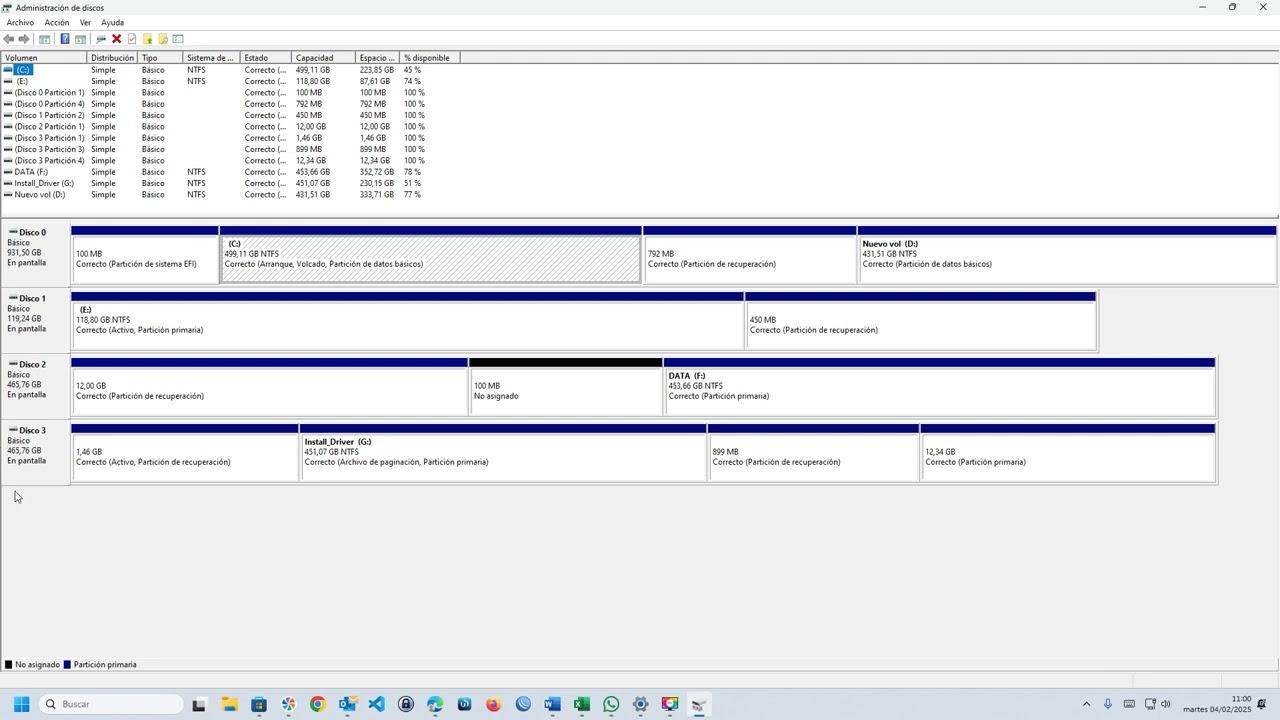
Write caching is a function by which the operating system does not write data directly to the disk at the same time, but accumulates it first in memory (usually RAM) and sends it to the storage device more efficiently.
In practice, when you copy a large file to an external drive, Windows initially shows a very high speed because it's writing to RAM at maximum speed ; then, in the background, the system gradually transfers the file from that cache to the physical drive. This mechanism reduces waiting times and improves the perceived smoothness.
The problem is that this RAM, which acts as a buffer, is volatile . If the power goes out, the computer freezes, or you force a shutdown while there's still data in the cache waiting to be written, you can lose files or corrupt the file system of the external drive.
For this reason, Windows 10 and modern versions activate write caching by default only on internal disks , while on most external disks the default setting prioritizes security (fast removal) over performance.
In short, write caching gives you faster speeds but also increases the risk of damage if you don't eject the device properly or experience power outages . That's why it's so important to understand how it's activated, when it's worthwhile, and what precautions to take.
How to enable write caching on external drives in Windows
In Windows 10 and Windows 11 , write caching on internal drives is usually enabled by default, but on external drives (HDDs, SSDs, USB flash drives) it's typically disabled using the quick-release policy . Changing this policy is simple, but it should be done carefully.
To modify the configuration from the system itself, everything is managed from the Device Manager , which is where Windows lists both internal and external USB-connected disks.
The basic procedure for enabling write caching on a specific drive is as follows, keeping in mind that tab names may vary slightly depending on the model or driver:
- Open Device Manager by right-clicking the Start button and choosing "Device Manager", or by pressing Windows + X and selecting that option.
- Expand the section «Disk drives» and locate the external drive you want to work on (SSD, HDD or USB memory).
- Right-click on the device and enter «Properties» to view its advanced settings.
- Within the window, go to the tab "Directives"This is where Windows allows you to adjust write and extract behavior.
In that tab, two different configurations may appear depending on the unit:
Many external hard drives have two general policy options: "Quick Eject" and "Better Performance ." The first is usually selected by default and means that the device's write cache is disabled or limited, allowing you to unplug it without needing to safely eject it (although it's never recommended to do so abruptly).
If you select "Better performance ," Windows enables write caching and may also display an additional checkbox such as "Enable write caching on the device." Enabling this checkbox will cause the system to accumulate data in memory before sending it to the drive , improving speed, especially during intensive write operations.
Some drives directly display the "Enable write caching on drive" checkbox without the Quick Removal/Better Performance labels. In that case, simply check the box, click OK, and restart if prompted by the system for the change to take effect.
It's important to keep in mind that enabling this feature increases the risk of data loss if you disconnect the drive without always using the "Safely Remove Hardware" option , or if your computer frequently experiences sudden shutdowns. If your absolute priority is to avoid any possibility of data corruption, you might want to keep the quick removal option enabled.
Common causes of slow write speeds on SSDs and USB drives
Beyond write caching, there are many reasons why an external drive might run much slower than expected. With external SSDs, for example, it's relatively common to see high initial speeds that then plummet to just a few megabytes per second.
One of the key factors is the SSD's internal architecture: many models rely on a limited internal SLC cache . While that cache has space, the drive writes very quickly; when it fills up, the true speed of the TLC/QLC cells becomes apparent and the write speed plummets.
Furthermore, excessive data on the drive, the presence of bad sectors, or even malware can cause widespread slowdowns. If the SSD is nearly full or has physical errors, the controller has to work harder, reorganizing data and managing remapping, which becomes noticeable with each large backup.
Nor should we forget power issues: some USB ports (especially 2.0 or cheap hubs) do not provide enough power for an external SSD to operate at maximum speed, resulting in performance dips or intermittent disconnections.
In the case of traditional external HDDs, mechanical factors also come into play: highly fragmented, full, or years-old disks often offer write speeds far below the theoretical ones, and any vibration or impact can worsen the situation.
How to correctly measure the speed of your external hard drive
Before you start fiddling with settings, it's a good idea to find out if your drive is actually running slower than normal or if the speed you're seeing is within a reasonable range . Copying a folder "by eye" can be misleading, because caches, file sizes, and other factors come into play.
Instead of resorting to complicated commands in the command prompt , there are dedicated tools that reliably measure read and write performance. Disk partitioning and diagnostic programs like EaseUS Partition Master include "DiskMark"-like features that run synthetic tests and provide sequential and random speeds.
This type of software is especially useful for inexperienced users because it offers a clear interface, indicates which drive you're testing, and minimizes the risk of accidentally deleting data . In just a few clicks, you can check if your external SSD is performing as the manufacturer claims or if there's a serious bottleneck.
If you're experiencing speeds significantly lower than the specifications, you'll need to check both your hardware (cables, ports, USB type) and your Windows settings . In some cases, simply changing the port or updating drivers will be enough to restore acceptable performance.
Another important detail when running tests is the file type: synthetic benchmarks usually use large, continuous blocks , which are more representative of copying videos or large images. If your actual usage involves many small files, it's normal for the actual speed to be significantly lower than what's measured in these tests.
Hardware: USB ports, cables, and drive type
One of the most common mistakes is connecting fast drives to hardware that isn't up to the task. If you plug a USB 3.0 drive into a USB 2.0 port, the actual speed will be limited by the slower standard , no matter how modern the SSD is or how good the cable you bought is.
The USB 2.0 protocol has a theoretical speed of 480 Mbit/s (about 60 MB/s), but in practice you rarely exceed a sustained 30-35 MB/s . Most cheap 2.0 flash drives don't even come close to that figure. To truly take advantage of an external SSD, you need USB 3.x ports and cables.
A good visual clue is the color of the connector: USB 2.0 ports are usually black, while USB 3.x ports are distinguished by their blue interior . In addition, many newer devices include USB-C or even Thunderbolt ports, which offer even greater bandwidth.
The computer itself can also be the bottleneck. An older PC, with an outdated chipset or a poorly optimized USB controller , may not be able to handle sustained high speeds, even if the port is physically USB 3.0.
In this regard, it's crucial to keep your motherboard and USB chipset drivers up to date . Windows installs generic drivers that work, but they don't always offer the best performance. Checking the motherboard manufacturer's website and downloading the latest versions usually improves stability and transfer rates.
Windows software and settings that slow down writing
Not all speed problems originate from the hardware. Windows and its configuration can also be slowing down transfers without you noticing, especially on computers that haven't been modified since installation.
The first step is to ensure your system and drivers are up to date. Older versions of Windows or USB drivers may not be ready to take advantage of the new protocols , resulting in significantly lower than expected speeds, even with good hardware.
Another prime suspect is the antivirus software. Many protection engines analyze each file being copied in real time , so if you're moving thousands of small files or large volumes of data, the CPU and internal disk can become overloaded while the antivirus scans them one by one.
As long as you're certain the files are safe, you can temporarily disable real-time scanning to perform a large backup, and then re-enable it immediately afterward. It's not something to do lightly, but it can make a noticeable difference in transfer speed.
Power options also play a role, especially on laptops. In power-saving mode or when using battery power, Windows can limit the power supplied to USB ports to extend battery life, which directly impacts the performance of power-hungry external hard drives.
File systems: NTFS, exFAT, FAT32 and their impact on speed
The file system used to format the external drive affects both compatibility and performance. In Windows, NTFS typically offers the best speed and handling of large files , while other formats prioritize compatibility with older devices.
FAT32 , while the most compatible with older TVs, consoles, and devices, has a 4GB file size limit and inferior performance in many scenarios . It clearly falls short when transferring games, ISOs, or large 4K videos.
exFAT appears as an intermediate alternative: it allows large files, is compatible with several operating systems, and generally performs better than FAT32 , although in purely Windows environments NTFS remains the most solid option.
If you have a USB drive or external hard drive formatted in FAT32 and notice that backups are slow, you can convert it to NTFS or exFAT using the command-line tool to avoid having to format from scratch (although it's always recommended to make a backup in case something goes wrong).
From the Command Prompt with administrator privileges, the conversion is performed using commands such as `convert E: /fs:ntfs` or `convert E: /fs:exfat` (replacing E: with your drive letter). If the command returns errors or the drive has problems, you may need to perform a full format from File Explorer, after first moving your data to another temporary drive.
Background processes and internal bottlenecks
Your computer's processing power isn't unlimited, and Windows tends to take advantage of it. Often, background processes are consuming CPU, RAM, or disk space just when you're copying files, resulting in speeds that fluctuate erratically.
Built-in tools such as Windows Defender , search indexers, or cloud synchronizers may be working silently and reducing the read/write capacity of the internal disk you are copying from or writing to.
To detect these cases, the best approach is to open Task Manager with Ctrl + Shift + Esc and check the CPU, memory, and disk tabs. For more detailed monitoring, you can use utilities to view real-time RAM usage and identify processes that are overloading the system. If you see one or more processes at 90-100% usage just as the backup crashes, you've likely found the culprit.
In many cases, you can temporarily stop heavy, non-critical processes , such as scheduled antivirus scans or bulk synchronizations, to clear the way for the transfer you need to make at that moment.
Another classic bottleneck is the source drive itself. If you're reading from a full, fragmented, or aging mechanical HDD , it's normal for the speed to drop sharply from time to time. Defragmenting, freeing up space, or, even better, migrating to an internal SSD can directly impact the speed of copying to external drives.
SSD-specific performance: TRIM, firmware, and free space
SSDs, both internal and external, have their own specific characteristics. To maintain sustained high speed, they require proper management of free space and erased blocks , something achieved through technologies like TRIM.
In modern Windows and macOS, TRIM is usually enabled by default on most compatible SSDs , so the system informs the drive which data blocks can be reused after files are deleted. This prevents write speeds from slowing down over time due to an excess of "dirty" blocks.
It's also important to keep the drive's firmware up to date . Many manufacturers (including major brands like SanDisk, Dell, and others) distribute Windows-specific tools that allow you to check SMART health , update firmware, and perform performance tests.
Another good habit is to avoid filling the SSD to capacity . Most recommendations suggest an ideal free space margin of around 10-15%. This buffer allows the internal controller to better manage data distribution and maintain write speeds closer to their nominal values.
Finally, it's advisable to minimize unnecessary writes, especially on laptops. Features like hibernation write the entire contents of RAM to the SSD every time you close the lid, which causes wear and tear and takes up space that might not be worthwhile if you don't actually use that feature.
When is it normal for speed to decrease and when should you worry?
When copying files, not every drop in speed is a bad sign. It's completely normal for a transfer to start at 100-300 MB/s and, after a few seconds, drop to a lower, more stable value , such as 40-80 MB/s, depending on the type of drive and the size of the files.
This initial drop in performance is usually due to a combination of the Windows write cache and the internal cache of the SSD or hard drive . Once the cache is full, the system stabilizes at the actual, sustainable speed of the physical storage medium.
You should start to suspect something is wrong when speeds fluctuate wildly or drop to zero bytes per second repeatedly, for no apparent reason, especially if the estimated copy time starts to skyrocket and files seem to "get stuck".
In such cases, it's advisable to check all the points mentioned: USB type, cable, drivers, antivirus, background processes, drive health, and file system . A problem in any of these can cause these frustrating fluctuations.
It's also advisable to avoid running too many bulk copies at once from Windows Explorer . If you fill the queue with multiple simultaneous processes, the system has to divide bandwidth and I/O operations among them all, which is usually slower than doing them one by one.
Programs to copy files faster and with more control
While Windows File Explorer does its job, it's not exactly the most efficient or the one that offers the most information and control over file transfers . That's why numerous utilities have emerged to optimize file copying and moving.
Tools like TeraCopy, Ultracopier, Fast File Copy, Copy Handler, CopyMastro, or FastCopy don't perform hardware-level magic, but they do better manage the operation queue, allow pausing and resuming, and display detailed statistics to detect bottlenecks.
Ultracopier opts for a very simple interface, quite similar to the standard Windows copy window, but incorporates advanced options to manage errors, skip problematic files and maintain an orderly queue without the user having to be constantly monitoring it.
FastCopy, very popular among advanced users, focuses on maximizing disk speed by minimizing head movements on the HDD and aggressively managing buffers . Its interface is spartan, but its performance often far surpasses that of File Explorer when working with large batches of files.
Alternatives when USB is not a viable option
There are situations where, due to persistent errors, bottlenecks, or a lack of devices, you can't copy your data to an external drive as quickly or reliably as you need . In these cases, it's helpful to have alternative methods available.
The cloud is one of the most accessible solutions: services like Google Drive, Dropbox, and OneDrive allow you to upload files and retrieve them from another device , without having to rely on physical storage. However, you do need a good internet connection and sufficient storage space.
Another option is to use your local area network (LAN) to share folders between computers on the same Wi-Fi or wired network . For very large files, connecting via Ethernet cable and enabling file sharing in Windows is usually faster and more stable than any free cloud storage.
In environments where you constantly work with a lot of data, you might be interested in opting directly for a quality external hard drive, preferably SSD, with a USB-C or Thunderbolt connection , instead of cheap flash drives that get overloaded at the slightest touch.
And when it's something specific and urgent, you can always resort to web file transfer services with temporary links , such as WeTransfer or Send Anywhere, which allow you to send large files without having to create complicated accounts or install heavy programs.
By properly adjusting the Windows write cache, choosing the right USB port, taking care of the file system, and monitoring background processes, you can get your external drives to perform much closer to their real speed, avoiding the typical mid-copy stoppages and making moving tens of gigabytes a quick and, above all, predictable task.


Passionate writer about the world of bytes and technology in general. I love sharing my knowledge through writing, and that's what I'll do on this blog, show you all the most interesting things about gadgets, software, hardware, tech trends, and more. My goal is to help you navigate the digital world in a simple and entertaining way.