- Controlling RAM consumption is key to maintaining performance in Windows 11
- Windows It includes different tools to monitor memory in real time, such as Task Manager, widgets or commands advanced
- Optimizing RAM usage helps prevent slowdowns and detect problematic programs, as well as improve the overall efficiency of your computer.

RAM is one of the most important elements for ensuring the smooth performance of your Windows 11 computer. Often, when your computer starts running slower than usual, one of the reasons is excessive RAM consumption by certain processes or applications. Being able to monitor how much memory your PC is using in real time allows you to act quickly, close unnecessary programs, and keep your system running smoothly.
In this article, you'll learn all the ways to check your current RAM usage in Windows 11, the advantages of each method, and some practical tips for freeing up memory when needed. You'll also discover why monitoring resource consumption is so important, how to identify the most demanding programs, and the options available to upgrade or improve your computer's memory performance.
What is RAM and why is it crucial in Windows 11?
RAM, or Random Access Memory , is one of the fundamental components of a computer. Its main function is to temporarily store the data and programs you are currently using, allowing for fast access by the processor. Unlike traditional storage (such as a hard drive or SSD ), RAM is much faster but also volatile : when you turn off the computer, everything in RAM is erased.
RAM usage has a direct impact on your computer's speed and multitasking capabilities. If the memory becomes full, Windows 11 starts using other, less efficient methods (such as virtual memory on the hard drive) , which can result in slowdowns, crashes, or unexpected restarts.
Why should you monitor RAM usage?
Monitoring RAM usage allows you to anticipate potential performance issues. Excessive usage can indicate that programs are running unnecessarily and consuming resources, that you have a particularly demanding game or application open, or even that you could benefit from increasing your RAM capacity.
Detecting which processes are using the most RAM helps identify poorly optimized applications, hidden malware , or even whether you need to upgrade your computer. With Windows 11, checking all this data is easier than ever.
Ways to view real-time RAM usage in Windows 11

There are several ways, all built into the operating system, to check memory usage on your Windows 11 computer:
- Task Manager
- Configuring Windows
- Run Tool and Advanced Commands
- Exclusive Windows 11 widgets and utility apps
- Symbol of the system (CMD)
We're going to break down all these options step by step so you can choose the one that best suits you.
How to monitor RAM using Task Manager
Task Manager is a native Windows tool that lets you monitor resource usage in real time, showing the total memory used and the memory used by each specific process. In Windows 11, it's very easy to access and has a very user-friendly interface.
- You can open Task Manager in several ways:
- Right click on the taskbar and select “Task Manager”.
- Balance Ctrl + Shift + Esc to open it directly.
- You can also press Ctrl + Alt + Delete and choose it from the menu that appears.
- When you open it, if you see the reduced version, click on More details to access all functions.
- Within the Manager, select the tab Unlimited and click on "Memory". Here you can View real-time graphs, used memory, available memory, speed, type, and many more statistics about your RAM..
- If what you want is to check which applications are currently using the most memoryGo to the "Processes" tab. There, you'll see a list of programs and their exact RAM usage in real time.
A very practical trick is to activate the compact display :
- Double-click the summary column (on the left) and the window will shrink to show only the essential real-time statistics, taking up little screen space.
- You can do the same thing on a component's graph (for example, memory) to see only that information in a floating mini-window while you work.

Check RAM from Windows 11 Settings
The Settings app also provides data about your RAM , although the information is less dynamic. It's useful for seeing the total amount installed and other technical details. To access:
- Press the button Home and select Configuration (you can also use the combination Windows + I).
- Go to the section System and then to About.
- In the section Device Specifications You will see the line “Installed RAM” next to the total amount detected by the system.
This method is a quick way to confirm if your PC has enough memory for everyday tasks or to make sure Windows recognizes all installed RAM.
Monitor RAM usage using advanced commands and tools
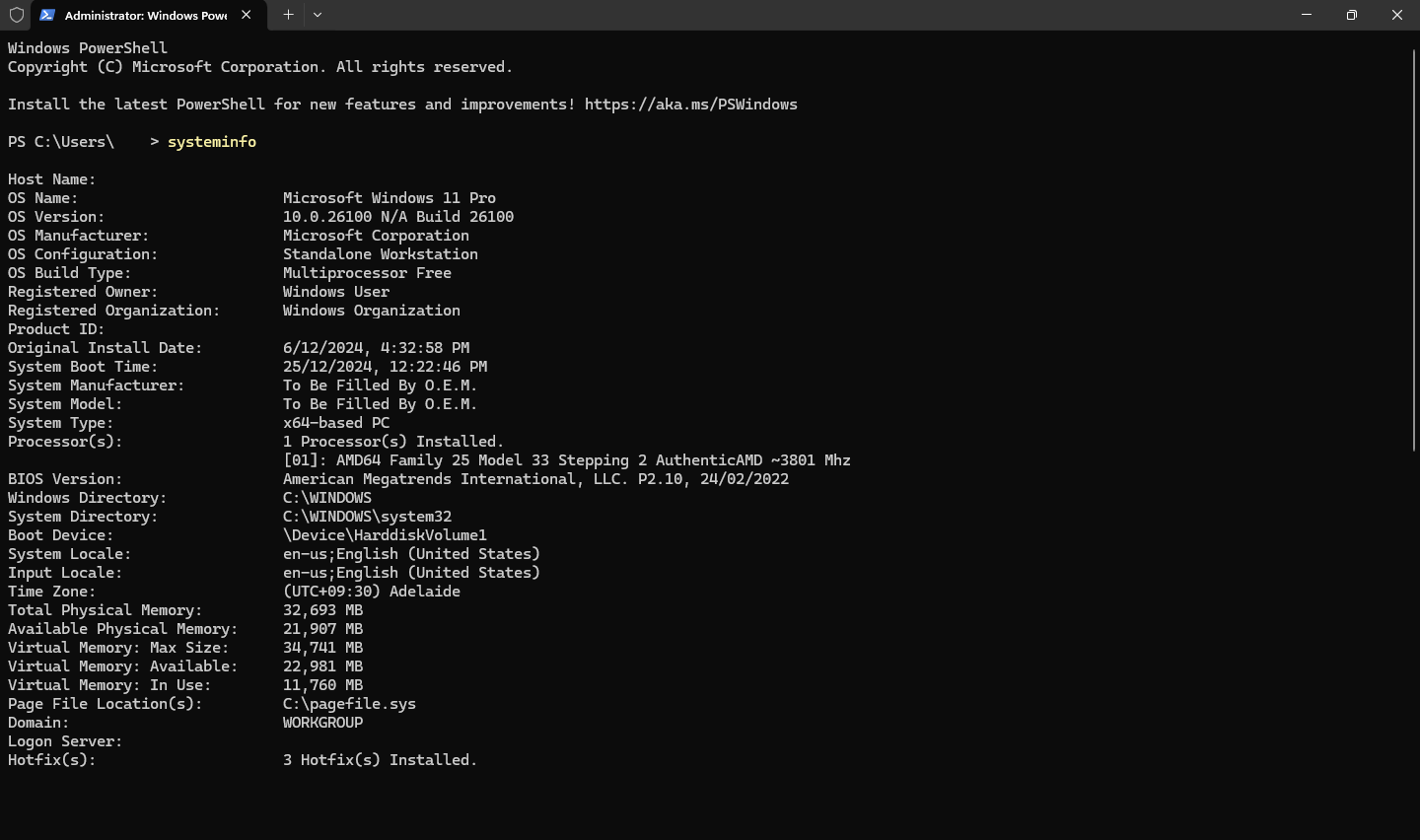
If you prefer commands or need very specific data, you have several options from the Run box or Command Prompt:
Using the Run window
- Balance Windows + R to open the Run window.
- Write msinfo32 and press Enter. The System information, where you can review sections such as “Total Physical Memory,” “Available Memory,” “Total Virtual Memory,” and more.
CMD commands to obtain technical information
- Open Run (Windows + R), writes cmd and hit Enter.
- Here you can use:
- To view total physical memory: systeminfo | findstr /C:»Total physical memory»
- To know the speed of the RAM modules: wmic memorychip get devicelocator, speed
- To know the type of memory: wmic memorychip get devicelocator, memorytype
- Advanced query: wmic memory chip list full
These commands are useful for advanced users or for gathering details before updating components.
Widgets, utilities, and new Windows 11 tools for monitoring RAM
With the arrival of Windows 11, new ways to monitor resource consumption appear, using widgets and external applications such as Dev Home :
- Dev Home (available on the Microsoft Store) is an open-source app that adds widgets directly to your desktop to monitor RAM, CPU, GPU, and other component usage in real time.
- To activate these widgets, install Dev Home and add it from the Windows 11 widgets panel. So, You'll have access to key statistics without opening Task Manager.
- Remember that since this is an app in development, it may occasionally experience some glitches. If you're not satisfied, you can always return to traditional Windows methods.
Microsoft plans to add even more useful information to the taskbar in the future, making it easier to constantly monitor your RAM while using your PC.
How to interpret RAM consumption data?
The RAM usage value you see in Task Manager or any other method corresponds to the amount of memory being used by all open processes at that moment. If you have many programs open, several browser tabs, or a game running, it's normal for usage to increase significantly.
The graphs and indicators show you both current usage and its evolution over time , allowing you to detect spikes, bottlenecks, or potential memory leaks.
On systems with limited memory (e.g., 4 GB), freeing up even a few hundred MB can significantly improve performance. On laptops or desktops with more than 16 GB, this is less of a concern unless you use professional applications or perform very demanding multitasking.
Other ways to view real-time RAM usage
In addition to the native methods mentioned, you can find third-party applications in the Microsoft Store and on GitHub that display memory performance statistics as widgets, gadgets, or desktop overlays. These programs may offer more visual graphics and advanced data, but they are generally recommended only for advanced users or work environments where memory usage information needs to be constantly visible.
On the other hand, applications like the Xbox Game Bar integrated into Windows 10/11 also allow you to see basic information about RAM usage and other resources, designed especially for gamers.
Finally, it is interesting to note how Windows 11 manages compressed memory better , storing data in compressed format in RAM itself to gain extra capacity before resorting to disk paging.
The key to good performance is the regular monitoring of these parameters , learning to detect when your PC is slowing down and knowing how to act in time to free up memory or close unnecessary processes.
Monitoring RAM usage in Windows 11 is essential for keeping your computer running smoothly and avoiding frustration from unexpected slowdowns. The operating system itself provides several simple tools to check memory usage in real time and take appropriate action. Remember, you don't need to install any extra applications: from the Task Manager to widgets and advanced utilities, everything is just a couple of clicks away. If you find that you're running out of memory for your daily needs, consider upgrading your RAM modules or uninstalling unnecessary programs . RAM remains an essential ally for getting the most out of your PC every day.

Passionate writer about the world of bytes and technology in general. I love sharing my knowledge through writing, and that's what I'll do on this blog, show you all the most interesting things about gadgets, software, hardware, tech trends, and more. My goal is to help you navigate the digital world in a simple and entertaining way.