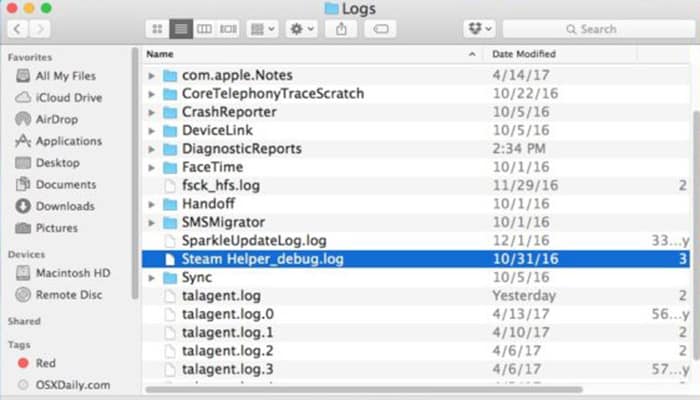
Here we'll show you how to delete log files on a Mac . You may not have heard of these. Well, that's because most users won't need to delete or even look for these types of files.
Log files are mostly records of errors or crashes that occur in applications, and sometimes you wouldn't even notice these errors, as they simply happen in the background.
You might want to report certain application errors to the developers, so these log files will be useful. Deleting log files for certain applications, such as Terminal, will also speed up the application. This tutorial will show you how to find and delete log files on a Mac.
You might also be interested in: Mac Keyboard Not Working. Causes, Solutions, Alternatives
Find and Delete Log Files on MAC Manually with Finder
Make sure to back up your Mac before deleting user files:
- Step 1: open Finder.
- Step 2: in the menu bar, click Ir Go to search engine.
- Step 3: write ~ / Library / Logs and click Go.
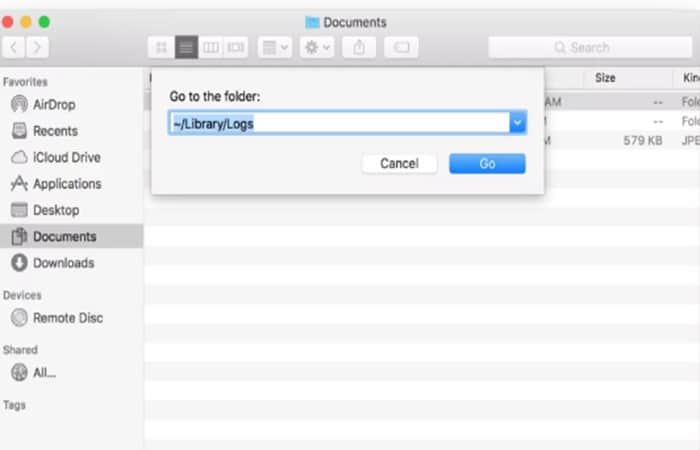
- Step 4: You'll see a list of all the log files on your Mac. If you want to delete any files, make sure you delete them within a folder rather than dragging the entire folder to the Trash. We also recommend making a copy of the log files and placing it somewhere else on your Mac before emptying the Trash. If something goes wrong, you can put them back.
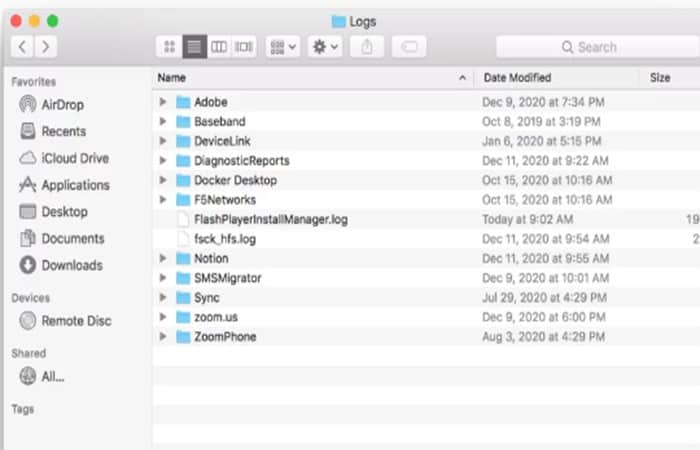
- Step 5: After emptying the Trash, restart your Mac. If there is no error after restarting, you can also delete copy of log files.
Find and delete log files on MAC automatically
You can use a third-party application to delete registry files on your Mac more easily. Cleaner One Pro is an all-in-one tool that can optimize your Mac's performance. Here are the steps to use it:
- Step 1: open Cleaner One Pro.
- Step 2: go to Junk files System logs.
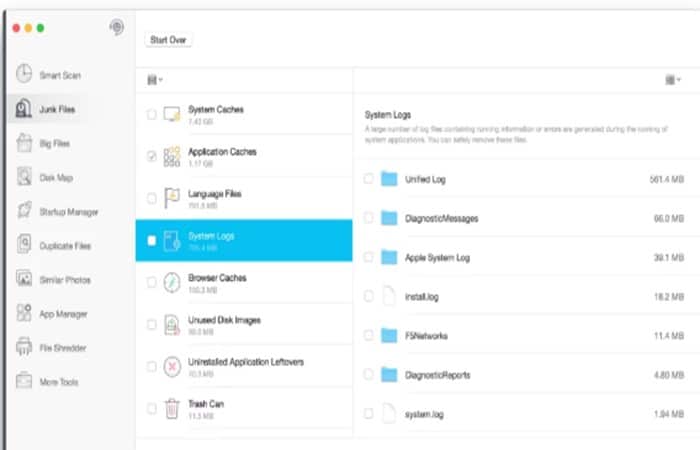
- Step 3: Select the log files you want to delete and then click Delete.
Cleaner One Pro also includes other powerful features like Smart Scan, Junk Files and Similar Photos. Scan your computer and remove unnecessary files.
In addition, it displays a real-time monitor for your CPU and network usage in the menu bar, so you know what's currently happening on your Mac. Cleaner One Pro, besides helping you delete log files on MAC, helps you get a faster Mac with just a few clicks.
Six ways to clean your Mac
In addition to deleting log files on MAC, there are other operations you can perform to keep your computer in optimal conditions:
1. Get rid of old iChat logs
If you use iChat, you can have the program store your chat transcripts. (Go to iChat -> Preferences , click Messages, select Save chat transcripts to , and then choose a folder.) By default, the program saves transcripts in a folder called iChats in your Documents folder, but you can choose a different location to store these files.
With this set of preferences, iChat saves a log file for each chat . This is a great idea (and especially useful at work) if you often need to refresh your memory about a conversation. But if you send images online during chats, these files can take up a lot of space.
If you look inside the iChats folder, you'll see that files are organized by date. While you may want to save recent chat logs, you may have months of files that you can delete, saving a lot of disk space.
You might also like to know: 7 Solutions to Slow Startup Error on Mac
2. Delete application backups
Many programs offer automatic backups and store copies of files in a selected folder, just as iChat saves chat logs. Some applications, like OmniFocus, let you choose the backup location; others, like BBEdit, do not. BBEdit stores backups in a BBEdit Backups folder within the Documents folder; OmniFocus does the same.
If you use any backup application, you may have saved several gigabytes of duplicate files, depending on how the program saves them. (BBEdit saves a new backup every time a file is created.) Deleting these backup files can help save space and make searching with macOS Spotlight much easier.
While you're doing that, check your user folder / Music / iTunes folder ; you may find a folder called Previous Libraries , which includes copies of your iTunes libraries that were saved after you installed a new version.
3. Get rid of email downloads
When you receive email attachments in Apple Mail, the files are initially stored with your messages. However, if you double-click an attachment to view it, or if you use Quick Look to view it, Mail stores a copy in your user/library/ mail downloads folder.
You may have dozens of files here taking up a lot of space. You can usually delete them without worry. If you still have the original messages, the attachments are part of them. Otherwise, you may have already saved the attachments to your hard drive.
5. Remove iTunes dupes
If you're being cavalier about monitoring your iTunes library, you might have a lot of duplicate files. iTunes has a built-in feature to help you find duplicates, so you can see if you copied some files twice.
To use this feature, choose File -> Show Duplicates . This displays all tracks that share the same name and artist. If you hold down the Option key when selecting File , the menu item changes to Show Exact Duplicates.
This applies to duplicates where the name, artist, and album are the same. Review these files carefully. You might find some you can delete, saving space not only on your Mac but also on your iPad or iPhone.
Still, iTunes duplicate search is limited. The paid Dupin gives you much more power to remove duplicates, sorting by a variety of different criteria. If you add a lot of music to your iTunes library, Dupin is a great way to narrow it down.
6. Reset Safari
If you use Apple's Safari, some of the program's features can take up unnecessary space. For example, the cache file is meant to make your browsing more streamlined, but it can easily consume hundreds of megabytes. When it gets too big, it can slow down your browsing.
History files can slow down Spotlight search. And featured sites, website preview images, and website icons (favicons) can also slow down the program. Occasionally, it's a good idea to restart Safari. Choose Safari -> Reset Safari and select the options you want.
You need to learn: How to Close Programs on Mac and Windows
Final thoughts
There you go, you now know how to delete log files on MAC and how to clean up your computer to keep it in top working condition. We hope you were able to resolve the problem that is motivating you to take this action. We have one last tip for you: look in your downloads folder, there you can also find many unnecessary copies of files that you can delete.

My name is Javier Chirinos and I am passionate about technology. Ever since I can remember, I have been interested in computers and video games, and that passion has turned into a job.
I have been publishing about technology and gadgets on the Internet for over 15 years, especially in mundobytes.com
I am also an expert in online marketing and communication and have knowledge in WordPress development.