
If you've lost your product key, you can use one of the methods shown in this post to easily find your Windows 10 serial number .
When you want to reinstall Windows 10 or get technical support from OEMs, you need to know the serial number of your computer. Generally, if you bought a desktop or laptop from OEMs like Dell, HP, etc., you'll find it on a sticker on the machine.
However, that may not be the case for other machines. In such cases, you need a different way to view the Windows 10 serial key. The problem is that Windows 10 does not display the serial key directly for security reasons. Rather, it displays the product key which is completely different from the license key.
How to view the Windows 10 serial number
The good news is that there is always a way to view the Windows 10 serial number. When needed, use one of the following methods to quickly find the serial number of a Windows computer.
Important note: If you have upgraded from Windows 7 or 8 to Windows 10 for free or if Windows 10 is activated with the digital license, you will not have a license key. To be precise, you will have a generic Windows 10 serial number. This is because your Windows 10 machine is linked to your Microsoft account.
How to view Windows 10 serial number from command prompt
With a single command, you can find your Windows 10 license key in the Command Prompt . Here are the steps to follow.
- Open the menu Home by pressing the «Windows key» on your keyboard.
- Write "Symbol of the system" in the search bar of the Start menu.
- Right click on the command prompt and select the option "Execute as an administrator".
- After opening the command prompt window, run the following command.
- wmic bios get serial number
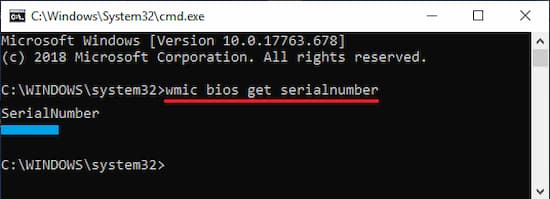
- As soon as you run the command, the command prompt window will display the serial number.
- To copy the serial number, select the serial key with your mouse and click right click to copy it.
- Once copied, you can paste it anywhere you want.
That's it. It's that simple to view Windows 10 serial number in Command Prompt.
How to view Windows 10 serial number in PowerShell
PowerShell has a dedicated command to find or view your Windows 10 serial number. Simply run the command and you'll have your license key instantly. Here are the steps to follow.
- Press the windows key to open the Start menu.
- Write "PowerShell", right click on it and select "Execute as an administrator".
- After opening PowerShell as administrator, run the following command.
- Get-WmiObject win32_bios | Format-List SerialNumber
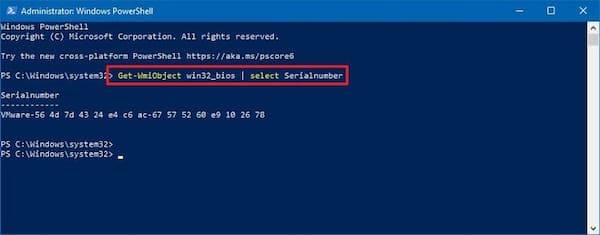
- As soon as you run the command, PowerShell will show windows 10 serial number.
- Select the serial key and right click to copy it to the clipboard.
- Once copied, you can paste it anywhere you want.
That’s it. As you can see, just like with the Command Prompt, PowerShell provides a simple command to view the Windows 10 serial number.
How to export serial number to a text file
Once you know how to view Windows 10 serial number, you can export the serial number to a text file from the command prompt. Here's how.
- Open the command prompt as administrator.
- After opening the window commands, run the following command.
- wmic bios get SerialNumber > C:\Win10SerialNumber.txt
- The above will save the serial number to a text file called «Win10SerialNumber.txt» at the root of the C drive.
- If you want, you can change the name and destination of the file by modifying the second part of the command.
Don't miss: Limited WiFi in Windows 10 | 6 Possible Solutions
Check the sticker on the box
Another place you can find your Windows 10 serial number is on the original box your computer or laptop came in. If you kept the original box, you'll find the serial number on a sticker inside.
If you purchased your computer online, you may be able to find the serial number in the email along with your purchase invoice.
Review registration and warranty documents
If you purchased your device new, it should have come with registration and warranty documents. These documents should show the Windows 10 serial number, both on the registration and warranty side.
Check the battery or casing
Both laptops and desktop PCs usually have a sticker with the serial number. On laptops, you can find the Windows 10 serial number on a sticker inside the battery compartment.
In the case of desktop PCs, it is not uncommon to find this label on the bottom of the computer case.
Final words
If you need to find your Windows 10 serial number, you now know there are several ways to do so. One option is to look for a physical label on your device or the original box it came in.
If the purchase was made online, there is a good chance that the information is on the purchase invoice.
However, if you are unable to view the Windows 10 serial number this way, you can try searching your system using Command Prompt or Power Shell.

My name is Javier Chirinos and I am passionate about technology. Ever since I can remember, I have been interested in computers and video games, and that passion has turned into a job.
I have been publishing about technology and gadgets on the Internet for over 15 years, especially in mundobytes.com
I am also an expert in online marketing and communication and have knowledge in WordPress development.