- Optimize your taskbar by pinning, arranging, and removing shortcuts based on your actual usage.
- Customize the appearance, alignment, and behavior of key elements in Windows 11.
- Use shortcuts to automate common tasks and improve usability.

Are you finding it difficult to quickly access your most frequently used programs and features in Windows 11? If you spend many hours in front of your computer, having your favorite applications, files, and tools readily available can be a real productivity lifesaver. Windows 11 has improved its taskbar and customization options, but many people don't take full advantage of its potential due to a lack of knowledge or fear of changing the default settings.
This guide explains step-by-step how to configure shortcuts for frequent tasks in Windows 11. We'll teach you everything from the basics—like pinning applications—to advanced tips and policy settings for businesses or demanding users. If you're looking for an efficient and customized environment, get comfortable because you'll find all the information you need here, with advice tailored to users in Spain and Latin America.
Why set up shortcuts in Windows 11?
Having an organized taskbar and optimized shortcuts offers clear advantages: it speeds up your workflow , reduces mental strain, and lets you find what you're looking for in seconds. Windows 11's customization tools not only improve the system's appearance but also make a significant difference in professional or study routines.
Among the most important reasons for doing so are:
- Increase productivity: You have the essentials in sight and avoid unnecessary distractions.
- Reduce cognitive load: a familiar and intuitive interface minimizes the effort it takes to find each thing.
- Reflect your style: customize colors, icons and positions helps you feel more comfortable and motivated.
- Improve accessibility: You can adjust visual and behavioral elements to 100% meet your needs.
How to pin shortcuts to the taskbar in Windows 11
The taskbar is the epicenter of quick customization in Windows 11. Here you can pin the applications and tools you use most often. There's no need to keep shortcuts you don't use , as you can remove them or, even better, adapt the space to your actual habits.
There are several ways to add shortcuts:
- From the start menu: Click on the start icon, find the application, right click on it and select Pin to taskbar.
- If you have an application already open: Simply right-click on the icon that appears in the bar and choose the option to keep it pinned.
- From the desk: Right click on the shortcut you have on your desktop, choose Show more options and then select Pin to taskbar.
- In the list of all applications: Open the start menu, go to All applications, locate the one you want, right click, press More and finally, select Pin to taskbar.
Remember: In Windows 11, simply dragging the icon as in other versions is not enough. The steps above are the official method.
Pin, unpin, and rearrange shortcuts
You can modify your shortcuts at any time to better suit your routines. Removing or rearranging icons is as simple as following these tips:
- To unpin an app: Right-click on its taskbar icon and select Unpin from the taskbar.
- To change the order of the icons: Press and hold the icon and drag it to the position you prefer.
Running applications are shown with a line under their icon, and the active app is highlighted using the accent color selected in Windows, giving you very clear visual control over what's open.
Advanced taskbar customization
Windows 11 allows for much more customization than simply adding icons to the taskbar. You can change the alignment, hide the taskbar, adjust the overflow, and decide which elements (such as widgets or the search bar) are visible.
Some useful options:
- Change the alignment of icons: Right click on the start button, go to Configuration > Personalization. > Taskbar and choose between Centro o Left.
- Auto-hide the bar: Within the same settings, activate the option to hide the bar when not in use and thus have a cleaner view of the desktop.
- Modify the overflow: You can select which icons appear on the right (network, volume, etc.) and adjust which apps can be displayed or not.
- Manage default items like search, chat, or widgets: disable what you don't use to keep the bar clear.
Set up shortcuts for common tasks
Beyond simply pinning applications, you can create custom shortcuts to automate tasks or open files, web pages, or even scripts. This is perfect if you work with recurring documents, need access to specific sites, or want to launch system tasks instantly. If you'd like to expand your options, this article explains how to create shortcuts to websites and other resources.
How to create a custom shortcut:
- Right-click on the desktop and select New> Shortcut.
- Enter the path to the file, folder, application, web page (URL), or command you want to run.
- Assign a recognizable name.
- Optionally, change the icon and, of course, pin the newly created shortcut to the taskbar by repeating the steps in the previous sections.
You can create shortcuts to launch:
- Folders you use every day (e.g. your documents, projects, downloads, etc.)
- System tools such as the Task Manager, Settings, Control Panel, etc.
- Key websites for your work or study.
- Scripts or programs that automate repetitive tasks.
Change the location or size of the taskbar
In Windows 11, the taskbar is, by default, at the bottom and centered . If you want to change its position, the easiest way is to move the icons to the left, reminiscent of classic versions like Windows 10.
To move the bar to the top , you will need to edit the system registry, following these steps:
- Open the start menu and type regedit.
- Access the route
HKEY_CURRENT_USER\Software\Microsoft\Windows\CurrentVersion\Explorer\StuckRects3. - Double click on Settings, find the fifth value in the second row and change it from 03 a 01 (this places the bar at the top).
- Restart File Explorer using Task Manager (Control+Shift+Esc), selecting File Browser and pressing Finish homework. It will reopen immediately with the bar in its new position.
Important note : It is not possible to position the bar on the left or right without third-party tools, and any changes to the registry should be made with caution and a backup.
Windows 11 lets you further refine your experience with context menus, widgets, and the notification area . Use these options to customize the system to your liking:
- Widgets: From Settings, you can turn the widget panel on or off. They're useful for quickly checking news, weather, or tasks.
- Notifications area: Select which icons appear visible, whether you prefer to hide them or keep only the essential ones.
- Modify bar elements: Choose whether you want to show the search engine, task view, chat, or disable those that don't provide anything.
Advanced configuration and policies for businesses and demanding users
If you need to manage computers in a professional environment or are looking for total control, Windows 11 includes group policies (GPOs) and configuration policies that allow you to limit, block, or assign shortcuts and behaviors.
The most common options include:
- Allow or block widgets.
- Configure the startup layout and shortcuts via XML files.
- Show only certain icons on the taskbar.
- Prevent users from pinning apps, changing the taskbar, or using certain features.
- Remove the clock, notifications, or action center.
- Control the appearance of quick access lists and their history.
- Disable icon grouping or automatic notification promotion.
These options are especially useful in business environments, educational institutions, or public systems where uniformity and security are paramount. To use them, you must access the Local Group Policy Editor (gpedit.msc) or apply policies from this guide or other advanced system configuration resources.
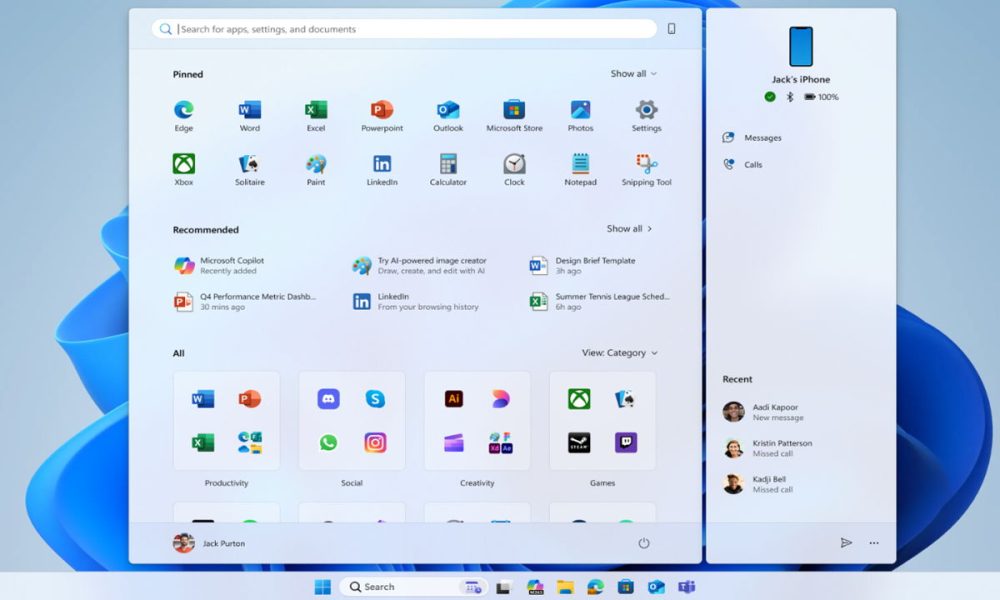
The Windows 11 Start menu is also highly customizable . You can not only pin or unpin apps, but also create icon folders, manage the recommendations section, and adjust the visual organization.
- Clean up the recommended section- Right-click on any item in the section and select the option to clear recommendations.
- Add or remove pinned apps: Right-click on the app and choose the corresponding action.
- Organize the icons: Drag them into the order you prefer; you can even create folders by dragging one icon onto another.
- Adjust the number of recommendations or apps visible- From Home settings, use the sliders to decide how many shortcuts or recommendations are displayed.
To expand your customization options, this article shows you how to transform websites into desktop apps and improve your productivity.
Visual and performance optimization in Windows 11
A customized system should be accompanied by good performance . That's why Windows 11 includes options to adjust the appearance and visual effects to suit your needs.
- Themes and color schemes: Go to Settings > Personalization > Themes or Colors to choose from light, dark, and custom palettes.
- Custom icons: change system icons from recover lost icons or download additional icons.
- Adjust fonts and sizes: From Accessibility you can change the text size and from Personalization you can choose fonts for better reading.
- Desktop widgets: Access and organize widgets from the corresponding panel on the taskbar.
- Animations and visual effects: If you're looking for faster performance, disable them from or go to Advanced System Settings > Performance to choose the fastest mode.
- Background apps: Limits which ones can run without being visible to save battery and free up resources.
Additionally, you can use tools such as disk cleaning, defragmentation, and power plan adjustment to ensure your system always runs smoothly.
Troubleshooting common customization issues
Over-customizing can lead to problems, so it's wise to take precautions :
- Make regular backups before modifying the registry or applying policies.
- Create restore points before major changes.
- In case of errors, use the System File Checker (sfc /scannow) to repair damaged files.
- Make sure you have an administrator account for advanced changes.
- Always update your drivers and system to maintain compatibility and security.
- If you install themes or customization apps, make sure they are from trusted sources.
Additional features and tricks for advanced users
Don't limit yourself to just the taskbar or the Start menu . Windows 11 lets you customize much more to create a work environment that suits your taste:
- Action Center and Quick Settings: Customize quick actions and which icons are displayed in the notification area.
- Notification settings: Decide which apps can display banners, sounds, and notifications.
- Managing multiple screens: Adapts the taskbar and shortcuts to different monitors, choosing which icons appear on each one.
- Business customization: Use administrative templates and GPOs to standardize access and experience across enterprise computers.
Mastering shortcut settings and customization in Windows 11 is the best way to adapt the operating system to your daily routine, whether you're a home user, a freelancer, or an IT administrator. The more you customize your digital environment, the more comfortable and productive you'll feel , taking full advantage of Windows 11's capabilities while maintaining control over both the appearance and functionality of your PC.


Passionate writer about the world of bytes and technology in general. I love sharing my knowledge through writing, and that's what I'll do on this blog, show you all the most interesting things about gadgets, software, hardware, tech trends, and more. My goal is to help you navigate the digital world in a simple and entertaining way.
Table of Contents
- 1 Why set up shortcuts in Windows 11?
- 2 How to pin shortcuts to the taskbar in Windows 11
- 3 Pin, unpin, and rearrange shortcuts
- 4 Advanced taskbar customization
- 5 Set up shortcuts for common tasks
- 6 Change the location or size of the taskbar
- 7 Customizing menus and additional elements
- 8 Advanced configuration and policies for businesses and demanding users
- 9 Customize the start menu and its shortcuts
- 10 Visual and performance optimization in Windows 11
- 11 Troubleshooting common customization issues
- 12 Additional features and tricks for advanced users