- Notepad allows you to create shortcuts to multiple websites and automate online logins.
- Windows offers advanced methods for custom shortcuts, including commands hidden and special folders for system functions.
- Customizing shortcuts is easy, from launch settings to taskbar integration and aesthetic customization.
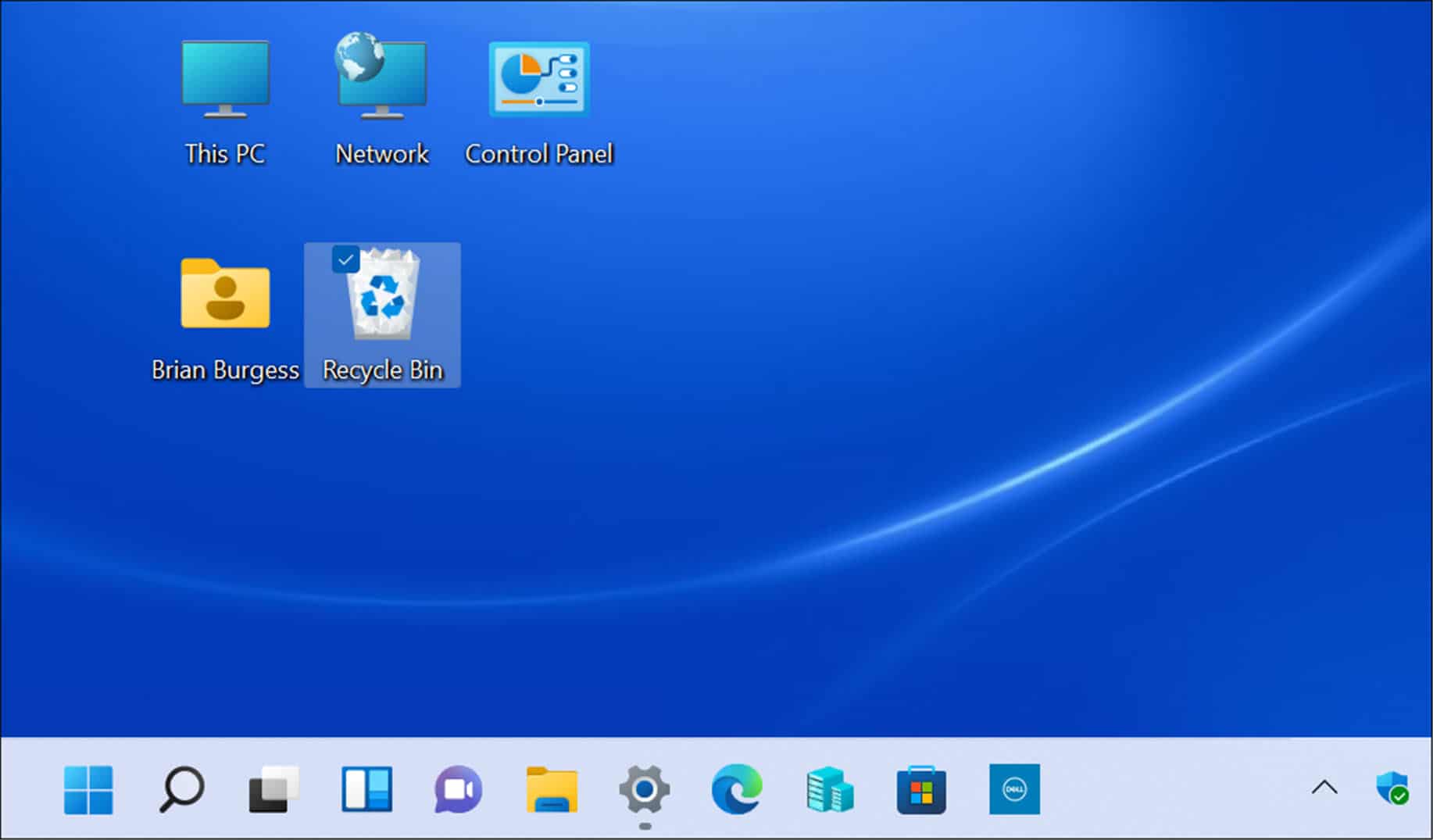
Creating shortcuts in Windows is a common task for those seeking a more organized and efficient computer. However, many are unaware of the versatility the operating system offers, especially when it comes to quickly and easily accessing specific web pages without relying on external applications. This is where the familiar Notepad becomes a surprisingly useful tool.
In this comprehensive article, you'll discover how to create shortcuts to programs, system functions, and websites using only Notepad and built-in Windows utilities. You'll also learn how to customize these shortcuts, automate everyday tasks, and even modify aesthetic details like the arrow icon. If you want to master shortcuts and get the most out of your workspace, this is the ultimate guide.
What is a shortcut and why use them?
A shortcut allows you to quickly open files, folders, applications, or web pages without having to navigate through complex menus or directories. These icons on the desktop or taskbar save time and improve productivity by providing easy access to frequently used resources with a single click. Furthermore, they can be customized to execute special commands or settings, making them invaluable tools for automating common or technical tasks.
Classic methods for creating shortcuts in Windows
- Manual creation from the context menu: Right-click on the desktop or inside a folder, select "New," then "Shortcut." From the pop-up window, you can specify the path to the file, folder, application, or even a web address. Give it a meaningful name and click "Finish."
- Copy and paste shortcut: If you already have the original file, copy it (Ctrl+C) and right-click it in the desired location to select "Paste Shortcut." It's quick and easy for any item.
- Drag and drop with Alt: Hold down the Alt key, drag the item to the desktop, and Windows will automatically create a shortcut in the chosen location.
- Program installation menu: Many installation wizards allow you to create shortcuts automatically, usually by displaying the option in a box during the installation process.
- From the Start Menu: Find the program, click, and drag it from the Start Menu to the desktop to create the shortcut (in Windows 10 and 11, the process is almost identical, with only the interface changing).
How to create shortcuts to web pages using only Notepad
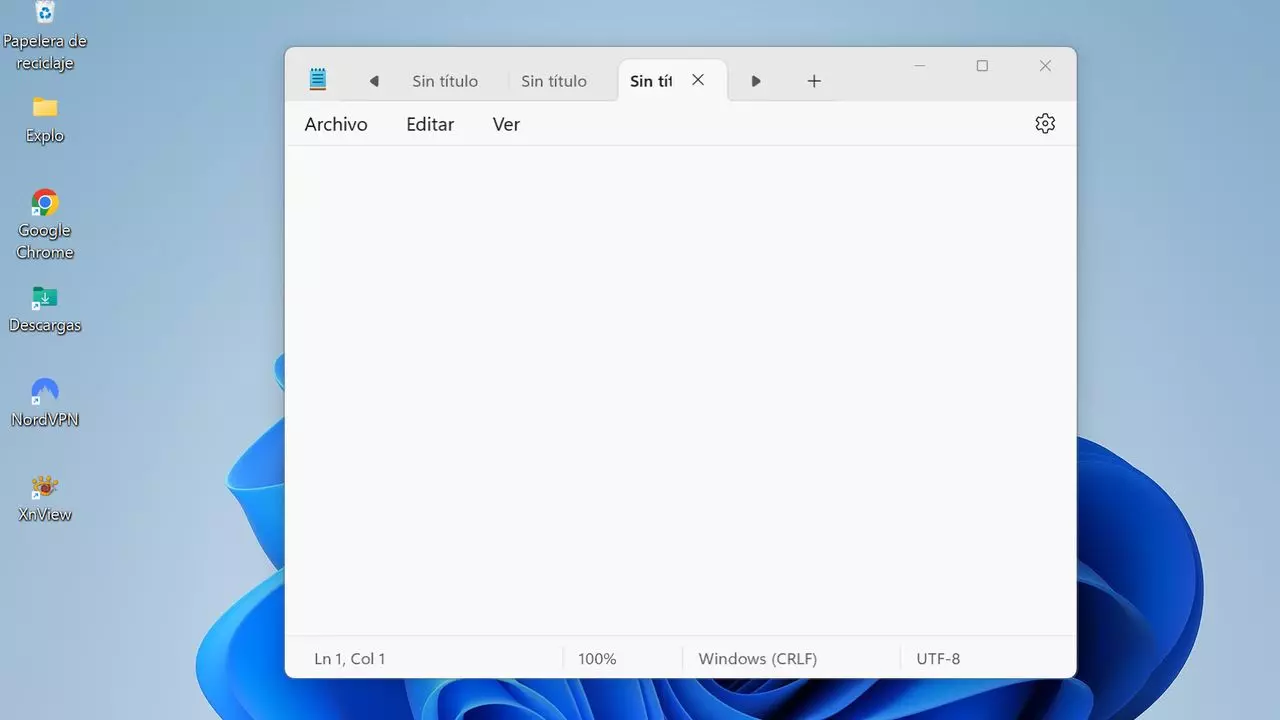
For those who want to open one or more web pages with a single click, Notepad can be a simple and powerful alternative. This is possible thanks to files with the .bat extension, which contain commands that Windows can execute.
Step-by-step guide to creating website shortcuts with Notepad
- Open Notepad from the start menu.
- Type the following commands, changing the URLs you want to open:
@echo off

start https://www.google.com

start https://www.tupaginafavorita.com - Save the file by selecting "Save As", Choose "All Files" as type and give it a name that ends in '.bat' (for example, “open-my-webs.bat”).
- Place the file wherever you prefer, as on the desktop, and launch it with a double-click. All the websites listed will open in your default browser.
This method is ideal for those who open the same pages every day, whether for work or personal routine. Plus, you can easily edit the .bat file by right-clicking and selecting "Edit" to add, remove, or modify URLs.
When you open a .bat file containing URLs, Windows will use the browser that is set as default. If you have multiple browsers installed and want them to open with a different one:
- Go to “Settings” from the start menu.
- Go to “Applications” and then “Default Applications”.
- In the "Web Browser" section, choose your preferred browser with a simple click.
This way, all shortcuts will open websites in your favorite browser.
Major browsers also allow you to easily create shortcuts to websites:
- Google Chrome and Firefox: Click the lock icon in the address bar and drag it to your desktop. This will give you a shortcut to that specific website.
- Favorites in browsers: If you're just adding a few sites to your favorites bar, you can open all the sites saved in a favorites folder at once by right-clicking and choosing "Open All" in Chrome or "Open All in Tabs" in Firefox.
Shortcuts for applications, files and folders
In addition to websites, you can create shortcuts to access documents, programs, or Windows functions. Some useful methods:
- «Send to» Desktop: Right-click the file, select “Send to…”, and then “Desktop (create shortcut).”
- Context menu of executables: Right-click the .exe file and choose "Create Shortcut." Windows will move it to the desktop if it can't create it in the same folder.
Special commands and hidden shortcuts in Windows
Windows allows you to point shortcuts to specific system functions using internal commands or GUIDs . Simply create a new shortcut and enter one of the following commands as the target:
- Recycle Bin:
explorer.exe shell:::{645FF040-5081-101B-9F08-00AA002F954E} - Network connections:
explorer.exe shell:::{7007ACC7-3202-11D1-AAD2-00805FC1270E} - Control Panel:
explorer.exe shell:::{26EE0668-A00A-44D7-9371-BEB064C98683} - More accesses: There are commands for administrative tools, power options, Bluetooth devices, file history, language settings, and dozens of advanced Windows options.
These tricks are ideal for advanced users or for those who need to have certain settings at hand without wasting time in menus.
Magic Folder Shortcuts
An advanced curiosity is to take advantage of GUIDs not only in shortcuts, but also by creating folders with special names. For example, create a folder called Administrador.{D20EA4E1-3957-11d2-A40B-0C5020524153} converts that folder into a shortcut to administrative tools. The text before the period is free, allowing you to customize and organize these types of shortcuts to special system functions or panels.
Shortcut Customization
One of the biggest advantages of shortcuts is the ability to customize them to open programs or files with certain parameters:
- Open Chrome in incognito mode: Modify the shortcut target by adding
--incognitoat the end of the route. - OPEN Steam in offline mode: Add
-offlineto the path of the executable. - Open a specific file with Notepad: Write
notepad.exe "C:\Usuarios\Nombre\Documentos\nota.txt"in the destination field.
This customization maximizes efficiency and allows you to automate routines with a double click.
Pin shortcuts to the taskbar
For those who want to keep their desktop clean, the taskbar is perfect for frequently used shortcuts . To pin a shortcut:
- In Windows 10: Drag the shortcut to the taskbar.
- En Windows 11: Right-click the shortcut or app and select “Pin to taskbar.”
- To unpin, right-click the icon and choose "Unpin from taskbar."
Special symbology: the arrow in shortcuts
All shortcuts in Windows display an arrow above the icon. This visual indicator helps distinguish the shortcut from the actual executable file, preventing the accidental deletion or movement of important files.
Can the arrow be removed from shortcuts?
Yes, although it requires modifying the Windows Registry. If you want to do this:
- Type “regedit” in the search box to open the Registry Editor.
- Navigate to
HKEY_LOCAL_MACHINE/SOFTWARE/Microsoft/Windows/CurrentVersion/Explorer. - Create a new key called Shell Icons if it does not exist.
- Inside it, create a new "String Value" called 29.
- Set as value
%windir%/System32/shell32.dll,-50. - Restart your PC to see the changes.
Removing the arrow makes the shortcuts more beautiful, but it can be confusing if you don't pay attention to the file names or locations.
Advantages and disadvantages of filling the desktop with shortcuts
While shortcuts are convenient, overusing them can clutter your desktop and make organization difficult . Therefore, it's advisable to reserve the taskbar for frequently used items and keep your desktop clear for temporary files or those in continuous use.
Ideas for automating tasks with shortcuts and Notepad
- start of sessions: A .bat can open all the work or study websites you need every day.
- Link to configuration functions: With GUID commands, you can access panels and utilities from the desktop without searching through menus.
- Customized access for specific jobs: Open documents, programs, and websites (all together) with a single shortcut created via Notepad.
Knowing how to create and customize shortcuts, especially using simple tools like Notepad, can transform your Windows experience, saving you a lot of time and allowing your computer to work at your pace and needs.

Passionate writer about the world of bytes and technology in general. I love sharing my knowledge through writing, and that's what I'll do on this blog, show you all the most interesting things about gadgets, software, hardware, tech trends, and more. My goal is to help you navigate the digital world in a simple and entertaining way.
Table of Contents
- 1 What is a shortcut and why use them?
- 2 Classic methods for creating shortcuts in Windows
- 3 How to create shortcuts to web pages using only Notepad
- 4 Customize the default browser for your shortcuts
- 5 Other methods to create shortcuts to websites from the browser
- 6 Shortcuts for applications, files and folders
- 7 Special commands and hidden shortcuts in Windows
- 8 Magic Folder Shortcuts
- 9 Shortcut Customization
- 10 Pin shortcuts to the taskbar
- 11 Special symbology: the arrow in shortcuts
- 12 Advantages and disadvantages of filling the desktop with shortcuts
- 13 Ideas for automating tasks with shortcuts and Notepad