- Learn to combine Boolean operators and advanced filters in Windows
- Discover Tricks essential for searching files by type, date or metadata
- Optimize your productivity with keyboard shortcuts and smart searches
Are you still searching for files the old-fashioned way in Windows and feeling like you're wasting too much time? If you've ever found yourself sifting through a sea of folders and documents, a thorough understanding of filters, Boolean operators, and search ranges in Windows Explorer can completely transform your digital experience in seconds.
This article delves into all the tricks, shortcuts, and advanced commands that let you locate files in the blink of an eye, whether you're using Windows 10 or 11. You'll discover everything from how to apply precise filters by date , size, or document type , to how to use logical operators and lesser-known commands that will literally save you hours. Ideal for both home and professional users, you'll become a true search ninja.

Why learn to filter and search files like a pro?
For many, Windows File Explorer is simply the tool they use to see what's on their computer, but it's far more powerful than it first appears . By applying filters and operators, you can find the exact file you're looking for among thousands of documents without wasting time. This is especially useful if you work with large volumes of information, are a student, or are simply a natural organizer.
It doesn't matter if you only remember part of a file name, an approximate date, or even just the file type . With the right commands and ranges, Windows Search becomes a truly custom search engine.
Where are filters and search operators applied?
The magic of these commands lies in their direct use within the Explorer search bar . Simply open any folder, type your query applying the desired operators or filters, and Windows will instantly filter the results. You can do this in any location: local folders, external drives, network drives, or even files synced to the cloud.
In addition, when you access the search bar, the Search Tools tab appears with visual options so you don't have to memorize all the operators, but the real power lies in typing them yourself to achieve customized and much more powerful searches.
Boolean operators in Windows search
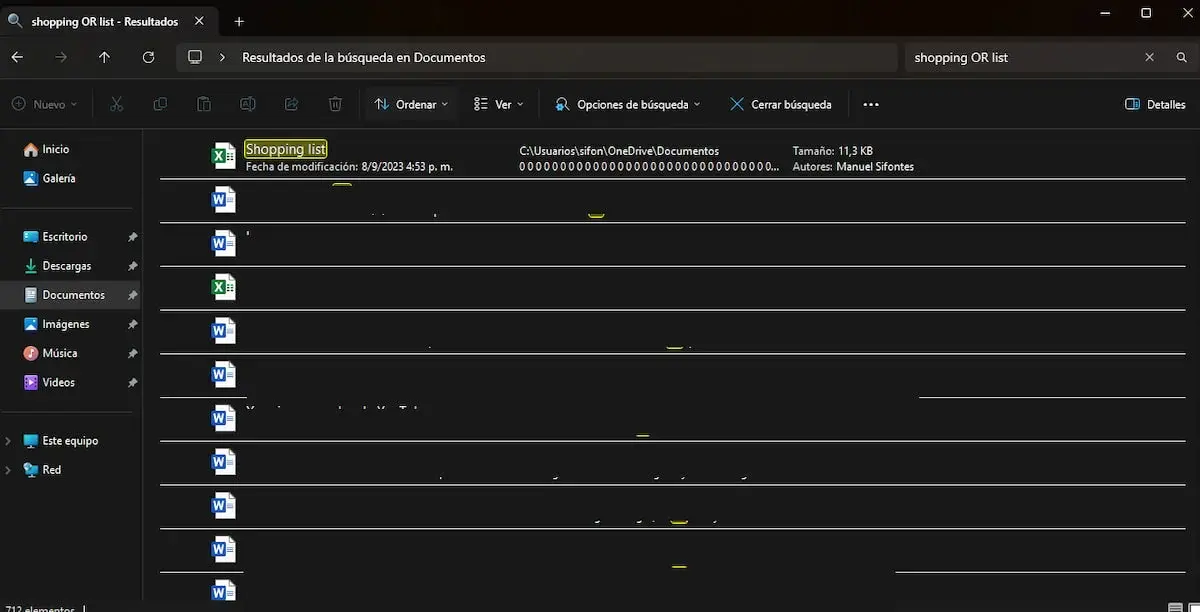
These operators, inspired by mathematical logic, are the basis for narrowing down exactly what you want (or don't want) to find in your searches. Used correctly, you can effortlessly refine your results:
- AND: By default, the search engine already uses this operator (it is not necessary to write it, but it is valid to do so). If you search contract AND insurance or simply secure contract, you will only see files that contain both words.
- OR: Alternative to find files containing one or another term. Example: invoice OR receipt will display all documents that include either of the two words.
- NOT or the minus sign : Excludes results that contain a specific term. For example, NOT old listing o old listing delete files that include “old”.
- Double quotes » «: To search for exact phrases. If you type "annual budget", only files where that combination of words appears together and in that order will appear, ignoring other combinations.
- Parentheses ( ): Group terms for specific combinations or so that multiple words appear in any order. Example: (birthday photos) will recover files that include both words, regardless of the order in the name.
Wildcards and special symbols for flexible searches
Can't remember the full name of that important file? Wildcards are your best friend. For example:
- Asterisk *: Replaces any number of unknown characters. report* It will show you all the files that begin with “report”.
- Interrogation?: Replaces a single character. photo?.jpg could find “photo1.jpg”, “photoA.jpg”, etc.
These wildcards make searches broad and flexible, which is very useful if you only have a vague idea of the name or want to see all the similar variants available.
General Filters: Take your search one step further
Windows Explorer allows you to use advanced filters by entering the filter name followed by a colon and the desired value . You can combine as many filters as you need to refine your search. Here are some of the most useful ones:
- date: Filter by creation or modification date. You can use terms like today, yesterday, this week, last month or set a specific date (date:01/06/2024).
- modified: Same as above, but only for the latest edition date. Example: modified: 2023-01-01.
- created: Filter only by the original creation date (Created: 2022-12-25).
- size: Limit the search by file size. Example: size:small (less than 16 KB), size: large (more than 128 MB), or even size:>100MB for files larger than 100 MB.
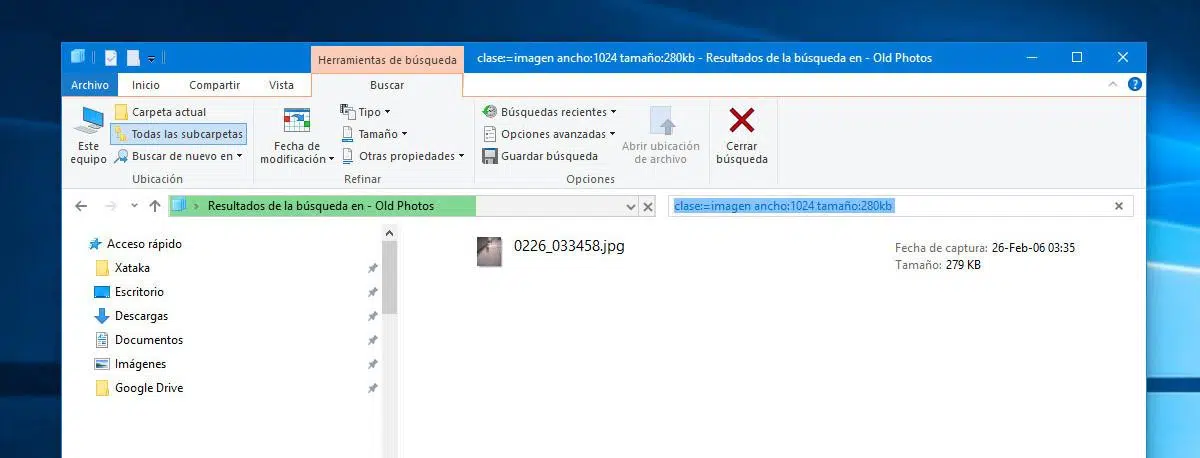
- class: Allows you to search by file type (document, image, video, music, program, etc.). class:image will only display photos and graphics.
- out: Search for files by extension. ext:pdf to see only PDF files, ext:docx all with Word, etc.
- binder: Limits results to a specific folder (folder:ImportantDocuments).
- archive: Search only on the file name and not on its contents.
By combining several of these filters, you can obtain highly specific results. For example: file:report date:2023 size:medium will show only files named “report” modified in 2023 with a medium size.
Specific filters for file types and metadata
In addition to general filters, there are commands for specific files only. Thanks to the metadata stored in documents, photos, songs, or videos, you can filter much more than just the file name:
- slides: to search for presentations by number of pages (slides:12).
- commentary: search for Word files with a certain comment in their content (comment:review).
- artist: find songs by a specific artist (artist: Shakira).
- album: only results for songs included in that album.
- clue: filter songs by track number (track:5).
- gender: for songs by musical style (genre: pop).
- duration: suitable for videos or music (duration: short, duration:>01:00:00 for more than an hour).
- year: filter by year of recording/creation (year: 2022).
- orientation: choose whether it is a horizontal or vertical image.
- width/height: search images by exact resolution (width: 1920 height: 1080).
These filters are pure gold for photographers, musicians, students, or anyone who works with a lot of media or presentations.
Search by range and combine filters: Expert-level searches
The best part is that you can combine these filters and operators for even more specific searches. Try expressions like:
- date:>2023-01-01 size:large NOT backup — Large files created after 2023 that do not contain the word “backup.”
- class:video artist:Bowie year:1977 — All David Bowie videos from 1977.
- (modified:yesterday OR created:today) AND (class:pdf OR class:docx) — Documents edited yesterday or created today, only in PDF or Word.
Plus, you can create real "productivity shortcuts" by saving frequently used searches: select "Save Search" above the results to reuse them whenever you want and always have them handy.
Common mistakes and how to optimize your searches
Are you seeing unexpected files or noticing missing results? The biggest problem is usually with the dates (creation, modification, access) . Always check your system's time zone, and if you work with many images or PDFs, review their properties/metadata to avoid confusion. To further improve your experience, we recommend consulting our solutions in this article about search bar issues.
If you move files between hard drives or flash drives, you could lose time stamps. In the cloud, always use services that respect metadata. And if you need to compare multiple dates, customize Explorer by adding additional columns like "Date Taken" for photos or "Date Last Printed" for Office documents.
Keyboard shortcuts and little tricks to search faster
To save time, Windows offers very useful keyboard shortcuts:
- Ctrl + E: Jump directly to the search bar from any Explorer window.
- Windows + S: Opens system-wide global search.
- Alt + Arrows: Navigate between periods in the search calendar.
- Ctrl + Shift + N: Quickly create new folders if you need to separate localized files.
- Win + R > shell:recent: Access all your recent files sorted by date.
And don't forget to save searches as shortcuts to reuse whenever you need them!

What advantages do external tools and smart searches add?
If the native Windows search engine falls short, there are utilities like Everything, Listary, SeekFile, and DeepSeek . These apps offer instant indexing, natural language search, cross-platform search, and even automatic alerts for file changes. They're perfect if you manage large amounts of data or work in a team.
For example, you can ask DeepSeek to show you “documents modified between Monday and today,” or use SeekFile to create automated routines that organize your daily downloads by exact date. Some even allow you to export results to Excel to analyze work activity.
Visual tips for sorting, filtering, and working with many results
When you have dozens or hundreds of files in your results, take advantage of the "Sort by" and "Group by" features available in Explorer to view files by date, type, or size, and quickly find the one you're looking for. Create custom views by enabling additional columns based on your workflow.
For complex projects, you can use manual tagging systems, date-based filename organization methods (e.g., 20240627_name.docx), and even automate smart folders to keep your computer under control.


Passionate writer about the world of bytes and technology in general. I love sharing my knowledge through writing, and that's what I'll do on this blog, show you all the most interesting things about gadgets, software, hardware, tech trends, and more. My goal is to help you navigate the digital world in a simple and entertaining way.