- Tails prioritizes privacy: traffic by Tor, encryption and execution in live mode without saving changes by default.
- Image verification (official browser extension) is key to ensuring integrity and authenticity.
- Rufus Portable simplifies the creation of USB and the Tails installer allows cloning to a reliable final drive.
- On macOS, it's normal for the USB drive not to appear in Finder by partitions. Linux; starts from the start menu.
If you're concerned about your digital footprint and want an environment that leaves no trace on your computer, a Live USB with Tails OS is a fantastic solution for browsing and working discreetly. Tails runs in "live" mode from a USB drive , doesn't need to be installed on your computer's hard drive, and is designed for privacy and anonymity from start to finish.
In addition to Tor browsing, it includes encryption tools and everyday utilities. It's perfect for managing sensitive data (banking, crypto, audits, or security testing) in an isolated environment. If you'd like, you can also watch an explanatory video on YouTube for more visual context, although everything is clearly explained step-by-step here.
What is Tails OS and why boot it from a USB drive?
Tails is a Debian-based distribution focused on extreme privacy: all traffic goes through the Tor network , it incorporates encryption tools for files, emails and messaging, and offers basic applications such as a browser, email client, media players and office utilities.
Its philosophy is simple: it runs in memory, and when you shut down, everything you've done is erased. By default, it doesn't save your changes , minimizing traces on the host computer. This makes it a great option for occasional high-risk sessions or when you want to completely separate your activity from your regular computer.
Booting from a USB drive has another key advantage: complete portability . You can carry your system in your pocket and load it onto almost any compatible PC or laptop, ideal for moving between computers without leaving a trace.
However, this portability comes with a consequence: it doesn't act as a traditional "installation system ." The idea is to avoid touching the computer's hard drive. If you later need to preserve certain data, you can explore Tails' persistent storage options , but by default, its behavior is ephemeral.
Requirements and recommended tools
For a simple and reliable process from Windows , there's a combination that usually works perfectly. These are the essentials you should have on hand before starting:
- Operating System: Windows 10 (will be used as the environment to create the USB).
- Recording software: Rufus (preferably the portable version to avoid installation).
- USB drive: minimum 4 GB, USB 3.0 recommended for higher speed.
- Linux distribution: any updated version; in this article we are working with Tails.
If you'd like to have other Linux options for a general-purpose Live USB, you can take a look at these distributions: Xubuntu , Lubuntu , Linux Mint , and, of course, Tails . For privacy and anonymity, Tails is the go-to , but the others work very well as "pocket" systems.
A practical tip: if you'd rather not install anything on your Windows system, Rufus Portable saves you the hassle . Download the executable, open it, and you're done; it's fast and gets straight to the point.
And regarding the USB drive, it's best to go for quality and speed. A reliable USB 3.0 drive reduces read and write times, which is a welcome improvement when booting and using the live system.
Download and verify the Tails image
Before burning anything, it's a good idea to verify the image you're downloading. This confirms that the download is authentic and hasn't been tampered with. You'll find the download link and verification instructions on the official Tails website.
A very convenient way to validate the image is with the official browser extension. From Chrome, you can install "Tails Verification" and use it to check the ISO or IMG file you've downloaded. The typical process is: install the extension, grant permissions, open the verification tool, and select the file.
In some guides you will see screenshots with texts like Install the Tails Verification extension, Add extension and Verify Tails 3.8. The names may vary depending on the version , but the idea is identical: you choose the local image and the tool tells you if it is properly signed.
Once the verification is complete, you'll see the result: if everything is correct, you can proceed to create the USB drive . If it fails, download it again or double-check that you followed the steps on the official website.
Additional security tip: save the file in an easy-to-find folder, avoiding confusing names or older versions in the same directory, so you don't accidentally select it in Rufus.
Create a Tails Live USB on Windows with Rufus
With the image verified, it's time to burn it to the USB drive. Rufus is fast and very reliable for this type of task, and the portable version allows you to run it without installation.
Connect the USB drive and open Rufus. Under Device, select your USB drive; then click Select to choose the Tails file (ISO or IMG). Rufus will automatically detect the format and suggest the appropriate parameters based on the partition scheme and boot target.
Typical fields to check are Partition Scheme ( MBR or GPT) and Target System (BIOS/UEFI). Don't worry too much: Rufus usually makes good choices by default for Tails images. If your machine is modern, GPT/UEFI is usually the right combination; if it's older, MBR/BIOS might be a better fit.
Click Start and accept the warning that the data on the USB drive will be erased. The process will take a few minutes; do not disconnect the drive until you see "Done" . When it's finished, safely close Rufus and eject the USB drive from Windows.
At this point, you can restart your PC to boot from the USB drive and use Tails in live mode. Remember that live mode doesn't save changes between sessions by default, which is exactly what we want to maintain privacy.
Boot and clone from Tails with the integrated installer
Tails offers a very practical workflow that you'll see in many guides: create an initial "intermediate" USB drive , boot from it, and then, once in Tails, clone it to a second USB drive using Tails' own installer. This leaves the final drive fully prepared by Tails' own tools.
To boot, enter your computer's BIOS/UEFI and set the USB drive as the first boot option, or use the boot menu at startup (the key varies depending on the manufacturer). Select the USB drive using Tails and wait for the system startup menu.
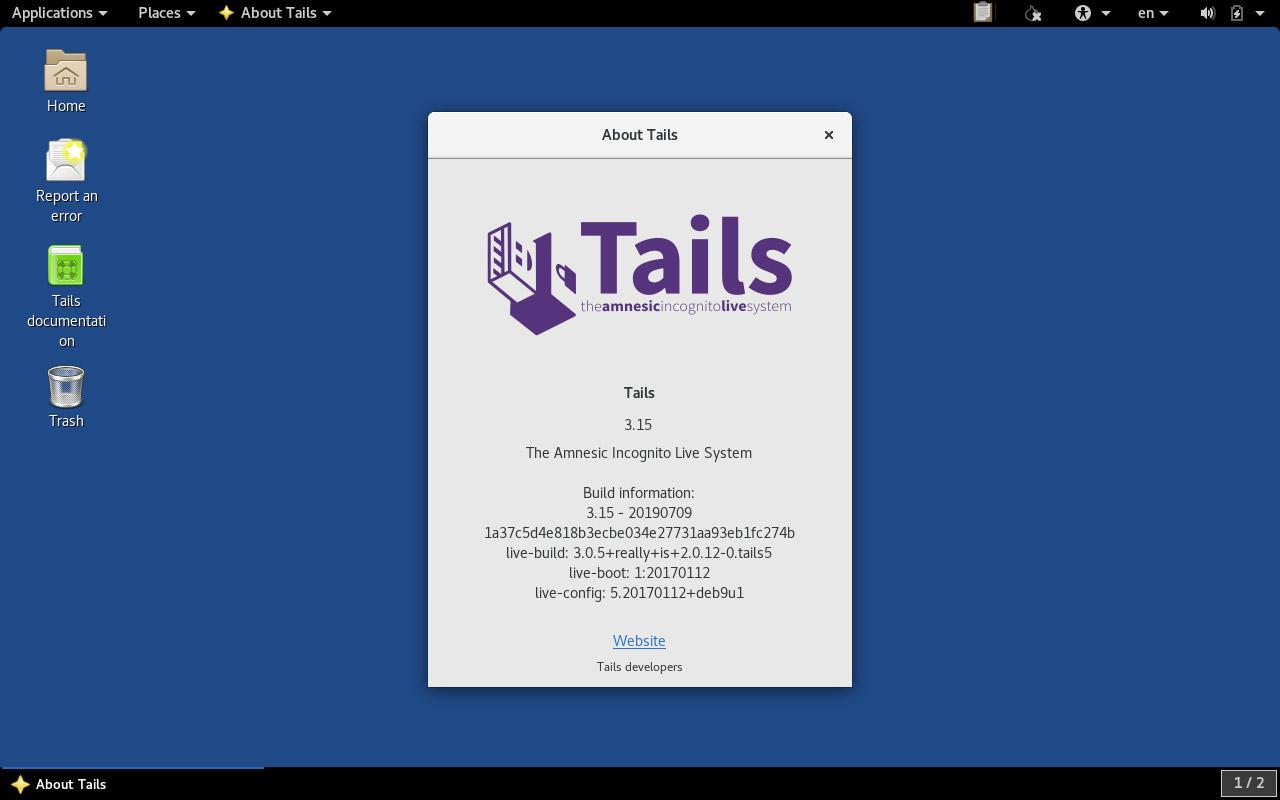
When the Tails menu appears, select Tails. On the initial screen, you can adjust the language (you'll see an option called Language), and then click Start Tails. In a few moments, your desktop will be up and running and ready to use.
Now connect a second USB drive, which will be the "final" one. Open Applications > Tails > Tails Installer and you'll see that it offers two options: use a local image or clone the running Tails installation. Select the option to clone the current Tails installation , choose the destination USB drive, and click Install.
The installer will ask for confirmation and begin copying. Once finished, it will display a success message, and you'll have a Tails USB drive ready for any computer. This method is very clean and minimizes errors because Tails itself structures the drive.
Historical alternatives: Unetbootin and GParted
In older materials about Tails, you'll find references to tools like Unetbootin and pre-formatting steps using GParted. These are still useful in certain situations , although nowadays Rufus and the Tails installer greatly simplify the process.
The classic guide suggested formatting the USB drive according to its architecture: FAT16 for 32-bit systems and FAT32 for 64-bit systems . Then, open Unetbootin, choose Disk Image, select the Tails ISO file, choose the USB drive, and accept to begin the installation.
When finished, Unetbootin might ask if you wanted to restart. The usual recommendation was not to do so immediately, but to close programs and shut down manually , then turn on the computer and choose to boot from USB. With that, you could start using Tails.
A guide for Tails 1.1.1 that followed this scheme with Unetbootin and GParted even became popular. Although it sounds a bit old-fashioned today , it's still useful to remember if you have a very old PC or need a quick shortcut without Rufus.
If you decide to go this route, also verify the image and back up everything on the USB drive, because the process overwrites the drive . Security starts with preventing data loss.
macOS: USB not showing up in Finder after burning Tails
A very common problem among Mac users : you burn Tails from the terminal in macOS, everything seems fine, but when you reconnect the drive, it doesn't appear in Finder . However, you do see it in Disk Utility, sometimes with a different name and about 1,5 GB of disk space.
Don't worry: it's normal for Finder not to show the Linux partitions that Tails creates. The USB drive is reorganized into several partitions (including one that isn't visible in macOS), which is why Finder "doesn't understand" it and hides it. Disk Utility does detect the physical device, and that usage of ~1,5 GB matches the burned image.
This isn't a bug; it's expected behavior. Don't format the drive or "fix" it from macOS , or you'll mess up the installation. Leave it as is, restart your Mac, and try booting while holding down the Option/Alt key to select the USB drive as your startup disk.
If you have a recent Mac, you might need to adjust the external boot policy in the system's security manager. Allowing booting from external media is usually enough to let your Mac start from the USB drive.
In short: it's normal that it doesn't appear in Finder, and seeing 1,5 GB used in Disk Utility is also normal. The definitive test is to try booting from the USB drive on the Mac itself or on another compatible computer and verify that it accesses the Tails menu.
Usage tips, safety, and common problems
Remember that Tails is designed to leave no trace. By default, it doesn't save documents or changes after restarting, which is perfect for sensitive sessions. If you need to retain data, consider Tails' persistent storage, which adds a layer of encryption and granular control over what is saved.
To improve boot compatibility: disable Secure Boot if it's causing problems, use rear USB ports on desktop PCs, and prioritize USB 3.0. Updating the BIOS/UEFI may resolve incompatibilities that prevent the USB drive from appearing in the boot menu.
If Rufus isn't detecting the image correctly, double-check that you've downloaded the right version from the Tails website and, if in doubt, download it again. A failed verification is a clear sign that something is wrong and you shouldn't continue using that ISO/IMG.
When the system boots but doesn't reach the desktop, try a different USB port or a different flash drive. Some drives have finicky firmware that doesn't work well with certain boot modes. Sometimes, switching to a different flash drive works wonders.
If your primary goal is anonymity, don't install additional software on Tails or change settings without knowing what you're doing. The more you deviate from the standard profile , the easier it becomes to distinguish your traffic from that of other Tails users on the Tor network.
For auditing or penetration testing tasks, remember that Tails prioritizes privacy over persistence or performance. It can be useful for occasional testing , but you might be interested in a specialized distribution if your focus is 100% on auditing with heavy-duty tools.
If you prefer a zero-installation method on Windows, the portable version of Rufus is your best bet. When finished, always eject the USB drive safely to minimize the risk of data corruption.
And if you ever have any doubts about an on-screen message when starting Tails (for example, the language selection or the startup option), choose Spanish under Language and then Start Tails. This is the standard workflow for getting to the desktop before opening the installer and cloning to another USB drive if you wish.
Once the recording is complete and you restart to boot from the USB drive, you should see the Tails menu after a few seconds. If it doesn't appear, check the boot order in your BIOS/UEFI or use the quick boot menu to force the USB drive.
Those familiar with older guides might remember Tails 1.1.1, Unetbootin, and the pre-formatting with GParted (FAT16/32). Those methods are still valid in specific contexts , but today the combination of verification, Rufus, and Tails Installer offers a very direct and replicable approach.
With all of the above, you should now have a clear understanding of the process: what Tails is, how to verify the image, how to create the USB drive with Windows 10 and Rufus, how to boot from it, and how to clone it from your operating system to a second drive. Even if you're using a Mac and don't see the USB drive in Finder , you now know that's normal and what to do. Enjoy a portable, anonymous environment designed to leave no trace—ideal for when your privacy is paramount.

Passionate writer about the world of bytes and technology in general. I love sharing my knowledge through writing, and that's what I'll do on this blog, show you all the most interesting things about gadgets, software, hardware, tech trends, and more. My goal is to help you navigate the digital world in a simple and entertaining way.