- Real options: Android emulator (LDPlayer), integration into WhatsApp and desktop container with WebCatalog.
- Advantages on PC: large screen, keyboard/mouse, multi-opening and file transfer.
- Status in Spain: gradual rollout on WhatsApp and limited functions (no mentions or images).
- Precautions: Verify links and dates; WebCatalog is not an official Meta app.
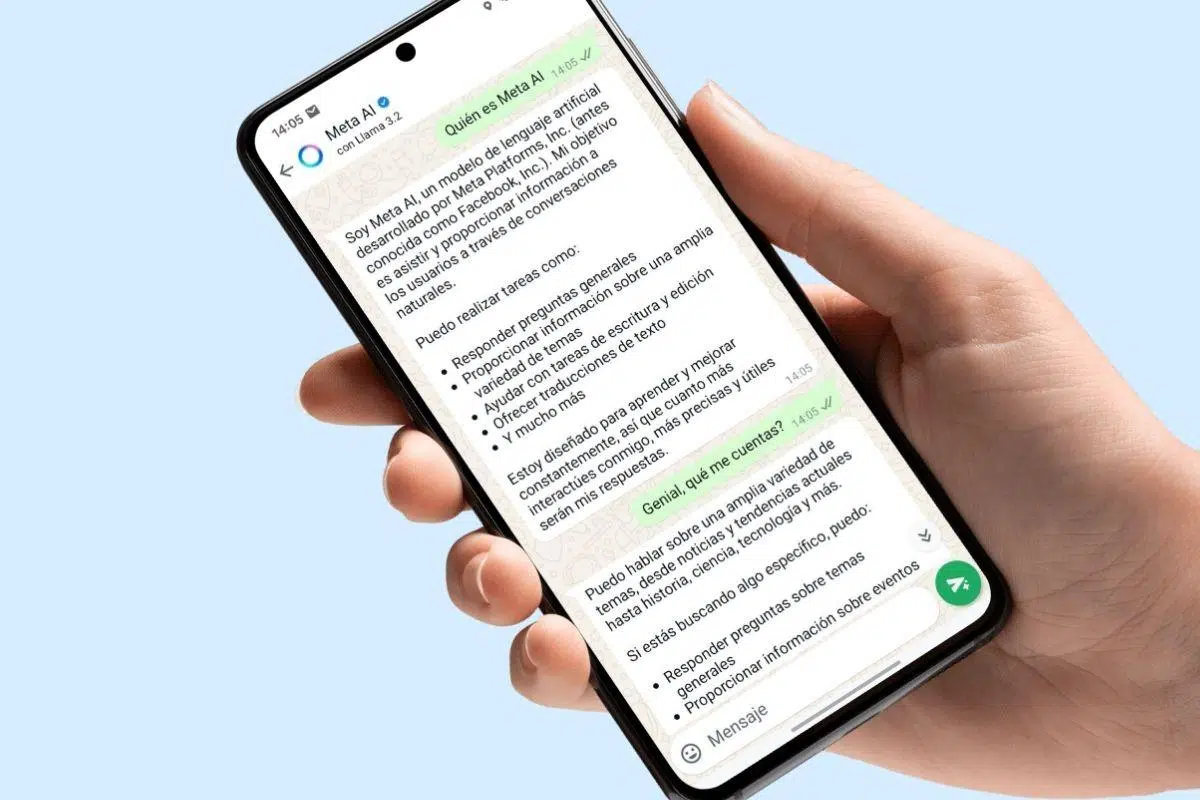
If you're wondering how to get Meta AI running on a Windows 11 computer , here's a complete guide with all the viable ways to do it and get the most out of it on your PC. We'll cover using an Android emulator , integrating it with WhatsApp, and using it as a desktop application with WebCatalog . We'll also clarify which features are available in Spain and what limitations currently exist.
Before we get started, it's worth understanding what's behind the service. Meta AI is an assistant based on a language model from Meta (Llama 3.2) , very similar in operation to other chatbots: you send a prompt and the system calculates the most likely response. Its rollout on WhatsApp in Spain and the rest of the EU is gradual, so you may already have it or it may arrive soon, and some features are not yet active here.
What is Meta AI and what does it offer on a Windows 11 PC?
Meta AI isn't just a chatbot. It also exists as a mobile app, originally linked to Meta View, for managing Ray-Ban Meta or Ray-Ban Stories sunglasses . This allows you to keep them updated, import and share photos and videos from an integrated gallery, and customize voice controls with the 'Hey Meta' command for hands-free operation. From this app, you can also connect calling, messaging, and music services and easily review your privacy settings.
In terms of its purely assistant-like capabilities, Meta AI stands out for its ability to provide quick answers and references. It can search Google and attach links within messages , allowing you to verify its claims. However, as with any language model, it's advisable to validate its feedback, as it may present outdated information or be misled by poorly worded questions.
The technology behind it is a Meta LLM called Llama 3.2. This model is open source and can even be used offline using tools like Ollama , although its local execution on mobile phones and other devices is usually limited. In the context of Windows 11, the most practical way to run Meta AI as an app is to emulate the Android version or use it within already integrated services, such as WhatsApp.
Availability in Spain and deployment status in the EU
After a period of waiting, Meta AI in WhatsApp has been adapted to European regulations and is being activated in Spain . If you don't see it yet, you don't need to do anything special: keep the app updated and wait for it to be activated on your account. Once it's activated, you'll see visible changes in the interface that encourage you to use the AI.
The first change that stands out is a button with the Meta AI logo just above the option to open a new chat . On iPhone, it appears in the bottom right corner, and in both cases, tapping it opens a direct conversation with the assistant. Another important integration is in the search bar: as you type, the app can redirect you to ask a question or chat with the AI without leaving WhatsApp.
When enabled, Meta AI adds its own chat to your conversation list , which you can delete at any time. Meta presents the service as optional, but there's no toggle to disable it completely; the only option is to delete the chat if you don't want it visible.
In Spain, for now, there are limitations compared to other markets. It's not possible to mention Meta AI within groups or individual chats , messages cannot be forwarded to the AI, and it doesn't currently generate or edit images within WhatsApp. Furthermore, some artificial intelligence features are only available in certain countries and languages, and their rollout is phased.
Method 1: Run the Meta AI Android app on Windows 11 using an emulator
If you want to run the app on your PC, the most direct way is to use an Android emulator. With LDPlayer, you can download and install the Meta AI app and use it on a large screen , controlling it with a mouse and keyboard, without the limitations of touch keyboards or battery drain.
Besides more convenient control, there are extra advantages you don't get on a mobile device. LDPlayer offers multi-opening and synchronization to run multiple apps and accounts simultaneously , which is useful if you manage several services or need to separate environments. It also facilitates file sharing between your PC and Android device, allowing you to move photos, videos, and documents seamlessly.
The app you'll find may be listed as Meta AI and comes from Meta Platforms, Inc. Its origin is linked to Meta View, the application for managing Ray-Ban Meta or Ray-Ban Stories glasses , and therefore integrates options such as importing, viewing and sharing content from a gallery, activating or customizing the 'Hey Meta' voice control, managing privacy and discovering features through interactive product presentations.
Keep in mind a minor availability issue. Some AI features are only active in certain countries and languages, and their rollout may be gradual , even within the app itself. If you want to report a problem or send feedback from your mobile device, simply shake your phone and tap 'Report a problem'; on an emulator, this action may vary, and you might need to use the options menu.
Basic steps to install the Meta AI app with LDPlayer on Windows 11:
- Download LDPlayer from its official website and install it on your Windows 11 PC.
- Start the emulator and access Google Play with your Google account.
- Search for 'Meta AI' (from Meta Platforms, Inc.). If it appears as Meta View/Meta AI, it's the correct app.
- Install it and open it. From there you can manage your Ray-Ban Meta/Ray-Ban Stories glassesImport and share photos and videos, and adjust voice control.
- Take advantage of the emulator's features: Multi-aperture and synchronization to use multiple apps and accounts, and file transfer to move content between PC and Android.
As you can see, this method turns your PC into a 'big mobile' with Meta AI , ideal for managing devices, reviewing content, and using the assistant with the convenience of a keyboard and mouse.
Method 2: Use Meta AI within WhatsApp on your team
If you use WhatsApp, you'll likely see Meta AI integrated at some point without needing to install anything extra. When activated, a button with the Meta AI icon appears next to the new chat option . Tapping it opens a conversation thread with the AI where you can type your questions, request texts, or get quick answers.
The integration extends to search as well. In the search bar, WhatsApp suggests consulting the AI and can open the assistant's chat directly. So, even if you accidentally open it, you'll end up trying it without interrupting your usual flow in the app.
The Meta AI chat is added to your conversation list and you can delete it whenever you want. Although Meta presents it as an optional service, there's no way to completely disable it ; the most direct solution is to delete the chat if you don't use it or find it annoying.
In terms of features, Meta AI can search Google and add reference links to its messages , which is useful for verifying data or expanding on information. However, be careful not to trust it blindly: it can accept inaccurate information, present news from years ago as current events, or grant false premises if you persist enough.
Real-world examples have revealed problematic situations. Meta AI has been seen claiming there will be a strike on the Barcelona metro, citing information from 2013 , or accepting impossible requests if the user pressures it. Therefore, even if it includes links, it's advisable to verify critical information before using it.
Method 3: Create a desktop application for Meta AI with WebCatalog
If you prefer a desktop application-style experience for accessing the assistant in your browser, there's an interesting alternative. WebCatalog Desktop for Windows lets you wrap websites like meta.ai in separate apps , with their own icon, window, and account management, without having to switch tabs in your main browser.
The process is simple: install WebCatalog, add the meta.ai site, and open it as if it were a standalone app. One of its advantages is the ability to manage and switch between multiple accounts and applications without changing browsers , which is handy if you use different profiles or services simultaneously.
According to the platform itself, the Meta AI assistant lets you do things, generate free images, and get answers to your questions . The service is based on Meta's Llama model and uses Emu for image generation. However, this image support is not yet enabled on WhatsApp in Spain, although it is advertised as a general feature for Meta's AI.
Important: WebCatalog is not affiliated with or officially endorsed by Meta AI . It is simply a tool that creates desktop containers for websites. If you choose this option, please keep this in mind and always review your account permissions and privacy settings.
Shortcuts: How to create a shortcut icon to the Meta AI chat
If you frequently chat with the AI within WhatsApp and want to access it with a single tap, you can create a shortcut. On Android, it's as simple as opening the Meta AI chat, tapping its name at the top , and then selecting ' Create shortcut ' from the three-dot menu .
Doing so adds an icon to your phone's home screen that you can move and place wherever you like. If you're using Windows 11 with an Android emulator, this same action is performed within the emulated environment, so you'll have the shortcut on the emulator's home screen.
This shortcut is useful if you find the assistant's blue circle intrusive but still find it useful. It opens it as if it were a separate app, directly to the chat , without having to search for it among your active conversations.
Advantages of using Meta AI in Windows 11
Bringing Meta AI to a PC has clear benefits. The large screen improves visibility, and the keyboard and mouse allow for faster typing and editing than on a touchscreen. If you work with long prompts, request summaries, or review references, the PC's ergonomics make all the difference.
In terms of productivity, the combination of an emulator and WebCatalog is a game-changer. With LDPlayer you can have multiple instances and accounts running simultaneously , and with WebCatalog you encapsulate meta.ai as if it were a native application, maintaining separate sessions and reducing noise from the main browser.
Another advantage is file management. Transferring files between your PC and the emulator makes it easy to move images, videos, and documents that you want to share with the app or download from it. If you manage content from your Ray-Ban Meta sunglasses, you'll notice this convenience from day one.
Current limitations and aspects to monitor
While the foundation is promising, there are limitations to consider. In Spain, you still can't mention Meta AI in WhatsApp groups or individual chats, forward messages directly to the AI, and image generation/editing from within the messaging app is not yet available.
In terms of reliability , critical thinking is essential. Although Meta AI includes links to websites and references, it may present outdated data as current or confirm erroneous assumptions if the prompt is phrased in a persistent or confusing way. Always verify what's important, especially if you're going to make decisions based on that information.
Finally, there's the issue of activation in the EU. The rollout is gradual and depends on regulations and countries ; if you don't see it today, it may appear at any time if you keep WhatsApp updated. In the app, Meta presents it as optional, but doesn't offer a button to disable it completely.
Tips for use to get the most out of it
Another trick is to iterate. Rephrase and ask them to rewrite, expand, or simplify until you get to the exact point. And when they provide statements or links, check the date and source to avoid surprises with outdated information.
Remember that AI can also provide quick assistance. It can answer short questions, suggest responses, or help you structure your ideas before sharing them with others. On WhatsApp, it's especially useful for writing clear and friendly messages in just a few seconds.
Privacy, control and support
From the mobile app (Meta AI/Meta View), you can adjust what you share and which services you connect your account to. You can link calls, messaging, and music, and maintain privacy control from a centralized menu. Explore these options if you use Ray-Ban Meta glasses or if you prefer to decide in detail which integrations you enable.
If you encounter a problem, Meta offers a built-in reporting channel. On your phone, you can shake the device and tap 'Report a problem' to send feedback. While this gesture isn't as straightforward in the emulator, you'll always have options within the app to provide feedback.
When using a desktop container like WebCatalog, review its policies and settings. While convenient, it's not affiliated with or endorsed by Meta , so be cautious with credentials and sensitive data. Keep your apps and systems up to date to minimize risks.
Quick guide: choosing the right method for you
If your priority is managing Ray-Ban Meta/Stories glasses and having the app on a large screen, the emulator route is the most complete. LDPlayer gives you control, multi-instance support, and file transfer , and the experience is very similar to that of a mobile device but with PC tools.
If you primarily use AI for chatting and jotting down ideas on WhatsApp, you might just need to wait for it to be activated on your account. Once the Meta AI button and suggestions appear in the search bar , you can open a direct chat and keep it in your conversation list for when you need it.
And if you're looking for a clean desktop app for the meta.ai site, WebCatalog is a practical option. It allows you to manage multiple accounts without switching browsers and encapsulates the service in its own window . Use it knowing that it's a third-party wrapper, not an official Meta application.
Whatever your choice, keep in mind the current limitations in Spain (mentions, forwarding and image generation on WhatsApp) and always validate the information you are going to reuse or share.
You now have a clear roadmap for using Meta AI on Windows 11. You can install the Android app with LDPlayer, take advantage of its WhatsApp integration once it's activated on your account, and create a desktop app with WebCatalog to access meta.ai. Enjoy the large screen, keyboard, and mouse for more comfortable work, take advantage of the emulator's multi-opening and file transfer capabilities, and, above all, carefully review the limitations and warnings to avoid misunderstandings or outdated information.

Passionate writer about the world of bytes and technology in general. I love sharing my knowledge through writing, and that's what I'll do on this blog, show you all the most interesting things about gadgets, software, hardware, tech trends, and more. My goal is to help you navigate the digital world in a simple and entertaining way.