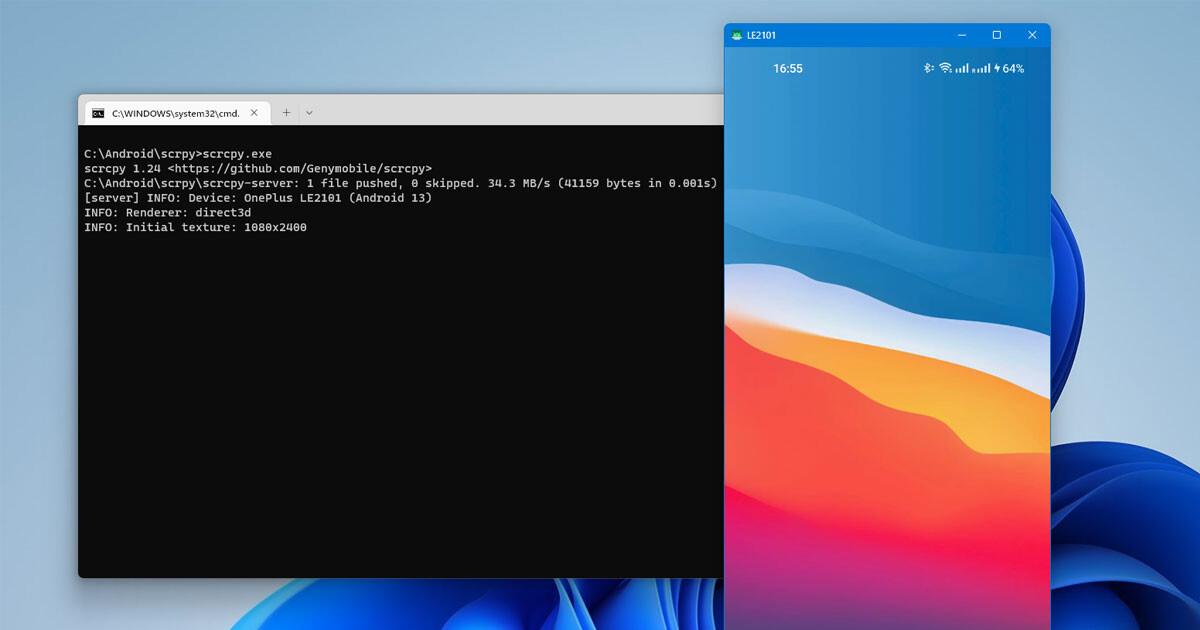
If you're looking for a quick and easy way to view and control your mobile device from your computer, SCRCPY is the open-source tool that's a hit with developers, trainers, and tech support staff. In this guide, you'll learn how to install it on Windows , connect it via USB or Wi-Fi, and adjust key options like resolution, frame rate, and recording.
Unlike an emulator, SCRCPY doesn't replicate the system; instead, it streams your Android's screen to a PC window with very low latency, high quality, and no root access required. You'll have full keyboard and mouse control, be able to drag and drop files into the window , take screenshots on the fly, and nothing will be installed on your phone when you're finished.
What is SCRCPY and why is it worth it?
SCRCPY, also known as Screen Copy, is an open-source project by Genymobile and its original author rom1v that allows you to view and control your Android device from your desktop . It works on Windows, macOS, and Linux , and its philosophy is to be lightweight, fast, and free of annoying add-ons.
The workflow is simple: the computer communicates with the mobile device via ADB, sets up a small temporary server on the device, and sends the video in real time for instant decoding . This results in a surprisingly smooth experience, ideal for debugging apps , giving presentations, recording demos, or simply using the mobile device from the PC.
Compared to other solutions, its strength lies in the fact that it doesn't require installing permanent apps on the phone or rooting it , and it offers high quality with low latency even on modest devices. Furthermore, it includes useful features such as copying and pasting text between devices , dragging files to the window, and taking screenshots with easy keyboard shortcuts .
The tool works via USB or over a local network using TCP/IP. You can start with a cable for the initial setup and, if you like it, switch to a wireless connection for complete freedom of movement as long as the device and PC are on the same network.
Another added value is its customization: from limiting resolution and FPS to recording the screen to an MP4 file with a simple flag. On Linux, there are even advanced options such as HID keyboard mode or using the camera as a webcam in specific cases.
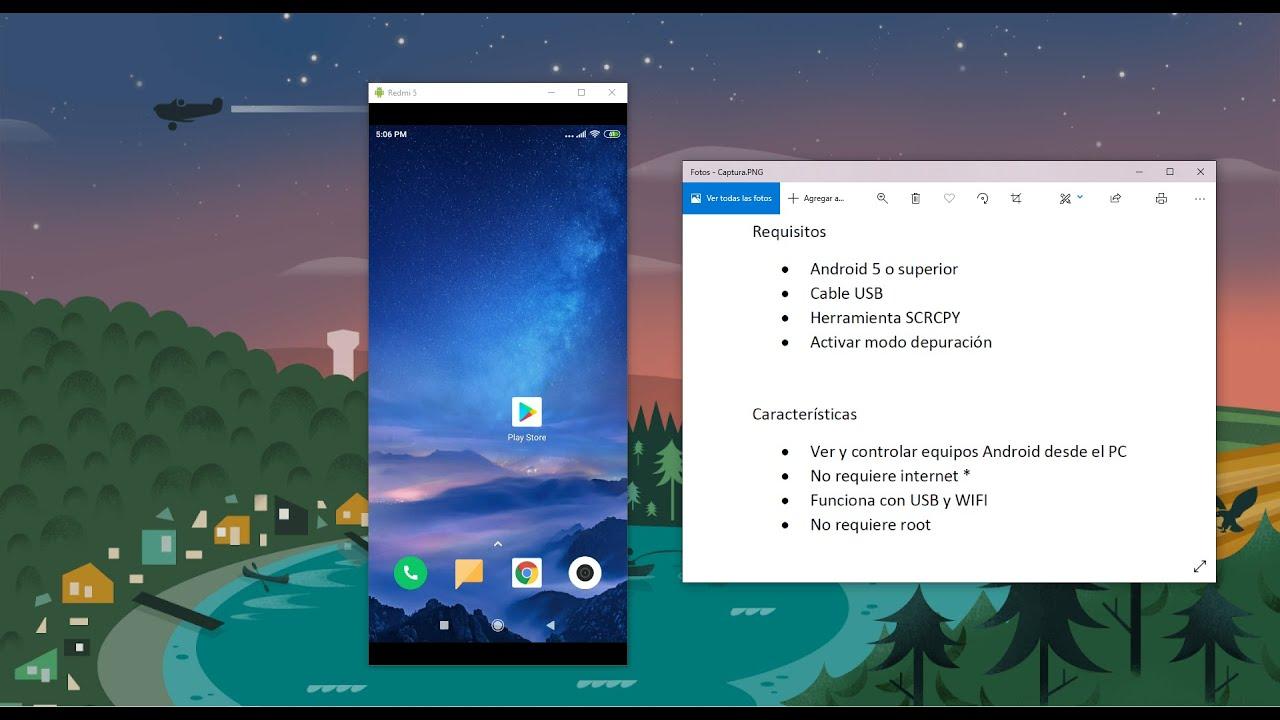
Requirements, download and installation
To use SCRCPY, your device must be running Android 5.0 or higher and have USB debugging enabled . On your computer, you'll need a working ADB, which is usually included in the SCRCPY package on Windows.
Enabling USB debugging is very easy: go to Settings, then About phone, and tap Build number several times until Developer options are enabled; then, open Developer options and enable USB debugging . The first time you connect your phone to your PC, you will need to accept the computer's fingerprint.
The download depends on the operating system. On Windows, simply download the package from the project repository, extract it, and run the binary from the folder . There's no complex installer or extra wizards.
On macOS, the easiest way is to install it using Homebrew or MacPorts with the standard system commands . On Linux, you can use your distro's package manager, which makes it easy to get SCRCPY up and running in seconds and keep it updated from repositories without any extra effort.
- Windows: Download the 64-bit or 32-bit package from GitHub and unzip.
- MacOS: use Homebrew with
brew install scrcpyor MacPorts withsudo port install scrcpy. - Linux: For example,
apt install scrcpyon Debian or Ubuntu, orpacman -S scrcpyin Arch.
If you're working on Windows, you might need to install or update the ADB drivers. The package itself contains the ADB binaries, and if needed, you can run adb.exe to ensure the system detects your phone when you connect it via USB.
Connect your phone to your PC and start using SCRCPY
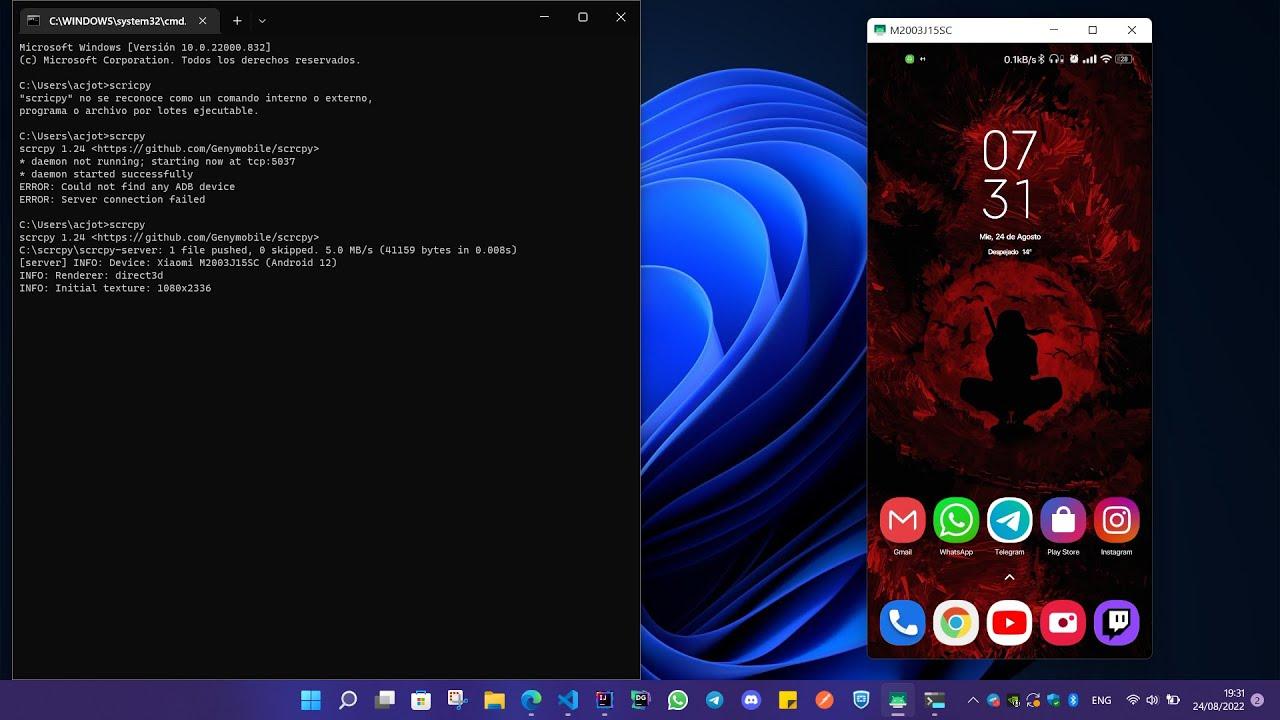
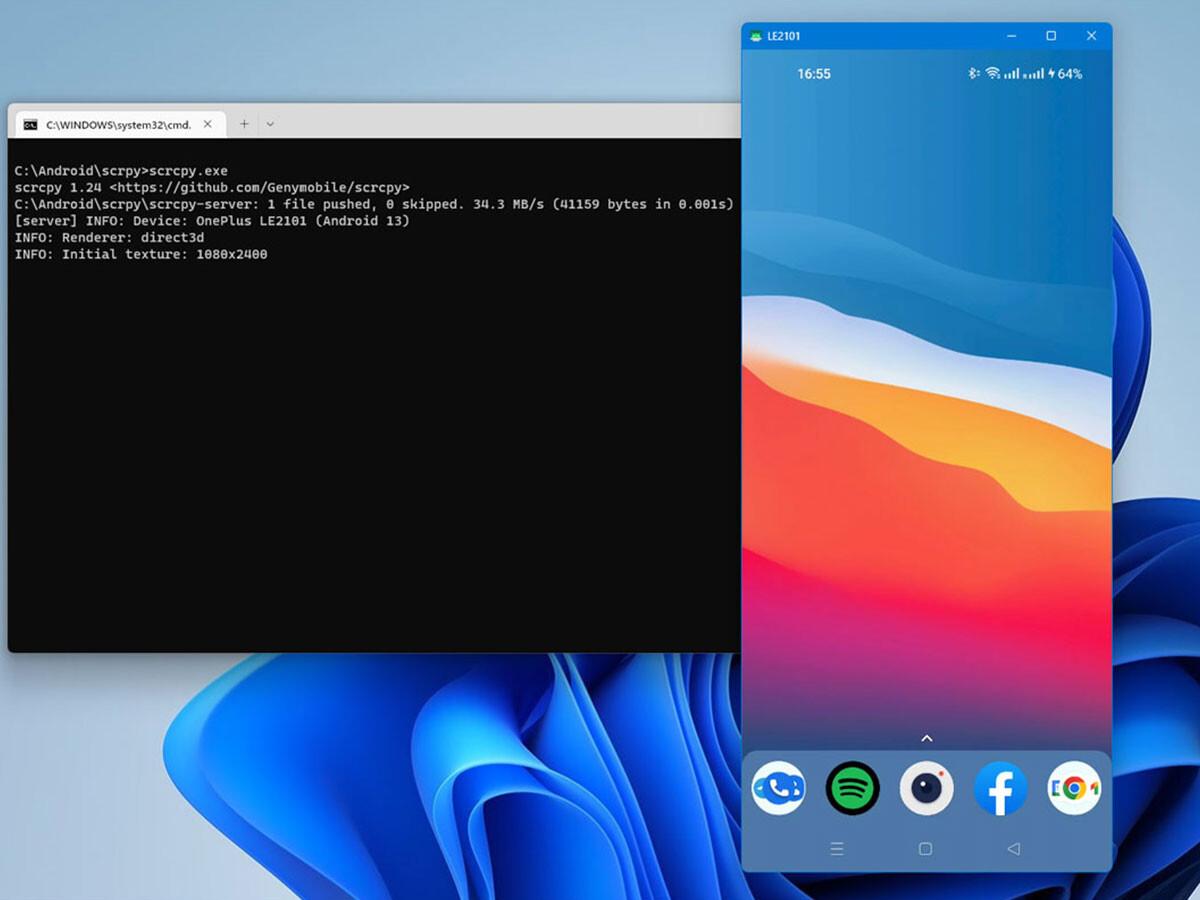
With everything ready, the first Boot It's as simple as connecting the device with a USB cable and running scrcpy in a terminal located in the program folder. A window with the phone screen will open instantly., and you can interact with your mobile phone using your computer's keyboard and mouse.
The first time you plug in your device, Android will ask you to authorize USB debugging for that computer. Accept the request, and if you plan to use it frequently, select "Always allow for this computer ." This will prevent future confirmations.
If you notice the wired connection dropping when you move the phone, the problem might be the cable. It's advisable to use a quality cable to avoid losing your connection mid-work and prevent headaches during presentations or demos.
In addition to controlling your mobile device, you can drag and drop files from your PC into the SCRCPY window to transfer them. It works with documents and, in many cases, also with APKs for direct app installation, saving time when testing builds.
To take an instant screenshot, simply use Ctrl+S on Windows or Linux, and Command+S on macOS . The screenshots will be saved according to the default settings, which is perfect for documenting tests.
Connection via TCP IP on the same network
If you prefer to work wirelessly, SCRCPY offers a wireless connection via TCP/IP within your local network. First, connect the phone via USB, enable ADB over TCP/IP, and then switch the session to Wi-Fi.
The basic process is like this: run adb tcpip 5555, disconnect the USB and then launch adb connect IP-del-dispositivo:5555. From there, you can open scrcpy wireless and continue managing the phone from the PC as long as they are both on the same network.
SCRCPY also allows a direct connection using a single line if you already know the mobile's IP. For example, you can use scrcpy --tcpip=192.168.1.1:5555 for the tool to try establish the wireless session without intermediate steps. Make sure to replace the IP with that of your actual device.
Remember that Wi-Fi stability can depend on network coverage and congestion. If you notice image stuttering or brief interruptions, try moving closer to the router or using the 5 GHz band to improve transmission speed.
Finally, you can always go back to a wired connection if you need the lowest possible latency in demanding environments, as USB is usually more consistent when every millisecond counts in real-time demo or debugging sessions.
Advanced settings and useful commands
SCRCPY includes flags to tailor the experience to your computer and your needs. If you prioritize smoothness, you can limit the resolution or FPS; if you need documentation, enable screen recording to a file using a specific parameter. Here are the most commonly used options.
To limit the maximum resolution and ease the load, use -m o --max-size. For example, scrcpy -m 1280 reduces the image to 1280 pixels on the longest side, while scrcpy --max-size 1024 o --max-size 720 are common alternatives if you want to go lighter.
If you need to fix the frame rate, use -fps. For example, scrcpy -fps 30 sets a frame rate of 30 FPS, which saves resources and can improve stability on less powerful computers or busy networks.
To record what happens on screen, add --record followed by the file name. A practical example is scrcpy --record archivo.mp4, With which You will generate an MP4 video perfect for demos and tutorials without resorting to capturers.
If you already know the mobile IP and want to start wireless suddenly, scrcpy --tcpip=IP:5555 Simplify the process, as you saw before. To list all the available options, see help with scrcpy --help or check out the documentation on GitHub of the project.
Extra features in Linux
In Linux environments, there are additional features that can make a difference. For example, you can enable a physical keyboard via HID with scrcpy --hid-keyboard, which also has a short version scrcpy -K. This is useful if you want to send events as if they were from your own hardware.
Additionally, it is possible to use a webcam in specific scenarios when you connect the phone to the PC, although this feature is only available on Linux and is geared towards specific use cases.
Beyond these features, remember that SCRCPY supports copying and pasting text between your PC and mobile device, which speeds up writing long URLs or transferring code snippets without typing on the touchscreen . A small detail that saves a lot of time.
The default quality is usually excellent. If needed, the documentation describes how to adjust additional parameters, such as bitrate, to prioritize detail or performance. In any case, starting with the default settings is usually sufficient for most scenarios.
Use cases and practical tips
SCRCPY shines in a multitude of real-world situations. For developers, it allows them to show live builds, debug interactions, and demonstrate the app's status to colleagues or clients without having to point a camera at the phone. Cleaner and more immediate.
In the business world, you can use it to demonstrate pre-sales applications, confident that mouse and keyboard control will make the experience very comfortable for the presenter. And if you need to record the demo, the right flag makes it a breeze.
For consultants, trainers, and educators, it's perfect for teaching classes, recording video tutorials, or projecting your mobile screen in the classroom from a PC . All you need is a reliable cable or your Wi-Fi network, and you have a solution with no payments, no ads, and no installation required on your phone.
In technical support, seeing what's happening in real time helps diagnose problems. You can ask the other person to enable USB debugging and, with their permission, connect, show the steps, and guide them precisely without wasting time describing menus over the phone.
A very useful extra is the ability to drag and drop files and APKs into the window to copy or install them. This simplifies transferring documents and testing new app versions, and avoids having to search through the device's file explorer.
Tips and troubleshooting
If SCRCPY doesn't detect the device via USB, check that debugging is enabled and that the phone displays the authorization request. On Windows, confirm that ADB sees the phone as adb devices; if it does not appear, update or reinstall the drivers and try another USB port.
To improve wireless stability, place your PC and phone on the same network and avoid network congestion. If performance isn't satisfactory, limits resolution with --max-size or lower the FPS with -fps to relieve your computer's network and CPU usage.
For long presentations, consider recording with --record as a backup. This way, if something goes wrong during the live session, you'll have a clean copy of the screen stream to share it later with your audience without repeating the demo.
Remember that SCRCPY doesn't require root access and leaves no trace on your phone, making it a safe option for corporate environments or shared computers. Even so, disable USB debugging when not in use if you're working with strict security policies.
If you want to consult the complete catalog of options and practical examples, the official documentation on GitHub is the reference. There you will find all the flags, operating system notes, and new features added to the project with each version.
You have a lightweight, free, and very powerful solution for mirroring and controlling your Android device on your PC. Between its low latency, simple commands for adjusting quality, the option to connect via USB or Wi-Fi, and features like dragging and dropping files or recording, SCRCPY has become the go-to tool for anyone who wants to work comfortably with their mobile device from their desktop.

Passionate writer about the world of bytes and technology in general. I love sharing my knowledge through writing, and that's what I'll do on this blog, show you all the most interesting things about gadgets, software, hardware, tech trends, and more. My goal is to help you navigate the digital world in a simple and entertaining way.