- Install ADB and Fastboot on Mac Using Homebrew is fast, secure and avoids problems drivers common in other systems.
- Integration of tools like scrcpy and TWRP enhances advanced device management Android from Mac.
- It is key to enable debugging USB and check compatibility before making advanced changes such as root or flashing.

Using Android development tools on a Mac has never been easier. More and more users are looking for ways to install Android apps via ADB using Homebrew, given the advantages of doing so quickly and easily. The appeal of this method lies in its compatibility, ease of updating, and reduced driver issues compared to other operating systems , especially Windows , where the process is often more laborious.
While there are several guides and articles online, many lack detail or are outdated. Here you'll find a complete, step-by-step, and up-to-date explanation so you can not only install ADB and Fastboot on your Mac with Homebrew, but also take full advantage of all their capabilities, from managing APK applications to connecting to and advancedly manipulating your Android device. In addition, it includes tips for avoiding common mistakes, security recommendations, and an overview of the best compatible add-on tools, such as scrcpy or TWRP, to transform your Android experience on Mac.
What is ADB and why is it so useful on a Mac?
ADB (Android Debug Bridge) is an essential tool for any user who wants to get the most out of their Android device from their computer . It allows you to run console commands to install applications, create backups, transfer files, debug applications, and manipulate the mobile operating system. ADB's utility ranges from basic actions like installing an APK to advanced processes such as installing new ROMs, unlocking bootloaders, or flashing entire systems.
In a Mac environment, using ADB is especially advantageous because macOS typically doesn't require the installation of specific drivers, unlike Windows, which reduces connection and device recognition issues. Integration with Homebrew, the most popular package manager on Mac, simplifies both the initial installation and the maintenance and updating of these tools.
Why is Homebrew the best option for installing ADB on Mac?
Homebrew is the preferred method for both advanced and novice users to install software on macOS . Why? Because it avoids the manual download of massive packages like the complete Android SDK and allows you to install only what's needed (android-platform-tools) with a single command. Homebrew resolves dependencies, keeps applications up-to-date, and installs them cleanly on the system, reducing the risk of incompatibilities.
This is especially relevant for ADB and Fastboot, as many older websites recommend downloading SDK packages that take up hundreds of megabytes when only a few utilities are needed. With Homebrew, you'll have the latest version ready to use in minutes, plus the option to install extra tools like scrcpy for screen mirroring or TWRP for advanced administration.
Preparations before installing ADB: Enabling options on Android and requirements on Mac
Before you start installing ADB on your Mac, make sure your Android device is properly set up and that your computer meets the requirements:
- Activate developer options on Android: Go to Settings > About phone and tap 'Build number' repeatedly until you see the message that developer options are enabled.
- Enable USB debugging: Within the developer options, enable 'USB Debugging'. This will allow the terminal from your Mac to communicate with the Android device using ADB.
- OEM unlockIf you plan to make advanced changes like flashing a ROM or recovery, also enable the 'OEM Unlock' option in the developer options.
- Connect your Android to your Mac using a USB cable: Use an original or quality cable, and be sure to accept the trust message that appears on your device when you connect it for the first time.
- Update macOS and install Xcode Command Line Tools: Although it is not mandatory, keeping your system and Xcode command line tools up to date will prevent errors with Homebrew.
How to install Homebrew on macOS (if you don't have it yet)
Homebrew doesn't come pre-installed on macOS , but installing it is as simple as running a command in Terminal. Just open Terminal and copy the following:
/bin/bash -c "$(curl -fsSL https://raw.githubusercontent.com/Homebrew/install/HEAD/install.sh)"This command will download and run the official Homebrew installation script . Follow the on-screen instructions. If prompted to install the Xcode command-line tools, accept and let the download and setup complete.
Install ADB and Fastboot on Mac using Homebrew
With Homebrew installed, adding ADB and Fastboot takes just seconds . Run the following command in the Terminal:
brew install android-platform-toolsThis command will install the ADB and Fastboot utilities , which will then be available on the system to run from any directory in the terminal.
In some old guides you can find the use of brew cask install, But currently Homebrew has already integrated 'casks', so the above command is enough.
Check: Is ADB installed correctly?
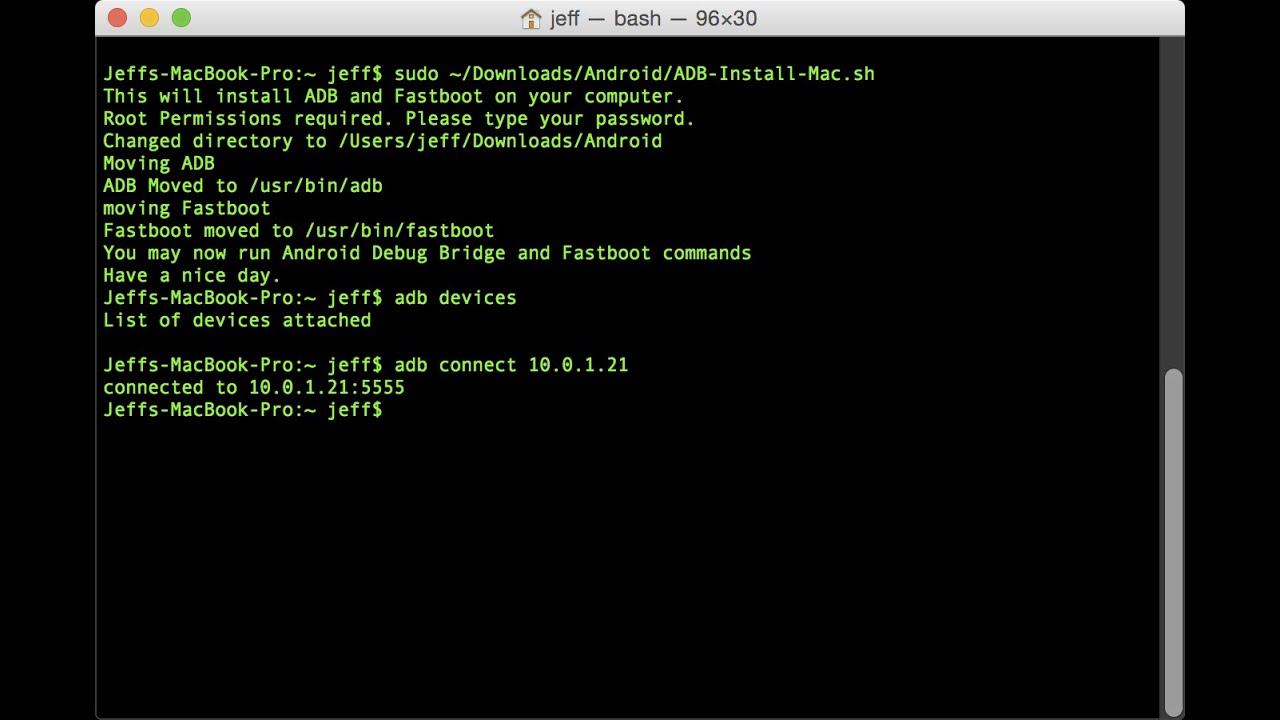
To confirm that ADB has been installed correctly, you can run:
adb versionYou should see the installed versions of ADB and Fastboot . If you receive an error or the command is not found, check that Homebrew is properly installed and that android-platform-tools is listed among its packages.
First uses of ADB from Mac
With everything ready, you can now start using ADB to control your Android device . Some of the most common operations are:
- Check connected devices:
adb devicesIf your Android is listed, everything is working correctly.
- Install applications (.apk files):
adb install ruta/del/archivo.apkReplace path/of/apkfile with the exact path to the APK you want to install.
- Transfer files between Mac and Android using:
adb push archivo /sdcard/carpetaor to receive files:
adb pull /sdcard/archivo ruta_en_mac - Back up applications and data with:
adb backup -f FullBackup.ab -apk -all - Reboot the device, enter recovery, bootloader, etc.:
adb rebootadb reboot-recoveryadb reboot-bootloader - Update the system with an official ZIP file:
adb sideload nombre_del_paquete.zip
Remember that some advanced actions may require special permissions on your phone or an unlocked bootloader . Also, always use correct file paths and be aware of the differences between directory slashes on macOS (/) and Windows (\).
The role of Fastboot and other recommended tools
Fastboot is a complementary utility that allows you to modify system partitions, flash custom recoveries, and unlock the bootloader . Although its use is usually reserved for more advanced tasks (such as rooting phones, flashing TWRP, or changing the ROM), it's advisable to know the basic commands:
- fastboot devices – Lists connected devices in bootloader mode.
- fastboot oem unlock – Start unlocking the bootloader (may require a manufacturer code).
- fastboot flash recovery twrp.img – Install a custom recovery like TWRP.
- fastboot reboot – Reboot the device from Fastboot.
Among the recommended tools to complement your experience are:
- scrcpy: Allows you to view and control your Android screen from your Mac with a simple connection. It also installs with Homebrew:
brew install scrcpyOnce USB debugging is enabled and scrcpy is run in the terminal, a window will appear that replicates the screen and sound of the Android device, ideal for tutorials or meetings.
- TWRP: Essential custom recovery for making full backups, installing ROMs, and managing partitions.
- Magisk: Advanced solution for rooting devices and managing root permissions securely.
Security and backup recommendations
Before performing any advanced operation (rooting, changing ROMs, flashing recovery), always make a full backup of your data . You can save the backup to the cloud, a microSD card, or directly to your Mac. Using TWRP makes it easy to create full Nandroid system backups.
Keep in mind that rooting and modifying the system can void your warranty and carry risks . If the process is interrupted or performed incorrectly, your device could become unusable. Check your model's compatibility with the tools before starting, and consider seeking expert help if you have any doubts.
Advantages of using Mac over Windows for ADB and Fastboot
One of the major advantages of using macOS is that it typically doesn't require driver installation for the system to recognize your Android device, whereas this can be a frequent obstacle on Windows. Furthermore, package management through Homebrew makes both installing and updating tools much faster, simpler, and more secure.
Another advantage is that you don't need to install huge SDK packages or deal with confusing paths; you can run ADB or Fastboot directly from any directory in the Terminal.
Common mistakes when installing and using ADB on Mac (and how to avoid them)
- Do not accept USB debugging on your mobile: Make sure to grant permissions when connecting the device.
- Outdated Homebrew: Execute
brew updatebefore if you have installation problems. - Xcode Command Line Tools installation failed: If the system prompts you and it does not install automatically, you can force the installation with
xcode-select --install. - Poor quality USB cables: If the device is not detected correctly, try another original cable.
How to uninstall ADB and Fastboot if you no longer need them?
Removing android-platform-tools is as simple as uninstalling them from Homebrew . Simply run:
brew uninstall android-platform-toolsThis will clean all files and return your system to its original state before installation. If you want to completely remove Homebrew, you can follow the official uninstall process on the Homebrew website.
When to use alternative methods to Homebrew
In very specific cases (for example, if you need a specific version of ADB or the device has compatibility issues), you can always download the tools directly from the official Android Developers website. However, the recommended method for most current users remains Homebrew due to its simplicity and speed.
Using ADB and Fastboot on your Mac opens up a wide range of possibilities for managing, customizing, and getting the most out of your Android device . Thanks to Homebrew, installation is simple and accessible, even for beginners . Furthermore, if you combine it with other utilities like scrcpy or TWRP, you'll have an advanced control and development environment on your computer, without the typical headaches of other systems. Back up your data, learn the ropes, and enjoy the full power of Android… directly from your Mac.

Passionate writer about the world of bytes and technology in general. I love sharing my knowledge through writing, and that's what I'll do on this blog, show you all the most interesting things about gadgets, software, hardware, tech trends, and more. My goal is to help you navigate the digital world in a simple and entertaining way.