- Armoury Crate centralizes control of fans, power, and performance modes on ASUS ROG laptops.
- Silent, Performance, Turbo, and Whisper modes automatically adjust noise and cooling according to usage.
- Manual Mode allows you to customize CPU/GPU power limits and fan curves to fine-tune temperature and acoustics.
- Features such as Extreme Silent Mode, fan stop, and AI Cooling help reduce noise while maintaining thermal stability.
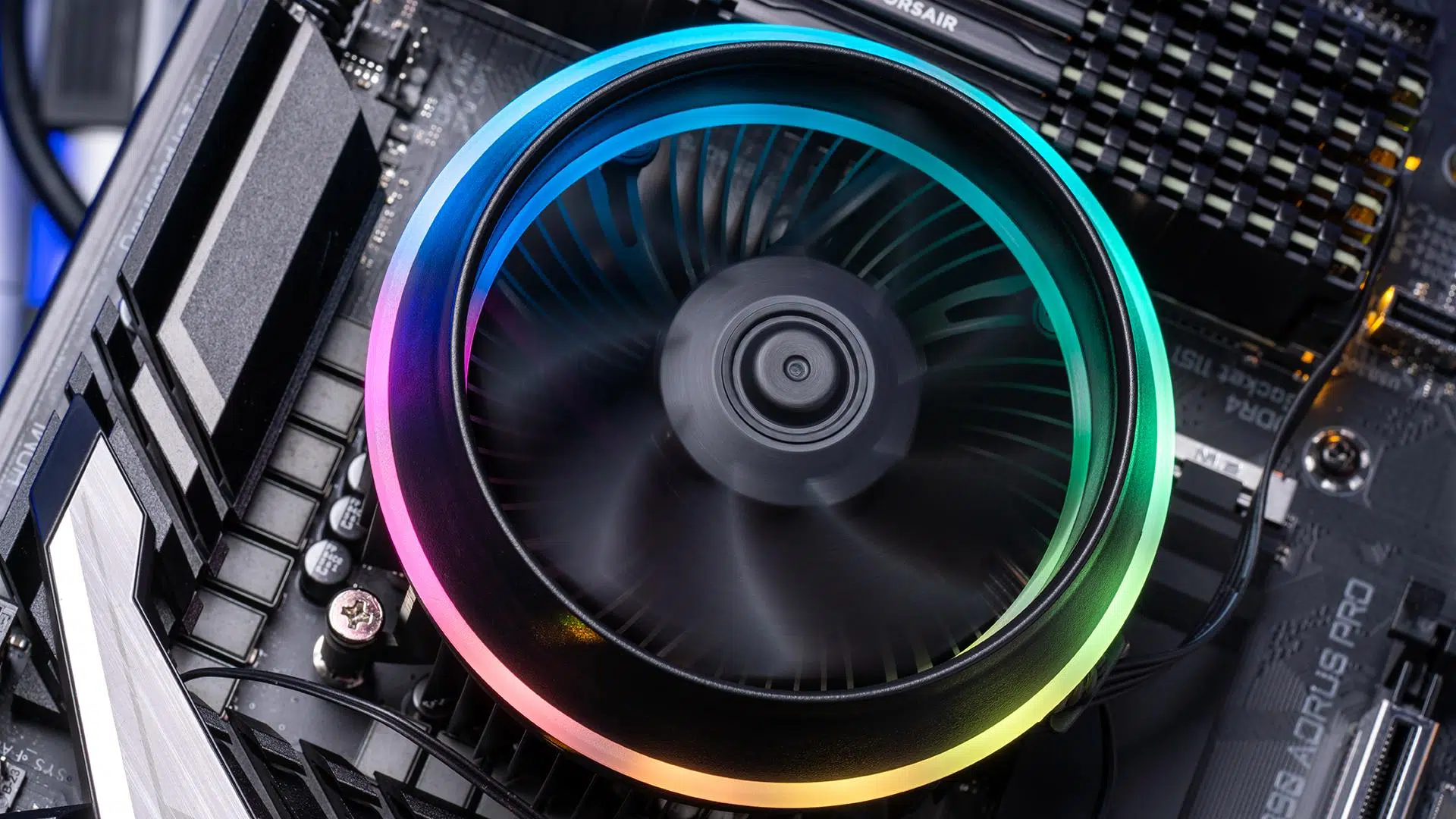
If you own an ASUS laptop, especially one from the ROG range, proper fan control makes all the difference between a cool, quiet, and stable machine and one that's as loud as a jet engine and overheats. Armoury Crate is the command center from which ASUS lets you tweak almost everything: performance modes, CPU and GPU power, lighting, and, most importantly for us here, thermal management.
In this article, we'll walk you through how to use Armoury Crate and Fan Xpert 4 to control fans on ASUS laptops , what each mode means (Silent, Performance, Turbo, Manual, Whisper Mode…), how to create custom curves, and what advanced features like AI Cooling or fan stop can help you find the right balance between noise and temperature.
What is Armoury Crate and how does it help manage ventilators?
Armoury Crate is ASUS' unified control panel for its ROG PCs and components, both desktop and laptop, from which you can adjust performance, fans, lighting and profiles without having to enter the BIOS or use multiple different applications.
On an ASUS ROG laptop, Armoury Crate acts as a thermal management center: it allows you to modify fan speeds, select automatic profiles, monitor temperatures in real time, and configure the machine's behavior according to what you're doing, whether it's gaming, working, or simply browsing.
Furthermore, Armoury Crate integrates the Fan Xpert 4 tool , well-known in desktop PCs, into many ASUS motherboards . This tool is designed to control the fans connected to the motherboard (CPU_FAN, CHA_FAN, RAD_FAN, etc.). Although you won't see all these connectors on a laptop, the philosophy is the same: to detect each fan and adjust its curve so that it reacts logically to the temperature.
Another important point is that Armoury Crate also serves as a gateway to technologies such as AI Cooling, extreme silence modes, CPU and GPU power profiles, and RGB lighting synchronization with Aura Sync , so that the overall laptop experience is coordinated between performance, noise, and aesthetics.
Fan panel on ASUS ROG laptops with Armoury Crate
Within Armoury Crate, ASUS ROG laptops feature a dedicated fan management section, integrated into the system performance settings. From here, you can adjust fan speeds , select preset profiles, and create your own custom settings to suit your preferences.
Typically, when you enter Armoury Crate, you'll see a main panel with the global system modes (Silent, Performance, Turbo, Manual…) and, further down or in another tab, the thermal parameters: CPU and GPU temperature, CPU and chassis fan speed (or their internal equivalents in the laptop) and a graph showing how the fans are reacting to the load.
From that same screen, you can switch between manual and automatic control. In manual mode, the fan curves are unlocked, relating temperature (X-axis) to speed percentage (Y-axis). In automatic mode, Armoury Crate internally applies ASUS-designed profiles focused on balancing noise and cooling for standard use.
In ROG laptops, this management is very much designed for everyday use: with just one click you can go from a discreet machine for working in the library to a laptop that pushes the CPU and GPU to the limit for gaming without thermal bottlenecks, all while keeping temperatures within safe limits.
Furthermore, the same Armoury Crate interface allows you to monitor the behavior of the fans over time, so if you notice a strange noise or temperature spikes, you can identify if a fan is spinning less than expected or if your profile has become too conservative for certain demanding tasks.
Predefined modes on ASUS laptops: Silent, Performance, Turbo, and Whisper Mode
One of the strengths of Armoury Crate on ASUS ROG laptops is the availability of several preset operating modes , which instantly change both power and fan behavior. The most common are Silent, Performance, and Turbo , and some models also include a Whisper Mode for maximum silence.
Silent mode is designed for light tasks: the system reduces available power and lowers fan speeds so the laptop makes as little noise as possible . It's ideal for office work, web browsing, video playback, or working in quiet environments where constant whirring might be annoying.
Performance mode strikes a balance: it maintains adequate cooling and a reasonable noise level, allowing the CPU and GPU to perform well in standard gaming, light video editing, or demanding multitasking. In this mode, the fans increase speed when needed, but avoid unnecessary spikes if the temperature doesn't warrant it.
Turbo mode is the one that pushes the machine to its limits. Here, the fans spin at high RPMs with ease, prioritizing keeping CPU and GPU temperatures as low as possible during long gaming or heavy work sessions. In return, you'll experience a higher noise level, which is to be expected when seeking maximum sustained performance.
Whisper Mode, available on many ASUS ROG laptops, goes a step beyond Silent Mode: it's specifically designed to minimize noise during everyday tasks by reducing fan speeds to the bare minimum. It's perfect for using your laptop at night, in meetings, or in spaces where you want a virtually silent environment , as long as you're not putting excessive strain on the CPU or GPU.
In these modes, Armoury Crate automatically adjusts temperature thresholds and internal fan curves, so you don't have to worry about graphs or percentages. However, if you want to go further and fine-tune things down to the millimeter, Manual Mode is where the possibilities truly open up.
Manual Mode in Armoury Crate: full control of power and fans
Armoury Crate's Manual Mode on ROG laptops is designed for those who aren't satisfied with the standard profiles. Here you can define CPU and GPU power limits, set target temperatures, and design your own fan curves . It's the ideal option if you want to push performance without increasing noise, or conversely, reduce some power in exchange for a very quiet laptop.
To activate Manual Mode, open Armoury Crate, ensure your GPU mode is set to Standard, Ultimate, or Optimized (depending on your system), and select the "Manual" option at the bottom of the screen. Several sliders and graphs will then appear, allowing you to modify system behavior.
First, make sure your laptop is plugged into a power source, as many advanced options are disabled when running on battery power. Also, keep in mind that not all laptops offer the same adjustment ranges: the available limits depend on your specific laptop model and the CPU and GPU installed.
Once in Manual mode, you'll see that Armoury Crate clearly separates CPU and GPU settings into tabs or buttons. The CPU tab controls the processor's power limits; the GPU tab controls the graphics card's parameters, including possible frequency offsets and specific settings for technologies like Dynamic Boost or Whisper Mode on NVIDIA GPUs.
Keep in mind that Manual Mode doesn't prevent you from creating suboptimal configurations. If you significantly increase the power and leave the fan curve very conservative, the laptop will overheat and reduce frequencies to protect itself, ultimately resulting in lower performance than expected even if the sliders indicate high values. Therefore, it's important to thoroughly test each change before applying it.
Adjusting CPU power on ASUS ROG laptops
In the CPU tab of Manual Mode, you'll see sliders that define the power limits the processor can reach. On Intel laptops, values like PL1 and PL2 are usually displayed, while on AMD systems, parameters like FPPT, SPPT, and SPL are shown, each with a different operating window.
On Intel machines, PL2 defines the maximum power ceiling the CPU can reach during short bursts, typically up to about 2 minutes. This value allows the CPU to surge in power when a heavy load begins, such as when starting a game or launching a demanding render. After that time, the power drops to PL1, which is the limit the CPU can sustain without overheating.
On laptops with AMD processors, Armoury Crate uses different names: FPPT represents the absolute power limit allowed for very short periods (up to about 10 seconds), SPPT defines the maximum power the CPU can handle for up to about 2 minutes, and SPL marks the level it can sustain indefinitely. By adjusting these values, you decide how much you want to push the processor before it slows down to keep the temperature under control.
Raising these limits usually translates to higher peak and sustained performance, but also more heat and increased fan usage. If you're interested in reducing noise, you can slightly lower PL1/PL2 or FPPT/SPPT/SPL, accepting a small loss of FPS or rendering speed in exchange for less aggressive fans . The key is to test your usual games or programs until you find a balance that suits you.
Remember that, although Armoury Crate allows you to adjust these parameters quite a bit, the CPU itself has thermal protections and internal limits. If a configuration is too aggressive, the processor will reduce its frequency or voltage to stay within safe limits, so it's always a good idea to monitor temperatures with the monitoring tool integrated into Armoury Crate while you're testing.
GPU settings, Dynamic Boost, and power saving
In the GPU tab of Manual Mode, you can define how the graphics card behaves. Armoury Crate typically offers sliders to adjust the GPU's base clock offset and the video memory (VRAM) clock offset, which is equivalent to performing a moderate overclock directly from the software.
Increasing the GPU's base clock speed boosts potential graphics performance, especially in games that take full advantage of the card's power. Memory offset can also improve available bandwidth and deliver a few extra FPS in certain titles. However, pushing these values too far can lead to instability, screen artifacts, or unexpected crashes in demanding games.
Therefore, whenever you adjust these sliders, it's a good idea to run a stress test or play a demanding game for a while, watching for any visual errors or crashes. If you notice any problems, reduce the offsets slightly until you find the sweet spot between performance and stability.
On ASUS ROG laptops with NVIDIA GPUs, Armoury Crate also features Dynamic Boost control. This technology allows you to shift some of the CPU's power budget to the GPU when the game is clearly graphics-boosted. The higher you set this value, the more headroom the GPU has to increase its power, provided the cooling system can handle it and the CPU isn't the primary bottleneck.
Additionally, there's usually a GPU Power Saving option, related to NVIDIA's Whisper Mode. Here you can let the GPU use its full potential, or select settings that limit the target performance to 60 FPS or even 40 FPS, consequently reducing power consumption, temperature, and therefore fan noise . It's a very useful option for games that don't need to run at more than 60 Hz or for playing with headphones in quiet environments.
Laptop fan curves: how to fine-tune them without messing things up
Once you've decided how much power you want to give your CPU and GPU, it's time to adjust the fan curves in Manual Mode. Armoury Crate displays a graph where temperature is on the horizontal axis and the percentage of fan speed is on the vertical axis. Each point you drag on the curve marks a range of behavior between those temperatures.
For example, you can configure the fan to run very slowly (or almost off if the system allows it) up to 40°C, gradually increase speed between 50 and 70°C, and approach 100% speed above 80°C to properly protect the components. The trick is to avoid abrupt changes: if you make large jumps in RPM between two close temperatures, you'll notice annoying noise changes every time the temperature moves from one side of that poorly set threshold to the other.
Armoury Crate typically includes several numbered curve presets (1, 2, 3…) that serve as a starting point. You can select the one that best suits your needs (for example, a more aggressive one for summer and a gentler one for winter) and then tweak the settings to your liking, observing how the laptop performs in your actual tasks.
These curves are also influenced by parameters such as the fan's acceleration and deceleration time. These values define how long it takes for the fan to increase or decrease its speed when the temperature changes. Adjusting them to allow for some inertia will prevent the fan's RPM from fluctuating every few seconds when temperatures remain relatively stable within a certain range, resulting in a much quieter sound.
Don't forget that even if you choose a very quiet profile, there's a limit: if you demand a lot of power from the CPU and GPU and keep the fans too low, the system itself will eventually reduce frequencies to stay within thermal limits. This leaves you with less performance than you could get with a slightly more aggressive fan curve, so it's best to find a reasonable balance between temperature and noise.
Extreme Silent Mode, fan stop, and AI Cooling
On compatible ASUS systems, Armoury Crate offers some advanced features inspired by desktop Fan Xpert 4, such as Extreme Quiet Mode, fan stop, and AI Cooling. While the implementation is more limited on laptops, the idea is similar: to allow the system to be very quiet under low load without compromising safety.
Extreme Quiet Mode is designed to minimize noise as much as possible. When activated, Armoury Crate drastically reduces RPMs within the intelligent curves, prioritizing acoustic comfort. This feature typically requires a prior fan tuning phase (equivalent to Fan Xpert's Auto Tuning) so the software knows the minimum stable RPMs of each fan and doesn't force them to spin below their capacity.
Related to this mode is the fan stop option. When the temperature is low enough, the system can completely stop certain fans, achieving total silence. This is perfect for desktop use, light browsing, or video playback, provided the chassis's passive ventilation is sufficient to dissipate the generated heat.
AI Cooling, meanwhile, is a feature that automatically adjusts the speed of all fans when it detects that the system is under a stable load. Its goal is to reduce noise while maintaining current performance: if it sees that temperatures are well controlled at lower RPMs, it lowers the speed; if the load increases, it quickly restores the airflow necessary to prevent overheating.
On some devices, activating AI Cooling replaces the Extreme Silent Mode behavior within the intelligent mode, meaning that automatic intelligence takes precedence over the pure silence rules. If you prefer to control every detail of the ventilation yourself, you can always deactivate AI Cooling and return to your custom curves in Manual Mode.
Keep in mind that, although these functions are inspired by what Fan Xpert 4 does on desktop motherboards (Intel 600 series, AMD AM5 and later), in a laptop you don't have direct access to all the headers or sensors, but the principle that Armoury Crate follows is the same: playing with thermal margins so that the computer is as quiet as possible without losing stability.
Best practices for keeping your ASUS laptop cool and quiet
However good Armoury Crate's tools are, if the laptop's physical environment isn't ideal, the fans will have to work harder than they should. It's advisable to follow a few simple guidelines to ensure the cooling system does its job properly and you can truly benefit from your custom curves and modes.
The first thing to do is ensure proper external ventilation: avoid placing your laptop on soft surfaces that block the air intake and exhaust vents (blankets, sofas, pillows, etc.). Whenever possible, use it on a firm surface and leave free space around the areas where the chassis expels hot air so that the airflow doesn't recirculate directly in front of the vents.
It's also advisable to occasionally clean the ventilation grilles with compressed air (carefully and from a safe distance) to remove accumulated dust. In gaming laptops, dust accumulates quickly and can clog the air ducts, causing temperatures to rise and forcing Armoury Crate to instruct the fans to spin faster to compensate, resulting in more noise than necessary.
Regarding software, avoid mixing too many different fan control utilities . If you use Armoury Crate as your primary tool, it's best not to run other programs that attempt to manipulate the same thermal curves or limits, as this could lead to conflicts and unpredictable behavior.
Finally, get into the habit of checking temperatures whenever you launch a demanding new game or make significant changes to your Manual Mode settings. A couple of test sessions with Armoury Crate displaying temperatures and RPMs will allow you to ensure your configuration keeps the CPU and GPU within reasonable ranges, without your laptop constantly running like a hairdryer.
With all of the above, Armoury Crate becomes a very powerful tool for controlling the fans of your ASUS laptop: the preset modes are useful for everyday use, Manual Mode and custom curves let you fine-tune to your liking, and features like Whisper Mode, Extreme Silence, fan stop and AI Cooling help you achieve a very fine balance between performance, temperature and noise, getting the most out of your ROG machine without overcomplicating things.


Passionate writer about the world of bytes and technology in general. I love sharing my knowledge through writing, and that's what I'll do on this blog, show you all the most interesting things about gadgets, software, hardware, tech trends, and more. My goal is to help you navigate the digital world in a simple and entertaining way.