- ThrottleStop allows you to control frequency, voltage, and thermal limits on Intel CPUs to reduce temperature without losing performance.
- The undervolting is done on the FIVR panel, adjusting Core, Cache and iGPU gradually and always checking for stability.
- Disabling Turbo, managing BD PROCHOT, and combining undervolting with good power profiles helps prevent throttling in games.
- It's safer to start with software undervolting than messing with the BIOS, since ThrottleStop changes are easily reverted upon reboot.
If your gaming laptop or Intel-based PC reaches 80-95°C during gaming and demanding tasks , you're likely losing performance and shortening your computer's lifespan without realizing it. The good news is that with a little patience and a free tool called ThrottleStop, you can quickly and safely undervolt your system to reduce temperatures without sacrificing performance, and in many cases, even improve it.
In this comprehensive guide, we'll see how to undervolt Intel CPUs using ThrottleStop , what its key options mean (Turbo, BD PROCHOT, SpeedShift, multiplier, FIVR, IccMax, etc.), what precautions you should take, and how to verify that your changes are actually working. Everything is explained in clear, easy-to-understand Spanish (Spain) with practical examples so you can follow along even if it's your first time working with these parameters.
What is ThrottleStop and what exactly is it used for?
ThrottleStop is a free program created by Uncle Webb that allows you to monitor and adjust the behavior of Intel processors, both in laptops and desktops. It was launched around 2010 to combat CPU throttling, and since then it has been refined into an almost indispensable tool for many advanced users and gamers.
With ThrottleStop you can control the processor's frequency, voltage, and some internal limits , or use other tools like Intel Extreme Tuning Utility . This allows you to, among other things, reduce voltage (undervolt), lower or raise the multiplier (underclock/overclock on compatible models), disable Turbo Boost, manage SpeedShift, and prevent the system from throttling performance due to aggressive manufacturer decisions or overheating from other components.
The version mentioned in many classic guides is 8.40 or 8.6 , but even if you use a more recent version, the interface and main options remain very similar. In short: what you'll learn here will be useful for modern versions unless there's a radical change in the program.
It's important to understand that ThrottleStop is designed for Intel processors ; if you try to run it on a computer with an AMD CPU (for example, a Ryzen 7 4800H), you'll see a message indicating that the CPU is not compatible, and the program won't work. In other words, this tool is only for Intel.
Why is your Intel CPU getting so hot?
Before adjusting voltages, it's important to understand why your processor is overheating. A CPU that consistently reaches 90 degrees Celsius in games or benchmarks is nearing its thermal limit, as defined by Intel, causing the processor to automatically throttle its frequencies. In Windows, this can be related to the Thermal Framework and how the system chooses to reduce performance to protect itself.
Among the most common causes of high temperatures in Intel CPUs are these:
- Very CPU-intensive loadsDemanding games, video editing, 3D rendering, Cinebench, 3DMark, etc. are tasks that put a strain on the processor and quickly raise the temperature.
- High-frequency or overclockable modelsSome high-end Intel Core processors, such as the i9-14900HX or i7 K, have very aggressive frequencies and high power consumption; this translates into more heat, especially in laptops with thin chassis.
- Poor ventilation or poor airflowIf the PC case doesn't have good airflow or the laptop is on a surface that covers the vents, the hot air stays inside and everything heats up: CPU, GPU, and VRM.
- Old or poor quality thermal pasteThe thermal paste between the CPU and the heatsink degrades over time; if it's dry or of poor quality, It does not transfer heat well., which causes temperatures to spike.
- Heavy software or malwareBackground processes, poorly optimized programs, or even malware can keep the CPU at 100% without you noticing, generating absurd and unnecessary heat.
All of this causes the processor to reach the thermal limit set by Intel (generally around 100°C). To prevent damage, the system itself lowers the frequencies (throttling), resulting in a loss of FPS in games and performance in demanding tasks. The advantage of undervolting is that it reduces the power the CPU needs to operate at those frequencies, achieving lower temperatures and often the same or even better performance.
Undervolt vs underclock vs overclock: what's the difference?
In the world of CPU performance, three key concepts are used: undervolting, underclocking, and overclocking . Although they are sometimes confused, they are distinct things that ThrottleStop allows you to manage to a greater or lesser extent.
Undervolting involves reducing the voltage supplied to the CPU without changing its base frequency. If the processor accepts this lower voltage stably, power consumption and temperature decrease without any performance loss. This is what we're interested in for a "fast undervolt" on Intel with ThrottleStop.
Underclocking (or downclocking) is lowering the CPU's operating frequency by reducing the multiplier. This almost always results in lower performance, but in return , it significantly reduces temperatures. ThrottleStop allows you to do this on virtually any Intel CPU, not just unlocked models.
Overclocking is the exact opposite: increasing the frequency beyond the specification, usually by raising the multiplier. This is only feasible on unlocked K or HK series processors (for example, an i7-7820HK, 6820HK, and similar). On laptops that already run hot or CPUs that are already operating at their limits out of the box, overclocking is not a good idea if you're already experiencing temperature issues.
What we're going to prioritize in this guide is undervolting with ThrottleStop and, when it makes sense, some slight frequency adjustments (like disabling Turbo or reducing it a bit) to find a balance between performance, FPS, and temperature.
Download and launch ThrottleStop correctly
To start experimenting with undervolting, you need to download ThrottleStop from a reliable source. The most common one is TechPowerUp , a well-known site in the hardware and overclocking community.
The download and execution process is very simple and always follows the same pattern, regardless of whether you have a desktop i7-11700 or a gaming laptop with an i9-14900HX:
- Access the ThrottleStop download page at techpowerup.com.
- Click the "Download" button to download the program's .zip file.
- Extract the contents of the .zip file to a folder of your choice (for example, on the Desktop or in C:\ThrottleStop).
- Run ThrottleStop.exeIt does not require traditional installation; it is a portable executable.
The first time you open it, Windows may display security warnings. This is normal, as ThrottleStop modifies low-level CPU parameters. Accept and run it, knowing that any changes you make are reversible simply by restarting your PC if you undervolt too much.
On modern Intel processors (especially since certain security patches like Plundervolt), your motherboard or laptop's BIOS may have undervolting blocked . In these cases, adjusting voltages in ThrottleStop's FIVR panel will have no effect. To unlock it, some desktop motherboards allow you to enable voltage options in the BIOS; however, on many laptops, the block is imposed by the manufacturer and there's no easy way to bypass it.
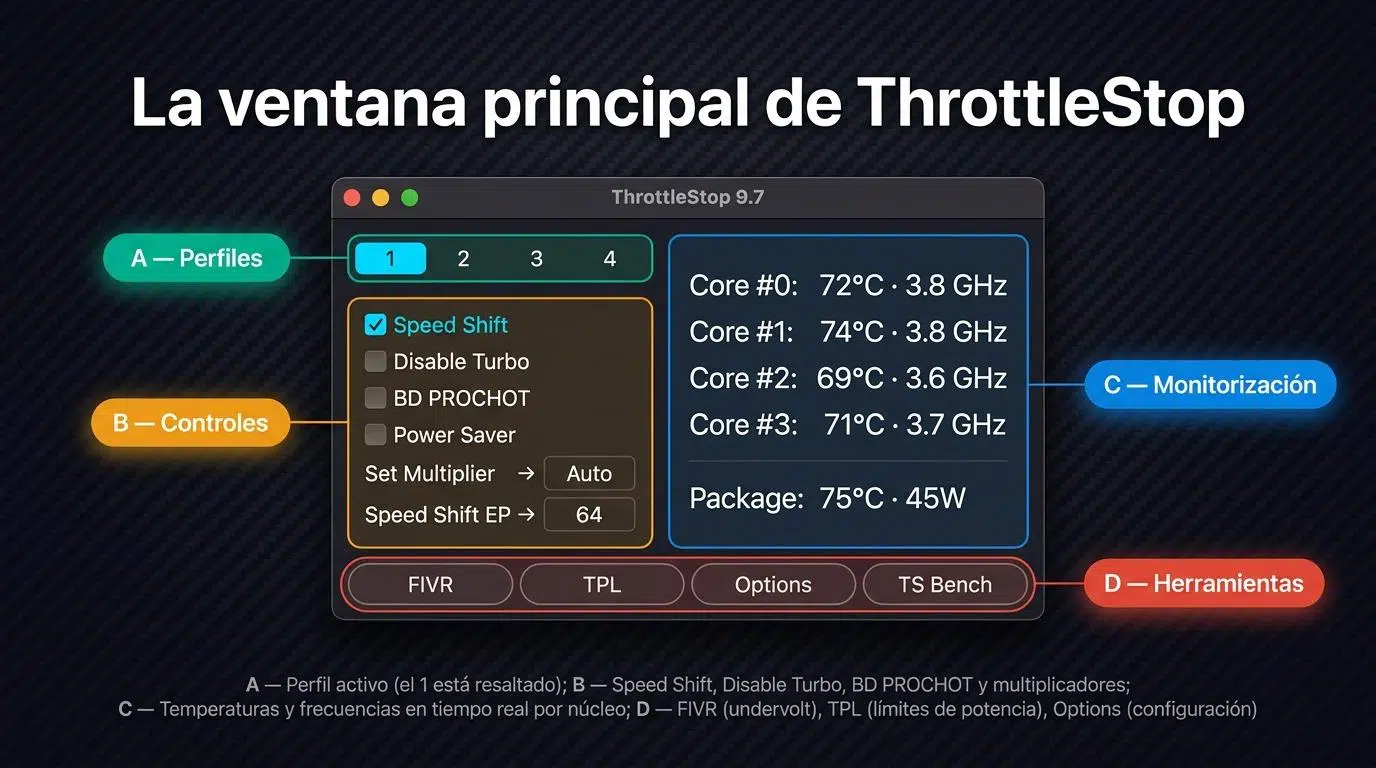
Understanding the ThrottleStop Main Screen
ThrottleStop's main window might seem a little intimidating at first, but if you take it step by step, you'll see that the key options are easy to understand. There are several profiles, checkboxes, and readings that help you control your CPU.
One of the important aspects is the power profiles that are typically used: for example, a performance profile for gaming and a battery profile for when you're using the laptop unplugged. In the practical experience of many users, it's common to have one profile with Turbo Boost enabled and aggressive SpeedShift to boost FPS in games, and another with Turbo Boost disabled and a gentler SpeedShift to reduce power consumption and battery temperature.
In the right-hand column, you'll see the FID values , which indicate the CPU's active multiplier. For example, on an Intel Core i7-7700HQ with a base frequency of 2,8 GHz and Turbo Boost up to 3,8 GHz, the FID will display values corresponding to the effective multiplier. If you disable Turbo Boost, the FID will remain close to the multiplier corresponding to 2,8 GHz and won't increase further.
The interface also includes indicators for thermal throttling, power limits (PL1/PL2), C states, estimated power consumption, and temperatures . All of this helps you see if your undervolting changes are actually helping to reduce throttling due to temperature or power limits.
Many help threads recommend that if you need support, you share side-by-side screenshots of your main screen and the FIVR panel . This way, whoever is assisting you can see your voltages, multipliers, limits, and thermal states at a glance.
Control the temperature by disabling Turbo Boost
The first simple way to reduce temperature without getting into fine-tuning voltage settings is to use Intel's Turbo Boost . This technology causes the CPU to increase its frequency above its base clock speed when the system requires it for increased performance.
The problem is that the higher the frequency, the more heat the processor generates . In many laptops, the system forces Turbo Boost to its maximum even with mediocre cooling, resulting in peak temperatures of 90°C or more during demanding games or benchmarks.
From ThrottleStop, you can select the Disable Turbo option to completely disable Turbo Boost. Once you check this box, the CPU will remain at its base frequency and will not increase further unless you uncheck the option again.
In practice, on a processor like the i7-7700HQ, this means the frequency will be capped at a stable 2,8 GHz . Many users see a 5- to 10-degree reduction in maximum load temperature by doing this, at the cost of some peak performance loss. If lower temperatures are your top priority and you don't mind sacrificing some FPS, this is a quick and effective adjustment.
BD PROCHOT: When other components slow down your CPU
Another striking option on ThrottleStop's main screen is BD PROCHOT , which stands for "Bi-Directional Processor Hot." While the name sounds technical, the idea is simple: it allows other system components to send a heat signal to the CPU , causing it to lower its frequency and help cool the computer.
Think of a gaming laptop: the dedicated GPU generates a lot of heat during gameplay, which warms up the inside of the chassis. If the GPU or chipset reaches a certain temperature, they can send a PROCHOT signal to the CPU to slow down, creating a small bottleneck and thus cooling down the entire system.
When BD PROCHOT is enabled, the CPU can throttle even if it hasn't reached its thermal limit ; it only needs to be triggered by another component. ThrottleStop allows you to disable BD PROCHOT so the processor continues running at full speed even if the GPU or an external sensor is overheating.
This can improve performance in systems where the manufacturer has been extremely conservative with heat settings, but it also carries some risk: if the other components overheat, you could shorten their lifespan. Therefore, it's advisable to use this setting judiciously, monitoring overall temperatures with tools like HWInfo or similar.
How to overclock with ThrottleStop (unlocked CPUs only)
ThrottleStop also allows you to adjust the CPU multiplier for overclocking, but this is only possible on unlocked Intel K or HK series processors. Typical examples include the Intel i7-7820HK or 6820HK in laptops, and K models in desktops.
The principle is very simple: all modern Intel CPUs have a base clock frequency of 100 MHz . The final frequency is the result of multiplying that base frequency by the multiplier (FID). For example, if you set a multiplier of 40, the CPU will attempt to operate at:
40 x 100 MHz = 4,0 GHz
On an i7-7820HK with a base clock of 2,9 GHz and a turbo boost of 3,9 GHz, you could try setting the multiplier to 40 to force it to 4 GHz. If temperature and stability allow, you'll gain some performance compared to the standard turbo boost.
Even so, if you're already experiencing high temperatures out of the box , the wisest course of action is to forget about overclocking and focus on undervolting and perhaps slightly underclocking. Increasing the frequency of a CPU that's already running hot will only worsen the problem.
How to underclock with ThrottleStop to lower the temperature even further
Unlike overclocking, underclocking or downclocking can be applied to virtually any Intel processor, not just unlocked ones. ThrottleStop allows you to reduce the multiplier using the "Set Multiplier" option, forcing a lower maximum frequency.
For this to work, you must ensure that SpeedStep is enabled (the corresponding box is checked). If SpeedStep is disabled, the CPU will not adjust its frequency correctly, and you will not be able to lower the multiplier effectively.
Let's take the i7-7700HQ with a base clock speed of 2,8 GHz as an example again. If you want the CPU to run at around 2,1 GHz , you need to set the multiplier to 21 (21 x 100 MHz). When you apply this change, the FID column in ThrottleStop should show values around 21.xx under load, confirming that the underclock is active.
The practical effect is a very noticeable temperature reduction , but also a decrease in overall system performance. This type of adjustment is usually reserved for extreme cases where reducing noise, power consumption, and heat is the primary concern.
Undervolt with ThrottleStop: FIVR panel and typical values
The core of this guide is fast undervolting with ThrottleStop on Intel . This is done from the FIVR panel, where you can adjust the voltage of different CPU domains: Core, Cache, iGPU, etc.
The basic concept is that by reducing the voltage, the CPU consumes less power to maintain the same frequency. The result is lower temperatures and, often, reduced power consumption , which is also beneficial in laptops with battery power.
An example of a practical undervolting configuration on an Intel mobile CPU that has proven stable for a specific user is something like this:
- -130 mV for the Core (core)
- -125 mV for the Cache
- -50 mV for the iGPU
These values can be applied to both the performance and battery profiles. In this specific case, the user kept Turbo active in the performance profile and disabled it in the battery profile, with SpeedShift set to 64 for performance and 128 for battery, thus balancing processor response and power consumption.
The practical result of this undervolting was a drop in temperatures from around 90-something degrees Celsius at stock settings to around 75°C in 3DMark Fire Strike , and a maximum close to 84°C in real-world games (for example, Total War: Warhammer 2). Maintaining turbo clocks around 3,7 GHz with SpeedShift at 64, the system continued to perform strongly but without reaching the excessive thermal levels of the stock setup.
It's very important to emphasize that you shouldn't just copy these values haphazardly . Every processor is different; even two identical CPUs of the same model can handle different undervolting levels due to the silicon quality. Your i7-11700, your i9-14900HX, or your i7-7700HQ might accept more or fewer millivolts of reduction; that's why stability testing is essential.
Stability tests and real risks of undervolting
When you experiment with CPU voltage and frequency, you enter the realm of overclocking/underclocking . There are two golden rules here: proceed gradually and check for stability after each significant change. Failing to do so is a recipe for crashes, blue screens, or data corruption.
A typical test scenario might be the following: you apply a small undervolt (for example, -50 mV on Core and Cache), save the configuration, and run a demanding benchmark (for example, Unigine Superposition) to check for stability over a while. If there are no crashes, artifacts, unexpected shutdowns, or unusual errors, you can try lowering the voltage a little more and repeat the tests.
If you undervolt too much, the system will typically freeze, display a blue screen, or restart when the CPU is under heavy load. This isn't ideal, but as long as you can return to Windows and increase the voltage slightly, the problem is usually solved. In most cases, simply restarting will cancel the temporary adjustments, allowing you to correct the issue.
The risk increases when aggressively undervolting desktop motherboards via the BIOS. In this environment, adjusting parameters that your CPU or motherboard cannot tolerate can brick the motherboard, rendering it unable to boot. In the world of Xeon CPUs, for example, this is well-known: excessive BIOS undervolting can force you to use programmers like the CH341A with software such as AsProgrammer to reflash the BIOS.
For this reason, many users prefer to perform software undervolting with ThrottleStop: if something goes wrong, simply restarting undoes the changes. Even so, it's always important to proceed with caution and common sense, increasing the undervolt in small increments and testing between each one.
BIOS Undervolt vs. ThrottleStop Undervolt
Undervolting can be done either through the BIOS or via software. Both methods have their pros and cons, and it's important to understand them clearly to know what you're doing in each case.
Undervolting from the motherboard or laptop BIOS usually applies the change globally and permanently at the firmware level. This has the advantage of not depending on any Windows programs to maintain voltages, but in return, errors can be more serious: an overly aggressive value can prevent the motherboard from booting, forcing you to perform a physical CMOS clear or even reprogram the BIOS with external tools if it becomes completely bricked.
In some environments, such as with certain motherboards using Xeon processors, the risks of excessive BIOS undervolting and how to recover using devices like the CH341A and utilities like AsProgrammer are openly discussed. In any case, the general recommendation is that, if you lack experience with these matters, you shouldn't attempt drastic BIOS undervolting.
In contrast, undervolting with ThrottleStop is applied directly from the operating system and is relatively easy to reverse. You can configure the program to apply the voltages when Windows starts, and if something goes wrong, you can simply boot into Safe Mode, disable automatic startup, or restart with default settings.
Furthermore, ThrottleStop allows you to save different profiles with varying voltage values, adapting its behavior depending on whether you're plugged into mains power or running on battery, and experimenting without risking significant firmware modifications. For all these reasons, it's the most sensible and flexible option for most users.
Limiting the CPU without losing FPS: CPU/GPU ratio and GPU modes
In modern gaming laptops, such as an ASUS ROG Strix Scar 18 with an i9-14900HX , thermal and performance behavior isn't solely dependent on the CPU. The CPU-GPU ratio, GPU modes (Optimus, Advanced Optimus, MUX switch), and power profile significantly influence FPS and temperatures.
A common guide for these systems explains how to understand CPU and GPU usage in games : if the CPU is at 90-100% and the GPU is below that, you might be limited by your processor; if the GPU is at 99% and the CPU is more relaxed, the bottleneck is in the graphics card. Adjusting the CPU to prevent overheating, by slightly reducing its frequency or limiting Turbo Boost, sometimes barely affects FPS if the GPU was already the limiting factor.
It's also important to understand GPU and display modes: Optimus, Advanced Optimus, and the MUX switch let you choose whether the display connects to the integrated iGPU or directly to the dedicated GPU. Switching to direct dGPU mode usually improves FPS and reduces input lag, but it also increases the heat generated by the graphics card.
ThrottleStop comes into play here because it allows you to tame the CPU so it doesn't overheat while the GPU does its job. With proper undervolting and smart Turbo control, you can keep the CPU within reasonable temperature ranges without impacting FPS in games where the graphics card is the primary bottleneck.
Manufacturers like Asus also provide standard tips for ROG laptops : keep the fans clean, use cooling pads, adjust fan and power profiles, etc. Combining these with a good CPU undervolt via ThrottleStop can make a noticeable difference in the daily experience.
ThrottleStop: Supported CPUs, automatic startup, and other details
One key detail not to overlook is that ThrottleStop does not support AMD processors . If you try to install or run it on a laptop with a Ryzen processor (for example, a Ryzen 7 4800H), the program will display an "unsupported CPU" message and you won't be able to do anything with it.
In the case of Intel, however, ThrottleStop works with most modern CPUs , both laptop and desktop. There are models and generations where undervolting may be limited by the BIOS or security patches, but the program will still allow you to monitor temperatures, multipliers, and throttling states.
If you're happy with the results of undervolting and want it to be applied automatically without having to manually open ThrottleStop, you can configure it to start automatically with Windows . There are graphical guides that explain how to do this using the Windows Task Scheduler, so the program starts with administrative privileges and activates your profile as soon as you log on to the desktop.
In some screenshots from users with i7-11700 processors, questions arise about values like IccMax (maximum allowable current). Seeing it at 12,00 A might seem surprising and suggest it should be higher, but the reality is that these parameters are related to internal current limits and you don't always need to adjust them for a simple undervolt. In many cases, simply adjusting the voltage in FIVR and, if necessary, the power limits to prevent the CPU from overheating is sufficient.
If after applying an undervolt you feel that "nothing has changed", it is advisable to check that the values are actually being applied (some BIOSes block undervolting), monitor with external tools and make sure that you are comparing temperatures, frequencies and performance before and after under the same load (same game, same scene, same benchmark).
In practice, most users who follow a careful method and gradually increase the temperature by safe values (for example, starting with -50 mV on the CPU and cache in Xeon or other models, or similar values in modern Intel laptops) achieve quite noticeable temperature reductions without losing stability.
Mastering ThrottleStop and undervolting on Intel isn't something you learn in five minutes, but once you understand what options like Disable Turbo, BD PROCHOT, SpeedStep, SpeedShift, multiplier, and FIVR do , it becomes a tool you'll likely want to use for a long time to squeeze every last drop of performance out of your laptop or PC while keeping temperatures down and performance in its sweet spot.


Passionate writer about the world of bytes and technology in general. I love sharing my knowledge through writing, and that's what I'll do on this blog, show you all the most interesting things about gadgets, software, hardware, tech trends, and more. My goal is to help you navigate the digital world in a simple and entertaining way.