- Fan Xpert 4 adjusts curves, heat sources and modes (Silent, Standard, Turbo, Maximum).
- AI Cooling reduces RPM under steady load without sacrificing performance.
- Gigabyte SIV can stop fans during calibration; monitor temperatures.

If you want to master fan control in Windows 11 using tools from leading manufacturers, here's a definitive guide focused on ASUS Fan Xpert (AI Suite 3 and Armoury Crate) and the calibration behavior of Gigabyte SIV. We've gathered in one place the information usually scattered across official support pages and forums so you can get your PC running smoothly, cool, and quiet.
We'll break down how to adjust curves, profiles, and thermal sources , what key options like AI Cooling mean, how to choose the correct motherboard connectors, and what to expect when Gigabyte's software performs its calibration with fan stops. We'll also discuss common limitations (shortcuts, CLI) and when to consider third-party software if you need something more specific.
Fan Xpert 4: What it is and what it does in Windows 11
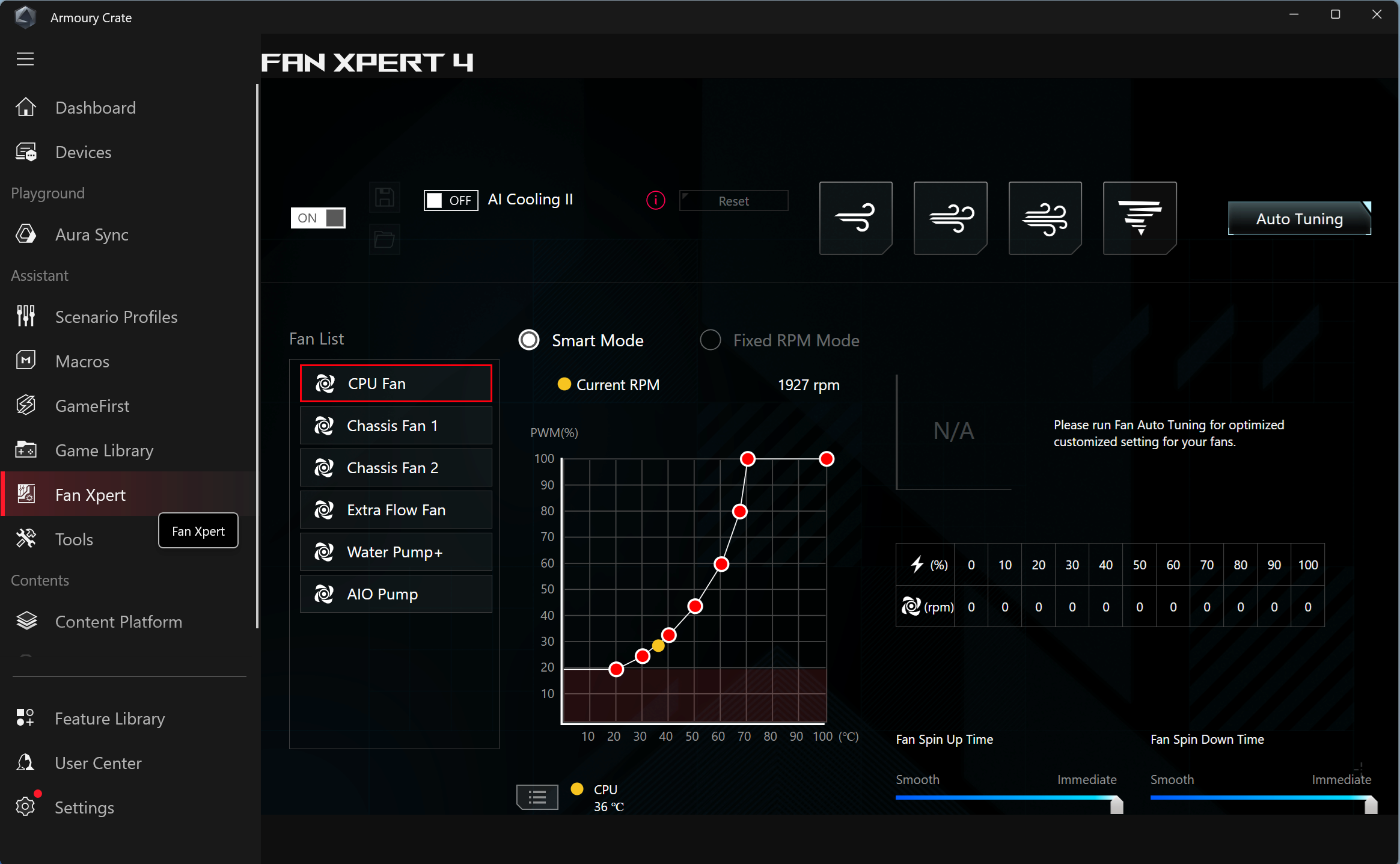
Fan Xpert 4 is ASUS's utility for managing fans connected to the motherboard, whether within AI Suite 3 or integrated into Armoury Crate . With it, you can detect all connected fans, create profiles, draw custom curves, and assign temperature sources so that fan speed reacts to what truly matters.
In practice, this tool stands out for three pillars shown in the official guides: automatic fan adjustment , the option to adjust fans manually, and a set of definitions and controls that allow you to get the most out of each printhead and operating mode.
How to use Fan Xpert 4 with AI Suite 3 step by step
When using Fan Xpert 4 from AI Suite 3 , the logic is simple: detect, calibrate, and adjust. Even so, it's best to follow a specific order to ensure everything works correctly the first time and you don't miss any important options.
- Open AI Suite 3 en Windows 11 and wait for it to fully load.
- In the main panel, click Fan Xpert 4 to enter the fans section.
- Select the global adjustment option (usually listed as Fan Tuning or Adjustment) to apply automatic tuning to all connected fans.
- Let the tuning proceed uninterrupted; the process can vary the speed from maximum RPM to momentary stops during detection.
- The interface will notify you when the process is finished and show the status as Available.
- Choose a preset mode for all fans: Silent, Standard, Turbo or Full Speed, depending on your noise/performance preferences.
- If you prefer, select a specific fan (use the left/right arrows) and configures its behavior individually.
- Click on the fan diagram (curve) to enter the Advanced configuration.
- In Smart Mode, move or drag the control point (the “blue dot” in some versions) to adjust the speed according to the temperature.
- In that same mode, adjust There spin up/down to avoid sudden RPM changes in very short periods; if you select the automatic fan stop, you can stop it at very low RPMs.
- With the Source option, select up to three thermal sources and let the speed respond to the highest temperature among them.
- If you prefer something fixed, switch to mode. RPM setting and set the specific value with the slider arrow.
- On compatible motherboards (e.g. ASUS series) Intel Z490), you can activate AI-Cooling so that the system automatically reduces RPM when the equipment is in a stable state, maintaining performance.
This flow covers the essentials: with automatic tuning you ensure that the curves respect the fan thresholds and, with the modes, you can go from absolute silence to performance depending on the task at hand.
Fan Xpert 4 inside Armory Crate
ASUS also integrates Fan Xpert 4 into Armoury Crate , centralizing fan control with other components in the ecosystem. On modern motherboards, this is the recommended way to unify everything under a single application.
- Open the Start menu and run Armory CrateIf you don't have it, you can check out the official guide "How to Download and Install Armoury Crate."
- In Armoury Crate, go to the section FanXpert.
- Click on Auto Tuning for the tool to apply the best custom configuration to the installed fans.
- Wait for the adjustment to complete. The application will indicate the progress and the completion status.
- After tuning, you can quickly change all fan settings to preset modes in two ways:
- From Fan Xpert 4, selecting Silent, Standard, Turbo or Full Speed.
- Or from the module Fan speed from the Armoury Crate Dashboard section, with those same four modes.
- Select and customize individual fans from the list (for example, the CPU fan).
- In Smart Mode, click and drag the control (usually shown as a red button) to adjust the power or % at different temperatures; you can check the table on the side for the Minimum supported RPM at each point.
- Adjust the acceleration and deceleration times to smooth out the response. If needed, enable the Extreme Silent Mode to minimize noise, then activate Fan Stop, which will stop the fan when the speed is very low. Note: To activate Extreme Quiet, you must have previously run the tuning.
- By clicking on the temperature source icon (for example, on Chassis Fan 2), you will be able to choose up to three thermal sources; the speed will be adjusted based on the highest one.
- If you are using Fixed RPM Mode, drag the arrow to define a set speed and avoid, if possible, values excessively high or low that affect performance or temperature.
- Active AI-Cooling to automatically decrease RPM when the system enters a steady state load, minimizing noise without impacting performance; when enabled, it will override Smart Mode's Extreme Quiet feature.
A compatibility note: Fan Xpert in Armoury Crate is compatible with Intel 600 series, AMD AM5, and newer motherboards . For older motherboards, Fan Xpert is still available within AI Suite 3. ASUS provides utilities and support guides for installing or cleaning AI Suite 3.
Preset modes and advanced customization
The four preset modes (Silent, Standard, Turbo, and Top Speed) are shortcuts for quickly switching between noise and performance priorities . They're useful for everyday use, but where Fan Xpert truly shines is in its curve-by-curve customization.
In Smart Mode, the curve relates temperature and speed. You can adjust settings so that, for example, up to 40°C the fan stays at a very low speed , and then gradually increases beyond a certain threshold. Always leave some headroom to avoid abrupt changes and adjust Spin Up/Down to smooth transitions.
If you need complete silence at idle, Extreme Silent Mode, followed by the Fan Stop option , can turn off the fan at low temperatures. Note: Make sure the chassis has adequate airflow and that temperatures remain within acceptable limits.
In Fixed RPM Mode, you lock in a specific speed; it's useful for diagnostics or testing , but it's not usually the best option for daily use because it doesn't react to temperature.
Thermal sources: when to use several and why
Fan Xpert lets you select up to three temperature sources per fan, and the system chooses the highest one. This feature is invaluable if you want your case fans to respond to heat from both the GPU and CPU, or even sensors like M.2, and not fall short when one component is hot while the other is cool.
A rule of thumb: link the CPU fan to the processor temperature , and in chassis fans, combine CPU and GPU (or M.2) to maintain a balanced airflow that avoids hot spots.
AI Cooling: less noise when the system is stable
The AI Cooling feature, available on compatible motherboards (for example, ASUS Intel Z490 series in AI Suite 3 and modern motherboards in Armoury Crate), automatically reduces the speed of all fans when the system reaches a stable load. Its goal is to reduce noise without affecting system performance .
When activated in Armoury Crate, AI Cooling replaces Extreme Quiet in intelligent mode, leaving noise management to the automatic algorithm. If you prefer full manual control, you can disable it and return to your custom curves.
Compatible connectors and motherboard headers
Not all fan headers participate equally in certain functions. For AI Cooling and advanced control to work, ASUS specifies that fans must be connected to CPU_FAN, CPU_OPT, CHA_FAN, M.2_FAN, H_AMP, or RAD_FAN (available headers vary by model). Check your motherboard manual to avoid losing functionality due to an unsupported fan header.
Remember to also distinguish between PWM and DC fans ; Fan Xpert detects the type during tuning, but if a fan is not responding as it should, check that it is in the correct mode in the BIOS or in the utility itself.
Troubleshooting (Official FAQ Summary)
If a fan is not spinning or is behaving erratically, it is worth taking a systematic look at the diagnostic steps recommended by ASUS support.
- The fan does not work: Rerun the tune in Fan Xpert 4, check that all cables are properly connected, try another fan on the same header, and if the problem persists, contact ASUS service center: https://www.asus.com/es/support/.
- I can't set the speed: Repeat the auto-tuning in Fan Xpert 4; if that doesn't work, uninstall and reinstall AI Suite 3. ASUS details the procedure here: AI Suite 3 Installation/Uninstallation Guide.
- Which models support AI Cooling?: ASUS indicates compatibility in the series Intel Z490 (in AI Suite 3) and, in Armoury Crate, on Intel 600 and AMD AM5 and later boards.
- Are all headers suitable for AI Cooling?: Connect them to CPU_FAN, CPU_OPT, CHA_FAN, M.2_FAN, H_AMP or RAD_FAN; the available ones depend on the model.
Gigabyte System Information Viewer (SIV): Calibration and Security
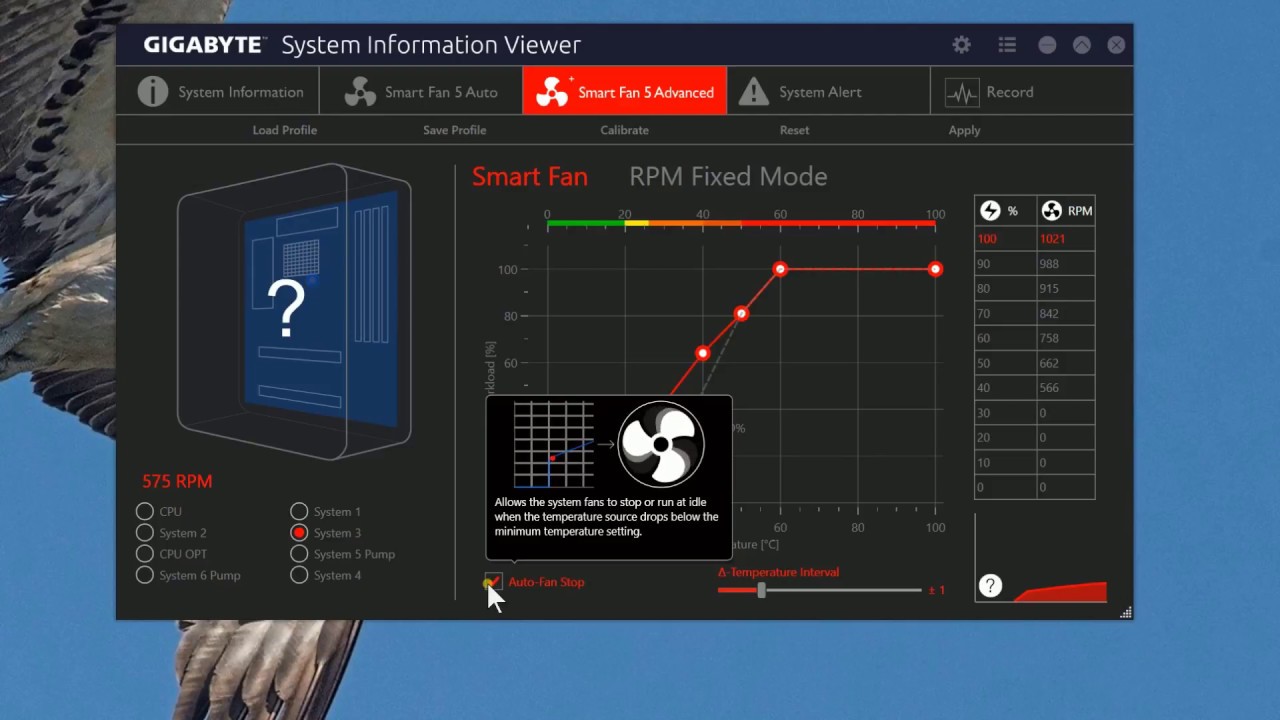
Some users report that when launching Gigabyte System Information Viewer (SIV) , the tool performs an aggressive calibration: it first runs the fans at maximum speed and then gradually reduces the power until they stop completely. During this process, even the CPU fan may stop for several seconds.
The CPU fan stopping for about 10 seconds during calibration might be unsettling , but it doesn't automatically mean there's damage. Modern processors have built-in thermal protections that prevent critical overheating; furthermore, calibration is usually performed at idle or under light load, which minimizes the risk.
Even so, it's wise to take precautions: run the calibration with the system cold and under no load , monitor temperatures with a reliable tool, and if you're not satisfied with the behavior, try disabling or skipping automatic calibration if the software allows it. If you detect abnormal spikes during the test, cancel any demanding tasks and let the CPU fan return to its normal speed before continuing.
The inability to interrupt live calibration can be frustrating, so schedule these tests when stability isn't at risk and you have time to monitor the process. If you suspect the shutdown is excessive or recurs under load, consider updating the software/BIOS or contacting Gigabyte support.
Quick profiles, shortcuts, and mouseless control
A common request is to switch between Silent, Standard, Turbo, or Maximum Speed using keyboard shortcuts or the command line . The official sources mentioned do not offer direct support for hotkeys or the command line within Fan Xpert, so changing profiles requires accessing AI Suite 3 or Armoury Crate.
If you need to automate profile changes (for example, when launching a game or a specific application), you might need to use third-party software that allows you to assign external curves or triggers. Before doing so, check if the predefined modes in the Armoury Crate's Panel/Fan Speed module are sufficient, as they allow for quick changes with just a few clicks.
MSI Dragon Center and other alternatives
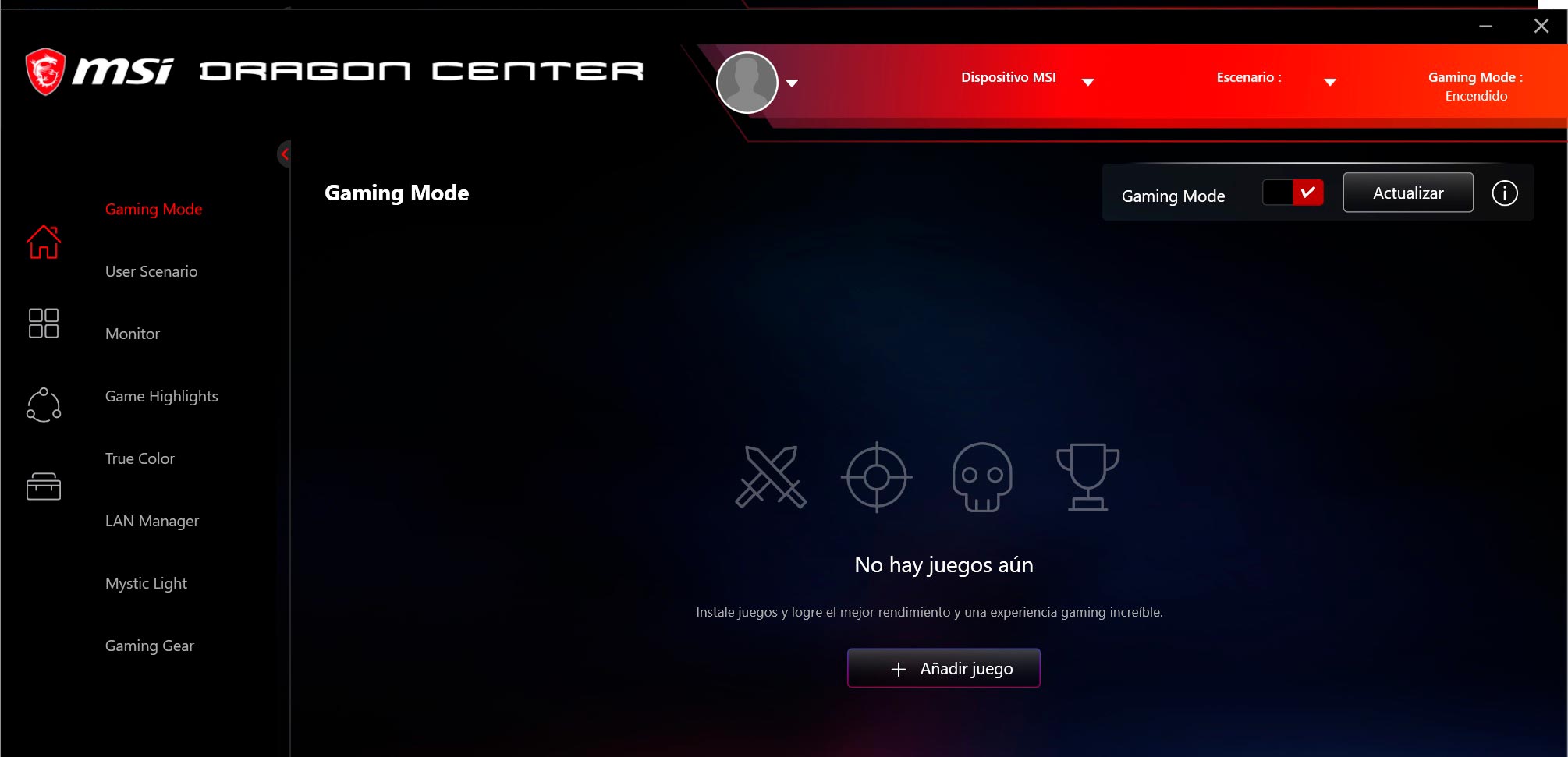
While we're focusing on Fan Xpert and SIV here because they're the most detailed content in the sources, it's common to manage fans from MSI Dragon Center (or its replacement, MSI Center, on modern systems). If you have an MSI system, check its fan module for similar features: predefined profiles, temperature-based curves, and low-RPM stop options.
The general idea is the same: calibrate first, choose the mode that best suits your needs, and if you require finer detail, adjust the smart curve and thermal sources if available. Be sure to run the calibration with the system under no load, as recommended by ASUS tools and based on the behavior observed in the Gigabyte SIV.
Good practices to extend the life of your fans
Beyond software, there are habits that help maintain a cool and quiet system without any issues. Keep dust off filters and fan blades, check that the fans are correctly oriented (intake/exhaust), and avoid voltage spikes with overly aggressive power curves.
Configure acceleration and deceleration times so that the RPMs don't change in abrupt jumps , use multiple heat sources to react to the part that's really getting hot, and don't force minimum speeds below what the fan can maintain without hesitation.
With all this, you've got fan control covered in Windows 11 with the best of ASUS Fan Xpert (AI Suite 3 and Armoury Crate) and what you'd expect from Gigabyte SIV calibration; choose the predefined modes for everyday use, adjust curves and fonts when you want to fine-tune things , and if you need to switch profiles without a mouse, consider third-party options knowing that the official tools prioritize stability and security over shortcuts.

Passionate writer about the world of bytes and technology in general. I love sharing my knowledge through writing, and that's what I'll do on this blog, show you all the most interesting things about gadgets, software, hardware, tech trends, and more. My goal is to help you navigate the digital world in a simple and entertaining way.