- Windows 11 and manufacturers' applications allow for the creation of thermal profiles tailored to each need.
- Customizing the fan curve and power limits helps optimize performance, temperature, and runtime.
- The integration of thermal, visual and energy controls improves the experience and protects the hardware.
Customizing the performance and thermal management of a gaming laptop running Windows 11 has become one of the best ways to maximize its power without compromising component lifespan or the user experience. Today, manufacturers of gaming laptops have gone a step further, allowing users to adjust everything from fan curves to CPU and GPU power limits, or create thermal profiles tailored to demanding environments as well as everyday or quiet use. Windows 11, with its modern and highly configurable approach, is the perfect tool to centralize and enhance these capabilities.
If you've ever wondered how to prevent your gaming laptop from overheating during a session, or if you can extend battery life without sacrificing performance, you've come to the right place. Here, we'll break down in detail how custom thermal profiles work, what applications and utilities are available, how to maximize system integration, and what best practices will allow you to keep your machine running like new without missing a single frame in your favorite games.
What does it mean to create custom thermal profiles?
A custom thermal profile is a specific configuration that adjusts the fan response, temperature limits, and power management of your gaming laptop. This means you can decide when and how fast the fans spin up, how much power you allow the CPU or GPU to consume, and what noise level you're willing to tolerate in exchange for peak performance.
Customizing thermal profiles not only improves the gaming experience, but also protects hardware from degradation caused by sustained high temperatures and allows you to adapt your system to different scenarios:
- Turbo mode: Prioritizing absolute performance for demanding games.
- Silent mode: Ideal for working or watching movies without annoying noises.
- Balanced mode: A mid-range for general tasks.
- Manual mode: Giving you complete control to adjust the fan curve and power limits to your preferences.
These profiles are centrally managed using brand-specific apps, such as Asus's Armory Crate or equivalent tools from other manufacturers, fully integrated with Windows 11 for added convenience and control.
Personalization and benefits of Windows 11 for gaming laptops
Windows 11 has represented a quantum leap in terms of customization and performance management, especially in gaming laptops.
The new interface, focus modes, redesigned taskbar, and widget integration make setting up your gaming or workspace much more intuitive. In addition, Windows 11 Pro provides access to advanced features like BitLocker, Hyper-V, and Group Policy, designed for those seeking extra control and security.
The ability to customize the taskbar, Start menu, and widgets keeps your most-used apps and controls close at hand, while integration with OEM apps puts thermal profiling and performance controls just a click away.
Armoury Crate: The Essential Platform for Customizing Thermal Profiles on Asus Laptops
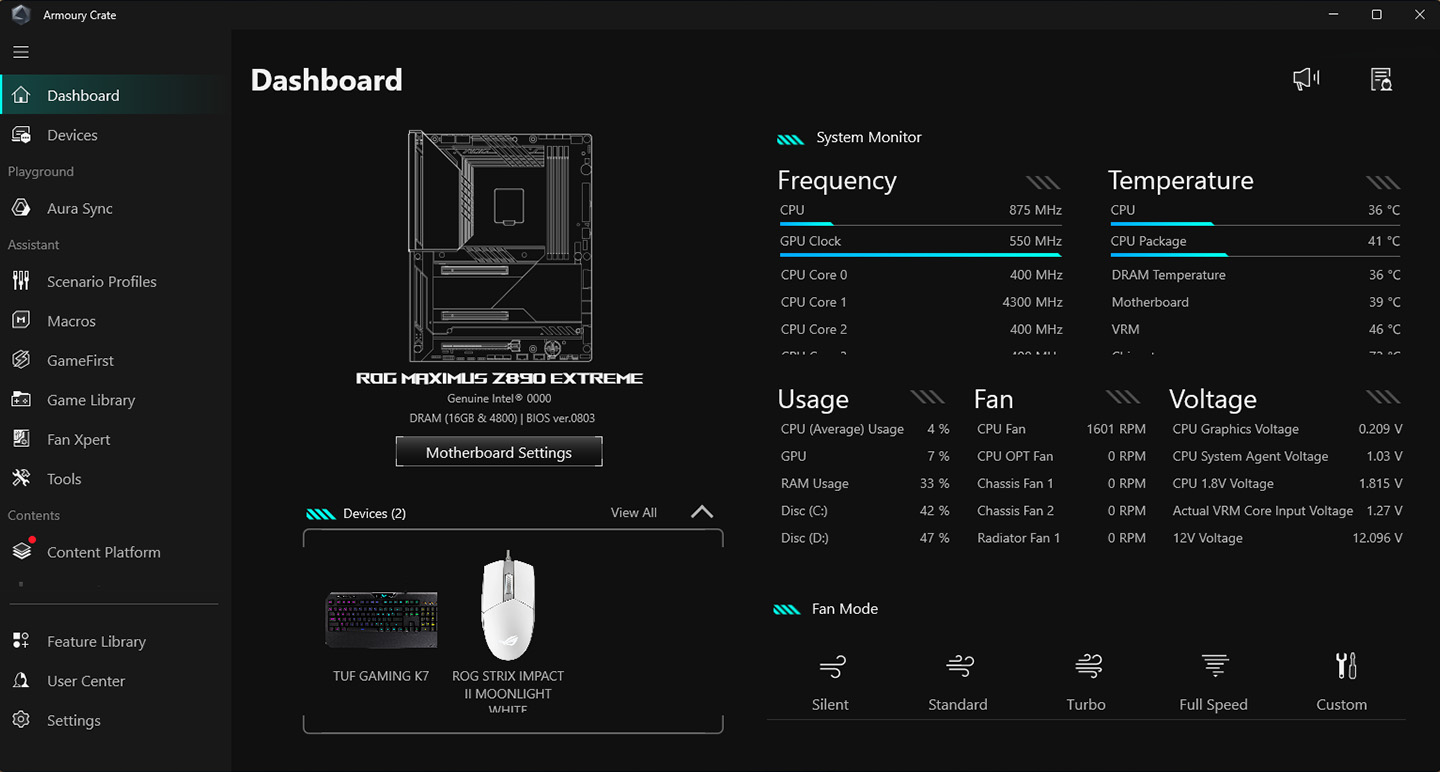
For those who use Asus ROG or TUF laptops, Armoury Crate is the most powerful and comprehensive tool for managing thermal and performance profiles. This application allows you to:
- Switch between pre-designed performance modes (Windows, Silent, Performance, Turbo, Manual) with just one click depending on the demanding usage scenario.
- Customize the fan curve in an advanced way, choosing the speed in each temperature range for CPU and GPU, with up to eight configurable points per curve.
- Adjust energy limits for CPU and GPU, including limited manual overclocking or the ability to take advantage of technologies such as NVIDIA Dynamic Boost or AMD Radeon Chill.
- Link performance profiles to specific games, so that when the game is launched, the ideal thermal profile is loaded without user intervention.
- Control RGB lighting, macro keys and, in advanced models, additional options such as Aura Wallpaper or AniMe Matrix.
The Armoury Crate interface is visual, clear, and allows quick access to temperature, fan speed, and power consumption statistics, as well as the creation, saving, and modification of custom profiles for any situation.
Creating and adjusting a custom thermal profile step by step
Setting up your first fine-tuned thermal profile is as simple as following these steps in Armoury Crate or your gaming laptop's equivalent tool:
- Open the manufacturer's management app (e.g., Armoury Crate on Asus) from the Start menu.
- Access the profiles or performance modes section.
- Choose Manual or Custom mode to unlock advanced editing of fan curves and power limits.
- Adjust the fan curve for the CPU and GPU: Drag the dots to set the temperature at which each fan should spin at a specific speed. For example, you can schedule the fan to turn on earlier to avoid sudden temperature spikes.
- Change the CPU/GPU power or frequency limits if you want to overclock (always be careful and know what you're doing).
- Save the profile with an identifying name and, if the application allows it, link it to your favorite games or specific applications.
Remember that you can create as many profiles as you need for different uses: gaming, video editing, light tasks, or a silent profile for the night.
A key tip: If your laptop has multiple power modes (Ultimate, Standard, Eco, Optimized), you can switch between them depending on whether you're plugged in or using battery power. This helps keep the temperature under control and extends battery life while you're on the go.
Visual customization and extra controls in Windows 11
In addition to advanced manufacturer options, Windows 11 lets you customize the visual experience and desktop layout to suit the way you work or play.
Some key features you can take advantage of are:
- Choosing themes and accent colors so that your entire graphic environment matches the gaming spirit.
- Rearrange and customize the taskbar and start menu, putting thermal management and performance applications at the forefront.
- Configure widgets with useful information, such as temperatures, resources in use, or shortcuts to monitoring applications.
- Activate the dark mode, which not only provides a more modern touch, but also helps the eyes rest during long sessions.
For those looking for a little extra customization, applications like Start11 further expand the organizational and design possibilities in the Windows environment.
Why is it important to define custom profiles on a gaming laptop?
Gaming laptop hardware is designed to deliver maximum performance in a small space, which inevitably generates heat. Lack of control over thermal management often results in fans spinning at full speed (and making noise), high temperatures that shorten the lifespan of components, or performance throttling as the machine tries to protect itself by lowering the clock speed.
Creating and adjusting thermal profiles allows you to:
- Avoid overheating when the GPU and CPU are working hard during long sessions.
- Reduce fan wear, adjusting the curves so that they only turn fast when really needed.
- Finding the balance between silence and power, adapting the noise to the environment (playing with headphones is not the same as working in a library).
- Optimize autonomy when you switch to working on battery power, using saving modes and profiles that reduce consumption.
The result is a tailored experience that extends the life of your laptop and maximizes your gaming enjoyment.
Intelligent power and battery management

In addition to adjusting fans and frequencies, thermal profiling tools include options for modifying the power plan and extending battery life.
Windows 11 and manufacturer software allow you to:
- Select between optimized power plans (High Performance, Balanced, Energy Saving) directly from the app, without going through the classic control panel.
- View and control the battery status, programming automatic actions when you reach certain percentages to avoid overloads or downloads deep.
- Remove or pause background processes y apps that consume resources when they are not needed, thus extending the availability of the laptop.
Visual optimization and advanced configuration
While thermal management is key, customization doesn't end there. Windows 11 brings additional features to adjust visual response and the work environment:
- Reduce or eliminate animations for greater fluidity, especially in teams where every resource counts.
- Organize open applications using Snap Layouts, which allows you to efficiently split the screen between multiple apps.
- Set dynamic wallpapers or even synchronize RGB lighting with desktop effects for a fully gaming environment.
All of this can be combined with thermal profile settings to create not only the most powerful laptop, but also the most customized in every way.
Maintenance, safety and best practices when customizing thermal profiles
Editing fan curves and parameters or fine-tuning power settings involves manipulating sensitive aspects of the system. It is essential to follow some basic rules:
- Always create restore points before making major changes to the manufacturer's system or tool.
- Take regular backups to prevent data loss if an extreme profile causes unexpected crashes.
- Avoid modifying the Windows registry or the BIOS without knowing exactly what you're doing. Many advanced customization features are available via software and require no extra risk.
- Always keep the manufacturer's drivers and management software up to date., as new versions add support, fix bugs, and improve hardware compatibility.
- If the laptop includes a diagnostic or log export system, Use it to share data with support if problems arise after modifying profiles.
If you ever notice instability, strange noises, unusual temperatures, or crashes, return to a safe configuration as soon as possible.
Aesthetic customization: vinyl, stickers and exterior decoration
The concept of customization goes beyond software and thermal management. Decorating your laptop with vinyl or stickers is a trend and also helps protect the case from scratches and liquids.
When choosing vinyl decals, look for products specifically designed for your model or size, ensuring maximum adhesion and durability. Installation is simple: peel off the backing and apply gradually, using a squeegee or card to avoid bubbles.
The best laptop sticker options include durable materials, a matte finish to prevent glare, and custom designs that you can order. Plus, they remove cleanly and allow you to change the look whenever you want.
For Apple or gaming laptops, there are themed collections that perfectly match the RGB lighting on keyboards and protective cases.
Common troubleshooting and expert advice
As with anything related to customization, unexpected challenges or errors can arise when adjusting thermal profiles. Here are some key recommendations:
- Troubleshoot "access denied" errors by making sure you are an administrator. Many advanced features require elevated permissions.
- If the system detects corrupted files, use System File Checker (SFC) To restore system integrity, run “sfc /scannow” in a privileged command prompt.
- Incompatibilities with games or programs can be resolved by updating drivers or reinstalling applications.
- Prevents third-party monitoring applications from interfering with thermal management, since some technologies such as AMD AFMF are not supported with external overlays.
- Remember that an extreme profile can overheat the equipment if not monitored correctly, so frequently monitor temperatures and fan speeds after any major changes.
Exploring and mastering custom thermal profiles on your Windows 11 gaming laptop not only means a performance boost, but also a more personalized experience tailored to your style, needs, and environment. Configure automatic profiles for every type of task, keep noise and temperature under control depending on the situation, and take full advantage of the resources offered by both the operating system and your computer's built-in utilities. Personalize the exterior with durable vinyl wraps and stickers, and don't forget to keep your software and drivers up to date to get the most out of your laptop, whether you're competing in an online game or working on your most ambitious project.


Passionate writer about the world of bytes and technology in general. I love sharing my knowledge through writing, and that's what I'll do on this blog, show you all the most interesting things about gadgets, software, hardware, tech trends, and more. My goal is to help you navigate the digital world in a simple and entertaining way.