- OMEN Gaming Hub centralizes power modes, networking, lighting, and per-game profiles to optimize performance in Windows 11.
- OMEN's power modes and thermal control must be aligned with the power plans of Windows 11 to avoid conflicts and FPS loss.
- Features such as OMEN AI, Network Booster, and custom profiles allow you to tailor the experience to each game and type of equipment.
- Monitoring temperatures, CPU/GPU usage, and memory is essential to avoid throttling and maintain stable performance.
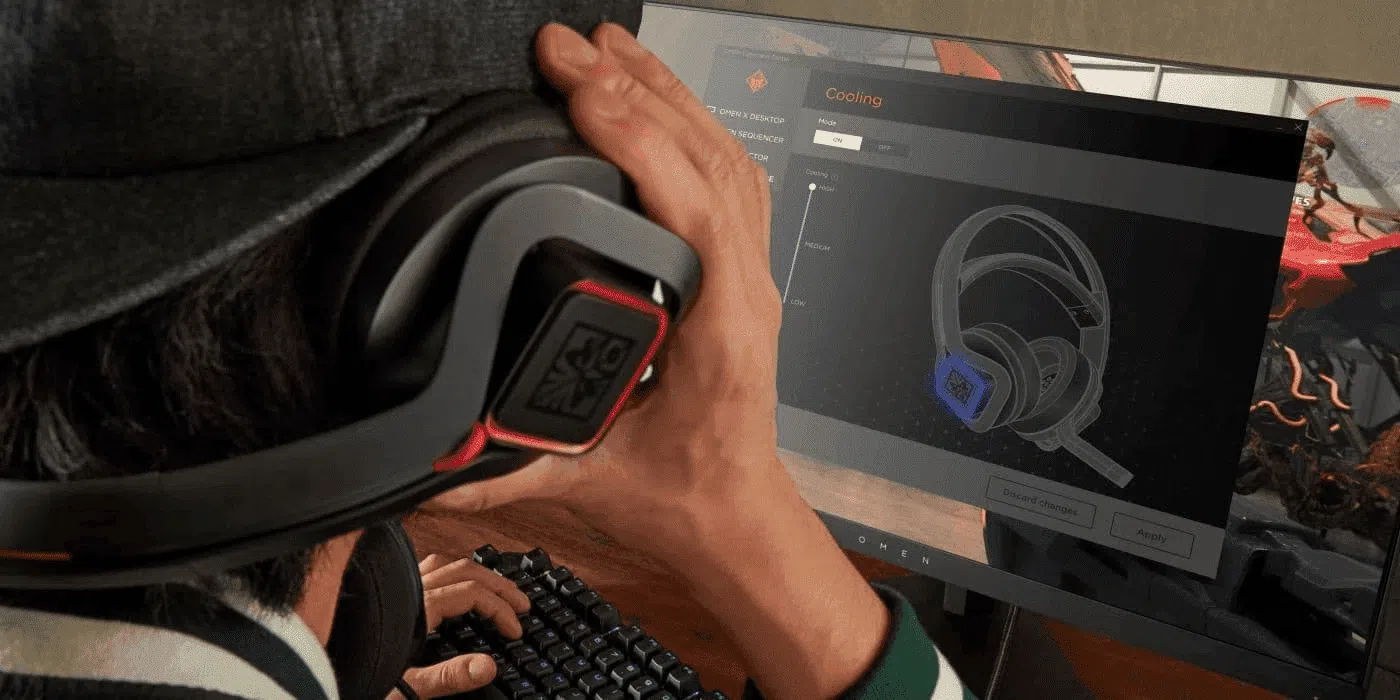
If you own an HP gaming PC or laptop and run Windows 11, mastering OMEN Gaming Hub is almost as important as choosing the right settings within each game . This application centralizes performance controls, network settings, lighting, game profiles, and a host of other features that, when properly configured, make a significant difference in FPS, stability, and temperatures.
The problem is that if you don't know what to do, performance can easily worsen instead of improve. Many users find their laptops dropping from 200 to 40 FPS, experiencing constant stuttering, or encountering conflicts with Windows 11 power options simply because they have a misconfigured mode in OMEN Gaming Hub. In this article, we'll see, step by step, how to configure it in Windows 11 to get the most out of it, what each setting actually does, and how to avoid the most common mistakes.
OMEN Gaming Hub interface on Windows 11
When you open the app, the first thing you see is a fairly clean main panel from which you can access all the functions. The interface is organized into sections on the left or tabs depending on the version , but the most important ones are usually always the same.
The Home section provides a system overview and quick access to power modes, game profiles, and recommendations. It's the ideal screen for checking at a glance what mode your system is in and whether OMEN AI or the boosters are active.
The Performance Control section is the heart of the application for any demanding gamer. Here you can change power modes, adjust ventilation, activate overclocking profiles, and monitor the thermal behavior of your laptop or desktop computer.
Recent versions also include the OMEN AI section , which focuses on automatic optimization using artificial intelligence . This feature analyzes your hardware and the games you run to suggest or apply configurations that increase FPS, improve stability, and adjust resource usage without requiring much effort from you.
Overlays are widgets that you can display on top of games, like an overlay. They allow you to view performance metrics (FPS, CPU/GPU usage, temperatures) or quickly access certain settings without leaving the desktop , which is very useful for fine-tuning while testing.
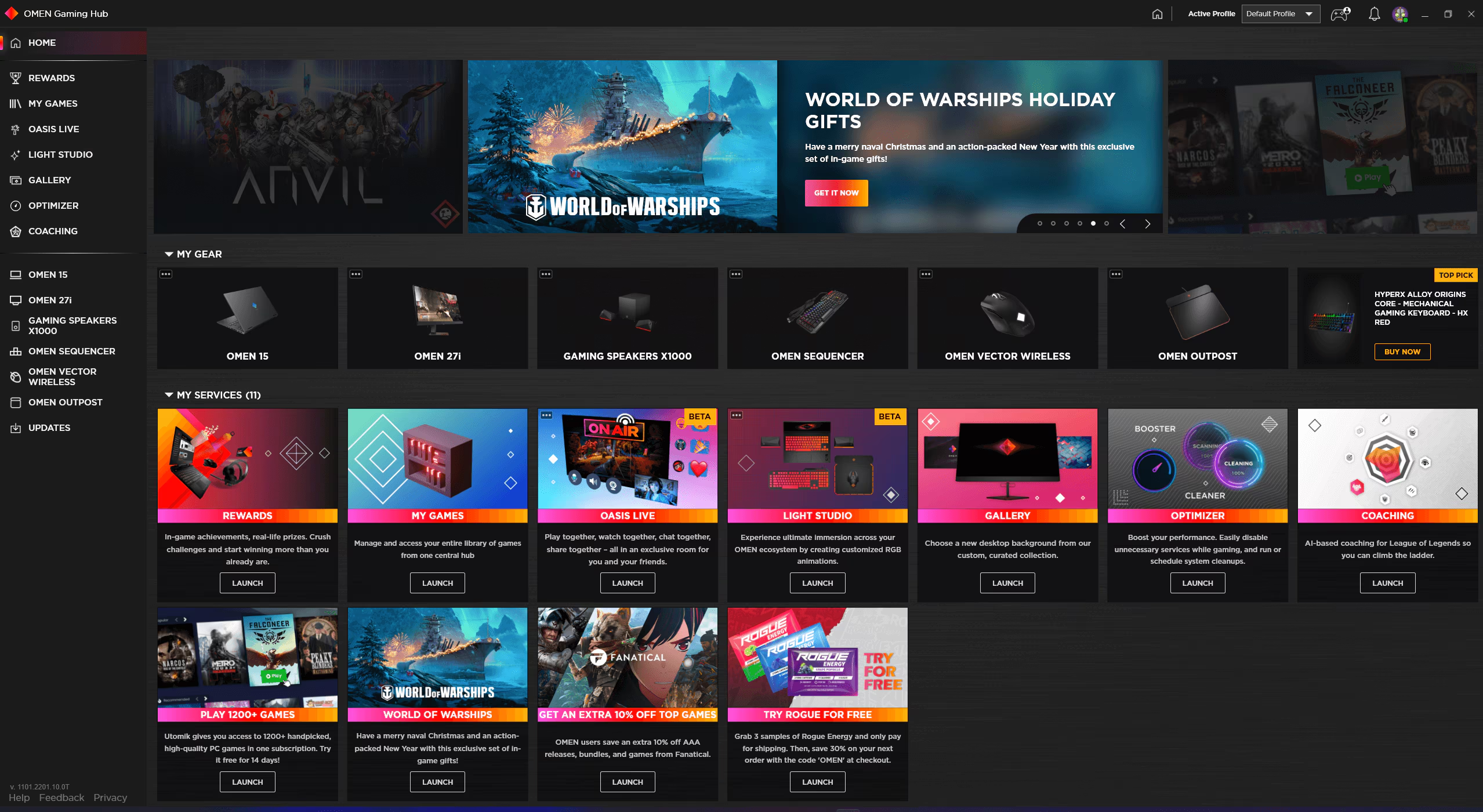
Key sections: games, offers, and additional tools
In the ecosystem section, OMEN Gaming Hub features a "Buy Games" section , which integrates stores and promotions. While not essential for improving your performance, it centralizes content and sometimes includes offers specifically for OMEN users.
My Games groups your library of games, whether detected or added manually. From here, you can create custom profiles for each title, so the system automatically changes power modes, fan speeds, and other settings when you launch that game.
The Deals section usually displays discounts, promotions, or bundles related to games and hardware. It doesn't affect performance, but it might be of interest if you're building or expanding your gaming setup.
The Gallery lets you manage screenshots, clips, and other multimedia content related to your games. It's not a performance tool, but it's a convenient addition if you often record or take screenshots while playing.
In the audio and video section, the CAM and voice enhancement module provides access to camera and sound processing options. From here, you can apply filters, noise reduction, microphone enhancements , and image adjustments designed for streaming or video calls during gaming sessions.
Light Studio and RGB lighting control
The Light Studio section handles the RGB lighting for the OMEN ecosystem and compatible devices. If you like to have your desktop lights pulse to the beat of the game or follow a specific color scheme, this is where you'll spend most of your time.
One of the most striking features is audio synchronization . The lighting can react to the sound of the game, music, or any audio playing on the system, generating effects that pulse or change to the beat.
You also have access to a library of effects with pre-made schemes: color cycles, breathing, waves, and other common patterns. Simply select the effect and apply it to the devices you want, without having to design anything from scratch.
If you want something more personalized, you can create custom patterns . This allows you to define specific colors, transitions, and behaviors for each lighting zone on your keyboard, mouse, tower, or other compatible peripherals.
The key with Light Studio is to remember that, while visually appealing, certain complex effects can consume minimal system resources . It's usually not a major issue, but if your system is struggling with performance, it's best to choose simpler effects or disable the most aggressive synchronization. If OpenRGB isn't detecting lights , consult the solutions.
Initial setup recommendations for Windows 11
Before you start tinkering with overclocking and advanced profiles, it's worth establishing a solid base configuration. There are four basic settings you should review as soon as you install or open OMEN Gaming Hub on Windows 11.
The first step is to configure the power modes . On a laptop, when it's plugged in, you'll want to have a high-performance mode active in OMEN (usually "Performance" or equivalent). If you're gaming on battery power, it's wiser to use balanced or low-noise modes to avoid draining the battery in half an hour and overheating.
Next, check that OMEN AI is enabled if your system and version support it. This feature can automatically increase FPS, adjust frequencies, better distribute the load between the CPU and GPU, and adapt fan speeds depending on the game.
Additionally, it's recommended to enable OMEN Booster within the optimization or "Optimizer" section. This module typically frees up background resources, prioritizes game processes, and reduces minor sources of lag caused by running applications.
Finally, configure your preferred fan speed within “Performance Control.” In most cases, leaving it on “Auto” offers the best balance between noise and temperature, but you can choose “Max” for aggressive cooling or “Manual” if you know what you’re doing and want a custom curve.
Advanced performance tuning: CPU, GPU, and RAM
Once you have the basic settings under control, you can move into advanced territory where the hardware is truly pushed to its limits. This section is where you'll handle overclocks, undervolts, turbo modes, and memory adjustments that directly impact FPS rates and smoothness.
In the case of the CPU , some versions of OMEN Gaming Hub offer overclocking features and, for advanced users, undervolting. Undervolting involves slightly reducing the CPU voltage while maintaining the frequency, with the aim of lowering temperatures and improving energy efficiency.
If you decide to try undervolting, do so carefully: reduce the voltage in very small steps (for example, -0,05V), run stability tests or play for extended periods to ensure there are no crashes, and always monitor temperatures and power consumption . An overly aggressive adjustment can cause random restarts or errors.
In the GPU overclocking section , OMEN allows you to increase both the core clock and the graphics memory clock. It's recommended to add small frequency increments (for example, 10-25 MHz, depending on how the interface displays it) and test for stability with benchmarks or demanding games.
Once you find a point where there are no artifacts, flickering, or unexpected crashes, take the opportunity to save the settings to a custom profile . This way, you can activate that overclock only in specific games and maintain a more conservative mode for everyday use.
Memory configuration and Turbo modes
RAM also plays a key role in OMEN Gaming Hub on some models. Activating "Turbo" modes enables profiles like Intel XMP or AMD EXPO, which boost RAM frequencies above standard values.
This frequency increase can improve performance in scenarios where memory bandwidth is a bottleneck , such as certain competitive games or content creation applications. However, it is quite sensitive to the quality of the memory modules and the motherboard.
Therefore, when modifying memory settings, it's best to be cautious: apply certified profiles (those that already appear as pre-configured) instead of inventing extreme manual values . If the system boots and runs stably, you'll have gained performance easily and safely.
Regarding Turbo or "Extreme Performance" modes that may appear for the CPU and GPU, it's important to use them with good cooling and preferably on desktops or laptops with good ventilation and plugged into a power outlet . On thin laptops, overusing these modes can cause the system to reach thermal limits more quickly.
In any case, remember that stability and safe temperatures should take priority over squeezing in a couple of extra FPS . A system that overheats will lose sustained performance and shorten the lifespan of its components.
Performance control: power modes and thermal management
In terms of performance, the OMEN Gaming Hub typically offers several predefined power modes . The most common are ECO, Balanced, and Performance, each designed for a different use.
ECO mode is designed to save battery and reduce power consumption , ideal when performing light tasks or playing undemanding games on an unplugged laptop. It limits available power and, therefore, the maximum FPS.
Balanced mode strikes a balance between battery life and power. It's the right choice for everyday use, browsing, multimedia, and moderate gaming where you don't need to squeeze every frame out of the screen.
Performance mode is the most useful for serious gaming. It unlocks the power of the CPU and GPU, allowing them to reach their maximum frequencies, at the cost of increased power consumption, noise, and heat . On laptops, it's best to use it whenever you're plugged into a power source.
In addition to power modes, you have thermal control with options like Max, Auto, or Manual. In "Max" mode, the fans spin at full speed to keep temperatures as low as possible under heavy loads , which is beneficial during long sessions of demanding games.
Network Booster: How to reduce lag in online games
Network performance is just as important as graphics power when gaming online. Network Booster is the OMEN Gaming Hub module dedicated to managing network traffic to minimize lag, ping spikes, and micro-dropouts.
A key feature is Game Priority mode . When enabled, the app automatically detects your game traffic and places it above other apps in the network queue , preventing background downloads or streaming from ruining your game.
You also have application control , where you can manually assign priorities to specific programs. This allows you, for example, to give top priority to games and low priority to browsers, updaters, or download platforms.
On devices with simultaneous wired and Wi-Fi connections, some OMEN models allow you to distribute traffic between interfaces or force games to always use the most stable connection . Checking these options can help if you're experiencing latency issues on your wireless network.
If you still experience lag, it's worth combining Network Booster with a good router configuration and, when possible, using an Ethernet cable instead of Wi-Fi to have the most stable connection possible.
Custom profiles for each game
One of the great strengths of OMEN Gaming Hub is the ability to associate specific profiles with each title in your library . This way, you don't have to manually change modes every time you launch a different game.
To do this, go to My Games , select the game you want (or add it if it doesn't appear), and choose the option to create or edit a profile . From that screen, you can adjust the power mode, fan speed, overclocking, Network Booster, and even lighting, all linked to that game.
Once configured, the profile will automatically activate when you launch the game . When you close the game, the system can revert to the default mode or to your configured global profile.
This way of working is ideal, for example, for light competitive games where you just want high FPS, as opposed to AAA titles where you prefer to limit temperatures and noise . Each can have its own behavior without you having to monitor it.
If you also use OMEN AI, you can combine its recommendations with your profiles. You can start with an AI -suggested profile and then manually tweak it to suit your preferences for noise, temperature, and power consumption.
Advanced monitoring: system vital signs
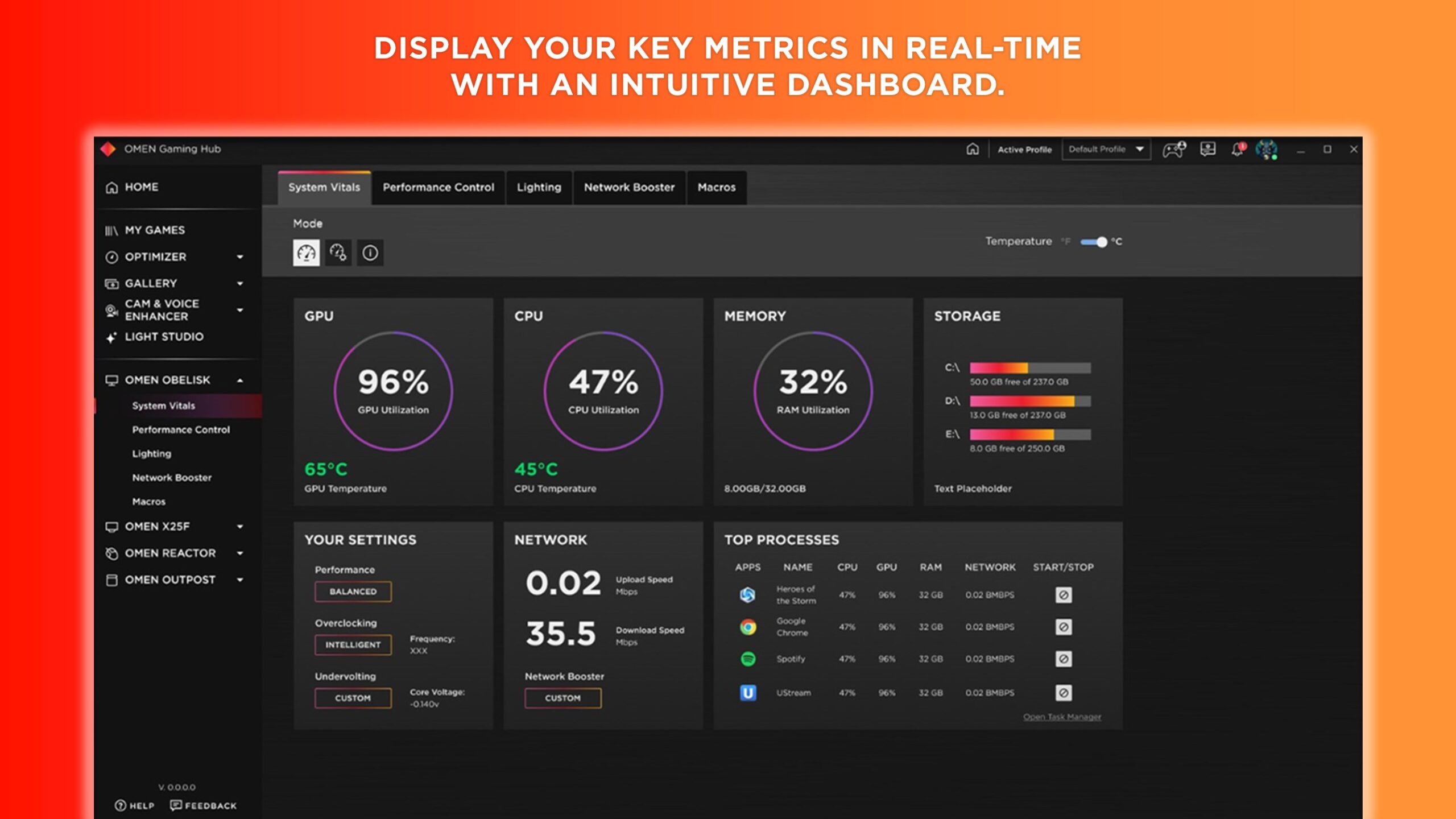
Another very useful part of OMEN Gaming Hub is the system vital signs panel , which displays a comprehensive summary of performance metrics. If you want to understand why a game is lagging or why your laptop is making so much noise, this is the place to look.
Key metrics include CPU and GPU usage , which indicates how much load each component is handling. If you see the GPU at 100% and the CPU idle, the game is clearly GPU-bound; if it's the other way around, you might need to lower settings that are putting a heavy load on the processor.
Temperatures are another critical reading; to measure your CPU temperature without installing any programs, see this guide. Prolonged high temperatures can cause thermal throttling, resulting in sudden performance drops and stuttering.
CPU and GPU clock speeds are also displayed . If you see frequencies drop during gameplay even in performance mode, it's very likely that the system is entering protection mode due to temperature or power limitations.
Finally, memory usage (RAM and VRAM) will help you determine if you're running low on any resources. If your RAM is almost full at all times, you might want to close more applications or consider upgrading your memory.
Thermal management and benchmarking
Thermal management is one of the most critical aspects of gaming laptops. Heat is the silent enemy that, if left unchecked, causes performance to drop and damages the hardware.
With OMEN Gaming Hub you can monitor temperature trends over time , which is very useful for seeing if a specific game spikes the numbers or if, after cleaning or changing the thermal paste, things have improved.
The system also helps you identify thermal throttling events , which are times when the processor or graphics card reduces its frequency to avoid exceeding a safety threshold. If these events are very frequent, it's a sign that you need to adjust fan curves or lower the system demands.
From the same panel, you can adjust fan curves in modes that allow it. Increasing the fan speed before the temperature spikes can maintain more stable performance, at the cost of slightly more noise.
Additionally, you can run benchmark tests to compare performance before and after changing settings. This allows you to objectively determine whether overclocking, mode switching, or thermal adjustments have actually increased your FPS or simply increased noise.
Specific configuration according to equipment type
Adjusting the OMEN Gaming Hub on a desktop computer is not the same as adjusting it on a slim laptop. Each format has its own thermal and power limits, and it's best to adapt to them to avoid problems.
On a desktop PC, you typically have better cooling and a more generous power supply . This allows you to be more aggressive with GPU overclocking, sometimes reaching values like +200 MHz core speed if the card and cooling system support it.
Some OMEN desktop computers allow you to safely activate "Extreme Performance" profiles . These profiles are validated by the manufacturer within certain limits that should not affect the warranty as long as they are not pushed beyond the recommended limits.
In high-end CPUs, it's possible to see frequencies in the 5,0-5,5 GHz range on all cores with the appropriate voltage. The key is to maintain reasonable temperatures, ideally below about 75 °C under sustained load for good longevity.
You can also create balanced profiles that prioritize pleasant acoustics over maximum performance, slightly reducing turbo frequencies in exchange for less noise. OMEN AI can help automatically adjust settings based on the task at hand without you having to change anything manually.
In laptops, however, thermal management should be prioritized over raw performance, especially in thin chassis. If your laptop has a MUX switch , consider enabling it to improve GPU output. Using external cooling pads, slightly raising the back of the laptop, and ensuring the vents aren't blocked helps a great deal.
Laptop optimization: battery vs. performance
On a Windows 11 gaming laptop, one of the key points is balancing battery life and performance. The most sensible approach is to enable Turbo or high-performance modes only when the laptop is plugged in , as power limitations on battery will be significant and the impact on battery life will be drastic.
It's a good idea to create separate profiles for battery and charger use . In the battery profile, prioritize ECO or Balanced modes, set the fan to Auto, and limit FPS ; in the charger profile, you can enable Performance mode, a more aggressive fan speed, and slight overclocking if temperatures allow.
Some users have reported cases where, after an update, OMEN Gaming Hub forces the GPU to 100% usage even in light games , causing stuttering and FPS drops compared to when the app wasn't installed. This type of behavior is usually linked to a misapplied mode or a conflict with Windows.
In situations like this, one option is to use "Low Noise Mode" when it's not plugged in . This mode can free up some GPU memory and avoid certain unusual limitations, although it doesn't always unlock 100% of the system's potential . Combine this with high-speed fans if you see temperatures above 80°C.
If the problem persists, you may need to reset the app on Windows 11. From Settings → Apps → OMEN Gaming Hub → Advanced options, you have the "Reset" option. This clears the settings and returns the app to its initial state, which sometimes eliminates crashes and performance limitations.
Relationship between OMEN Gaming Hub and Windows 11 power options
A common question is what happens if you set OMEN Gaming Hub to Performance mode while Windows 11 uses an "Energy Efficiency" or similar power plan. In practice, both systems have an impact, and the final result depends on how well the manufacturer has integrated OMEN with the system's power plans.
Typically, OMEN power modes rely on manufacturer-specific power profiles that override the standard Windows power plans . This means that on many HP laptops, the OMEN configuration tends to take precedence over the standard Windows power plan when controlling power limits and turbo behavior.
However, if Windows 11 is using a very restrictive mode, such as an extreme efficiency plan, it may still impose certain CPU frequency or power management limits . Therefore, it's ideal to align both: use a High Performance or Best Performance plan in Windows when you're going to use Performance mode in OMEN.
Another complication is Core Isolation and other Windows 11 security features . In some cases, these protections can block OMEN drivers or modules needed to change power modes or overclock , forcing the user to temporarily disable these features and restart.
If you find yourself having to disable core isolation for OMEN to work, consider how much you really need those advanced OMEN features. On many systems, you can achieve a more than acceptable experience simply by controlling power and fan modes without using the more intrusive features.
Maintenance and troubleshooting of common problems
For OMEN Gaming Hub to run smoothly on Windows 11 in the long run, it's important to perform some maintenance. The first step is to always keep the application updated, either from the Microsoft Store or through the built-in update system.
Check periodically for updates to OMEN and its associated drivers in the settings menu. If possible, enable automatic updates to receive bug fixes, performance improvements, and compatibility with new games.
If you notice unusual behavior, such as sudden FPS drops after opening OMEN or unresponsive features, it's worth checking for conflicts with other gaming utilities . Third-party programs that also affect fan speeds, overclocking, or overlays can interfere with OMEN.
In such cases, temporarily disable other tools (e.g., third-party GPU suites, platform overlays, automatic optimizers) and check if the problem disappears. Often, two utilities attempting to control the same thing produce unpredictable results.
If none of this works, you can try resetting OMEN Gaming Hub from your Windows app settings. Keep in mind that this will erase profiles, custom settings, and any saved overclocking or lighting configurations , so be aware of this beforehand if you want to restore them later.
Properly configuring OMEN Gaming Hub in Windows 11 is key to transforming your HP PC from a "gaming PC" into a truly optimized gaming machine . Understanding the function of each power mode, how it interacts with Windows plans, leveraging OMEN AI, Network Booster, and game profiles, and spending time monitoring temperatures will allow you to play with higher FPS, less stuttering, and complete control over your system's performance, without relying on generic configurations that rarely match your actual play style.

Passionate writer about the world of bytes and technology in general. I love sharing my knowledge through writing, and that's what I'll do on this blog, show you all the most interesting things about gadgets, software, hardware, tech trends, and more. My goal is to help you navigate the digital world in a simple and entertaining way.