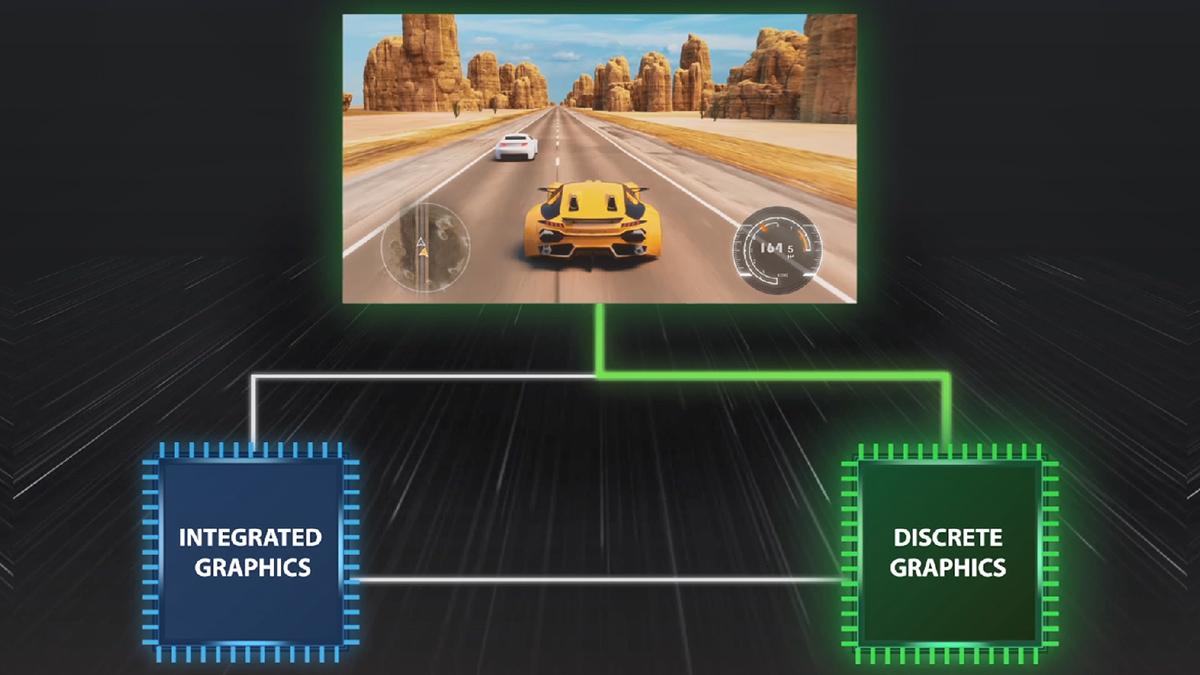
- The MUX Switch connects the display directly to the dGPU, avoiding the iGPU bottleneck.
- Turn it on for gaming (more FPS and less latency) and switch back to Hybrid/Eco to save battery.
- If you don't have a MUX, use an external monitor on a port wired to the dGPU for a similar effect.

If you have a gaming laptop and feel it's lacking something, you've probably heard the saying that the iGPU bottlenecks performance when the dGPU does the heavy lifting. For many, the solution is to use a MUX switch, a small but powerful invention that's a game-changer when you're looking for maximum FPS and lower latency.
In the following lines, we've gathered and reorganized everything covered in the best guides on the subject: what a MUX Switch is, how it works with Optimus/MSHybrid, how to activate it , and what alternatives you have if your system doesn't include it. And yes, we'll also discuss Advanced Optimus and when it's beneficial to use an external monitor to free up space on the iGPU.
What is a MUX Switch and why are you interested?
A MUX switch (multiplexer) is a hardware chip integrated into the laptop's motherboard that allows the video signal to be redirected directly from the dGPU to the screen , completely bypassing the iGPU. It's not magic: it's a physical switching of the path the frames take, and therefore results in very clear changes in performance and battery life.
When you activate the MUX, the dGPU communicates directly with the laptop's display, eliminating the bottleneck that occurs when frames generated by the dedicated GPU first pass through the integrated GPU. In practice, this can result in anything from modest improvements to significant FPS jumps in competitive titles.
It's important to understand two things: you can't install a MUX switch later (it's soldered hardware, not an accessory), and you can't emulate it with software either. If your system doesn't have one, you'll have to use alternatives like an external monitor connected to a port that's part of the dGPU.
Dual GPU, Optimus/MSHybrid and the famous bottleneck
Most high-end laptops combine an integrated GPU (iGPU) ( Intel Iris Xe, AMD Radeon iGPU, etc.) with a dedicated GPU ( NVIDIA GeForce RTX, AMD Radeon RX, Intel Arc). Technologies like NVIDIA Optimus, AMD Dynamic Switchable Graphics, and MSHybrid automatically select which GPU to use at any given time.
The idea is logical: for light tasks (browsing, office applications, video), you use the iGPU to save resources; when you open a game or 3D app, the dGPU kicks in. The problem is that in many factory designs, the laptop screen is physically connected to the iGPU . The result: even if the dGPU is rendering, the frames pass through the integrated GPU before being displayed, creating a bottleneck that reduces performance and adds some latency.
How much performance is lost? It depends on the hardware and the game. In realistic GPU benchmarks , disabling iGPU routing with MUX can improve performance by 1–15% at 1080p and 1440p, and there are scenarios where increases of around 17% have been observed . In esports titles with very high FPS rates, there are extreme cases showing drops of 40–50% when the signal has to pass through the iGPU.
As you increase resolution and graphics quality, the bottleneck associated with the iGPU route diminishes because the dGPU becomes the limiting factor ; even so, the jump is still measurable in many hardware and game combinations.
What specific improvements can you expect by activating the MUX?
With the MUX enabled, the video signal from the dGPU goes "in a straight line" to the panel. This results in higher FPS and lower input lag , especially in competitive shooters, MOBAs, or titles where a high refresh rate makes a difference, and on some systems, also in features like hardware-accelerated GPU scheduling.
In terms of performance, it's reasonable to expect gains of 1–15% at 1080p/1440p on well-balanced systems. Some reports cite peaks of 17% , and exceptionally, even greater differences in highly CPU-bound scenarios with very high framerates. At 4K, the improvement may be more modest, because the dedicated GPU is already working at its limit.
Beyond the FPS boost, other benefits are practical: compatibility with technologies that are sometimes unavailable in hybrid mode , such as NVIDIA ShadowPlay or G-Sync on certain displays. It also reduces microstuttering in some iGPU-sensitive titles.
Features unlocked by bypassing the iGPU
When the dGPU directly powers the display, features become available that might be unavailable in hybrid mode. For example, NVIDIA ShadowPlay (low-impact capture/streaming) is designed to work with the dGPU active. If the pipeline is limited to the iGPU, it may be unavailable or malfunction.
The same applies to G-Sync on some integrated displays: if the signal path isn't connected to the NVIDIA GPU, adaptive sync won't activate. Note that modern iGPUs support VRR (variable refresh rate), so some laptops can achieve hybrid sync, but this isn't universal and depends on the display and firmware.
How to know if your laptop has a MUX switch
There are several ways to find out. The most direct is to check your model's specifications or manual on the manufacturer's website, where they often list "MUX Switch," "GPU Mode," "Hybrid Graphics," or "Advanced Optimus." Some computers even have a sticker on the chassis indicating this.
The second option is to open the manufacturer's support application: ASUS Armoury Crate, Lenovo Vantage, HP OMEN Gaming Hub , MSI Center, etc. These panels usually display a switch labeled "GPU Mode," "Hybrid Graphics," "Optimus," or something similar. If such a setting exists, the system likely has a MUX chip.
If you can't find anything in Windows , check the BIOS/UEFI . Some laptops (for example, certain Dell G15 models) only allow you to toggle hybrid mode from there, and require a full restart. If it's not there either, that's bad news: your motherboard most likely doesn't have a built-in MUX.
Keep in mind that some brands include it in many models, but not all. There are examples of high-end gaming PCs, such as some ASUS ROG Strix or Zephyrus models , that do without the MUX in certain specific configurations, although each generation is different and it's best to verify.
How to turn the MUX on or off (and what the modes mean)
Brands typically offer a clear selector within their app. ASUS, for example, offers options like Ultimate (dGPU only), Standard (hybrid mode: the iGPU routes the signal), Eco (iGPU only), and Optimized (mixed behavior depending on whether it's plugged in or running on battery). The names vary between manufacturers, but the concept remains the same.
When switching between hybrid mode and dGPU-only mode, the system must completely reboot to reconfigure the video path at the hardware level. This is a nuisance if you switch between modes daily, but the performance benefits in games outweigh the inconvenience. Tip: If you frequently play games and use your laptop plugged in, leave the MUX in dGPU mode and forget about it.
Even without a MUX, games will still run ; you simply won't get the extra performance and compatibility that comes with using the direct path through the dGPU. Therefore, a MUX isn't essential, but it's highly recommended if you want to squeeze out higher frame rates and reduce latency.
Impact on the battery and daily life
With the MUX in dGPU-only mode, the dedicated graphics card remains active even during light tasks, and that's the worst thing you can do in terms of energy efficiency. It's common to see battery life drop significantly (in many cases, practically half compared to hybrid mode) if you leave the dGPU powering the display all the time.
That's why it's good practice to play while plugged in with the MUX enabled; switch back to hybrid or Eco mode when you need to work on battery power . If you use your laptop as a desktop computer, plugged into the wall all the time , the battery life impact becomes less of a concern.
What if your laptop doesn't have a MUX? Effective alternatives
The most useful method is to connect an external monitor to a port that relies on the dedicated GPU (dGPU ). Many systems connect an HDMI or DisplayPort/USB-C cable (with DP alt-mode) directly to the dedicated GPU. By plugging the display into this output, you achieve the same practical effect as using a multiplexer (MUX): the dGPU sends the frames directly to the monitor.
How do you know which port is connected to which? If you have an NVIDIA card, open it and go to “Configure Surround, PhysX.” There you'll see a diagram showing the outputs and which GPU is handling them. On some ASUS devices, for example, the iGPU powers the internal display and USB-C, while the RTX handles HDMI.
Important tip: When playing with an external monitor without a MUX, turn off your laptop screen or, at the very least, avoid mirroring it. Mirroring mode can activate the iGPU and put it back in the signal path, which is exactly what you want to avoid.
Advanced Optimus: the automatic MUX
NVIDIA released Advanced Optimus to address the issue of system restarts. Essentially, it's a dynamic multiplexer (MUX) that automatically routes the display to the integrated GPU (iGPU) for light tasks or the decentralized GPU (dGPU) for games/3D workloads, without requiring any manual intervention or a system restart.
In theory, it's the perfect solution; in practice, its adoption is still limited. Some manufacturers have reported maturity issues , and to this day, only a handful of models consistently offer it. It's expected to become more widespread over time, but if you're in a hurry, a classic MUX is still a safe bet.
iGPU vs. dGPU: Key Concepts When Choosing a Laptop
The integrated GPU (iGPU) lives inside the CPU chip and shares power with it. They are very efficient, inexpensive, and run cool , allowing for thin chassis and good battery life. They are suitable for everyday tasks and some more demanding ones, but fall short in heavy video editing or 3D rendering.
A dGPU is a dedicated graphics processor with its own power supply and cooling system. It offers significantly more power and stability , unlocks features like ray tracing, and accelerates content creation and AAA games. However, it takes up more space, weighs more, generates more heat, and consumes more battery power.
Many laptops with a dGPU also have an iGPU, and the system switches between them depending on the workload. This is where the MUX comes in: having one allows you to choose the direct path to the screen when you need performance, or return to hybrid mode to extend battery life.
Another detail: some video outputs (HDMI, USB-C, MiniDP) can be wired directly to the dGPU , which accelerates external displays. This is a plus if you work with multiple monitors or if your internal panel doesn't support G-Sync/VRR with the hybrid routing.
What real-world performance have users seen?
There are examples with ROG laptops where, at 1080p, the gains range from 1% to 15% depending on the game, with similar figures at 1440p. In competitive titles with hundreds of FPS, the difference can be even greater by eliminating the iGPU.
One important detail: as you increase the resolution, the dGPU becomes the main limiting factor, and the advantage of the MUX diminishes . At 4K, except in specific cases, the improvement is usually small in everyday use.


Passionate writer about the world of bytes and technology in general. I love sharing my knowledge through writing, and that's what I'll do on this blog, show you all the most interesting things about gadgets, software, hardware, tech trends, and more. My goal is to help you navigate the digital world in a simple and entertaining way.