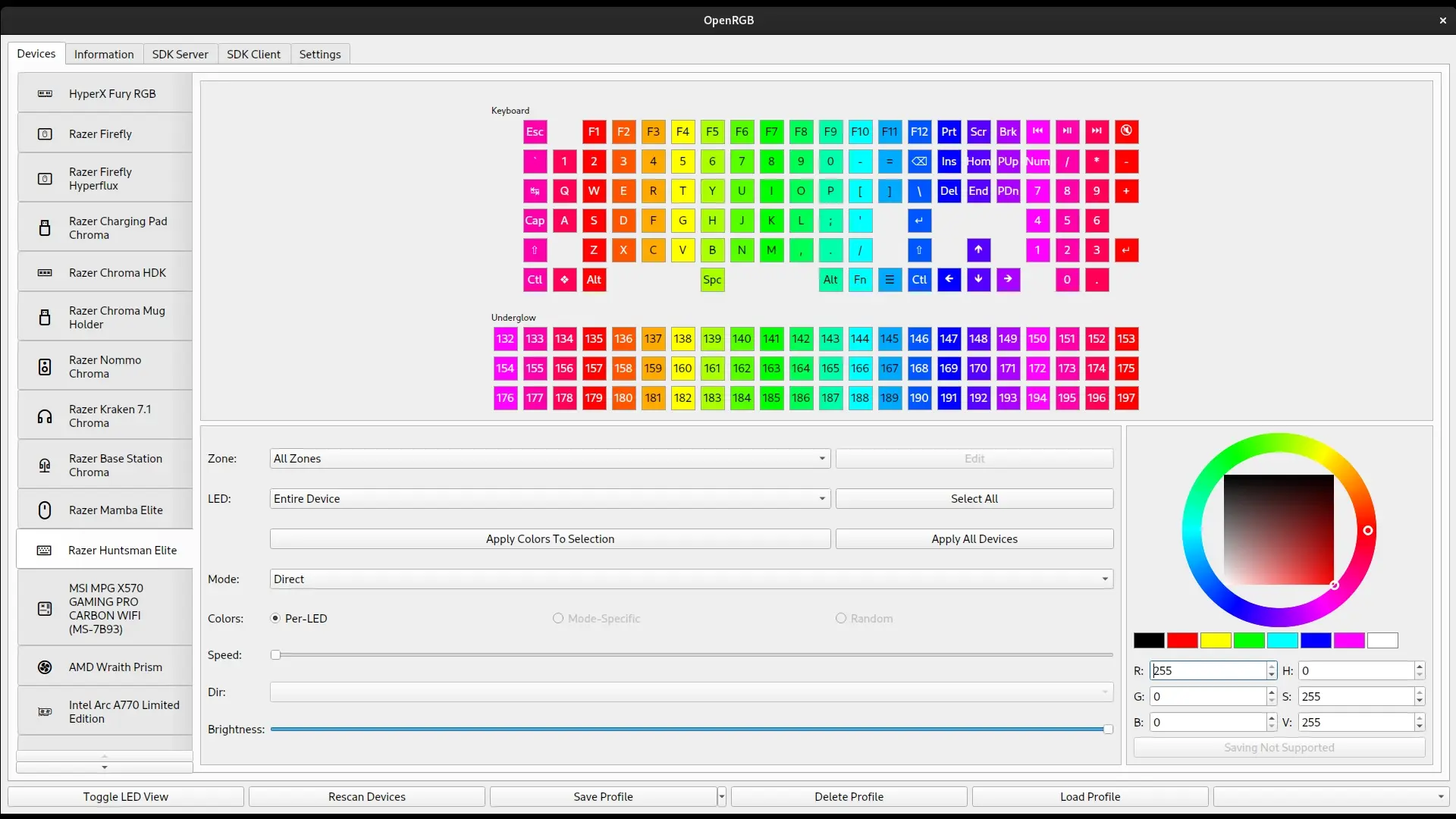
When OpenRGB doesn't detect any lights, detects only part of the system, or the lighting goes haywire, you're not alone: many users experience issues such as the motherboard appearing but the RAM not even being listed as a device , ARGB fans turning off or flickering, or Windows starting to loop the USB connection sound . It's frustrating, but there are solutions.
In the real-world cases you've shared with us, there are two very clear scenarios: on Linux (for example, Linux Mint with kernel 5.15), OpenRGB recognizes compatible drivers except for the RAM , and on Windows, after adjusting effects on the motherboard, everything flickers, the BIOS is incredibly slow, and the system emits constant USB sounds. Added to this are usability issues such as "press and hold" menus, unselectable options, and help menus that redirect to a Discord server. In this guide, we'll break down the common causes and provide specific solutions for RAM, ASUS/MSI motherboards, ARGB hubs, and conflicts with proprietary software.
Why OpenRGB doesn't detect lights (RAM, motherboard, and fans) and what's really going on
The first thing to understand is the difference between detection and control . If your ASUS, MSI, or similar motherboard appears, but the RAM doesn't, the problem isn't the color profile: it's that OpenRGB can't see the memory device on the correct bus. RAM (e.g., Corsair Vengeance RGB Pro in 4x8GB kits) is managed via SMBus/I2C by reading/writing to the modules' SPD addresses; if the bus isn't available to the user or there's a multiplexer that OpenRGB can't access, the RAM won't be detected.
In Linux, it's often stated that "ASUS and ASRock motherboards use a secondary SMBus interface for the RGB controller and require kernel version > 5.7 ." With kernel version 5.15, you're already above the minimum, so that shouldn't be the bottleneck. What is usually missing are the appropriate I2C modules and user permissions for the SMBus adapters (for example, i2c-piix4 on AMD, i2c-i801 on Intel , and access to the nct6775 super I/O).
Another major source of problems stems from Windows: by mixing ecosystems (MSI Center/Mystic Light, ASUS Armoury Crate, Corsair iCUE ), it's easy for one service to take exclusive control of the motherboard's RGB controller or the RAM, blocking the others. If, after using OpenRGB, the LEDs flicker, the ARGB fans disappear, and Windows constantly displays "USB connected," it's most likely that the motherboard's RGB microcontroller has become unstable or that a service is repeatedly trying to re-enumerate a device.
Hubs can also be confusing: if you connect an ARGB hub to an addressable header (ADD_GEN2, D_LED, or similar), you won't see the four fans separately in any software; you'll only see one channel . When you change the effect, it's replicated across all fans connected to that hub in the same proportion. And be aware: these hubs also need to be connected to a fan header if you want to control the fan speed; otherwise, you'll only be powering the lighting.
Finally, regarding header configurations: 5V ARGB (3-pin, ADD_GEN2) versus 12V RGB (4-pin). Incorrect connections can result in flickering, shutdowns, or worse, damage to the device . Make sure your ARGB fans are connected to ADD_GEN2/D_LED and not JRGB. And remember that some ASUS/MSI motherboards offer two generations of ARGB; use GEN2 when available.
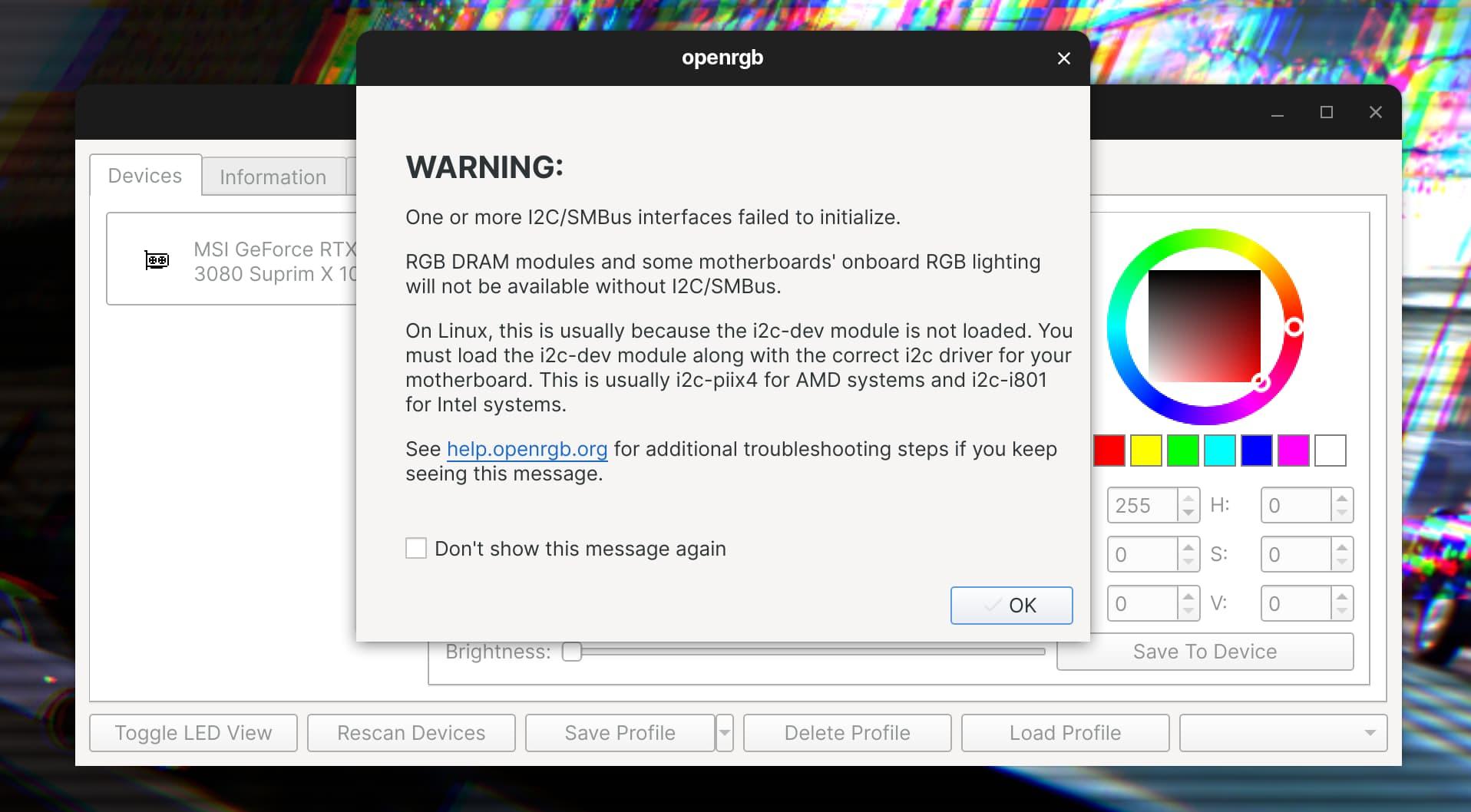
Troubleshooting on Linux (Mint 5.15 and later): SMBus/I2C permissions, modules, and UDEV
In the typical case of Linux Mint with kernel 5.15, OpenRGB detects the motherboard but not the RAM. Following the official steps resolves 90% of cases when, in addition to installing packages, UDEV modules and rules are corrected to grant the user access to the I2C/SMBus bus used by the memory.
Key steps you should take and check: install i2c-tools Using your package manager, load i2c-dev and add your user to the i2c group. For example: sudo apt install i2c-tools, sudo modprobe i2c-dev, sudo groupadd --system i2c (if it does not exist) and sudo usermod -aG i2c $USER. If you want autoload at startup, create the file in /etc/modules-load.d/i2c.conf with i2c-dev.
On AMD platforms, it is usually necessary to load the i2c-piix4 driver to expose the chipset SMBus: sudo modprobe i2c-piix4. At Intel, the equivalent is i2c-i801 and, for the super I/O, nct6775 (in some recent kernels it is called nct6775-core). Check what adapters you have with sudo i2cdetect -l and write down the ones you are interested in: PIIX4 (AMD), I801 (Intel) and NCT6775 (super I/O).
The point that usually remains half-finished is that of UDEV: without rules, your user will not have permissions on those buses and OpenRGB will not be able to enumerate RAM. If you did not install OpenRGB from a package that already installs rules (DEB, RPM, or AUR), create a file, e.g. /etc/udev/rules.d/60-i2c.rules, with I2C inputs on your I2C group. A generic example:
SUBSYSTEM=="i2c", KERNEL=="i2c-*", GROUP="i2c", MODE="0660"
KERNEL=="i2c-*", ATTR{name}=="SMBus PIIX4", GROUP="i2c", MODE="0660"
KERNEL=="i2c-*", ATTR{name}=="SMBus I801 adapter", GROUP="i2c", MODE="0660"
KERNEL=="i2c-*", ATTR{name}=="NCT6775", GROUP="i2c", MODE="0660"
After saving, reload rules with sudo udevadm control --reload-rules y sudo udevadm trigger, or log in again. From there, launch OpenRGB without sudo (just as a test you can use sudo to confirm it's a permissions issue, but the goal is function as a user).
If your motherboard is ASUS/ASRock and someone has told you that it requires kernel >5.7, don't worry: with 5.15 you're covered. On certain models, the RGB controller is behind a I2C multiplexer (pca954x), which the kernel usually detects and handles automatically. You can verify with dmesg | grep -i i2c if it is loaded i2c-mux-pca954x. On some ASUS, it is also a good idea to check that the modules asus_wmi/asus-nb-wmi are not interfering with access to the super I/O; if you have sensor readings with acpi_enforce_resources=lax for nct6775, keep the configuration stable and don't mix tools that open the same chip at the same time.
To confirm that the RAM is on the bus, run i2cdetect -y X on the correct adapter (replace X with the index of PIIX4/I801) and look for addresses 0x50–0x57. If they are listed, SMBus sees the modules; if OpenRGB doesn't list them, try the latest stable or nightly version, enable the debug log and check for "SMBus/I2C" messages. If they don't appear under i2c, your BIOS or chipset may be hiding the SPD bus or the multiplexer is not exposed; check for BIOS updates and SPD security options if they exist.
And an important clarification: if in your case "it's not that the RAM doesn't load the profile, but that it doesn't even appear," the solution is not in the effects or in applying profiles, but in achieving basic detection in SMBus with loaded modules, permissions to the i2c group, and well-created UDEV rules.

Windows: MSI/ASUS/Corsair ARGB hub conflicts, recovery from flashing, looping USB, and slow BIOS
If you've ever experienced a situation where, after trying to change the motherboard's LEDs with OpenRGB, the ARGB fans turn off, the motherboard's RGB lights start flashing , and Windows makes a sound like you're constantly plugging in a USB device, you're facing a serious conflict between the motherboard's RGB microcontroller and several services trying to take control (OpenRGB, MSI Center/Mystic Light, Armoury Crate, iCUE, etc.).
In a real-world setup (MSI MPG B550 Gaming Plus + Ryzen 5 5600X + MSI RTX 3060 Gaming X Trio + Corsair Vengeance RGB Pro 4x8 GB + Samsung 970 Evo 1 TB NVMe SSD ), this pattern was observed: after uninstalling OpenRGB and accessing MSI Center, Mystic Light detected an "anomaly" and recommended a BIOS update. The update resulted in a no-POST, recovery via USB Flash BIOS, and upon restarting, the USB loop and flickering persisted, along with an extremely slow BIOS and keyboard lag . Even after updating with M-Flash, the problem remained.
To restore stability: 1) Turn off the computer, disconnect the power, and press the power button to discharge. 2) Disconnect all ARGB/RGB headers and the motherboard header hub. 3) Boot into BIOS, load default values, and save. 4) If the BIOS is still slow, clear the CMOS using the appropriate jumper/button. If you have a Flash BIOS Button, flash a stable version ( FAT32 , the exact file for your motherboard) and wait the recommended time before changing anything. 5) In Windows, completely uninstall MSI Center, Armoury Crate, and iCUE temporarily, including any residual services.
Once the motherboard is functioning normally, install only the official utility for your motherboard (for example, MSI Center) and let it reconfigure the factory RGB controller ; set a static effect and disable the SDK or external control if offered. If everything is stable, close and disable the automatic startup of MSI Center/Armoury Crate before installing OpenRGB. Important: iCUE and Armoury Crate may conflict with the RAM ; test if iCUE recognizes your memory after closing Armoury Crate. If not, disable the Aura/ASUS service from Services until the next boot.
Regarding the hub: if it's connected to an ADD_GEN2/D_LED header, you'll see a single device for the entire branch. To control fan speeds, the hub must also be connected to a fan header (CPU_FAN/CHA_FAN) according to its manual. Make sure you don't mix 5V ARGB with 12V RGB. If your headers are named ADD_GEN2, that's the correct one for addressable strips and fans. Any incorrect connection could cause blackouts and flickering.
Regarding the OpenRGB user experience: yes, there are interfaces with "click and hold" menus and some options that appear unselectable; these have improved in recent builds, and the help section may direct you to their Discord server (via browser notification) because the community centralizes support there. If something isn't working, try the latest stable or nightly build, run it as administrator only to test for conflicts, and enable logging in File > Settings > Logging to diagnose drivers that won't open.
Practical advice if you're using ASUS: uninstall older versions and download the latest Armoury Crate from the website , as it's usually more stable than outdated packages. If you're still not satisfied, switch back to OpenRGB after disabling ASUS services. And if you're using Corsair, make sure iCUE is the only component controlling the RAM when you want advanced effects; the Corsair SDK and OpenRGB don't always work well together.
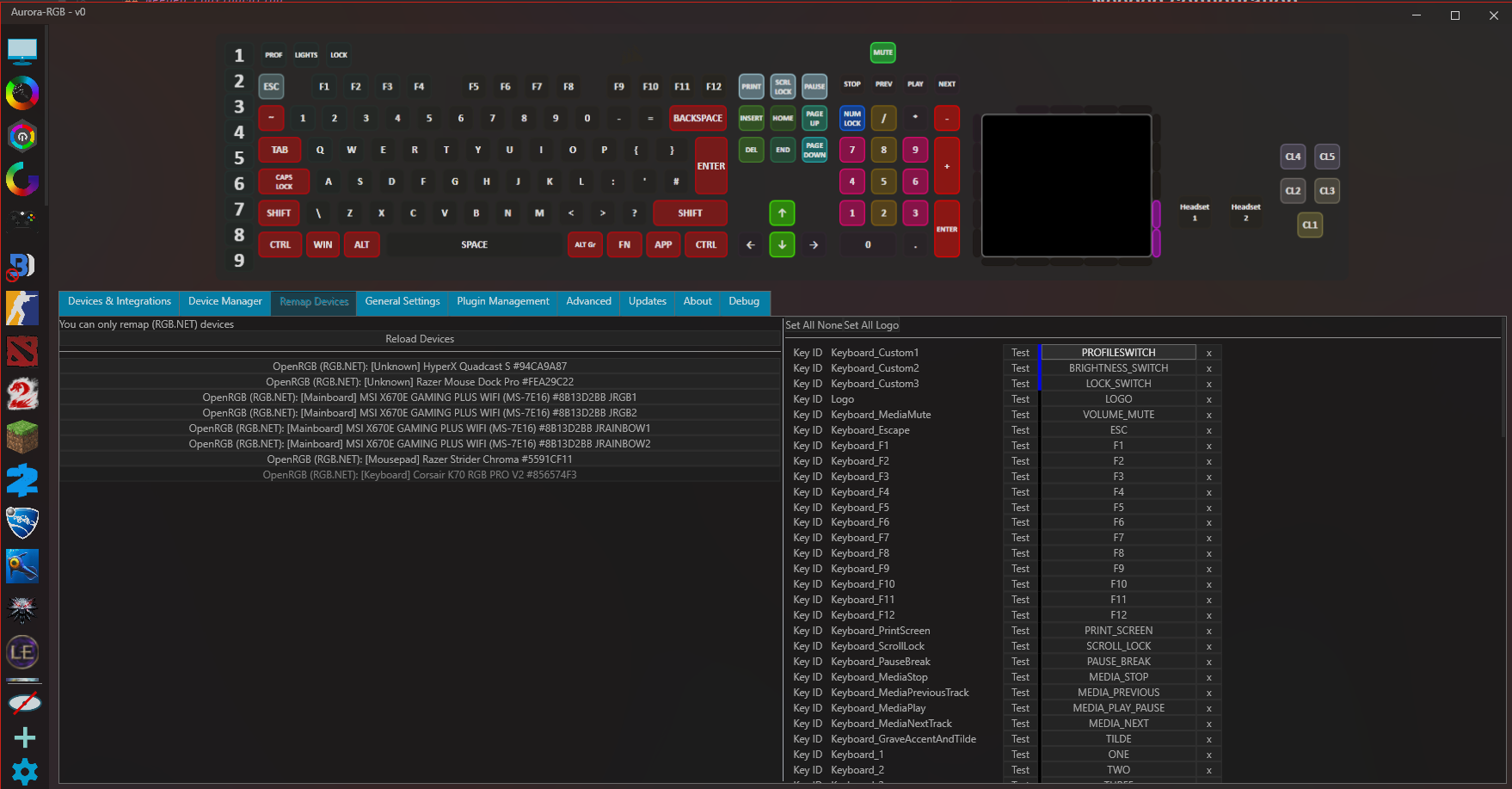
If OpenRGB still doesn't detect the RAM in Windows but everything else does, disable MSI Center/Armoury/iCUE from starting up in Task Manager , restart, and try a clean install of OpenRGB. Apply the " one driver at a time " principle: 1) discover and fix the static effect using the official tool, 2) close the tool completely, 3) open OpenRGB and take control, 4) if everything works correctly, you can re-enable services, but prevent them from starting with Windows.
Finally, if you're worried about bricking your BIOS after following Mystic Light's advice to update, always use official methods (M-Flash/Flash BIOS Button) with a stable power supply, format the USB drive to FAT32, don't interrupt the process, and wait for the BIOS LED to finish its cycle. If it doesn't turn off on the first try, check the file and path and repeat the process carefully; the RGB microcontroller may require complete reprogramming to return to normal.
The PC RGB ecosystem isn't exactly plug-and-play, especially when combining components from MSI, ASUS, and Corsair. The key is isolating problems: in Linux, ensure modules and SMBus permissions are complete with UDEV; in Windows, prevent multiple suites from competing for the same chip, use the correct headers (ADD_GEN2 for ARGB), understand that a hub appears as a single channel , and if the OpenRGB interface isn't appealing, rely on its community and updated versions. With these pillars in place, your RAM will no longer be invisible, and your lighting will function flawlessly again.


Passionate writer about the world of bytes and technology in general. I love sharing my knowledge through writing, and that's what I'll do on this blog, show you all the most interesting things about gadgets, software, hardware, tech trends, and more. My goal is to help you navigate the digital world in a simple and entertaining way.