- The backup of WhatsApp It's used to restore chats on your mobile device, while exporting generates readable files (TXT, HTML, ZIP) that you can use outside the app.
- From Android, iOSWith WhatsApp Web and the desktop app, you can save conversations and files to your computer using exports, direct downloads, and cloud services like Google Drive or Google Photos.
- To export all chats at once, it is necessary to use external software that works on backups, which requires caution and good security management.
- Properly organizing exported files and protecting them on your PC allows you to keep a complete history of your chats without losing the security offered by automatic cloud backups.
Saving your WhatsApp conversations is no longer just for the curious: for many people, their chats are almost as important as their email , because they store work agreements, family photos, documents, and a wealth of memories. If you also use WhatsApp on your computer, it's natural to want to know how to extract those conversations and files cleanly and securely.
In the following lines, you'll see, step by step, all the practical ways to export WhatsApp chats (including from your desktop) , the limitations of each method, what you can do with the backups, and when it's best to use external tools. The idea is to give you a clear guide to choose the system that best suits your needs at any given time.
Exporting chats versus cloud backup

WhatsApp allows you to create automatic backups, but these backups are stored in the cloud and are not directly readable . On Android, they are stored in Google Drive (and an encrypted local file is also generated), and on iOS in iCloud; if you need to manage backups from the cloud, see how to create full backups with Google One . The problem is that you can't open this backup like a normal file and read your messages.
The backup system is designed so that when you change phones or reinstall the app, you can restore your chats within WhatsApp , not so you can view them on your computer or convert them into reports, PDFs, or similar files. In other words, it's a "closed" backup that only the application itself can access.
To save conversations so you can manage, share, or read them with any text editor or browser , the useful option is chat export. In this case, WhatsApp "packages" a specific conversation and converts it into readable files (TXT, HTML, ZIP with multimedia, etc.) that you can open outside the app.
This has an important consequence: there's no official button to export all your WhatsApp chats at once . The app only allows you to do it conversation by conversation. If you want to export in bulk, you'll need to use third-party software that works with backups; if your goal is to switch devices, see how to transfer chats between phones.
How to export WhatsApp chats on Android

On Android, the app itself includes a built-in feature to export a chat history to a text file , with the option to include or exclude media files. It's a simple process, but you need to know where the setting is hidden. Also, if you notice the app is running slowly, it's a good idea to follow some tips to prevent WhatsApp from slowing down your Android device.
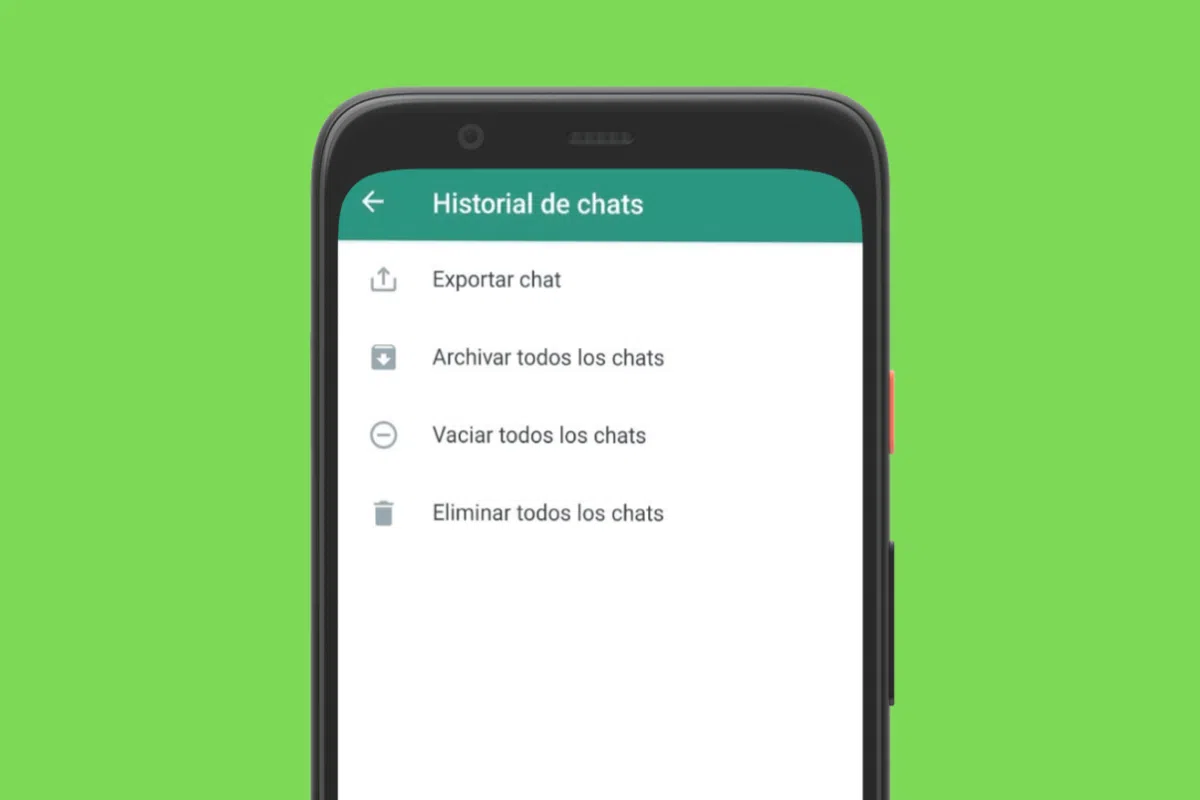
The general process involves going to the app's settings and finding the chat history, where you'll find the "Export chat" option for specific conversations . Using this feature generates one or more files that you can send via email, to a cloud service, or save to your phone's internal storage using the Android share menu.
When exporting, you can choose to include photos, videos, audio, and documents , or just the text. If you add media, the result is usually a ZIP file containing the text file and a folder with the attachments. If you choose only text, you'll get a much smaller .txt file. If you're concerned about file size, see how to identify which chats are taking up the most space.
Once you have the export on your phone, you can transfer it to your computer in several ways: uploading it to Google Drive or another cloud storage service , connecting your phone to your PC with a USB cable and copying those files, or even using Bluetooth if you have no other alternative and don't mind the process being slower.
How to export WhatsApp chats on iPhone (iOS)
On iOS, the philosophy is the same, but the process differs slightly: exporting is usually done from within the chat itself , using the conversation info panel. Once you locate that option, you choose whether or not to attach media files.
On iPhones , when you export a chat, it usually generates a ZIP file that includes the text history (typically in .txt format) and, if you requested it, any photos, videos, documents, and voice notes attached to the conversation. The file size increases significantly if you include multimedia.
To save the export within the Apple ecosystem, you can use "Save to Files" and store it in iCloud Drive or on your device's internal storage . If you prefer to work with Google's cloud services or others, you can also send it to apps like Google Drive, Dropbox, or similar from the sharing menu.
Then, from a Mac , it's very convenient to use AirDrop to send the ZIP file directly to the computer and open it there, or simply let iCloud or your favorite cloud service sync it. On Windows or Linux , the most practical way is usually to use cloud storage that you also have installed on your PC.
Exporting chats vs. backup: when to use each option
Exporting chats and creating backups serve very different purposes, and it's important to understand them clearly to avoid confusion, thinking one replaces the other . Automatic backups are your safety net if you lose your phone or delete the app; exporting is a tool for archiving and reading specific conversations outside of WhatsApp.
It's recommended to keep automatic backups enabled at all times , whether on Google Drive (Android) or iCloud (iPhone). This way, if you switch phones or restore your system, you can recover your chats within the app without having to export anything.
Exporting, on the other hand, makes sense at specific times: when you want to save a conversation in plain text (for example, a work group, a chat with a lawyer, or a sentimental conversation you don't want to lose), when you need to extract all the multimedia files from a specific chat at once, or when you plan to delete your account and want to take at least the most important threads with you; in that case, it can be useful to know how to safely empty your WhatsApp chats .
It's important to keep in mind one key limitation: WhatsApp doesn't allow you to export all your chats at once from the official app . You have to do it one by one, which makes it clear that the feature is designed for specific cases, not for mass migrations of your entire chat history.
Use WhatsApp Web to save files to your computer
When you use WhatsApp in your browser, you can open photos and documents with one click, but that doesn't mean they're automatically saved to your computer . To actually download files to your hard drive, you need to use the download options in WhatsApp Web.
First, make sure you're using a browser compatible with WhatsApp Web . It works correctly in Chrome, Firefox, Safari, and Opera, but not in older browsers like Internet Explorer. Once you've confirmed this, simply go to web.whatsapp.com and link your account by scanning the QR code with your mobile device.
Once you're logged in, you'll see all your conversations in your browser and can use almost all of WhatsApp's features from your computer. To download specific files from a chat, open that conversation, click on the contact or group name, and select the "Files, links, and documents" section in the right sidebar.
There you'll find three tabs: one with all your photos and videos, another with sent or received documents, and a third with shared links. Hovering your mouse over each item will select it , and once you've selected several, you'll see a download icon (downward arrow) in the upper right corner.
Clicking on that icon will download the selected files to your computer via WhatsApp Web . If you've chosen more than one, they will usually be grouped into a ZIP file, which you can then extract and distribute among the folders you want on your system.
WhatsApp desktop app for Windows and Mac
Beyond the browser, WhatsApp offers a desktop application for Windows and Mac . Recently, especially on Windows, this app has evolved from being practically a clone of the web version to becoming a native application, available in the Microsoft Store.
The desktop app works as an extension of your mobile account: it syncs all messages between your phone and computer , so what you see on one you'll see on the other. The difference is that, once the devices are linked using the classic QR code, you no longer need your phone to be turned on or connected to the same network to continue using WhatsApp on your PC.
Among other features, the app includes a dark theme and specific keyboard shortcuts to open the emoji panel, manage GIFs, modify audio playback speed, and a good number of actions that make daily use much more convenient.
If you're interested in saving files from this version, with images you have two options: right-click on the image and select "Save as..." to choose the folder and format, or left-click to enlarge it and use the options in the upper right menu, where "Save as" or "Open in another application" also appears.
This system allows you to centralize all the photos and documents that interest you without having to send them to yourself by email or upload them to the cloud from your mobile phone, which is especially convenient if you work many hours in front of the PC.
Create a chat with yourself to transfer files between mobile and PC
A very practical solution for moving files between devices is to have a private chat with yourself in WhatsApp . This way you can send yourself notes, photos, PDFs, or any document from your phone to your computer (or vice versa) simply by dragging or attaching them to the chat, and then open them in WhatsApp Web or the desktop app.
The most common way to do this is to create a new group, temporarily add another person (a family member, for example), give the group a name, and ask them to leave the conversation . This way, you're left alone in that group and can use it as a "personal mailbox" for your files.
Another option is to save your own phone number as a contact in your phone's address book and then force a WhatsApp contact list update . Once you appear in the list, simply start a conversation with yourself, and you'll have a permanent thread to send yourself any content.
The advantage of this trick is that everything is centralized: you can clean the chat periodically to avoid accumulating junk, delete files when you no longer need them, and at the same time, you'll always have a place to leave quick things without bothering anyone.
Export chats from your mobile device to view them on your computer
Beyond using WhatsApp on your desktop, the classic option for having a readable copy of your conversations on your PC is to use the chat export function included in the phone app . As we've already seen, it's available on both Android and iOS, with slight differences.
On Android, you'll need to go to your chat history in the settings and use the "Export chat" command, while on iOS it's done from within the chat information itself. In both cases, text files are generated, optionally including any media files from the conversation.
Please note that messages sent with the "one-time view" option (photos and videos that can only be viewed once) are not exported during this process . This content is specifically designed to prevent the creation of a reusable history.
Once you've exported the chat, you can email it to yourself, upload it to the cloud, share it via Bluetooth, or copy it to your computer with a USB cable. When you open the TXT or HTML file on your PC, you'll see the conversation content in a readable format, with a timestamp and, usually, the contact or group name.
Connect your mobile phone to your PC via cable to copy WhatsApp files
In addition to the methods mentioned above, you can always take the direct route: connect your phone to your computer using a USB cable and access the internal folders where WhatsApp files are stored. This method is especially useful when you want to make a bulk backup of photos, videos, or voice notes.
On many Android phones, when you connect the cable you'll have to choose the connection mode. The safest option is to use the MTP (Media Transfer Protocol) , which mounts the phone as a media device and only displays the content folders (photos, videos, music, etc.), hiding sensitive parts of the system.
Once in your PC's file explorer, you should locate the WhatsApp folder and, within it, the "Media" folder. There you will find subfolders such as Images, Video, Audio, Voice Notes, Documents, Animated GIFs, Profile Photos, and Stickers , each containing the files corresponding to what has been sent and received.
Knowing this, you can directly copy the folders you're most interested in to your computer: for example, all voice notes, all profile pictures, or all sent videos. It's not the most convenient method if you only want a couple of specific files, but for large-scale data recovery, it's quite effective.
If the PC does not recognize the mobile phone, it is advisable to check several things: check the cable and try other ports, make sure you have selected file transfer mode on the phone , restart both devices, update the USB drivers from the Windows device manager or, as a last resort, use the system's own troubleshooter.
Cloud backups: Google Drive, Google Photos and their limitations
One of the most common misconceptions is that if you back up your WhatsApp data to Google Drive , you can access it from your computer's browser and download it like any other folder. The reality is that these backups are hidden and cannot be managed manually.
When you log into Google Drive with your account, you won't see the WhatsApp backup listed among your documents. The backup exists, it's stored, and it doesn't count against your storage quota (due to an agreement between Google and WhatsApp), but it can only be used to restore chats within the app on a compatible mobile device.
To access your WhatsApp photos from your PC via the cloud, a much more useful trick is to use Google Photos. First, you'll need to configure WhatsApp to automatically download the photos and files you want (ideally only over Wi-Fi to avoid using up your mobile data).
Next, you'll need to enable Google Photos backup and sync on your phone , making sure that backups are also created for the "WhatsApp Images" album or similar. From then on, images downloaded from WhatsApp will appear in Google Photos , and you'll be able to view and download them from your computer's browser.
In the web version of Google Photos you can download individual photos or download entire albums in a single ZIP file , which is very practical if you want to have a local folder on your PC with all the images you have received through the messaging app.
Save entire conversations using email
Another classic and very simple way to extract a chat from WhatsApp is to use the "Email chat" function . WhatsApp itself generates a text file with the conversation history and attaches it to an email ready to be sent to any address you choose.
The process involves opening the conversation you're interested in, going to the chat options menu, selecting "More," and then "Email chat" or "Export chat." There you can decide whether to attach multimedia files (photos, videos, etc.) or just the text.
If you choose to include multimedia, WhatsApp will attach the most recent files, and you can export approximately the last 10.000 messages from that conversation. If you prefer not to include attachments, the limit increases to around 40.000 exportable messages per chat, due to email provider size restrictions.
The final result is usually a .txt file containing the entire exported chat history and, in some cases, a compressed file with the attachments. Once you receive the email in your inbox, simply download these files to your computer to have a readable copy of the chat.
Export all WhatsApp chats at once using external programs
Since the official WhatsApp app doesn't allow you to export all chats at once, if you want to extract the complete conversation history to your PC almost all at once, you need to use third-party tools capable of working directly with backups.
One of the best-known solutions is iTransor for WhatsApp, a program compatible with Android and iPhone that allows you to create specific WhatsApp backups on your computer and then export them in various formats (HTML, CSV, etc.). This way, you can transfer all your conversations at once instead of going chat by chat.
The usual workflow with this type of software is: install the program on the PC, connect the mobile phone via USB, create a backup of WhatsApp on the computer , and then go to the "Restore / Export backup" section to select the most recent backup and extract the data.
Before saving your chats, you can choose the export format: HTML to view conversations with a mobile-like appearance , or CSV/XLS if you prefer working with spreadsheets and creating filters, statistics, or analyses. There are also options to export to plain text (.txt) or even JSON.
Another very popular tool on Android is WhatsApp Viewer, a program designed to read and export the contents of msgstore.db files , which are the databases where WhatsApp stores its local backups. With it, you can view messages and export them in HTML, TXT, or JSON format.
However, to use WhatsApp Viewer you need to obtain the database file and encryption key from the device, which requires following somewhat technical procedures and, in many cases, reading specialized documentation (such as certain threads on developer forums). It's not the most user-friendly option for everyone, but it offers a lot of flexibility.
In any case, it's important to remember that these types of tools are not official. You should only download them from trusted sources , carefully read user reviews, and be aware that you are accessing highly sensitive data. Therefore, it's advisable to exercise extreme caution and avoid suspicious "free WhatsApp export" programs that lack solid references.
Use other applications and protocols to transfer files
Beyond the specific solutions for WhatsApp, there are generic tools for moving files between mobile and computer that also allow you to extract content from the app without much hassle.
On one hand, there are programs like MobileTrans and similar ones, designed to manage backups, migrations between phones, and data transfers between apps . In these cases, you usually install the program, connect your phone via USB, choose the WhatsApp backup or transfer option , and let the software handle the rest. Most of these tools are paid, so it's a matter of considering whether you really need them. If you're looking to switch apps, there's also the option to import chats to Telegram.
On the other hand, many file management apps include a small FTP server. When activated, the phone displays an address like ftp://192.168.XX:XXXX , which you can open from a browser or an FTP client on your computer to access the phone's internal storage as if it were a shared network folder.
With FTP, you can access your WhatsApp folders (photos, videos, voice notes, documents, etc.) and copy what you need wirelessly , as long as your phone and computer are on the same Wi-Fi network. It's a slightly more technical method, but very convenient if you're already familiar with these types of protocols.
How to manage and protect your backups and exports
Once you start extracting your WhatsApp conversations and files, it's easy to end up with dozens of ZIP files, TXT files, and loose folders scattered across your computer. It's worth taking a few minutes to organize them properly so you don't go crazy in a few months.
The most practical approach is to create a simple structure, for example, folders by year and within them subfolders by content type or by contact/group . Renaming the ZIP files with something more descriptive than the date also helps a lot (for example, “FamilyGroup_2019-2022.zip”).
Remember that while WhatsApp cloud backups don't take up space and are encrypted, the exported files you save to your PC may contain highly sensitive information . It's advisable to protect them with strong usernames and passwords, disk encryption, or at least avoid leaving them in uncontrolled shared folders.
With a little organization, you can have a very complete historical archive of your WhatsApp chats accessible from your desktop, without sacrificing the security of official backups and combining the methods that best suit your way of working.


Passionate writer about the world of bytes and technology in general. I love sharing my knowledge through writing, and that's what I'll do on this blog, show you all the most interesting things about gadgets, software, hardware, tech trends, and more. My goal is to help you navigate the digital world in a simple and entertaining way.