- The commands AutoCAD shortcuts allow you to work much faster and more accurately than using only the menus.
- There are Fx keys, CTRL combinations, and one- or two-letter aliases for basic and advanced commands.
- The acad.pgp file can be edited to customize the abbreviations according to each user's needs.
- Practicing daily and repeating the last command with Enter, spacebar or right click is key to gaining fluency.

If you work with AutoCAD daily, you know that constantly navigating menus with the mouse is a bit of a chore, and that mastering keyboard shortcuts and quick commands completely transforms your workflow. Instead of wasting time searching for icons, you issue commands almost without thinking, chain actions together, and finish drawings much faster.
In the following lines, you'll find a comprehensive guide to AutoCAD commands and shortcuts in both Spanish and English , organized and explained so you can learn them practically. It includes everything from basic abbreviations for drawing and editing to Fx key combinations, CTRL shortcuts, and advanced commands for 3D, blocks, styles, point clouds, and coordination models.
What exactly are AutoCAD commands and shortcuts?
In AutoCAD, every action you perform can be activated by typing a command in the command line , either the full command name or its abbreviation (alias). This includes drawing, modifying, managing layers, changing views, printing, and working with blocks. Many of these commands also have their own button on the ribbon, but typing them on the keyboard is much faster once you're familiar with them.
These commands are combined with keyboard shortcuts like F1, CTRL+C, CTRL+Z, or the spacebar , which are used to repeat actions, activate modes like Ortho or Object Snap, save, undo, etc. The goal is to minimize the number of clicks and make it possible to perform almost everything important from the keyboard.
AutoCAD uses a file called acad.pgp where the aliases for each command are stored (for example, L for LINE, C for CIRCLE, etc.). Every time you open a drawing, the program reads this file from the support paths. You can edit the aliases from Manage → Customization → Edit Aliases or directly with a text editor, so you can adapt the abbreviations to your own preferences.
The ideal approach isn't to memorize absolutely everything, but rather to focus on the most common abbreviations you use in your projects and gradually expand the list over time . A very useful trick is to print out your list of most frequently used commands or keep it on a sheet of paper next to your monitor, so you can refer to it while you draw until the shortcuts become automatic.
Advantages of working with AutoCAD commands and shortcuts
The biggest benefit of mastering AutoCAD commands and shortcuts is increased speed. When you stop relying on the mouse for almost everything and start using key combinations, you significantly reduce design time, especially for repetitive tasks like dimensioning, copying, moving, or changing views.
Furthermore, using text commands gives you much greater precision in distances, angles, and positions , since you enter the values via the keyboard instead of dragging them "by eye" with the mouse. This is critical in architecture, engineering, or mechanical design projects, where a few millimeters can make a difference.
Another important advantage is that many of these shortcuts are similar to those in other design and office software programs (CTRL+C, CTRL+V, CTRL+Z, etc.). If you're already used to them, the learning curve is gentler. And the more consistent your shortcuts are across different programs, the less you have to think and the more fluid your workflow will be.
It should not be forgotten that the commands also allow access to advanced functions that often go unnoticed in the interface: management of saved views, table or dimensioning styles, visibility states of dynamic blocks, linking of point clouds or coordination models, etc.
Fx shortcut keys in AutoCAD
The function keys F1 through F11 activate and deactivate essential drawing modes and reference aids . It's important to understand what each one does because you'll use them constantly:
- F1: Opens AutoCAD Help.
- F2: shows or hides the text window, where you can view the command history.
- F3: turns the on or off object reference (osnap).
- F4: switches the mode board (closely related to digitization devices and certain 3D configurations).
- F5: switches between the different isometric drawings when you work in isometric views.
- F6: activates or deactivates the display of the Coordinates in the status bar.
- F7: shows or hides the grating reference in the drawing area.
- F8: activates or deactivates the mode Vegetable gardenwhich requires drawing perfectly horizontal or vertical lines.
- F9: turns the on or off coordinate forcing or cursor forcing.
- F10: controls the polar tracking, showing preferred directions when moving the cursor.
- F11: turns the on or off object reference tracking.
Mastering these Fx keys helps you quickly manage how the cursor behaves and how you select points , which can make all the difference when you have many overlapping elements or when you need to align objects precisely.
Keyboard shortcuts with CTRL in AutoCAD
In addition to the function keys, AutoCAD includes a good collection of CTRL shortcuts (sometimes combined with SHIFT) that speed up basic tasks, repeat commands, and switch between drawing modes. It's worth learning them because you'll use them repeatedly throughout the day.
- CTRL + 8: opens or closes the palette Quick Calculator, very useful for performing operations without leaving the program.
- CTRL+B: toggles the mode Fork.
- CTRL + C: copy objects selected to clipboard de Windows.
- CTRL+SHIFT+C: copies objects to the clipboard but asking for a baseline.
- CTRL + D: switches the Dynamic SCP.
- CTRL + E: it cycles through the isometric drawings.
- CTRL + F: turns the on or off implicit reference to objects.
- CTRL + G: alternates the display of the grating.
- CTRL + H: switches the variable PICKSTYLE, which affects the selection of groups.
- CTRL + I: shows or hides the Coordinates.
- CTRL + J: repeats the Last command executed.
- CTRL + L: activates or deactivates the mode Vegetable garden, just like F8.
- CTRL + S: guard the current drawing.
- CTRL + SHIFT + S: opens the dialog box Save as.
- CTRL + V: magpie from the Windows clipboard.
- CTRL+SHIFT+V: pastes the contents of the clipboard like a block.
- CTRL + X: cuts the selected objects and sends them to the clipboard.
- CTRL + Y: redoes the last undone action (the opposite of undo).
- CTRL + Z: undoes the last action performed.
- CTRL + N: creates a New draw.
- CTRL + A: opens a existing drawing.
- CTRL + G: another way of save the drawing (alternative combination in some profiles).
- CTRL + I: send the drawing to a plotter, printer or file for its layout/printing.
By combining these keys with repeating the last command (Enter, spacebar or right click) you can create a very agile workflow, especially when you are continuously correcting, copying or adjusting dimensions in the same area of the plan.
Most commonly used basic AutoCAD commands
Within AutoCAD's vast catalog, there are a number of basic commands that are used constantly , especially when you're starting out with 2D drawing. Many of them have single-letter aliases, making them very quick to type.
- A/ARC: creates a arc defined by different methods (center, start, end, etc.).
- B/BLOCK: generates a block definition from selected objects.
- C/CIRCLE: draw a Circle using center-radius, center-diameter, 2 points, 3 points, etc.
- D/DIMSTYLE: defines or modifies a annotation style.
- E/ERASE: delete the selected objects of the drawing.
- F/FILLET: generates a splice or rounding between two edges, lines or curves.
- G/GROUP: creates and manages object groups to select them as a single entity.
- H/HATCH: shade or fill a enclosed area with a solid pattern or shading.
- I/INSERT: insert a block in the drawing indicating insertion point, scale and rotation.
- J/JOIN: joins similar collinear objects (segments, polylines) into a single entity.
- L/LINE: creates segments of straight line, perhaps the most used command in 2D.
- M/MOVE: displaces the their a certain distance and direction.
- N / NORTH: displays information about the orientation and location of the drawing.
- OR/OFFSET: generates parallel copies of lines, arcs, or circles, creating parallel and concentric.
- P / BREAD: allows you to perform framing (move the view) without changing the scale.
- Q / QSAVE: saves the current drawing quickly.
- R/REDRAW: redraw The view, useful for cleaning small screen artifacts.
- S/STRETCH: stretch the their that cross a window or selection polygon.
- T / MTEXT: creates an object of multiline textideal for long notes and descriptions.
- UC / ADMINSCP: manages the Personal Coordinate Systems defined.
- V/VIEW: saves and retrieves views predefined drawing.
- W/WBLOCK: writes objects or a block into a new DWG file.
- X / EXPLODE: decomposes a composite object (blocks, polylines, etc.) in their elements.
- Z/ZOOM: change the magnification of view (zoom in, zoom out, window, extension, etc.).
In addition to these, it is advisable to familiarize yourself with some very common abbreviations in Spanish, such as A (ARCO), C (CIRCULO), T (TEXTO), B (BORRA), AL (ALARGA) or D (DESPLAZA) , all of them basic for daily 2D drawing.
Drawing, editing, and modification commands in detail
The command sets you'll use most often are grouped into four blocks: drawing, editing, modifying, and dimensioning . Although many overlap, it's helpful to view them as distinct categories for mental organization.
The drawing section includes commands like LINE, CIRCLE, ARC, POLYLINE, RECTANG, HATCH, and MTEXT, which are used to create geometry and text. The key here is to properly combine object snaps (F3) to attach the correct points to each stroke.
For editing , commands like ERASE, COPY, MIRROR, ARRAY, TRIM, and EXTEND are included, allowing you to clean up and duplicate elements. By using proper selection windows and taking advantage of command repetition, you can make bulk modifications in seconds.
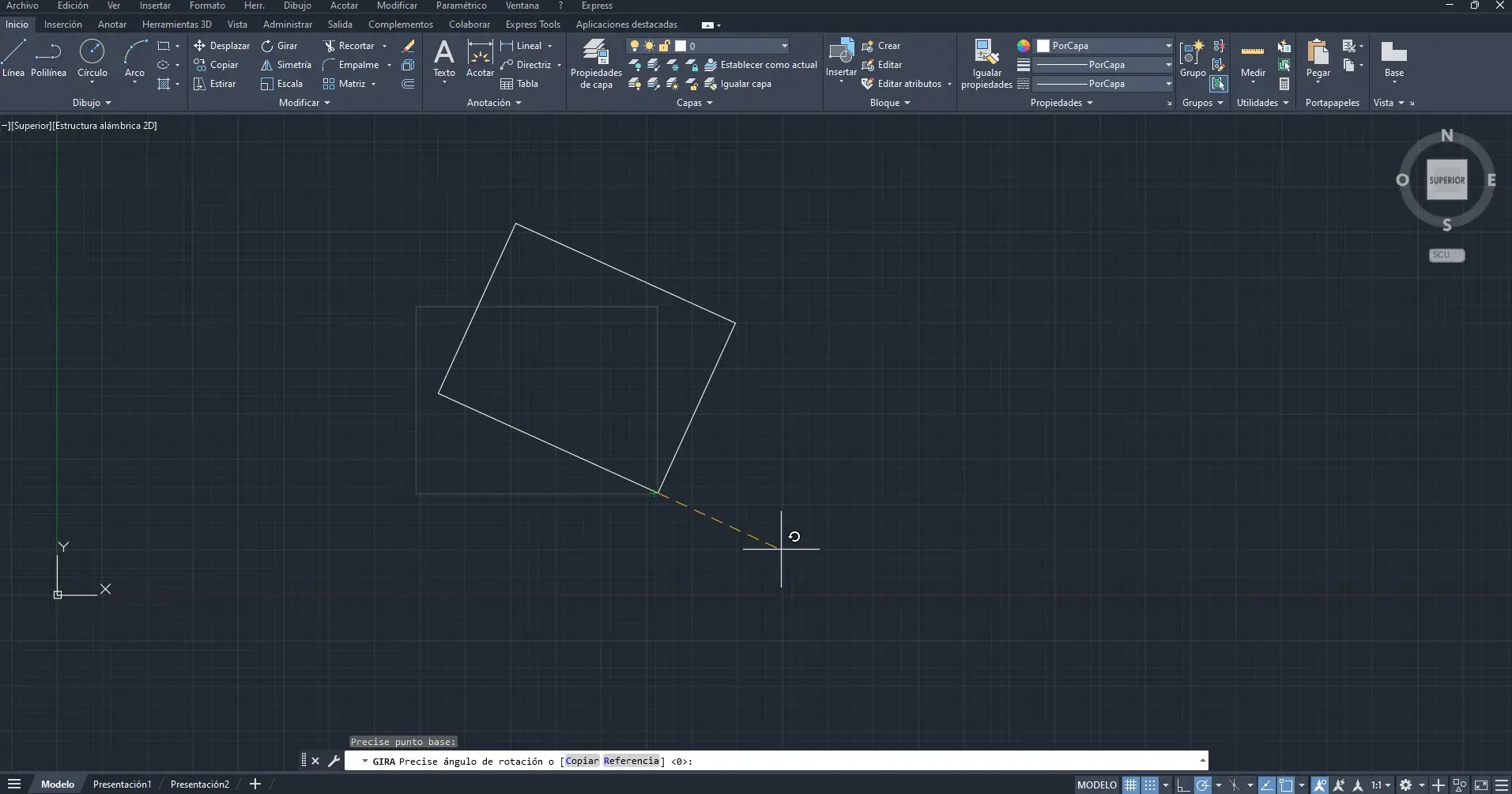
Among the geometric modifications, MOV(M), ROTATE, SCALE, STRETCH, and OFFSET stand out, as they change the position, orientation, size, and shape of objects. The key here is to use base points correctly and, in many cases, to input values via the keyboard to ensure accuracy.
Dimensioning is managed through linear, angular, and radial DIM commands, as well as DIMSTYLE for styles. A good initial configuration of dimension styles saves you many subsequent corrections and ensures that all views on the drawing maintain a consistent presentation.
Blocks, spaces and visual styles
Beyond basic drawing, AutoCAD offers specific commands for managing blocks, workspaces, and visual styles , which are essential when the project grows and you handle a lot of information.
The EP (SPACEP) command allows you to switch between the viewport's model space and paper space while in a layout . In other words, you can alternate between modifying the drawing's content and the layout itself without closing anything.
Blocks are primarily managed with BLOCK, WBLOCK, INSERT, and other tools, but also with functions like EV (BLOCKVISIBILITYSTATE) , which allows you to create, activate, or suppress visibility states in dynamic blocks. This is especially powerful when working with doors, windows, or elements with multiple configurations within the same block.
In terms of visual styles and appearance , AutoCAD features:
- EVA (ESTVISACTUAL): sets the current viewport visual style (wireframe, realistic, conceptual, etc.).
- EVIS (VISUAL STYLE): It allows create and modify visual styles and apply them to the different graphical windows.
Texts, tables, and guidelines also have their own configurable styles, which can be set using the commands EST (STYLE) for text, ETA (TABLESTYLE) for tables, and ESTDM (DIRECTORSTYLE) for multiple guidelines. By adjusting fonts, heights, alignments, and other elements, you can ensure that all your documentation maintains a professional and consistent appearance.
Advanced commands for surfaces and 3D
When you make the leap to 3D work or surface manipulation, AutoCAD incorporates a series of advanced commands that are worth knowing, especially if you work with modeling complex shapes.
The EMPA (EMPALMESUPERF) command creates a fillet surface between two surfaces , generating a smooth transition between them. It is very useful for smoothing joints in housings, industrial parts, or architectural surfaces.
With FUSI (FUSIONASUPERF) you can create a continuous fusion surface between two existing surfaces , achieving an even more organic bond without sharp edges. This type of operation is common in product design.
The ESCU (SUPERSCULP) command allows you to cut and combine a set of surfaces or meshes that completely enclose a volume, thus obtaining a 3D solid. In practice, it works like a kind of "sculpting" that transforms a shell of surfaces into a usable solid.
Finally, EXT (EXTRUSION) generates a 3D solid from a closed contour or an open surface from a linear object. It is one of the key commands for transforming 2D profiles into volumes, for example, in walls, columns, or furniture elements.
Linking external files, point clouds, and coordination models
In complex projects, AutoCAD does not work solely with an isolated DWG; it is normal to use external references, point clouds, and coordination models that come from other tools or scans.
The ENX command (XLINK) allows you to link DWG files as external references (Xrefs). This enables you to coordinate architectural, structural, and MEP drawings without merging them all into a single file, keeping each discipline in its own DWG and linking them to the main one.
The ENLA (ENLAZARNUBUNTOS) command inserts a point cloud in RCS format or an RCP project file into the drawing . These point clouds typically come from 3D laser scans and are essential when creating plans based on an existing building.
With ENLAZARMC (ENLAZARMODELOCOORDINACION), you can insert coordination models as Navisworks NWD and NWC files. It's a powerful tool for integrating into BIM workflows or coordinating complex structures with other stakeholders.
Finally, the EX (EXPORT) command allows you to save drawing objects in other formats , which is essential when you have to deliver the work in formats compatible with other programs or send simplified models.
Working with attributes, tables, and text styles
Many projects use blocks with attributes to insert editable information (part number, reference, description, etc.). AutoCAD includes specific commands to manage this efficiently.
The ESITU (EDITATRINSITU) command allows you to directly modify the text content of an attribute within a block, without needing to edit the entire definition. It's perfect for making quick changes to numbering or labels.
To organize data into more structured forms, AutoCAD provides tables, whose styles we configure using ETA (TABLESTYLE) . From here, we define cell formats, fonts, sizes, and borders , so that all the tables we create follow the same visual pattern.
Both single-line and multi-line text is controlled with the EST (STYLE) command , which creates, modifies, or selects text styles (font, height, width factor, etc.). Setting up a standard style before starting the project prevents text from appearing with inconsistent fonts and sizes.
On the other hand, annotations with arrows or leaders are managed through ESTDM (ESTILDIRECTRIZM) , which allows you to create and edit multi-leader styles , controlling the format of the arrow, the line and the associated text.
How to use AutoCAD commands from the keyboard
To launch a command in AutoCAD, simply start typing its name or alias as soon as the cursor is in the drawing area. The program will display suggestions, and pressing Enter or the spacebar will activate the selected command. From there, you will answer the questions that appear on the command line (start point, end point, radius, angle, etc.).
In practice, many people get used to using short aliases (L, C, M, O…) because they are much faster than typing the entire command (LINE, CIRCLE, MOVE, OFFSET). Remember that you can view or edit these aliases in the acad.pgp file to adapt them to your workflow.
The command line accepts both the English and Spanish versions of commands, depending on your system's language settings. It's common for many users to mix English abbreviations with Spanish menu names , and that's perfectly fine as long as you understand them.
It's also a good idea to get used to entering numerical values via the keyboard (distances, radii, angles) instead of simply dragging the mouse. This makes your drawings accurate and repeatable, which is essential when it comes to technical drawings.
Repeat the last command and other selection tricks
A very useful feature of AutoCAD is the ability to repeat the last command executed without having to retype it. You can do this in three ways: by pressing Enter, the space bar, or by right-clicking.
If you want to draw several lines in a row, move several groups of objects, or execute TRIM multiple times, simply repeat these keys to avoid wasting time typing the command name again. It's a small gesture that, multiplied by hundreds of actions a day, saves many minutes.
To display the cursor menu (a pop-up menu next to the pointer with frequently used commands), hold down the Shift key and right-click. From this menu, you can quickly access references to specific objects, recent commands, and other utilities.
Sometimes it's helpful to temporarily disable object snapping with F3 and manually choose the desired snap type (endpoint, intersection, midpoint, etc.) either from the Object Snap toolbar or from the cursor menu (Shift + right-click). This is especially useful when there are many overlapping objects and AutoCAD keeps snapping to the wrong point.


Passionate writer about the world of bytes and technology in general. I love sharing my knowledge through writing, and that's what I'll do on this blog, show you all the most interesting things about gadgets, software, hardware, tech trends, and more. My goal is to help you navigate the digital world in a simple and entertaining way.