- Hiding a partition in Windows 11 prevents it from appearing in Explorer without deleting data.
- This can be done by setting the Registry value to NoDrives or by removing the drive letter.
- The partition remains accessible to recovery tools and system images.
- Modifying the registry or partitions carries risks, so it's advisable to make backups.
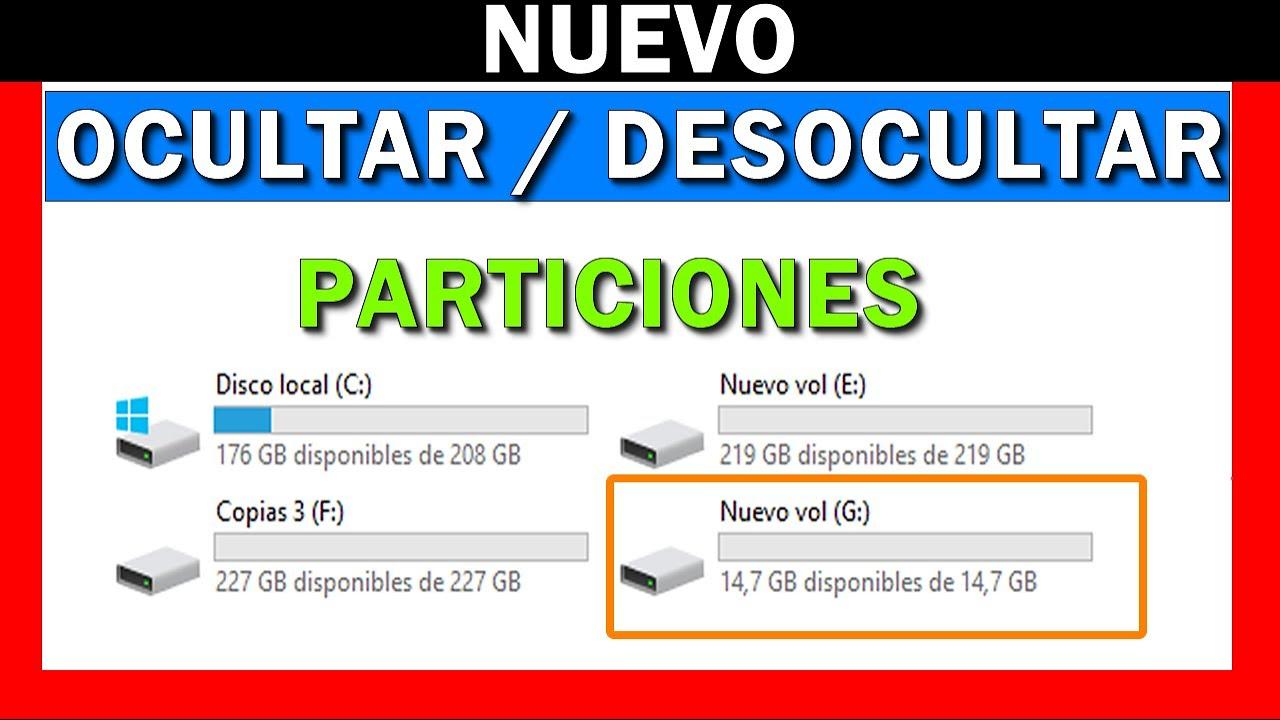
If you have a partition on your hard drive where you store a backup or system image and you're afraid of accidentally deleting it, the most logical thing to do is hide it from Windows 11 File Explorer. This prevents you from accidentally deleting files, formatting, or making changes you shouldn't. The good news is that Windows allows you to hide drive letters in several ways, although some are more obvious than others.
In this article we'll see, step by step, how to hide a partition in the file explorer without deleting it or losing data, how to protect recovery partitions , and what implications this has for restoring a system image stored there, and what you should keep in mind to avoid problems, especially if you use encryption technologies or boot the system from that partition.
What does it really mean to hide a partition in Windows 11?
When we talk about hiding a partition in Windows 11, we're actually referring to making that drive invisible in "This PC," File Explorer, and menus like Send to . The partition still exists, with all its data intact, but the system stops displaying its drive letter as usual.
It's important to understand that this is not the same as deleting, managing partitions without formatting , or unmounting the volume. The partition remains on the hard drive , with its file system, size, and contents, and is still accessible to Windows as long as you know how to access it (for example, by entering the path in the Run dialog box or using advanced tools).
This technique is widely used to protect recovery or backup partitions , such as a system image saved to D:. If that drive doesn't appear in File Explorer, you're less likely to accidentally delete its contents while cleaning up files. You can learn how to create a custom recovery partition if you need a safe place for these backups.
However, hiding a partition doesn't make it secure against advanced users or malware. Any program with sufficient permissions can still access the drive , and so can a user who knows the path. It's primarily a barrier against accidental access and everyday use.
It is also worth noting that some methods of hiding data rely on Windows policies or Registry values , which means you have to be careful, because a poorly made change can cause strange behavior in the system or, in the worst case, loss of encrypted data.
Method 1: Hide a drive using the Registry (NoDrives value)
One of the classic methods for hiding drives in Windows is to use the NoDrives registry value , which has existed since older versions like Windows XP and has its equivalent in Group Policy. Although the original documentation refers to XP, the concept is still used in modern versions, including Windows 11, with some variations.
The key used is located in the following Windows Registry path: HKEY_CURRENT_USER\Software\Microsoft\Windows\CurrentVersion\Policies\Explorer . Within this branch, a value can be created that specifies which drive letters should be hidden for the current user.
The NoDrives value is defined as a binary value that acts as a bitmap. Each drive letter is represented by a specific number. By adding these numbers together, you can hide multiple drives at once. A table detailing the values used for each letter is included in the reference content.
The binary values shown for each unit are essentially a representation of the letter's position within the set of possible units. For example, equivalencies such as the following are indicated:
- A: 01 00 00 00
- B: 02 00 00 00
- C: 04 00 00 00
- D: 08 00 00 00
- E: 10 00 00 00
- F: 20 00 00 00
- G: 40 00 00 00
- H: 80 00 00 00
- I: 00 01 00 00
- J: 00 02 00 00
- K: 00 04 00 00
- L: 00 08 00 00
- M: 00 10 00 00
- N: 00 20 00 00
- O: 00 40 00 00
- P: 00 80 00 00
- Q: 00 00 01 00
- R: 00 00 02 00
- S: 00 00 04 00
- T: 00 00 08 00
- U: 00 00 10 00
- V: 00 00 20 00
- W: 00 00 40 00
- X: 00 00 80 00
- Y: 00 00 00 01
- Z: 00 00 00 02
The general procedure for using this method, adapted to a modern environment like Windows 11, would be:
- Open the Registry Editor (regedit) from the Start menu or Run.
- Navigate to HKEY_CURRENT_USER \ Software \ Microsoft \ Windows \ CurrentVersion \ Policies \ Explorer.
- In the right panel, create a new binary value called No Drives.
- Assign the corresponding binary value to the unit you wish to hide, according to the table above.
- Save the changes and restart Windows for them to take effect.
Doing so will remove the drive from My Computer/This PC, File Explorer, and the "Send to" menu . However, it will still be accessible if you manually enter its path (for example, D:\) in the Run dialog box or the address bar of File Explorer.
It's crucial to mention the warning included in the original information: in certain older professional editions of Windows, modifying certain Registry settings could result in the loss of encrypted password data . While the specific behavior may vary in Windows 11, it's advisable to exercise extreme caution if you use EFS or other encryption systems linked to your account.
Furthermore, any manipulation of the Registry carries risk. A misspelled value or one in the wrong key can cause system crashes , freezes, or login problems. Before making any changes, it's advisable to create a system restore point or export the affected key so you can revert the changes.
Practical alternative: hide the partition by removing the drive letter
In Windows 11, it's often easier to use disk management tools than to wrestle with bitmaps in the Registry. A fairly clean way to hide a partition is simply to remove its drive letter . The partition remains on the disk, but without a letter, Windows won't show it as a drive in File Explorer. For instructions on using the graphical command line, you can consult articles on Disk Management.
This operation is performed from the Disk Management console or using the diskpart command-line utility. In short, the process involves identifying the volume, removing its associated drive letter, and leaving the partition unallocated and visible to the user. If you're looking for tools to partition or automate these tasks, consult guides on hard drive partitioning software.
Using the Disk Management graphical tool (diskmgmt.msc), the process would be something like this: locate the partition, right-click, choose Change Drive Letter and Paths, and then delete the drive letter. Once the operation is applied, the drive will disappear from File Explorer , but it will still appear in the Disk Management volume list.
With diskpart, you can achieve something similar by typing a series of commands from the command prompt with administrator privileges: select the disk, the volume, and run a command to remove the drive letter. This method is more advanced, but it provides greater control in scripting or automation environments.
The advantage of this approach over the NoDrives setting is that it affects the volume level, not just the user interface . In other words, most programs that rely on listing drive letters won't "see" the partition unless you provide the correct path or mount point. To make the drive visible again, simply assign it a new drive letter.
However, you must proceed with caution: removing the drive letter from a system partition, boot partition, or one heavily used by applications can cause serious problems. This method is intended for data partitions or backup partitions that are not used interactively on a daily basis.
Relationship with Group Directives and corporate environment
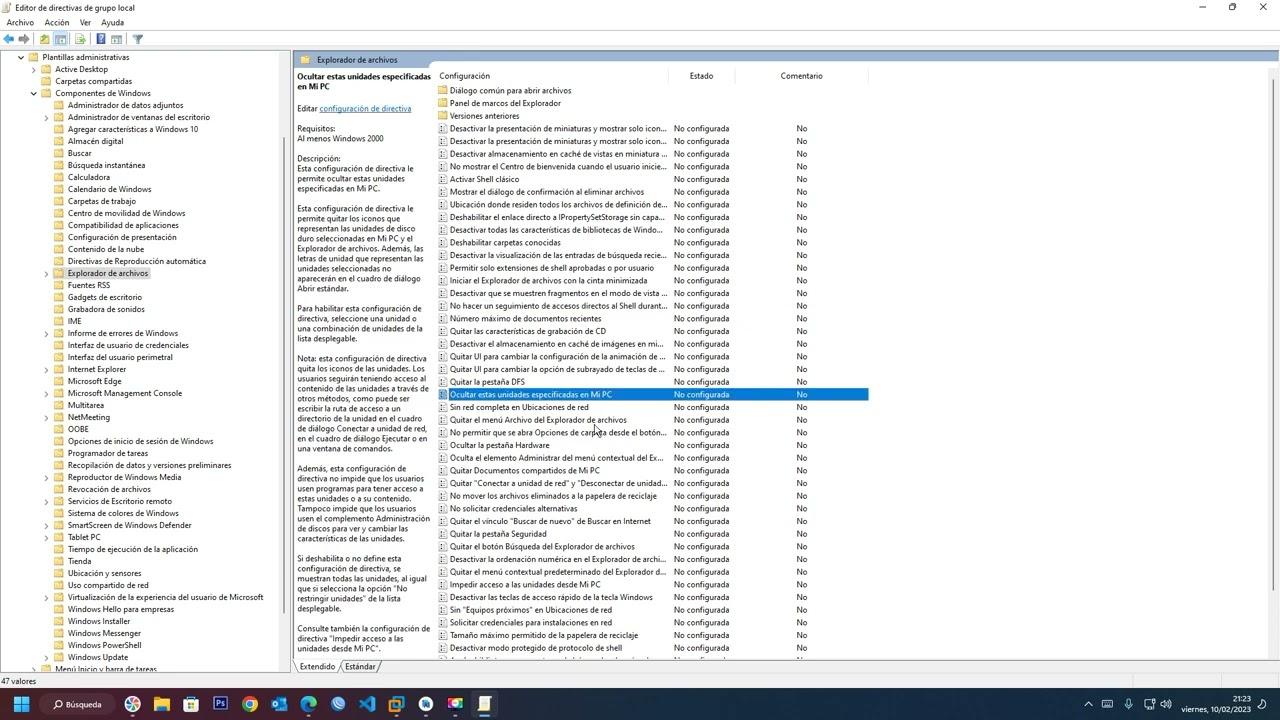
The NoDrives value discussed earlier has its equivalent in Windows Group Policy , widely used in businesses and managed environments. There you can find options like "Hide these specified drives in My Computer" that rely on the same internal mechanism of assigning bits to letters.
From an administrator's perspective, policies allow this hiding to be applied centrally to many computers without having to manually edit the Registry on each one. When a policy is set, the system generates or modifies the corresponding values (such as NoDrives) under the policy keys, applying them to the affected users or computers.
For a home user, this level of control is usually unnecessary, but it's worth noting that if your PC is part of a domain or managed by your company , drive hiding might be enforced from there. In that case, you won't always be able to change it yourself, or manual changes could be reverted when the policy is updated.
In the context of hiding a partition with a system image, this type of policy would be useful in organizations that don't want staff to access recovery or internal backup partitions. In Windows 11 Home, however, it's more common to use Disk Management or minor local adjustments in the Registry.
Hide a partition that contains a system image
The referenced content presents a very specific case: a user who has created and saved a system image on the D: partition and wants to hide it to avoid accidentally deleting it. Furthermore, the user asks what implications this will have when restoring the PC using that image from a hidden partition.
If you're in a similar situation, the first thing to understand is that hiding the partition doesn't delete the system image or prevent recovery tools from using it , as long as the tool knows where to look. The drive may not have a letter assigned to it or may be hidden in File Explorer, but at a low level, it's still on the disk.
When restoring system images, it's often done from a recovery environment (such as the Windows Recovery Environment, WinRE) or from third-party backup software that boots before the operating system loads. These tools are usually able to detect volumes even without a drive letter because they analyze the partition table directly.
Therefore, if your intention is to create a sort of "hidden" partition to store the backup, you shouldn't have any problems restoring as long as the tool you use can see the volume . In some cases, when you boot from recovery media, you might see the partition with a different drive letter (for example, not D:, but another one), but the contents will still be there.
However, it's a good idea to check this before you actually need it. A good practice is to boot the system from the recovery media you're going to use, navigate to the restore option, and confirm that the partition with the image is recognized and appears in the list . This way, you won't be surprised the day your main system fails to boot.
It's also important not to rely on a single copy. Even if you keep the image on a hidden partition, it's worthwhile to have another copy on an external drive or in a different location. If the internal drive suffers a physical failure, it doesn't matter whether the partition is visible or hidden: the data will be lost anyway.
Risks, legal warnings, and data encryption
The original information includes a rather strong warning from Microsoft and its suppliers, making it clear that they do not guarantee the suitability, reliability, or accuracy of the information related to these solutions and that it is offered "as is," without any warranties whatsoever.
This means that if you make changes to the Registry or modify how Windows manages drives, you do so at your own risk . Risks include the possibility of loss of use, data, or profits derived from the use of the information, or the inability to use it, whether due to contract, negligence, or other legal cause.
Furthermore, it is specifically warned that, in certain editions such as Windows XP Professional, performing these steps could result in the deletion of encrypted password data . This is related to encryption mechanisms built into the system, which rely on keys and internal structures sensitive to certain changes.
In Windows 11, while many of these technologies have evolved, the philosophy remains the same: if you use EFS, BitLocker, or other encryption systems linked to your account, it's vital to have backups of your recovery keys and certificates. You shouldn't make risky changes without ensuring you can revert them.
Finally, ideally, before modifying the Registry or partition settings, you should always create an up-to-date backup and, if possible, a system restore point. These few minutes of preventative action can save you a lot of headaches.
Cookies, permissions, and web context information
Part of the reference content includes texts relating to cookie policies and data processing, which are commonly found on modern websites. Their purpose is to inform users that technologies such as cookies are used to store or access device data, including unique identifiers or browsing information.
These types of notices explain that granting or withdrawing consent may affect the functionality of certain site features. While it doesn't directly impact the technical process of hiding partitions in Windows 11, it is part of the legal and privacy framework within which the information is presented.
In practice, when you visit a page explaining how to hide partitions, you'll likely see messages asking you to accept or configure cookie usage. If you block certain elements, some page components might not load correctly , leading to error messages such as "A required part of the site could not be loaded."
In these cases, it's usually recommended to check your internet connection, disable ad blockers, or try a different browser . It doesn't affect Windows 11 or your partitions, but it can influence how you receive instructions or download disk management tools.
Therefore, although this aspect is more related to web navigation than system administration, it's worth keeping in mind if you're consulting online tutorials about hiding drives and notice that something on the page isn't displaying as it should.
In short, hiding a partition in Windows 11 file explorer involves understanding whether simply preventing the drive from being visible in daily use (for example, with NoDrives or by removing the drive letter) is enough, or if you need an additional level of protection. This always involves weighing the legal, technical, and encryption risks, and verifying that the recovery tools you intend to use correctly recognize the partition containing your system image, whether or not it is visible in File Explorer.


Passionate writer about the world of bytes and technology in general. I love sharing my knowledge through writing, and that's what I'll do on this blog, show you all the most interesting things about gadgets, software, hardware, tech trends, and more. My goal is to help you navigate the digital world in a simple and entertaining way.