- ViVeTool allows you to activate hidden and experimental features of Windows 11 by reversibly modifying their internal Feature IDs.
- The File Explorer is one of the most benefited components, with new interfaces, tabs, gallery, and AI integration.
- Its use involves risks of instability, so it is recommended to apply it in test environments and with prior backups.
- Developers and testers use ViVeTool to anticipate Windows 11 changes and validate compatibility and performance of their applications.

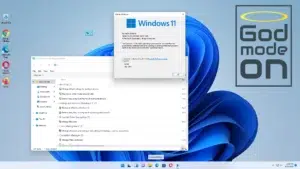
There are two types of Windows users: those who are content with the default settings and those who enjoy tinkering with every corner of the system. If you're one of those who can't resist tweaking advanced settings, you'll be interested to know that Windows 11 hides a lot of secret features that aren't immediately apparent, but which can significantly change your daily experience with File Explorer and other components, such as learning how to show hidden files and folders.
Microsoft tests many of these new features in the background for months, but keeps them dormant while it decides which users to gradually reveal them to. The good news is that there's a tool, ViVeTool, that acts as a kind of remote control to activate these hidden switches. With a few commands, you can unlock experimental features in File Explorer, the Start menu, the taskbar, or even notifications, provided you accept certain risks and take the necessary precautions (see unlocking and using ViVeTool ).
What is ViVeTool and why is it so important in Windows 11?
ViVeTool is an open-source, command-line utility designed to manipulate the system of internal functions that Microsoft includes in Windows 10 and, especially, Windows 11. It has no graphical interface or wizard: it runs from the Command Prompt or PowerShell, and was created by developers known in the community such as Albacore and Rafael Rivera. Guides explain how to use ViVeTool and StagingTool.
While tools like PowerToys or Sysinternals add external features "on top" of the system, ViVeTool works directly with Windows' feature management infrastructure , known as the Feature Store or Feature Flags system. This means it doesn't install anything extraneous; instead, it tells Windows itself which internal features should be active in your installation. If you prefer, you can also edit the Windows 11 registry to access some options.
Each experimental feature that Microsoft introduces to Windows is represented by a Feature ID, a unique numeric identifier . ViVeTool communicates with the internal APIs that manage these IDs and their associated variants, called Feature Variants. By changing these values, Windows interprets that certain features are ready for use and activates them, even if the official release hasn't yet reached your PC. You can find steps to activate experimental features with ViVeTool.
This approach has a key advantage: most changes are reversible . If something doesn't suit you or causes errors, you can run an equivalent command to disable that same ID or restore it to its original state, without needing to reinstall the entire operating system. There are also tutorials that explain how to disable hidden features in case of problems.
How the hidden features system works in Windows
Behind most of the new features in Windows 11 is a mechanism called Controlled Feature Rollout (CFR) . Instead of releasing a new feature to everyone at once, Microsoft integrates it into the system and then decides what percentage of users will see it, managing the rollout gradually from its servers and, in other cases, through methods such as enabling or disabling hidden features using regedit.
In practice, this means your PC might already have the code needed to display a new File Explorer design, a revamped Start menu, or a new widgets panel, but the switch is turned off. Sometimes only 5% of Insider users initially receive a specific feature, and the rest are left wanting for weeks or months.
ViVeTool takes advantage of this system by changing the value of those Feature IDs in the Feature Store. When you run a command like vivetool /enable /id:XXXXXXX , you're telling the system that the feature should be treated as if it's already been approved for your team and update channel.
Technically, ViVeTool interacts with the same internal APIs that Microsoft uses for its testing, so it doesn't resort to strange hacks or random registry modifications . However, it's still an advanced tool, and improper use can cause instability, especially if you activate many IDs at once without checking their compatibility with your build.
Installing ViVeTool step by step on Windows 11
Before you can start enabling hidden features in File Explorer and other parts of Windows, you need to have ViVeTool properly downloaded and in a convenient location. There's no traditional installer; it's a simple executable file in a ZIP archive that you need to extract and then run from the command line.
The general procedure is as follows: access the official ViVeTool repository on GitHub and download the latest available version, usually identified as IntelAmd.zip or something similar. Once you have the file on your computer, extract it to an easy-to-remember folder, such as C:\ViVeTool or your Downloads folder with a recognizable name.
Next, open Command Prompt (cmd) with administrator privileges . You can search for "cmd" in the Start menu, right-click it, and select Run as administrator. Then, navigate to the folder where you extracted ViVeTool using the cd command, for example: cd C:\ViVeTool or cd followed by the full path where you saved it.
Once you're in the correct directory, simply type vivetool and press Enter. If everything goes well, you'll see a list of available parameters and commands on the screen—something like the tool's built-in "manual." At that point, ViVeTool will be ready to start working with your system's hidden features.
Basic use of ViVeTool: activating, deactivating and resetting functions
ViVeTool's operating scheme is quite straightforward: it's based on a few commands, each passed a numeric ID that represents a specific function . To activate an experimental feature, the most common format is:
vivetool /enable /id:XXXXXXXXX
Where XXXXXXXX is the Feature ID. After running the command, it is highly recommended to restart the system so that Windows reloads the interface and affected components, allowing you to check if the new features appear.
If instead of enabling a feature you want to disable it, the general command is the same but with the modifier changed: vivetool /disable /id:XXXXXXXX . This is used to disable a feature that was previously enabled, either experimentally through ViVeTool or because your Insider channel received it and you want to remove it for some reason.
In some cases, instead of disabling a feature, it's better to use the /reset parameter , which returns that Feature ID to its original state according to what Microsoft has configured for your build:
vivetool /reset /id:XXXXXXXXX
This option is especially useful when you've modified several related IDs or applied multiple commands and want to restore the default behavior without explicitly forcing an on or off switch . If you notice problems after making changes, it's usually a good idea to reset the IDs you remember modifying and restart.
Hidden File Explorer features with ViVeTool
One of the areas where ViVeTool proves most interesting is in Windows 11 File Explorer , a component that Microsoft has been revising in terms of design and functionality for some time. Many of these improvements first go through Insider channels like Beta or Canary and are also released with parts disabled using hidden Feature IDs.
Recent builds have introduced a tabbed File Explorer , an integrated photo gallery, shared content views, and various cosmetic tweaks based on Fluent Design. Some of these features are enabled for many users, but others remain hidden even in test builds.
For example, in Windows 11 Beta Channel build 22635.3640, an updated File Explorer with a new interface and a much more accessible "Shared" section has been discovered. This new version isn't displayed by default on most computers, but it can be enabled using ViVeTool with a specific ID.
According to leaks from specialized users who analyze each build, to see this revamped interface in this Beta build, simply navigate to the ViVeTool folder with administrator privileges and run the command: vivetool /enable /id:45130483 . After restarting, the Explorer adopts the updated design, with redesigned visual elements and adjustments to the home page that improve quick access to files and shared resources.
There are also other IDs that affect both Explorer and Windows AI integration, as well as Gallery features. In more recent Windows 11 builds, commands like ` vivetool /enable /id:54792954,55345819` have been seen to activate AI-based actions within Explorer itself, as well as an ID associated with Gallery, such as 36390579 , which adds a specific view for organizing photos and videos.
Other interesting experimental features you can activate
ViVeTool isn't limited to File Explorer: it also unlocks new designs for the Start menu, taskbar, widgets panel, and even the Task Manager itself . The community often shares lists of IDs that Microsoft uses in each build to gradually activate these new features.
Examples seen working in recent builds (such as 26100 and later) include IDs for the redesigned Copilot panel , a Start menu with more customizable sections, a modernized task manager interface, and a Gallery integrated into Explorer. All of these are activated similarly, only changing the ID number.
In some more recent Windows 11 updates targeting the 25H2 branch, a new Start menu with a single-page design and without the recommendations feed has also been introduced , along with a battery icon with a clearer percentage indicator and distinct colors, and specific improvements to Explorer related to AI and shortcuts.
In these cases, the command pattern remains the same, for example: `vivetool /enable /id:47205210` for the new Start menu design, `vivetool /enable /id:56328729` for the advanced battery icon, or the previously mentioned `54792954` and `55345819` for AI actions within Explorer. These IDs may change with each build, so it's always advisable to confirm on specialized forums that they correspond to your exact version.
Another area where ViVeTool proves very useful is in notifications and widgets . Features have been observed that allow you to group notifications by priority, filter background alerts, and enhance widget presentation with more advanced options. Enabling these features offers an early glimpse into how Windows 11 will evolve in the coming months without having to wait for the official release.
Why Microsoft isn't promoting the use of ViVeTool (and what risks are involved)
The fact that this tool exists and works does not mean that Microsoft recommends it. The company does not officially support changes made with ViVeTool and generally warns against using experimental features outside of the intended channels and configurations.
From a technical standpoint, enabling unfinished features can cause incompatibilities with installed applications, graphical glitches in the interface, or occasional system crashes . For example, if IDs related to the Explorer redesign are enabled during a system security update (when Windows is modifying critical components), errors could occur when opening windows or elements might be rendered incorrectly.
Another common risk is the uncontrolled combination of multiple interdependent Feature IDs. Each feature may require another to be active or a specific component package to be installed. If you activate an advanced widget panel without first enabling the appropriate background process management , you may end up with an empty widget, notifications that don't arrive, or interface errors.
Therefore, developers and advanced users often recommend using ViVeTool, whenever possible, in test machines or virtualized environments . This way, if something goes wrong or the system becomes unstable, it's easy to revert to the previous state using a snapshot or by restoring a backup, without jeopardizing important work data.
In most cases, if a feature enabled with ViVeTool is misbehaving, simply note which IDs you've modified and run the command ` vivetool /disable /id:XXXXXXXX` or, even better, `vivetool /reset /id:XXXXXXXX` , followed by a restart. This almost always restores the standard behavior defined by Microsoft for your build.
ViVeTool as a tool for testers and developers
Beyond the curiosity of advanced users, ViVeTool is a very valuable resource for software developers and testers who need to anticipate the changes coming to Windows 11 to check compatibility and performance.
By activating new configuration interfaces, menus, or panels using IDs, it's possible to simulate environments similar to those Microsoft is testing internally. This allows you to verify how third-party applications behave with redesigned menus, new control panels, or taskbar changes , without having to wait for those features to reach stable channels.
In some tests shared by the community, enabling certain experimental features has resulted in, for example, a reduction in the opening time of some menus from 250 ms to around 180 ms, or a very small increase in RAM consumption (on the order of 30 to 50 MB). This confirms that many of these features already come with fairly advanced optimizations, ready for mass deployment when Microsoft deems it appropriate.
In addition, ViVeTool allows you to activate new notification configurations to test grouping and filtering algorithms, managing large volumes of alerts per minute without overloading the interface. These tests are especially relevant for developers of applications that rely heavily on system notifications or integration with File Explorer.
In professional environments, being able to anticipate these changes is a clear advantage: corporate applications, installers, and scripts can be adjusted before the new Windows 11 features are widely implemented in the organization, reducing incidents and saving technical support time.
Ultimately, ViVeTool has established itself as a key tool for "unlocking" features in Windows 11 without altering the system's core functionality, offering a kind of early glimpse into what Microsoft is developing. Used judiciously, with backups and a bit of patience, it becomes a valuable ally for maximizing the potential of File Explorer and other system components long before most users.

Passionate writer about the world of bytes and technology in general. I love sharing my knowledge through writing, and that's what I'll do on this blog, show you all the most interesting things about gadgets, software, hardware, tech trends, and more. My goal is to help you navigate the digital world in a simple and entertaining way.