- Organizing folders and Start menu shortcuts allows you to tailor Windows to your actual needs.
- In Windows 10, the program list is edited from the system path where the shortcuts are stored.
- Windows 11 highlights pinned apps, websites installed as applications, and folder shortcuts.
- Combining an organized Start menu with a well-configured taskbar significantly improves productivity.
Customizing the Start menu in Windows has become one of those almost mandatory tasks when you want your computer to truly work your way and at your own pace . Many people only change the wallpaper, theme, or desktop icons, but completely overlook the enormous potential of the Start menu, in both Windows 10 and Windows 11, to improve your organization and daily productivity.
If you find yourself opening the Start menu and seeing an endless list of programs, unused folders, and shortcuts you never touch, it's time to get organized. With a few tweaks and knowing a couple of key paths, you can reorganize shortcuts, group apps into folders, add favorite websites, display essential directories , and much more. Let's walk through it step by step, with simple yet detailed explanations, so you can customize your Start menu exactly to your liking.
Why it's worth customizing the Start menu
The Start menu is one of the system's nerve centers: from it you can open programs, access folders, view recent documents, and shut down the computer . However, it usually comes quite disorganized from the factory: each installed application does its own thing, some create their own folder, others leave shortcuts scattered everywhere, and in the end, finding what you need becomes a mini obstacle course.
Furthermore, the Start menu behaves somewhat differently in Windows 10 and Windows 11. In Windows 10, the list of programs and folders takes precedence; in Windows 11, pinned icons and the recommendations area are more prominent. In both cases, spending a few minutes customizing it translates into fewer clicks, fewer distractions, and faster access to what you actually use every day.
Another point to consider is the aesthetic aspect. While Windows doesn't offer radical customization of the Start menu's appearance, you can adjust colors, light/dark themes, and some visual details that make using the computer more pleasant. It's not just about "making it look nice"; it also helps reduce eye strain and makes it easier to distinguish different areas and elements.
Finally, it's important to remember that the Start menu integrates with other key areas like the taskbar and folder shortcuts . When all of these work together (a well-organized Start menu, a clean and useful taskbar, and main folders just a click away), the way you work with your PC changes completely: from simply "surviving" by jumping between windows, to having everything structured and always at hand.
Edit folders and Start menu shortcuts in Windows 10
In Windows 10, the real key to ordering the Start menu app list is hidden in a system folder. The Personalization settings in Settings aren't enough; they only allow you to define some general options. To actually customize the list, you have to go directly to the location where Windows stores the Start menu shortcuts.
The first step is to open File Explorer . You can do this using the icon on the taskbar, by pressing the Win + E key combination, or by searching for "File Explorer" in the Start menu search box. Any method will work; the important thing is that you end up with a File Explorer window open.
Once inside, we won't be navigating folder by folder, as that's quite a long process. The best approach is to use the address bar at the top . Click on it: you'll see the current path selected and displayed in the classic directory format (C:\, etc.). This is where you should directly type the location you're looking for.
In the address bar, enter the following path, including the slashes and without the quotation marks: C:\ProgramData\Microsoft\Windows\Start Menu\Programs , and press Enter. After doing so, File Explorer will take you to the folder where Windows 10 stores the folders and shortcuts that appear in the Start Menu list . In other words, what you see here is what appears when you open Start.
Inside this folder, you'll find a mix of items: folders named after manufacturers or software suites , and individual shortcuts to various applications. If you open one of these folders, you'll see even more shortcuts, usually to the different components or tools of that software. This is where you can start organizing, cleaning up, or regrouping.
From here, you can delete shortcuts you don't use, rename folders to have clearer names, or even delete folders and leave only one main shortcut . For example, if a suite creates a folder with several shortcuts and you only use one, you can move that shortcut out of the folder (cut and paste it into the main directory) and then delete the remaining folder. The Start Menu will still display what's there, but it will be cleaner and smaller.
Similarly, you can do the opposite: if you have many loose shortcuts and find it chaotic, create new folders to group them by category (for example, "Video Editing," "Office Suite," "Games") and move the corresponding shortcuts into them . Any changes you make in this location will be reflected in the "All apps" section of the Windows 10 Start menu, respecting the alphabetical order applied by the system.
Organize the list of programs and folders in the Start menu
Now that you know where the list's contents are physically stored, the next step is to think about how you want to structure the information in the Start menu . It's not just about deleting things for the sake of deleting, but about grouping and prioritizing them in a way that feels logical and convenient for you on a daily basis.
A very practical way to work is to review each folder within the Programs directory and ask yourself which shortcuts you actually need. Many programs add shortcuts to uninstallers, PDF manuals, or tools you never use . These shortcuts can be safely removed, as the application will remain installed; you'll simply be decluttering the Start menu.
It's also a good idea to review the names. Sometimes you'll find shortcuts with vague or English names that don't tell you anything at first glance. Renaming them with a clear and recognizable title will make them much easier to find. This customization doesn't affect the application itself, only how the shortcut is displayed.
While you're organizing, you can test the results by opening the Start menu and going to the "All apps" list to see how it looks. Windows 10 still sorts everything alphabetically, but you'll notice that the sections are cleaner and that the content now follows a criterion you've defined (by category, frequency of use, task type, etc.).
If you want to take it a step further, you can combine this list cleanup with pinning applications to the tiled area of the Windows 10 Start menu. While you can't edit the internal program list from Settings, you can choose which applications appear as large tiles on the right side of the menu. This way, the most important ones are visually highlighted and just a click away, while the rest are neatly organized in the list.
Customize the Start Menu in Windows 11 step by step
With Windows 11, Microsoft significantly changed the design of the Start menu. Now, at the top, you have a grid of pinned apps , in the middle a section of recommended items (documents and recent apps), and at the bottom, the power button and user icon, as well as possible shortcuts to folders if you enable them.
The first section you should familiarize yourself with is your pinned applications. Everything you see at the top of the Start menu are fixed shortcuts that you can add or remove as you wish . To remove any of them, simply right-click on the icon and select the "Unpin from Start" option. Note that this doesn't uninstall the program; it only removes it from that prominent area.
When you unpin an app, its icon disappears from the docked area, but it remains accessible by clicking "All apps ," the button above the icon grid. If you want to completely remove a program, you'll need to use the "Uninstall" command, also accessible by right-clicking the app in the main list.
Another important detail of the Start menu design in Windows 11 is that when you exceed a certain number of pinned icons (for example, more than 18), the system begins to hide them on additional pages . You can navigate between these pages using the mouse wheel or the controls that appear next to the icons. To bring an application from the background to the top without constantly scrolling, right-click on its icon and choose "Move to top." This will place it at the top of the grid.
Pinning new apps is just as easy. Open the Start menu and click "All apps" to see the complete list of installed programs. Find the one you want, right-click it, and select "Pin to Start ." It will automatically appear as an icon at the top of the menu. Along with unpinning, this simple process of adding and removing apps ensures you only have what you actually use readily available, without having to navigate through a sea of irrelevant icons.
Add websites and online resources as advanced access points
Beyond traditional programs, one of the most interesting features of Windows 11 (and also possible in Windows 10 with compatible browsers) is the ability to turn web pages into applications . This allows you to pin your favorite sites to the Start menu and taskbar as if they were native apps, which is ideal for online tools, webmail, control panels, and more.
To do this with Microsoft Edge, open the browser and go to the website you want to "install." Once there, open the main menu (the three dots in the upper right corner), hover your mouse over the "Apps" section , and select the "Install this site as an app" option. The browser will display a pop-up dialog box to confirm the installation.
Upon accepting, the page will open in its own window, without the classic tab bar, giving it the feel of a standalone application. Edge will also ask if you want to add this new "web app" to the Start menu or taskbar. You can select the options you prefer to have it just a click away, like any other program installed on your computer.
Visually, you'll see that the web app icon appears mixed in with the other pinned shortcuts in the Start menu. If you ever stop using this service or prefer to reduce the number of icons, simply repeat the same process as before: right-click on the icon and choose "Unpin from Start" to remove it. If you want to remove the web app completely, you can do so from Edge's settings or from the system apps section.
This way of working with websites as if they were local programs fits very well with the idea of having a Start menu full of really useful advanced shortcuts : your business control panels, your online CRM, your email inbox, your cloud editing platforms... all accessible without having to open the browser first and type addresses by hand.
Customize the colors, theme, and appearance of the Start menu
While Windows doesn't offer extensive customization of the Start menu design, it is possible to adjust several visual aspects that affect how this part of the system looks. One of the most welcome changes is the activation of dark mode specifically for the Windows environment , which includes the Start menu, taskbar, and other interface elements.
To adjust these settings, open the Settings app and go to the "Personalization" section. There you'll find a selection of preset themes. Many of them include pre-made color schemes and backgrounds , but if you want something more specific, you can choose one that uses dark mode as the system's base.
If you don't want to apply a full theme, you can go directly to the "Colors" section within Personalization. There you'll see a drop-down menu next to "Choose your mode." Set it to "Custom" to differentiate the appearance of applications and the Windows environment itself. Then, under "Choose Windows default mode," select "Dark . "
After doing so, the Start menu will adopt the background and tones characteristic of dark mode, something that is especially noticeable if you spend many hours in front of the screen or often use your PC in dimly lit environments. The contrast changes, the menus are easier on the eyes, and, in general, the interface feels less harsh than with the traditional light mode.
In addition to these changes, from the same Personalization section you can adjust other details such as the accent color, transparency behavior, and some aspects of the taskbar. While it's not a radical transformation, playing with these options allows the Start menu to better match your aesthetic preferences and the rest of your desktop , creating a more cohesive experience.
Manage files and recent items in the Start menu
Another important area of the Start menu in Windows 11 is the Recent Files and Recommended Items section , which usually appears in the lower half of the panel. This section is designed to help you quickly resume work you've left unfinished: Office documents, PDFs, images, and so on.
However, it's not always convenient to have all those files displayed there. There may be documents you'd prefer to keep private or that you simply no longer want in that list. To remove a specific file from the list, simply right-click on the item and select "Remove from list."
Doing so will remove the file from the Recents section of the Start menu, but it won't be deleted from your disk: it will remain in its folder, untouched. It's simply a way to clear up your visible history and keep it more relevant , without affecting the actual content of your documents.
If you work with sensitive information or share your computer with others, this recent files management feature is especially useful. You can remove work documents from view that you don't want to appear every time someone opens Start, while still having other files you need to access quickly readily available.
It's a good idea to check this section from time to time, especially if you notice it's filled with items that no longer make sense. A couple of right-clicks and the list will display only what you're interested in, without having to delve into more advanced options or complicate things with additional settings.
Shortcuts to essential folders at the bottom
At the bottom of the Start menu, next to the power button and user icon, Windows 11 lets you add shortcuts to key folders and locations . This space is rather underutilized by default, but it can become a powerful shortcut to your most frequently used directories.
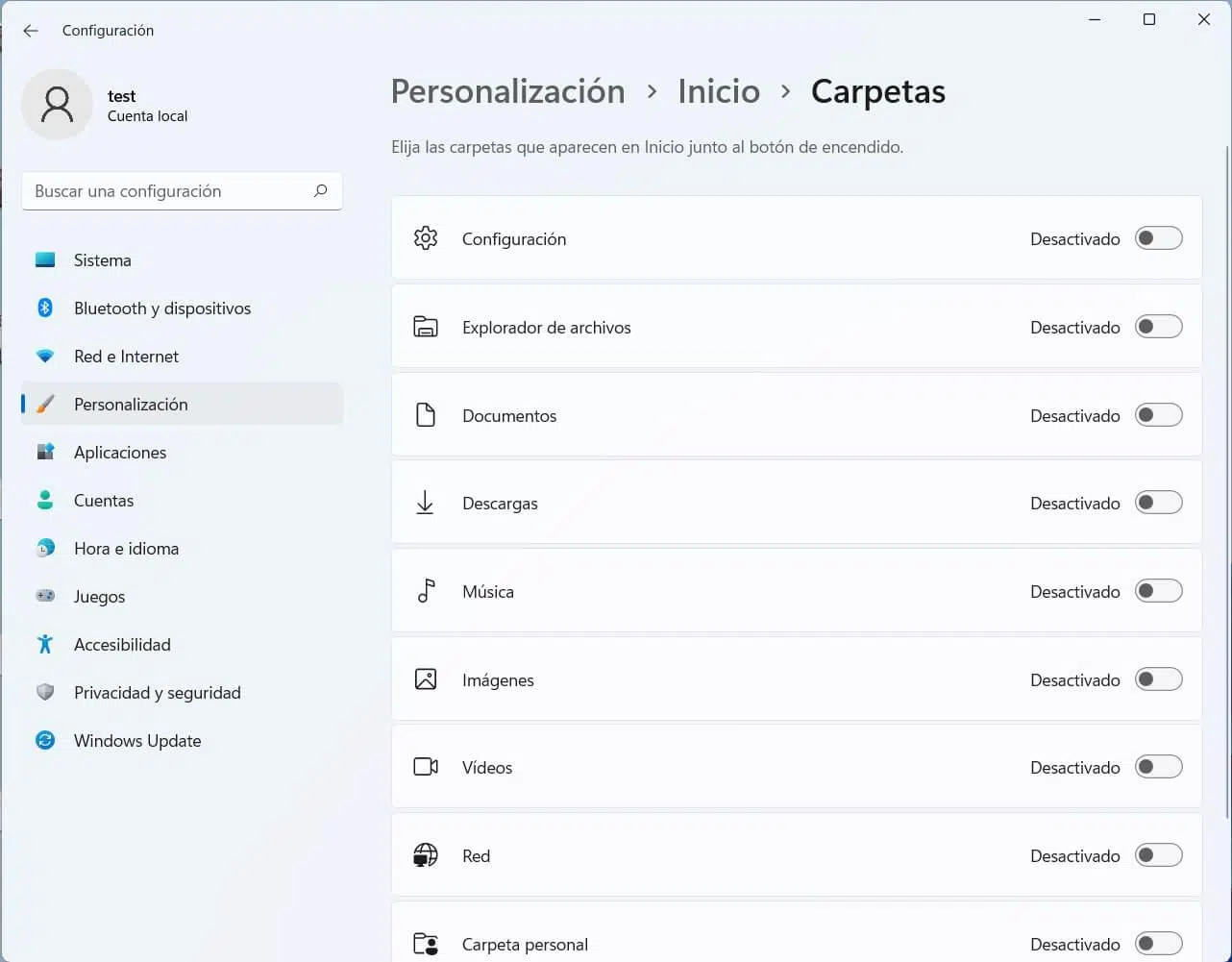
To configure them, return to the Settings app and go to Personalization > Home > Folders . Within this menu, you'll see a list of options that you can enable or disable: File Explorer, Settings, Documents, Downloads, Music, Pictures, Videos, Network, Personal, and others depending on the version.
Activate the switches for the folders you want to access with a single click from the Start menu. For example, you can select Documents, Downloads, and Pictures if they are the ones you use most often. Their icons will then automatically appear aligned at the bottom of the Start panel , to the left or right of the power button, depending on your settings.
This seemingly minor detail saves many steps throughout the day. Instead of opening File Explorer and navigating to each folder, you press Start, click on the corresponding icon, and go directly to it. This is especially useful on computers where you don't want to clutter your desktop with shortcuts but need to keep your working directories readily accessible.
Experiment with different folder combinations and keep only the ones that are truly useful. If you activate too many, the space fills up and you lose the quick access effect. The idea is to use that space to store 3 or 4 key destinations that are part of your daily routine.
The relationship between the Start menu and the taskbar
Although this article focuses on the Start menu, it's important to note that its functionality is closely linked to that of the taskbar . Both areas work in tandem: Start gives you access to everything you have installed and your recent resources, while the taskbar provides constant launchers for the applications you use frequently.
Microsoft has added several configuration options in Windows 11 that allow you to adjust both the position and behavior of the taskbar. From the Personalization menu, you can choose, for example, whether the icons are centered or left-aligned, hide unwanted items, or pin and unpin applications, similar to the Start menu.
If you configure both elements correctly, you will begin to notice a smoother workflow: in the taskbar you store the tools that are always open (main browser, office suite, email, music player) and in the Start menu you organize the rest of the programs, dynamic folders and advanced shortcuts that you use frequently but not constantly.
Furthermore, when you turn websites into applications and pin them to both the Start menu and the taskbar, you achieve a very consistent look: it doesn't matter if you open your favorite online service from one place or another, the window you get will be the same, and your brain ends up associating those icons with specific tasks (work, leisure, management, etc.).
The key is understanding that the Start menu and taskbar don't compete, but rather complement each other. A well-organized Start menu but a taskbar full of useless icons, or vice versa, still creates clutter. When both work in coordination, your Windows environment becomes much more predictable, organized, and efficient.
With all these adjustments, in both Windows 10 and Windows 11, the Start menu ceases to be a simple, chaotic list of programs and becomes a personalized control panel , with dynamic folders tailored to your needs, advanced access to websites and online resources, and direct shortcuts to your essential documents and directories. Investing a little time in organizing it makes a difference every day: fewer clicks, less time wasted searching for things, and an overall feeling that your computer is finally configured to help you, not hinder you.


Passionate writer about the world of bytes and technology in general. I love sharing my knowledge through writing, and that's what I'll do on this blog, show you all the most interesting things about gadgets, software, hardware, tech trends, and more. My goal is to help you navigate the digital world in a simple and entertaining way.