- Identifying critical failure symptoms in units SSD and NVMe, from extremely slow to read-only mode.
- Detailed analysis of SMART attributes and TBW value to predict the remaining useful life of the storage.
- Comparison of the best free diagnostic tools and logical repair methods using CHKDSK.
- Essential preventative measures and professional action protocols for the recovery of critical data.
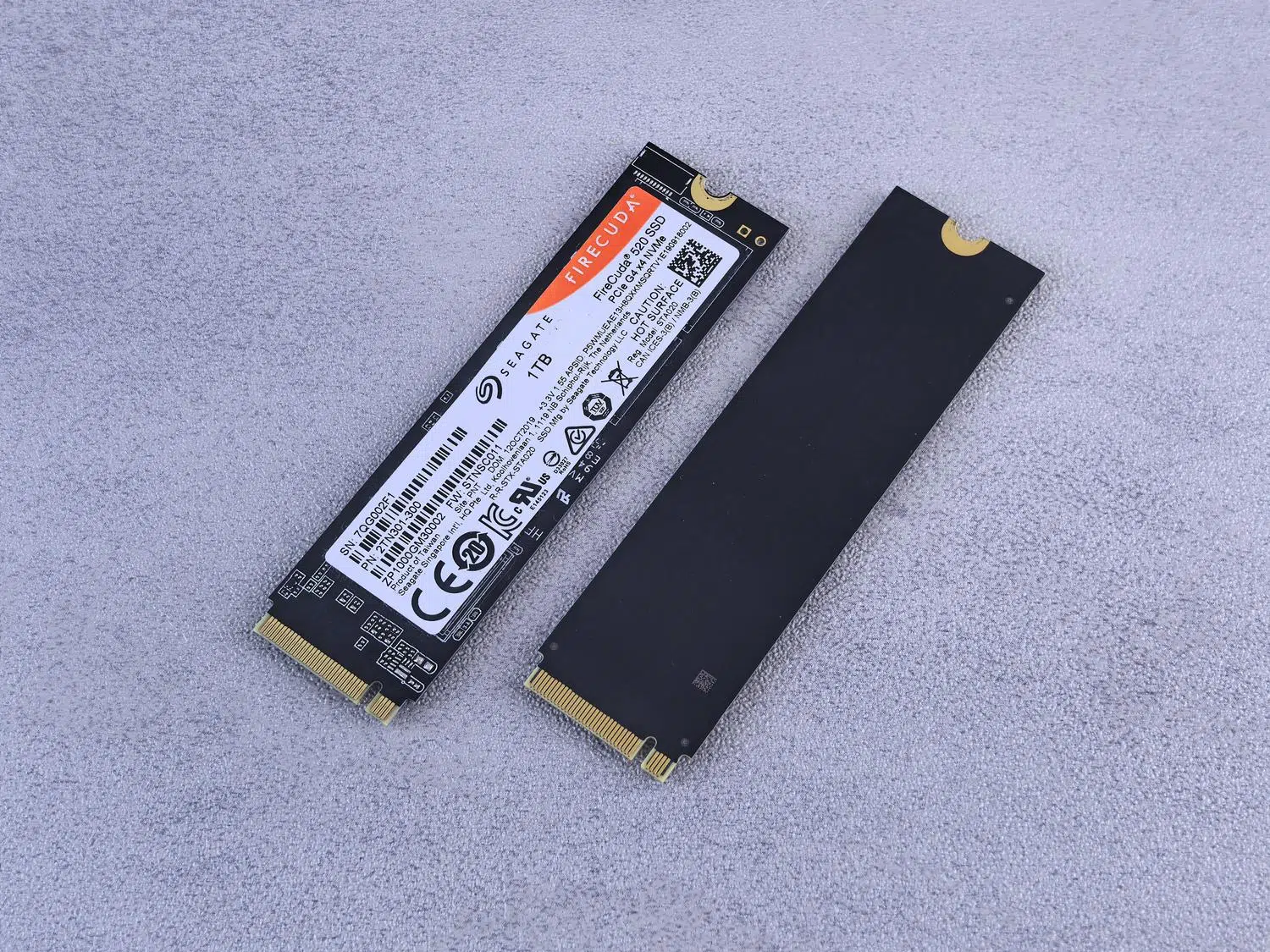
If you notice your computer has become incredibly slow when booting up, suffers sudden freezes, or worse, the system stops recognizing the hard drive altogether, it's very likely your storage drive is crying out for help . These days, the vast majority of computers use NVMe SSDs, which, while incredibly fast compared to old mechanical hard drives, aren't immune to wear and tear and can fail silently, leaving you with no way to save your data.
Knowing how to read warning signs in time is what separates a simple scare from a total and irreversible data loss . You don't need to be a hardware expert to monitor the health of your drive; there are free methods and programs that allow you to know exactly how many miles your hard drive has left and when it's time to retire it before it leaves you stranded at the worst possible moment.

Why do computers fail? Main causes
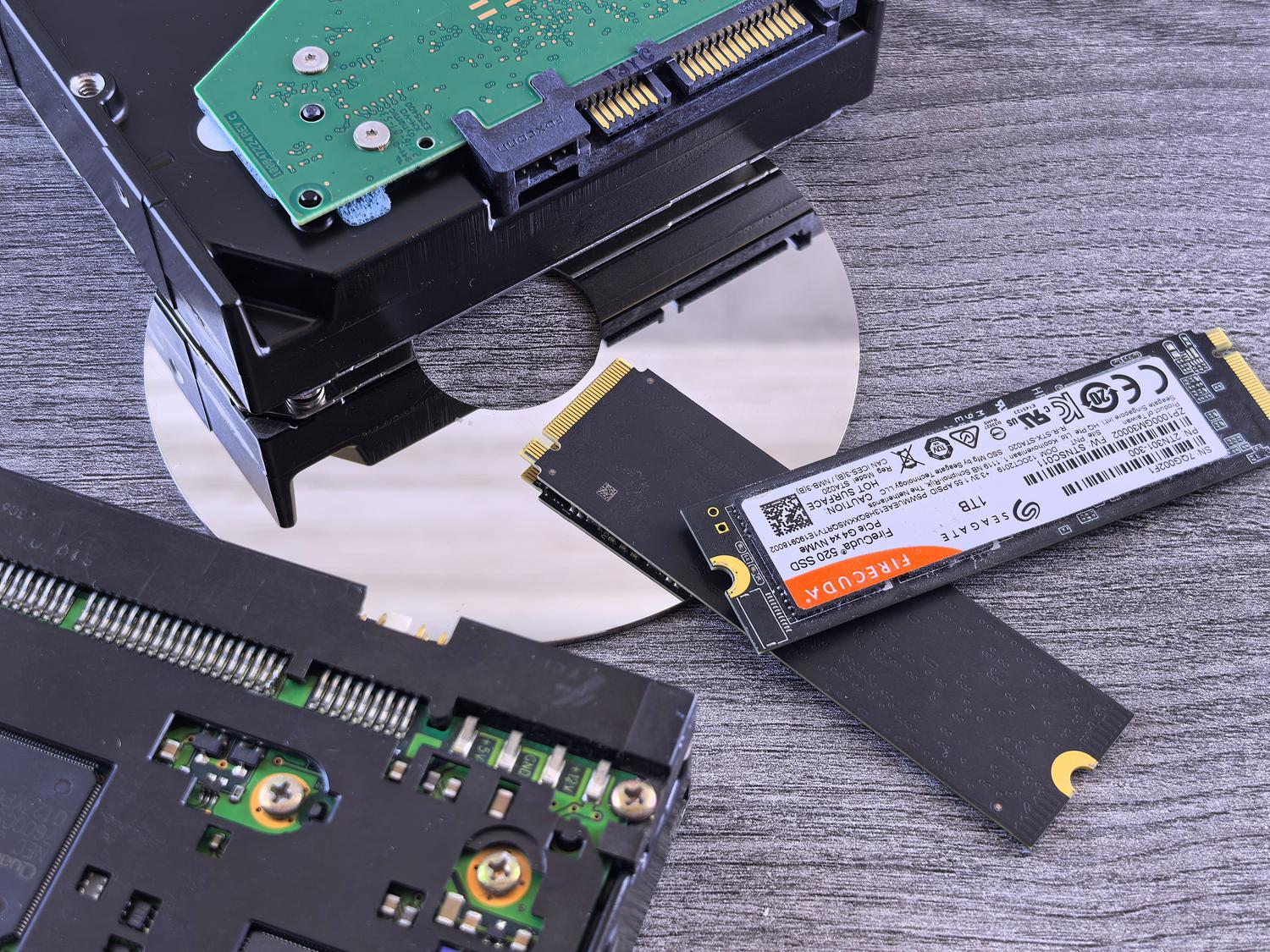
Unlike HDDs, which fail due to mechanical wear, NVMe drives use NAND flash memory cells that have a limited number of write cycles . When these cells are depleted, the drive begins to degrade. Among the most common causes is natural wear, measured in TBW (Terabytes Written), which is essentially the amount of data the manufacturer guarantees you can write before the drive starts to malfunction.
Other critical factors include overheating , especially in compact laptops where heat accelerates the chemical degradation of the cells. Similarly, abrupt power outages can corrupt the firmware or the address translation table (FTL), rendering the drive invisible to the BIOS . There are also manufacturing defects in lower-end models and the problem of having outdated SSD firmware that fails to correct critical memory management errors.
Warning signs: Don't ignore these symptoms

An SSD rarely gives warning noises, so we must pay attention to the system's behavior. Some clear signs are that the operating system takes an eternity to boot for no apparent reason, or that corrupted files appear and then delete themselves. It's very common to experience the infamous Blue Screens of Death ( BSOD ) with error codes like CRITICAL_PROCESS_DIED or DISK_STRUCTURE_CORRUPTION.
Other symptoms include the computer freezing when trying to access specific folders or drastically reduced read and write speeds in performance tests. In more severe cases, the system may enter read-only mode , where you can see your files but cannot save anything new; this is a protective measure implemented by the controller when the NAND flash memory is depleted. If the disk intermittently disappears from Device Manager , you could be facing an imminent controller failure or a physical contact problem.

Home diagnosis with free tools
To find out what's really going on, the best thing to do is consult the SMART data, which is an internal self-diagnostic system for the disk. CrystalDiskInfo is the leading option in Windows due to its simplicity; simply check if the status appears in yellow or red and monitor parameters such as the Reallocated Sectors Count or the Media Wearout Indicator.
- Samsung Magician, WD Dashboard and Kingston SSD Manager: These are the official tools of each brand. They are essential because they best interpret the proprietary attributes and allow you to update the disk's firmware.
- HDDScan and Macrorit Disk Scanner: Ideal for performing a surface scan and detecting defective sectors using a visual block map.
- Hard Disk Sentinel: Very powerful for monitoring performance degradation in real time and issuing detailed alerts.
- Smartmontools: The standard tool for users of Linux or macOS, manageable from the terminal using the command smartctl.
How to interpret critical values and TBW
To calculate remaining lifespan, check the TBW (Terabytes Written) guaranteed by the manufacturer and compare it to the data already written (attribute F1). If the remaining lifespan percentage drops below 10%, it's time to look for a new drive. Attributes such as Program Fail Count and Erase Fail Count should always be zero; any positive value is a red flag.
Monitoring temperature is also vital. An NVMe drive that constantly operates above 70 degrees Celsius will experience accelerated degradation. If this occurs, you can measure the SSD's actual temperature and install an M.2 heatsink to significantly extend its lifespan.

Logical repair with CHKDSK in Windows
When the problem is file system corruption and not a physical failure, the CHKDSK (Check Disk) tool is our best ally. It can be run from the drive's properties in File Explorer, although the most powerful method is to use Command Prompt as administrator.
The `chkdsk C: /f` command corrects logical errors, while `chkdsk C: /r` is much more thorough, as it searches for bad sectors and attempts to recover readable data. If the system indicates that the volume is in use, you should schedule the scan for the next restart , allowing the tool to run before Windows loads.
Prevention and best practices to avoid disasters
The best data recovery is the one that doesn't need to be done. To extend the life of your SSD, it's essential to maintain 15-20% free space ; this allows the controller to perform wear leveling , distributing wear evenly across all cells.
Ensure TRIM is enabled , as it optimizes the removal of stale blocks and prevents write amplification. To protect against power outages, using a UPS (Uninterruptible Power Supply) is highly recommended , preventing FTL table corruption during active write operations. Finally, apply the 3-2-1 backup rule : three copies, two on different media, and one off-site (in the cloud).

Professional recovery: What happens when a disc dies?
If an SSD fails completely, recovery is much more complex than with an HDD, due to hardware AES encryption and the TRIM function, which physically erases the data. However, specialized labs can use tools like PC-3000 SSD to repair the firmware or the Chip-Off technique , which involves desoldering the NAND chips to read them directly.
If you suspect a serious failure, do not attempt to format the disk or run aggressive repair tools, as this could permanently destroy your data. The safest course of action is to shut down the computer and take it to a technician who can perform a forensic cloning of the device.
Maintaining the health of our storage requires a combination of active monitoring through diagnostic software, intelligent space management, and protection against power outages. Using tools like CrystalDiskInfo and running CHKDSK allows us to detect problems before they become catastrophic, although the only real guarantee against NAND cell depletion and controller failures is maintaining an up-to-date backup system.


Passionate writer about the world of bytes and technology in general. I love sharing my knowledge through writing, and that's what I'll do on this blog, show you all the most interesting things about gadgets, software, hardware, tech trends, and more. My goal is to help you navigate the digital world in a simple and entertaining way.