- Analysis of the best free and paid software tools for thermal control.
- Differences between PWM management and voltage control depending on the hardware.
- Importance of configuring ventilation curves to balance performance and noise.
- Direct adjustment alternatives via BIOS/UEFI and manufacturer software.
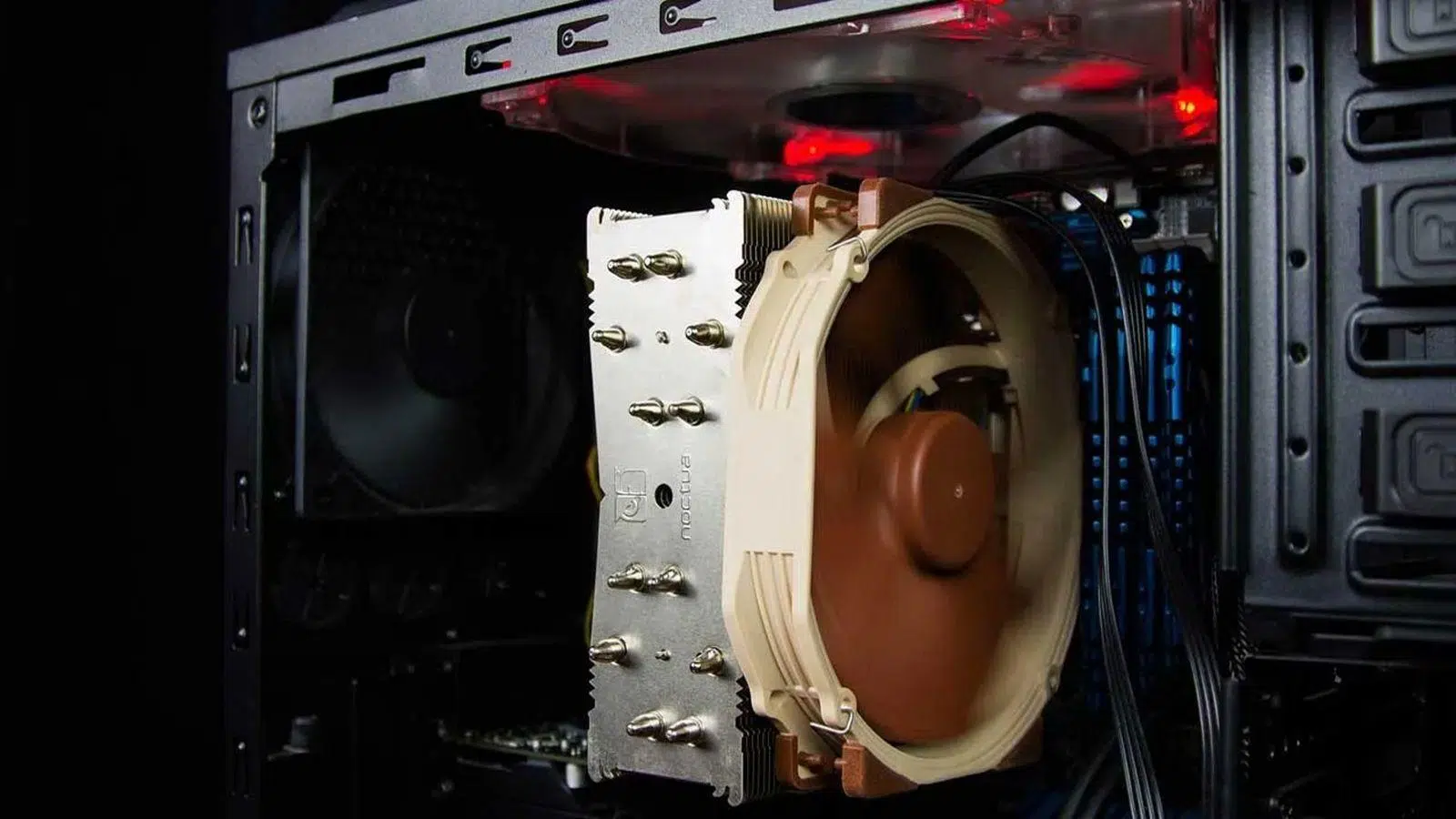
Having a powerful computer is wonderful, but when the fans start sounding like a plane is about to take off, the experience becomes quite annoying. Windows 11, although a very advanced operating system, It does not include a native tool. so we can tell the fans exactly what speed to spin at, letting the system manage it automatically according to the workload.
For those looking for a team that is really quiet But to avoid turning it into a toaster, it's essential to know how to navigate between third-party software and motherboard settings. Adjusting airflow isn't just about noise, but also about... extend the life of components and prevent performance from plummeting due to overheating.

Recommended software for managing ventilation
If you don't want to complicate things by navigating through strange menus when you start your PC, there are some very reliable programs available. One of the most prominent ones right now is... Fan ControlA gem of open-source code available on GitHub. The best part is that it doesn't require a complicated installation; you simply unzip the file and run it. It allows create visual ventilation curveswhere you decide that, for example, the fan goes to 20% until 40ºC and gradually increases to 100% if it reaches 80ºC.
On the other hand, we have SpeedFanAn absolute classic that was the benchmark for years. Although it's not updated as much anymore, it's still capable of monitor voltages and temperatures in real time. For it to work properly, sometimes you have to go into the advanced settings and change the fan mode to "Software Controlled", thus allowing us to move the speed percentage as we please.
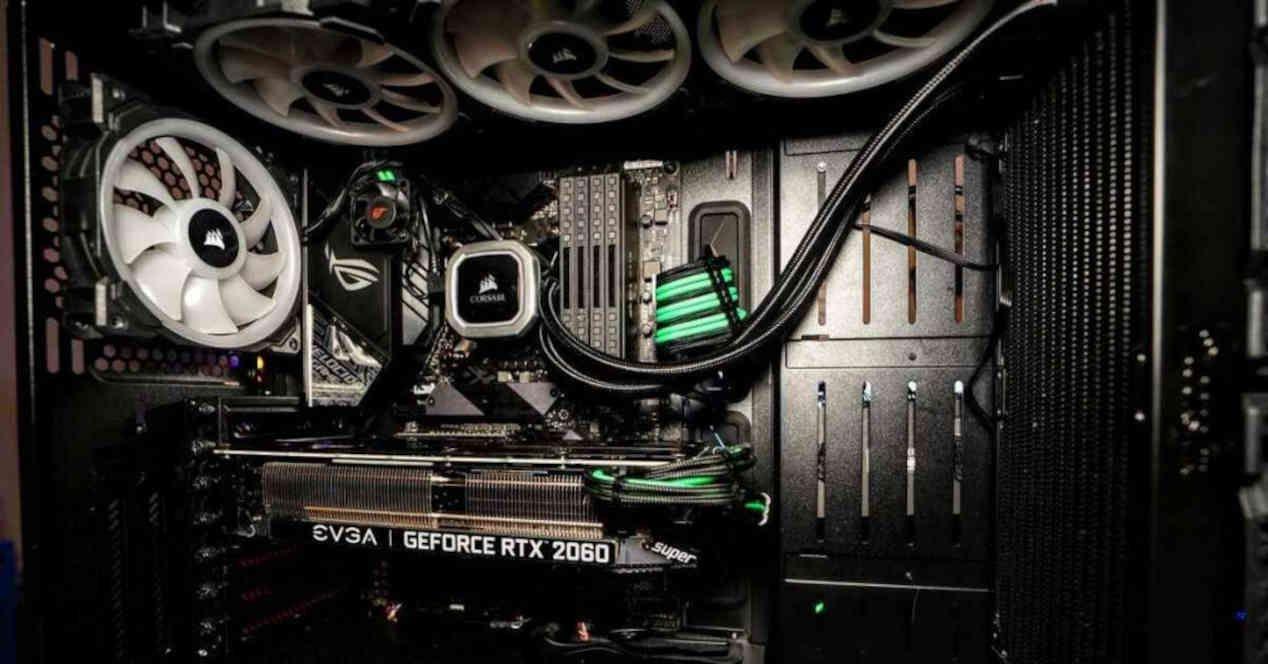
If you're looking for something more professional and don't mind paying (although it has a free trial), Argus monitor It's a powerful option that allows you to link fans to specific sensors. For example, you could make the side panel fan of your tower... react to GPU temperature and not to the CPU. For those who prefer open source and pure monitoring, Open Hardware Monitor y HWiNFO are unbeatable for reading each sensor of the system, although the latter is more of an observer than an active controller.

Specific tools and manufacturers
Depending on what you have installed in your tower, the manufacturer's software might be the best option. If you have an ASUS motherboard, AI Suite 3 and Fan Xpert 4 They are the ideal tools, as they are specifically designed for that hardware. The same applies to EasyTune by Gigabyte, which allows for integrated management of the Smart Fan Auto.
For graphics card enthusiasts, MSI Afterburner It's the ultimate tool. Not only is it for overclocking, but it also allows you to define up to five ventilation profiles different for the GPU, ensuring the graphics card doesn't overheat while playing demanding games. Also, if you have Corsair components, iCUE allows you to synchronize RGB lighting and manage performance according to the mode (silent, game, or movie).
In the case of laptops, which are more delicate due to their limited space, there are solutions such as NoteBook Fan Control o TPFanControl (Specifically for ThinkPad). You must have Be very careful with these appsBecause if we accidentally turn off the fan on a laptop while the CPU is running at full load, we could cause permanent damage from excessive heat.

Key concepts: PWM, Voltage, and BIOS
When choosing a program, it's vital to know how the fan is controlled. The method PWM (Pulse Width Modulation) It's the standard for 4-pin fans and is much more precise. If your fans are 3-pin, control is done via the voltage changewhich is a more rudimentary but effective system if the software supports it.
If you notice that no program detects your fans or that the changes aren't being applied, the definitive solution lies in the BIOS or UEFIWhen you start your PC (by pressing F2, Del or F12 depending on the brand), you can access the section of Fan Control or CPU Fan ProfileThis is the safest and most stable way to configure the computer, as the settings are applied even before Windows starts loading.
Risks and tips for optimal maintenance
It's not all about lowering the decibels. Forcing a fan to spin very slowly to avoid noise can cause the system to malfunction. thermal throttlingThis is when the CPU reduces its power to avoid overheating, drastically lowering FPS in games. In extreme cases, prolonged overheating can degrade hardware materials or cause blue screens due to RAM instability.
To achieve the perfect balance, the ideal is to combine quality fans with a regular maintenanceAccumulated dust not only blocks airflow but also generates vibrations that increase mechanical noise. A cleaning with compressed air every few months and a correct management of temperature curves They are the key to making the PC fly without sounding like a turbine.
Keeping the temperature under control by using software such as FanControl, HWiNFO or the BIOS itself allows the components to work in their comfort zone, preventing premature wear and ensuring that the noise is as low as possible without putting the physical integrity of the graphics card or processor at risk.


Passionate writer about the world of bytes and technology in general. I love sharing my knowledge through writing, and that's what I'll do on this blog, show you all the most interesting things about gadgets, software, hardware, tech trends, and more. My goal is to help you navigate the digital world in a simple and entertaining way.