- Copilot en Word It generates drafts, expands texts, and rewrites content according to your instructions and the context of the document.
- It allows you to base your texts on files, emails, and meetings from your organization, respecting permissions and security. Microsoft 365.
- The chat panel offers summaries, analyses, and answers about the document with references to the source sections.
- Although it speeds up writing, it is essential to review data and nuances, since the IA It may make mistakes or be inaccurate.
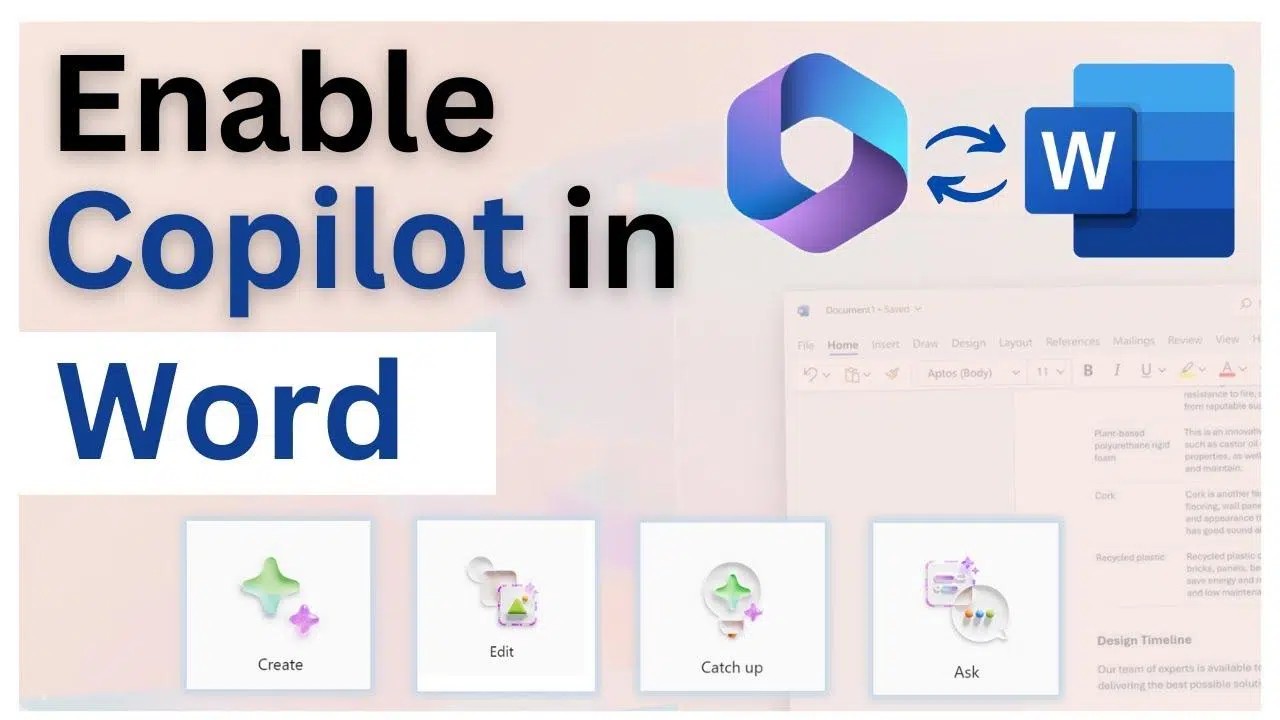
If you've ever stared at a blank Word document, unsure where to begin, Copilot can become your best ally for writing faster and with less effort . This AI assistant, integrated into Microsoft 365, can generate drafts, rewrite entire sections, summarize long documents, and even chat with you about the content on your screen.
Far from being a simple tool to "write for you," Copilot in Word is designed to help you think more effectively, structure your ideas, and polish your writing , whether you're starting from scratch or already have an advanced document. The key, however, lies in knowing how to interact with it and what options it offers in each context, and that's precisely what we'll explore in detail throughout this tutorial.
What is Copilot in Word and what can it do for you?
Copilot in Word is an AI-powered assistant based on OpenAI (GPT) models that integrates directly into Microsoft 365 applications to generate and transform text content within your documents . It's not a separate app, but rather a feature that appears in the ribbon and directly on the document canvas.
In practice, this means that it can go from a blank page to a fairly solid draft in a matter of seconds , based on a prompt you give it: a short sentence, an outline, some quick notes, or even files and meetings for reference.
In addition to creating new content, Copilot can also be used to rewrite, shorten, lengthen, or change the tone of existing texts . If your text is too informal, you can request a more professional version; if it's too dense, you can request a clearer and more direct version.
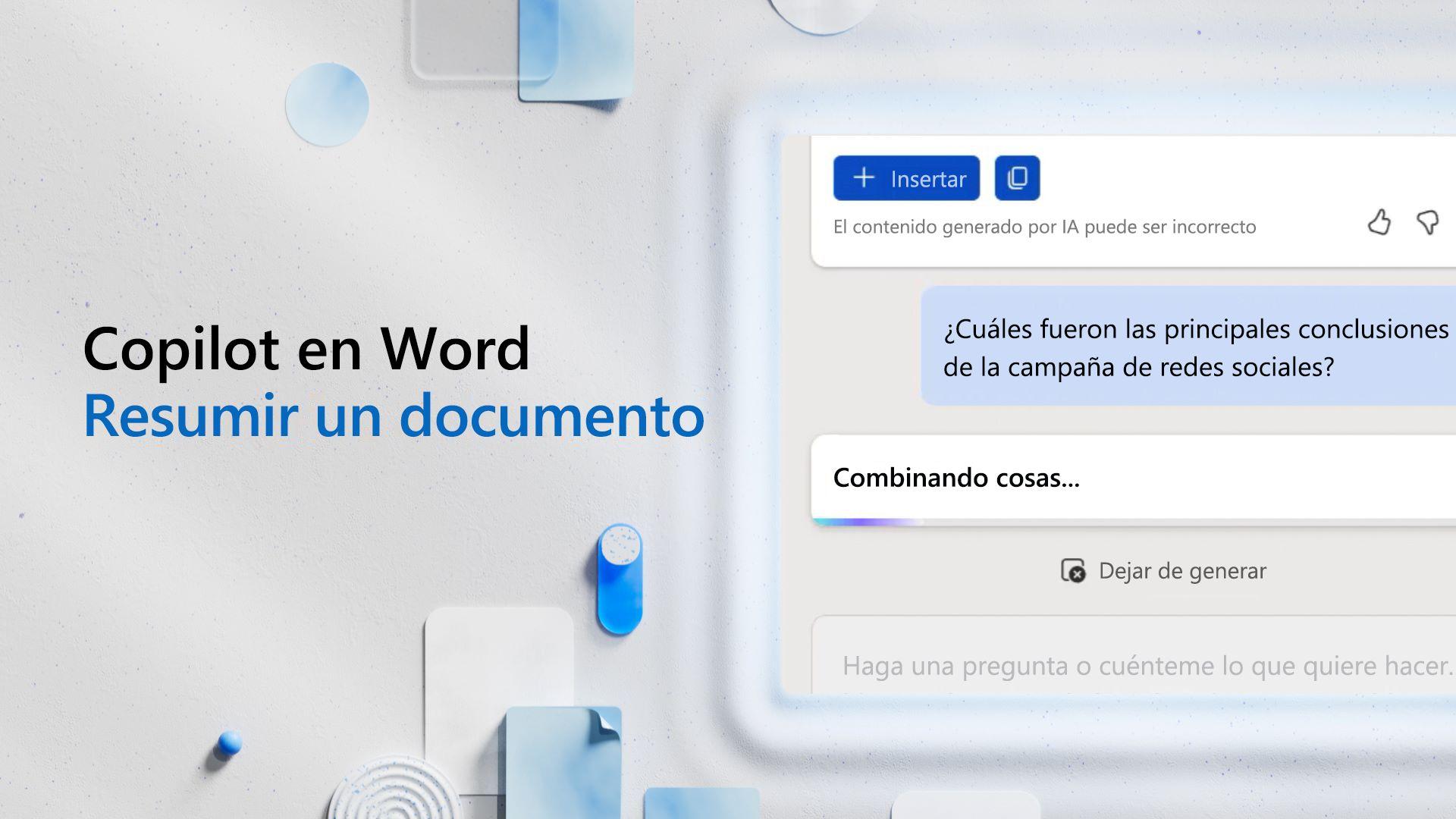
Another strength is its document analysis capabilities: it can summarize Word documents using Copilot , extract key points, generate lists or tables from what you already have, and answer questions about that specific file, including references with citations to the source paragraphs.
Finally, the integrated chat panel allows you to have two-way conversations with Copilot about your document , ask questions, request additional ideas or supplementary information not written in the current text, all without leaving Word.
Requirements and how to check that Copilot is available in Word
Before you start using it, it's important to confirm that your Microsoft 365 account and installation are compatible with Copilot and that you can activate Copilot in Microsoft Word . Not all licenses include it, and if you don't meet certain requirements, the Copilot button might not even appear.
For home use, you'll need an active Microsoft 365 Personal or Family subscription, or a Copilot Pro subscription . In business environments, Copilot is included for users with Microsoft 365 Business Basic, Standard, Premium, E3, E5, F1, or F3 licenses, provided the organization has also purchased Microsoft 365 Copilot.
For newly created or unsaved files, the primary account you see at the top of the Word window must be the one licensed for Copilot . If you're using an additional, unlicensed account, Copilot won't be displayed even if you have a valid subscription under that other identity.
It's also a good idea to review your account privacy settings in Microsoft 365 apps. Under File > Account, you'll find an Account Privacy section with the option "Manage settings ." There, you should ensure that the "Experiences that analyze your content" option is enabled.
In that same section, scroll down to find the "All connected experiences" setting and make sure it's enabled . If either of these options is disabled, Copilot may stop appearing or not function correctly in Word, Excel, or PowerPoint.
How to generate a first draft with Copilot in Word
One of Copilot's most powerful features in Word is its ability to create a first draft from a simple prompt . It's ideal for proposals, articles, letters, technical documents, or almost any content that requires structured text.
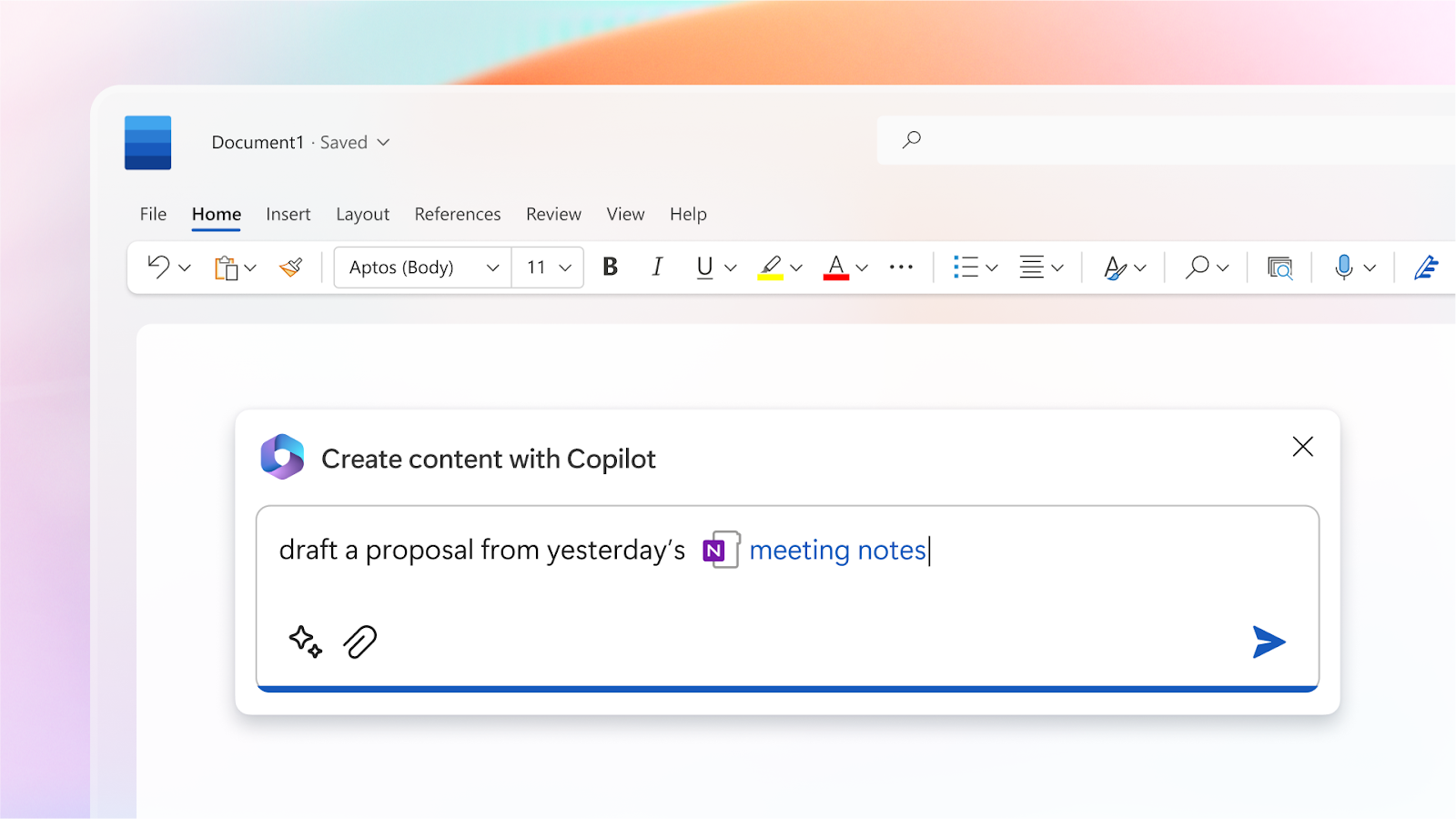
When you open a new blank document, or place the cursor on a new line within an existing document, the "Create a draft with Copilot" experience appears on the canvas . There you can write your request, also called a "prompt".
The quality of the result will depend largely on how clear and detailed you are in that initial request . You can ask for something simple like "Write an essay about baseball" or something more specific, for example: "Create a paragraph about time management for a college student audience."
To get the most out of your request, try including the document type, objective, tone, audience, and key points you want to cover in your message . For example, “Write an article for my team about the importance of taking care of their well-being, using a friendly and motivating tone, and including practical tips.”
Once you click Generate, Copilot will create the content and insert it into the document. From there, you can accept the draft (Keep it), discard it entirely, or request that it be regenerated to obtain a different version that better suits your needs.
Use files, emails, and meetings as the basis for the draft.
Copilot doesn't just work with what you type in the text box; it can also base its drafts on existing files and data from your organization . This is especially useful if you need documents aligned with internal terminology and KPIs, helping to optimize Copilot for local workflows.
In the Copilot compose box, you can type your request and then add a slash “/” followed by the name of the file you want to use as a reference. Word will then show you a list of matching files in SharePoint or OneDrive for you to select.
Many versions of Copilot for businesses allow you to reference up to a few dozen related items (documents, presentations, emails, or meetings) , enabling you to create texts well-supported by internal sources without the need for manual copying and pasting.
By adding these files, Copilot is able to provide more accurate drafts, including data, product names, and expressions that your company uses daily . This reduces the amount of editing work needed afterward, because the database is already tailored to your professional context.
All of these materials are used in a controlled manner: only files that you already have access permission to in SharePoint or OneDrive can be referenced , and the information is kept within the security and compliance limits established by your organization.
Add content to an existing document
If you already have a document in progress, Copilot can also help you extend it with new paragraphs, sections, or examples without interrupting your writing flow . Simply go to a new blank line and call Copilot.
When you select the Copilot icon in the margin or on the ribbon, a box opens where you can explain what type of content you want to add and in what tone . For example: “Add a pros and cons section in a professional tone” or “Include a practical example of everyday use.”
After generating this extension, Copilot will show you the proposed text, and you'll have several options: Keep it if you like it, Regenerate if you want a different version, or Discard it if it doesn't fit. You can also edit it manually, just like any other Word document.
Furthermore, you can write instructions directly in the Copilot window to refine what you've just created. Phrases like "Make it sound more formal," "Make it shorter," or "Adjust this draft for a child audience" allow you to refine the content without having to start from scratch.
In this way, Copilot integrates into the writing process as a tool to quickly iterate on the text , mixing automatic suggestions with your own manual corrections to reach the desired result faster.
Rewrite and transform text with the Transform function
One of the most time-consuming tasks when working with documents is improving text with Copilot in Word : correcting style, simplifying sentences, and removing repetitions. This is where Copilot's transformation option can save you hours.
To use it, simply select the text you want to change and tap the Copilot icon that appears on the left margin . In the context menu, you'll see several options, including automatic rewriting.
When you choose automatic rewriting, Copilot suggests different versions of the original text, usually with variations in style, conciseness, or the order of ideas . You can browse through these suggestions and decide which one best suits your needs.
If none of the options completely convince you, you have the possibility of regenerating a new set of alternatives or refining what you want through specific instructions in the composition box, such as "Make it more persuasive" or "Use a more neutral tone".
This transformative capability also extends to converting text into tables. By selecting a block of text and choosing the "View as a table" option in the Copilot menu , the tool will automatically reorganize that data into a tabular format.
Once the table is created, you can request additional adjustments from Copilot, such as "Add a third empty column," "Change the column order," or "Group by category ." If you don't like the result, you can always discard it and keep the text as it was.
Chat with Copilot about your Word document
Beyond one-off actions, Copilot also offers a chat panel that lets you have an ongoing conversation about your document . It's usually opened from the Copilot icon on the Home tab of the ribbon.
In this panel, you can ask open-ended questions, as if it were a general assistant, but its true value lies in its ability to understand the content of your current document and use it as context thanks to Copilot's semantic search . This allows it to provide you with specific answers about what you're writing.
For example, you can ask it: “Summary the document in five bullet points” or “Tell me what the main objectives are in this report .” Copilot will return the information along with references indicating which part of the document it came from.
You can also use the chat to generate elements that you will then copy to the document: lists of ideas, comparison tables, examples of alternative paragraphs, or even haikus or other creative texts that you want to insert or adapt.
An interesting advantage is that chats are automatically saved in the history , so you can return to previous conversations, pick up pending topics, or reuse instructions that have worked well for you in other documents.
Ideas for practical instructions to start using Copilot
If you're just starting out, you might find a small collection of prompts or messages useful that you can copy, adapt, and paste directly into Copilot to see what it can do in Word.
In the case of generating content from scratch, you could try things like: “Write an article about the importance of creating a balance between work and personal life” , indicating whether you want it in a friendly, formal or corporate tone.
Another useful idea is to request documents with a more technical structure, for example, “Write a technical document on project management with sections for introduction, methodology, and conclusions .” Copilot will generate a reasonably organized outline that you can then refine.
They can also help you with more formal documents, such as job offers or business proposals. For example, you could ask: “Write a job offer letter for a sales position. Start date: August 1. Salary: $60.000 annually plus bonuses,” and then adapt the specific details.
If you want to build upon previous information, you can combine the prompt text with references to files using “/”. For example, “Write a proposal for a new flavor in Fourth Coffee’s latte line using /NewFlavorResearch.docx” , provided that document exists and contains relevant content.
In the chat panel, you can also request information not found in the document, within the limits of your environment. Phrases like "I need a chocolate chip cookie recipe" or "Show me the ingredients for that recipe in a table" demonstrate how it transforms general requests into structured content.
Privacy, security, and current limitations of Copilot
Copilot in Word leverages the Microsoft 365 infrastructure, so it inherits the same security, privacy, and compliance measures already in place for your data on that platform. Your files remain protected according to your organization's settings.
When Copilot generates summaries or answers questions based on a document, it includes references with citations showing where the information was taken from . This helps verify that the content is based on actual sections of the document and is not fabricated without context.
That said, it's important to keep in mind that Copilot relies on artificial intelligence models that can make mistakes, mix up concepts, or produce inaccurate text . Sometimes it can even generate content that seems very convincing but isn't entirely correct.
For this reason, Microsoft recommends and it is prudent that you always review what Copilot produces, checking sensitive data, figures, proper names or any critical information before approving the document or sharing it with other people.
Situations can also arise where similar requests from different users generate similar text , especially if they involve very generic phrases or common patterns. It's not advisable to rely on Copilot to create content that needs to be completely unique or confidential without human review.
If at any point the system produces responses that you find inappropriate, unexpected, or offensive, you can send feedback directly from the Copilot interface itself , usually using the thumbs up or thumbs down icons that accompany each response.
How to get more out of Copilot with comments and style adjustments
One of the great advantages of Copilot is that you don't have to settle for the first answer it offers; you can shape what it gives you back through additional instructions that work almost as if you were giving orders to a writer.
After Copilot generates a snippet of text, you can ask it to make it more concise, longer, more technical, more informal, or tailored to a specific audience . A simple “Make this more concise” or “Make it sound more professional” can completely change the tone of the content.
This iterative approach applies to both new content and content based on selected sections. For example, you can select a paragraph from your document, ask for a rewrite, and then refine it with nuances like "Reduce technical jargon" or "Add a practical example" until it's exactly how you want it.
It's important to remember that, while Copilot can do much of the heavy lifting, you always have the final say: you can edit, combine versions, delete what doesn't fit, and keep only the useful parts . Think of Copilot as a helpful assistant that suggests ideas, not as a complete replacement for the author.
As you use the tool, you'll discover your own favorite phrases and prompts that work well for your writing style . Saving these ideas or reusing them from your chat history can make preparing each new document much faster.
With everything Copilot offers in Word—quick drafts, smart rewrites, contextual chat, text-to-table conversion, and support for reference files—it becomes much easier to go from raw ideas to polished documents in less time and with fewer creative blocks , as long as you critically review what it generates and combine it with your own professional judgment.
Table of Contents
- 1 What is Copilot in Word and what can it do for you?
- 2 Requirements and how to check that Copilot is available in Word
- 3 How to generate a first draft with Copilot in Word
- 4 Use files, emails, and meetings as the basis for the draft.
- 5 Add content to an existing document
- 6 Rewrite and transform text with the Transform function
- 7 Chat with Copilot about your Word document
- 8 Ideas for practical instructions to start using Copilot
- 9 Privacy, security, and current limitations of Copilot
- 10 How to get more out of Copilot with comments and style adjustments
