- Optimization of Copilot It allows you to fine-tune language models with tenant data to create agents specialized in local flows.
- Data quality, model instructions, and access governance are key to security, compliance, and accuracy.
- Use cases such as document generation, expert Q&A, and operational support transform repetitive tasks into agile processes.
- A phased adoption, based on clear objectives and iterative improvement, maximizes Copilot's impact on organizational productivity.

The way we work with local data and processes is changing rapidly thanks to artificial intelligence and tools like Microsoft Copilot . More and more companies want to bring that power directly into their day-to-day workflows, integrating AI with their documents, applications, and internal systems without losing control over security or compliance.
Setting up and optimizing Copilot for local workflows isn't just about turning on a feature ; it's about combining automation, proprietary data, governance, and best practices. When properly implemented, Copilot becomes an integral part of the team: drafting documents, answering complex questions about internal information, summarizing dense reports, and proposing solutions to operational issues, all while respecting your organization's permissions and rules.
Intelligent automation and the role of Copilot in local flows
Automation is no longer just about following a rigid script ; the AI integrated into Copilot allows local workflows to learn from data, detect patterns, and adapt when the context changes. This directly impacts how tasks such as document creation, capacity planning, and responding to quality or supply issues are managed.
The combination of AI, RPA, low-code/no-code platforms, and process mining leads to what's known as hyperautomation , where almost any repetitive or data-driven activity can be partially or fully automated. Copilot acts as an intelligence layer on top of these systems: it understands text, generates content, and helps make decisions quickly, without the user needing to understand the underlying technical complexity.
Low-code and no-code platforms radically simplify the creation of local workflows , allowing business personnel without a technical background to configure processes, forms, and AI agents. Copilot Studio fits in here as a "workshop" where subject matter experts (marketing, finance, legal, operations, etc.) can fine-tune models and create agents without writing code, using visual assistants and templates (see Copilot Actions and Agents ).
Process and task mining provides a key piece of information for deciding what to automate : it reveals where workflows get bogged down, which activities are most time-consuming, and where Copilot-based agents make sense. With this data, automations that truly impact efficiency, service quality, or compliance are prioritized, and the evolution of results can be tracked over time. Furthermore, these techniques are complemented by semantic search approaches within Copilot to locate relevant knowledge across the tenant.
This advanced automation context sets the stage for Copilot to operate locally on your own data, combining the best of large language models (LLM) with the knowledge already residing in SharePoint , Microsoft 365 , ERP, production systems, or internal applications.
What is Copilot Optimization and why is it key for local environments?
Microsoft 365 Copilot optimization is the functionality that allows you to fine-tune your Lifecycle Management (LLM) model using data from your own tenant , without taking the information outside the secure Microsoft 365 environment. The goal is for the model to understand your organization's specific tone, templates, procedures, and vocabulary, so that its responses have the same style as an internal expert would use.
All machine learning and AI processing takes place within the Microsoft 365 tenant , adhering to existing security and compliance policies. The optimized model inherits permissions from the training data, ensuring it doesn't "see" or use information that configured groups don't have access to. This is essential for on-premises workflows handling sensitive, regulated, or auditable data.
Based on these optimized models, specific declarative agents can be created , which integrate directly into Microsoft 365 Copilot and appear in applications such as Word , Outlook, Teams, and Excel. These agents are not simply generic chatbots: they are designed for specific tasks such as drafting legal clauses, summarizing incident reports, preparing sales proposals, or accurately explaining internal policies.
The major advantage is that model tuning is done through a no-code interface in Copilot Studio , so business analysts or functional experts can lead the process with minimal IT support. They don't need to be data scientists; they simply need to have a good understanding of the domain, the types of documents, and the expected outcome.
In practice, Copilot Optimization transforms Copilot from a generic tool into an assistant deeply tailored to your local workflows: it speaks “like your company”, uses the right templates, applies the right reasoning, and aligns with the rules that already exist in your organization.
Prerequisites and basic governance for enabling Copilot Optimization
Before you can configure and manage Copilot Optimization, you must meet certain technical and role requirements . The service is primarily intended for organizations with a significant number of licenses and a clearly designated AI manager.
First, the tenant must be enrolled in the Copilot Optimization Early Access Program (EAP) . This requires, among other things, having a minimum number of active Microsoft 365 Copilot add-on licenses in the tenant. Additionally, a person with the AI Administration role must accept the program terms on behalf of the organization.
It is essential that Copilot extensibility is enabled in the Microsoft 365 admin center , within the Copilot settings. This is where you manage both the optimization service and the publishing and agent access options. If your organization applies DLP policies that block new Power Platform connectors, you will need to reclassify the "Tenant Copilot" connector using PowerShell so that it can be used with the appropriate classification.
Only users with the AI Administration role can manage Copilot Optimization's governance controls : who can create models, which users or groups have access to them, which models remain published, and which are removed. All of this is controlled from the Admin Center itself, in the dedicated Copilot Optimization section.
Activating Copilot Optimization allows you to explicitly limit the service to specific users or groups . It's good practice to start with a small group (for example, Legal, R&D, or Supply Chain teams) and gradually expand as results are validated and responsible AI use practices are established.
Role design: administrators, model creators, and end users
A robust Copilot setup for local workflows requires clearly defining the roles involved, preventing "everyone doing everything" and ensuring traceability of who can create and publish models.
AI administrators are responsible for the governance layer : they activate or deactivate Copilot Optimization, decide which departments participate, control the model lifecycle, and review compliance with security and privacy policies. They can also retire published models when they become obsolete or no longer align with internal regulations.
Model makers are subject matter experts within their respective areas —for example, people from marketing, finance, legal, or operations—with the ability to select data sources, configure tasks, and review results. They are granted permission to use Copilot Optimization from the Admin Center and are typically a limited group (by default, up to ten users per organization, expandable through Microsoft support if needed).
When a new model creator joins, they receive an email with instructions on how to start working in Copilot Studio: where to find the Copilot Optimization section, what types of tasks they can create, how to select knowledge sources, and how to give other users access to the resulting agents.
End users interact with the optimized agents directly within Microsoft 365 applications (Word, Teams, Outlook, etc.), just as they would with standard Copilot, but benefiting from the specific knowledge of the trained model. They don't need to know the configuration details; they only need to understand the agent's scope and how to formulate effective commands.
Creation of optimized models: Q&A tasks, generation and summarization
Copilot Optimization currently supports three major task types that cover most local document-based workflows: expert questions and answers (Q&A), document generation, and document summarization.
In the case of Q&A, the goal is for the agent to act as a specialist capable of explaining regulations, comparing policies, justifying clauses, or clarifying procedures, using content stored in formats such as .docx, .pdf, or .html. This is ideal for topics with dense and stable text: regulations, tax codes, technical manuals, scientific documentation, or internal policies.
The document generation task is designed to produce high-quality first drafts from reference documents and structured changes. Examples include recurring contracts, sales proposals, job descriptions, compliance forms, and product documentation. Having well-aligned pairs of "original document + final modified version" is key.
For the summary, the model learns to condense complex documents while respecting the organization's tone, format, and content priorities. It is very useful in high-risk or high-volume contexts (regulatory reports, executive summaries, quality reports, or audits), where consistency and accuracy are as important as saving time.
Choosing the right task type is the first critical decision when setting up an optimized model: asking Copilot to generate a contract from scratch is not the same as requesting summaries of existing contracts or asking it to answer complex questions about their content. Clearly defining the business task helps to fine-tune data, instructions, and evaluations.
Customizing the model in Copilot Studio step by step

The model customization workflow is managed entirely from Copilot Studio , accessible via a web browser. From there, model creators follow a series of guided steps that structure the process from start to finish.
First, a new model is created, giving it a clear name and description that explains exactly what it does and what it will be used for. It is advisable to use language that is understandable to end users, avoiding purely technical names that no one will recognize.
Next, the knowledge sources are selected , typically collections of documents located in SharePoint. These datasets are the foundation upon which the model will learn: approved templates, completed reports, signed contracts, valid compliance forms, etc. The quality and currency of this data will directly impact the quality of the model.
The permissions section defines the security groups or individuals who can use the model . Copilot Optimization filters training documents that are not accessible to these groups and can suggest additional groups to maximize knowledge reach, always respecting the Access Control Lists (ACLs) of each file.
Next, the task type (Q&A, generation, or summary) is selected, and the model instructions are written . These instructions guide the system on tone (“formal tone,” “friendly but professional language”), quality criteria (“do not invent regulations,” “always cite the document reference”), and output expectations. The more precise and realistic these instructions are, the better the model's behavior will align with the business needs.
Once these elements are configured, data preparation for labeling begins . Copilot analyzes the document access control lists and organizes the dataset for later use in training. This step can take several hours (up to 24, depending on volume), and the system notifies you by email when it is ready to continue.
Labeling, training, and evaluation of optimized models
The data labeling phase aims to identify which examples are truly effective in teaching the model what quality output should look like. Instead of requiring massive manual work from the outset, Copilot Optimization automatically selects relevant pairs or examples and asks the expert to label them as good or not so good.
The labeling form displays candidate documents or drafts , and the model creator indicates whether they accurately represent the desired standard. This process can be repeated in several rounds, depending on the complexity of the task, until the system has enough references to train reliably.
With the data prepared, the model training is launched in Azure AI Foundry , all managed from the Copilot Studio interface. Tuning can take several more hours, depending on the data volume. Upon completion, the tool generates test results for you to review before publishing anything.
Evaluation is a critical step: it's not enough for the model to "more or less work ." It must be verified that it maintains the tone, doesn't fabricate sensitive data, follows the templates, applies sound business criteria, and doesn't omit key information. If something doesn't fit, it can be reworked: adding more data sources, adjusting instructions, incorporating more examples, or improving the mapping file.
Optionally, a mapping.csv file can be prepared with "precedent-target" document pairs, indicating which original file corresponds to which final draft. This CSV is saved in the root of the knowledge source and helps the model better understand the relationship between inputs and outputs, especially during generation and summarization tasks.
Advanced use of document generation with Copilot Optimization
One of Copilot's most powerful applications in local workflows is generating documents from templates and historical examples. Here, AI is used to produce initial drafts very close to the final version, drastically reducing manual drafting time .
This approach works particularly well when documents follow recognizable patterns and only certain data or clauses change: job descriptions, service contracts, purchase orders, compliance forms, or product documentation. The model identifies the organization's structure and style and applies consistent changes based on the specifications you provide.
To get the most out of it, it's advisable to have more than 20 well-aligned pairs of reference documents and their target versions stored in SharePoint. These pairs should cover the range of variations you expect the system to handle: different contract types, distinct product families, common regulatory changes, and so on.
The necessary changes are supplied in a structured field within Copilot Optimization , making it easy for the model to understand which parts need to be modified and how. This way, the generated drafts already incorporate the new information, maintaining formatting, terminology, and internal style.
The result is much more agile local workflows : human resources generates job offers consistent with the company culture, legal drafts periodic contracts with minimal review, compliance builds new forms from approved templates, and purchasing prepares draft orders that only require final validation.
Copilot in meetings and collaborative work in Teams
In the collaborative sphere, Copilot, integrated into Microsoft Teams, has become a key ally for managing shorter, more focused, and actionable meetings. While it doesn't involve "local workflows" in the traditional sense of internal data processes, its use in meetings constitutes a highly relevant daily workflow.
To use Copilot in Teams, you need a compatible Microsoft 365 license (such as E3, E5, or Business Premium) and to enable meeting transcription or recording. Without transcription or recording, Copilot's capabilities are limited, as it lacks the raw data needed to generate detailed summaries or reliable action lists.
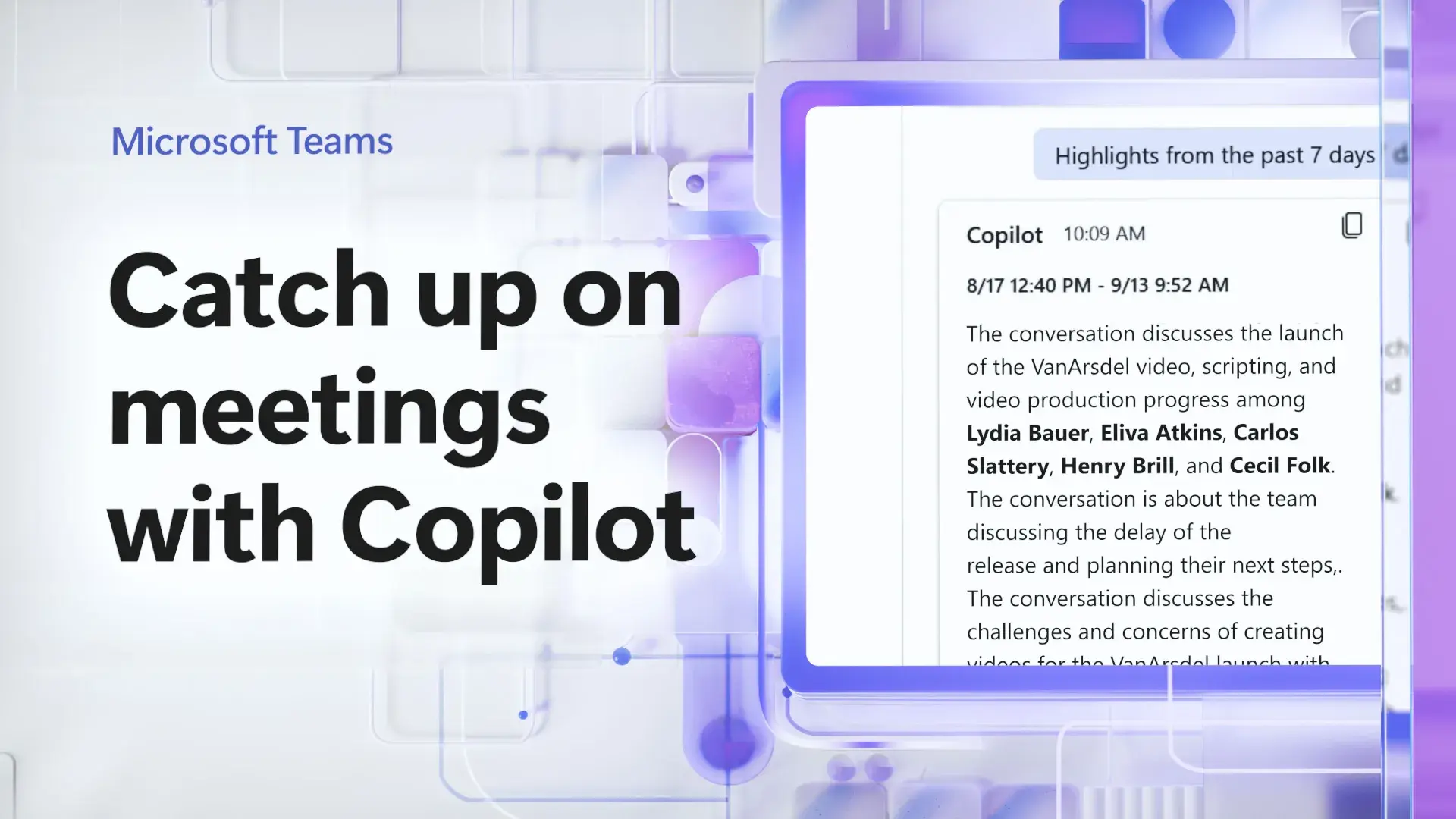
During the meeting, the user activates Copilot from the Teams toolbar and can request real-time summaries, action items, points of disagreement, or open questions. This is especially useful for those who join late: they can get up to speed in less than a minute without interrupting the flow of the conversation.
At the end, Copilot helps to clearly close the session , identifying tasks, responsibilities, and next steps. All of these elements are accessible from the meeting summary tab in Teams, preventing agreements from getting lost in endless chat or scattered personal notes.
Complementary tools like Noota extend these capabilities , offering more structured meeting minutes, advanced searchable files, and specific settings for each meeting type. Integrated with Teams, they allow you to record, transcribe, and generate custom summaries, improving follow-up and subsequent collaboration.
For many organizations, introducing Copilot through Microsoft Edge is a soft adoption strategy . It allows people to become familiar with AI in an environment they already use daily (the browser) before extending Copilot's advanced capabilities across Microsoft 365.
The training sessions focused on Copilot in Edge demonstrate how this tool simplifies tasks such as creating spreadsheets, composing emails, summarizing long web pages, and finding relevant information faster. All of this is further enhanced with OneDrive integration to automatically save files and ensure nothing is lost.
This type of training has a strong practical component : participants experience in real time how AI takes away repetitive work, how they can automate small processes, and how Copilot can propose concrete steps to solve everyday project management problems.
The impact is not only individual but also organizational : by freeing up time from repetitive tasks, teams can dedicate more time to creativity, strategy, and high-level decision-making. This, in turn, strengthens the competitiveness of SMEs and companies in increasingly digital markets.
As maturity increases, it becomes common to organize advanced and customized sessions for specific departments, connecting Copilot in Edge with Copilot in Microsoft 365 and with optimized models in local workflows. In this way, AI ceases to be a novelty and becomes a structural part of daily operations.
Security, compliance, and administration in Copilot Optimization
Security and governance are essential pillars when optimizing Copilot with local data . It's not just about "making it work well," but about ensuring it respects data protection regulations, intellectual property, and internal company policies.
Copilot optimization runs in an isolated environment within the Microsoft 365 tenant , and the trained model inherits permissions from the underlying documents. During training, no customer data is sent to external services outside the tenant's secure cloud, helping to comply with standards such as GDPR and CCPA.
Administrators can control access to both models and agents using security groups, enabling the service only for specific teams (e.g., R&D or Legal) and precisely defining who can create, use, and view each agent. The Admin Center allows administrators to monitor projects, review active custom models, and remove those that are no longer suitable.
Compliance policies also apply to the responses Copilot generates based on Microsoft Graph . The system will not display documents or snippets to users who lack permissions, just as with a standard Microsoft 365 search. Furthermore, Copilot Optimization excludes files from training that the relevant groups do not have access to.
It is important to remember that the organization remains responsible for the use of data and models . The AI administrator must ensure that training sets respect copyright, that individuals are properly informed about the processing of their data, and that valid deletion requests are addressed. If a model was trained using data from an individual who exercises their right to erasure, it may be necessary to retrain or delete the optimized model and review how to enable or disable Copilot memory.
Finally, it is advisable to establish human review procedures for outputs , especially in sensitive areas (legal, regulatory, financial). AI can accelerate the work, but expert verification remains necessary to ensure accuracy, suitability, and regulatory compliance.
Best practices for setting up and using Copilot in local workflows
For Copilot to truly deliver value in local environments, it's essential to follow a series of best practices that align expectations, data, processes, and security. It's not just a technical matter; it also involves culture and ways of working.
Starting with clear business objectives helps prioritize use cases: Do we want to reduce contract drafting time? Accelerate report generation? Improve response to supply incidents? Standardize executive summaries? A clear focus makes it easier to measure return on investment and adjust the configuration.
Selecting high-quality, well-maintained training data is crucial. Models learn from what they see: if the documents are outdated, poorly formatted, or inconsistent, the outputs will reflect those problems. A smaller but highly representative dataset is preferable to a huge, disorganized collection.
Defining specific model instructions and start prompts significantly improves agent behavior. Instructions such as "use a friendly but professional tone," "do not invent policies that do not exist," or "always cite the reference and date of the original document" make a significant difference in practice.
Encouraging users to formulate clear instructions and ask follow-up questions is also part of the setup, albeit an intangible one. Copilot supports multi-turn conversations, so refining a question, asking for additional examples, or requesting the use of another document as a reference are strategies that improve the quality of the outcome.
Finally, adopting an iterative, feedback-driven mindset allows Copilot to improve over time. It analyzes which responses work, which errors are repeated, what new data needs to be incorporated, and when it makes sense to retrain the model. Copilot isn't a one-time project, but a living capability that evolves alongside your organization's processes.
Integrating Copilot and optimizing it with local data represents a qualitative shift in how you work : workflows become more agile, critical information is more accessible, decisions are better documented, and collaboration gains depth. With a solid governance foundation, carefully curated data, and well-chosen use cases, AI ceases to be an abstract promise and becomes an everyday ally that enhances your organization's productivity, quality, and adaptability.


Passionate writer about the world of bytes and technology in general. I love sharing my knowledge through writing, and that's what I'll do on this blog, show you all the most interesting things about gadgets, software, hardware, tech trends, and more. My goal is to help you navigate the digital world in a simple and entertaining way.
Table of Contents
- 1 Intelligent automation and the role of Copilot in local flows
- 2 What is Copilot Optimization and why is it key for local environments?
- 3 Prerequisites and basic governance for enabling Copilot Optimization
- 4 Role design: administrators, model creators, and end users
- 5 Creation of optimized models: Q&A tasks, generation and summarization
- 6 Customizing the model in Copilot Studio step by step
- 7 Labeling, training, and evaluation of optimized models
- 8 Advanced use of document generation with Copilot Optimization
- 9 Copilot in meetings and collaborative work in Teams
- 10 Copilot in the browser: a first step towards adopting AI in everyday life
- 11 Security, compliance, and administration in Copilot Optimization
- 12 Best practices for setting up and using Copilot in local workflows