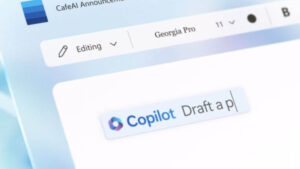
- Copilot en Word is an AI assistant that generates, edits and enhances documents.
- Its activation requires a compatible subscription of Microsoft 365 and proper configuration.
- It allows you to create drafts, summarize texts and transform content intuitively.
- Includes advanced privacy and support features in the Microsoft 365 environment.

Have you ever wondered how you could transform the way you write in Microsoft Word and reach a new level of productivity? The answer is close at hand: Copilot, the intelligent assistant powered by artificial intelligence that is revolutionizing document editing and creation in Microsoft's popular word processor.
In this article, you'll find everything you need to activate Copilot in Word and discover its most powerful uses to enhance your writing, organization, and creativity. We'll not only explain the steps to get it up and running in your account, but you'll also uncover all its secrets, practical functions, and recommendations to help you get the most out of it.
What is Copilot in Microsoft Word and what is it used for?
Copilot in Word is an AI-powered tool, integrated into Microsoft 365, that acts as a digital assistant capable of generating, transforming, summarizing, and improving text. It's not just a simple autocomplete function, but a true evolution, offering proactive suggestions, generating entire drafts, and providing contextual help within your own document.
This feature uses advanced technologies, such as GPT models developed by OpenAI , to understand your natural language instructions and translate them into coherent text, fresh ideas, summaries, or even complete documents. The key is that Copilot learns from your commands and works with the information in your Word file.
Requirements to activate Copilot in Microsoft Word
To use Copilot in Word, you must meet certain basic requirements related to your account and the program version. Simply having Word installed isn't enough, as Copilot is a premium feature of the Microsoft 365 suite. Here's what you should check first:
- Compatible licenseYou must have an active subscription that includes Copilot. For individual users, this means Microsoft 365 Personal, Family, or Copilot Pro. If you're a business user, you need a subscription to Microsoft 365 Business Basic, Standard, Premium, E3, E5, F1, F3, and Microsoft 365 Copilot.
- Updated version of Office: Copilot is only available in the latest versions of Word (both desktop and web). Please update before attempting to activate.
- Session started with the correct accountIt's essential that you're signed in to Microsoft 365 apps (including Word) with the account that has the Copilot license assigned. If you have multiple accounts associated with you, make sure you're using the correct one when opening Word.
If you have any doubts about whether you meet the requirements, you can check your subscription type in the File > Account option within Word or in the Microsoft 365 admin area, if you are a company administrator.

How to activate Copilot in Microsoft Word step by step
Once you've verified you have a valid account and the latest version of Word, activating Copilot takes just a few seconds. Here's a detailed guide to help you through every step:
- Open Microsoft Word on your computer (or from the web if you usually work online).
- Access your Microsoft account in Word, checking that it is the one that has the subscription with Copilot.
- Find the "Home" tab in the top toolbar. If everything is correct, you should see the button or icon Copilot clearly visible, usually near the editing tools, or as a side panel.
- Click on the Copilot icon to start the assistant experience.
- If it doesn't appear, check the section File > Account and check that your subscription is active. If you are a company administrator, make sure you have correctly assigned licenses from the Microsoft 365 admin center.
What if you don't see Copilot? It could be due to two privacy settings:
- Sign in File > Account > Account Privacy > Manage Settings tab and activate Experiences that analyze their content y All experiences connected.
- En Mac, access from Word > Preferences > Privacy and make sure that both of the above options are also active.
How does Copilot work in Word and what can it do for you?
The true magic of Copilot lies in its ability to adapt to your writing needs and assist you through every stage of document creation and editing. Whether you're starting from scratch or working on an existing text, this intelligent assistant can become your most powerful ally.
Key features of Copilot in Word include:
- Generate complete drafts: You can give it a simple instruction, like “write a report on climate change,” and Copilot will automatically generate an initial text that you can edit, expand, and customize to your liking.
- Rewrite and transform textIf you have a paragraph that's unclear or needs a different approach, select the text, click the Copilot icon, and choose "Rewrite." You'll get several options to adjust the tone, length, or structure.
- Summarize, simplify and complete: Is the text too long? Copilot can summarize the most important points. Stuck? Use the "Inspire Me" button to continue writing where you left off.
- Display information as a tableIf you select content in your document, you can ask Copilot to automatically convert it into a table to better organize your data.
- Chat and ask about your documentFrom the Copilot sidebar, you can ask specific questions about your document, request a summary, ask for brainstorming, explain complex terms, or help you create lists, tables, or any other text structure.
- Referencing filesIf you're a Microsoft 365 Copilot user, you can ask the wizard to consider up to three different files as context (e.g., previous reports, outlines, old drafts) to generate texts more aligned with your needs.

Practical examples: How to use Copilot in Word in your daily life?
Copilot's versatility means you can use it for almost any task related to writing or formatting a document. Here are some concrete examples to inspire you and get you started as soon as you activate it:
- Ask Copilot to write an introduction on a specific topic for a report, school assignment, or professional document.
- Ask for suggestions to improve the tone and clarity of a text, selecting the fragments that do not convince you.
- Use the automatic summary feature to analyze and understand the key points of a long document.
- Convert a plain text list into an organized table with just a hint.
- Generate cover letters, internal communications, project plans, or sales proposals in just a few clicks, saving hours of repetitive work.
- Ask for creative examples, such as poems, haikus, or lists, to inspire new ideas or to take a moment to unwind.

Passionate writer about the world of bytes and technology in general. I love sharing my knowledge through writing, and that's what I'll do on this blog, show you all the most interesting things about gadgets, software, hardware, tech trends, and more. My goal is to help you navigate the digital world in a simple and entertaining way.