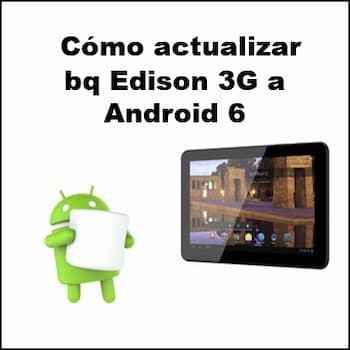
The Bq Edison 3G tablet was designed to put a number of beneficial functions within the user's reach. It has a 3G connection that improves the internet connection and you can use it for anything, from checking your social networks and reading news to playing games and listening to music. However, many of its users want to know how update bq Edison 3G to Android 6.
The reason behind this desire for update is that this tablet comes with Android 4.1 Jelly Bean version so users prefer to update this version to Android 6.o Marshmallow.
Improvements when updating bq Edison 3G to Android 6
The difference in performance that can be seen in this table once the Android version is updated is considerable. The most relevant features are the following:

- Performance improves up to 5 times more.
- Battery saving feature is included which helps extend the use of the device up to approximately 120 more minutes.
- It offers a much faster, more powerful and smoother experience.
- Support for 64-bit SoCs using x86, ARM, and MIPS-based cores.
- The extension pack and OpenGL ES 3.1 put Android at the forefront of mobile graphics and put it on par with desktop and console class performance.
- Responsive, natural motion, realistic lighting and shadows, and familiar visuals make it easy to navigate the device.
- Improved display of notifications based on source and type of communication. Possibility to see all your notifications in one place by tapping the top of the screen.
- Automatically enabled encryption is included to help protect data on devices that are lost or stolen.
- Using SELinux for all applications provides better protection against vulnerabilities and malware.
- It offers innovative video technology with support for the HEVC main profile that enables 4-bit UHD 10K video playback, as well as high-resolution video decoding. hardware tunneling to save power as well as improved HLS support for streaming.
You will be able to enjoy all these improvements on your device once you update to the new version of Android.
Things you should know before updating bq Edison 3G to Android 6
Here are some important information that users should know before trying out the custom ROM so that they have the best experience flashing:
- Make a backup of all your data on the device correctly.
- The device must have at least one 80 percent battery power.
- You enable debugging USB. Do this through Settings > Developer options > USB debugging.
- The device may get stuck on startup or experience a boot loop issue. Boot. If this happens, do a wipe cache partition and wipe dalvik cache a few more times before rebooting.
These security measures must be implemented to ensure that the update goes as smoothly as possible and to protect our personal information.
Nota: try this at your own risk.
How to update bq Edison 3G to Android 6. Tutorial
To update bq Edison 3G to Android 6, the steps you must follow are the following:
- The first thing you should do is Download Android 6.0 Marshmallow ROMYou can do this through any of these links:
If you are having any issues with downloading the ROM, it may be because the ROM has been corrupted during the downloading process. In this case, you can try to download the ROM again.
- Install ROM Manager on your device. You can download it at Google Play Store, then install Clockwork Mod Recovery. You can also use JRummy's ROM Installer app Apps Inc. (download it at Google Play Store).
- Now Connect your devices to your PC using the USB data cable.
- Copy the file “ROM.zip” that you downloaded to the SD memory card.
- Reboot the device into recovery mode using ROM Manager.
- As soon as you are in recovery mode, go to ROM Manager and select backup/restore to back up all your information.
- Enter the recovery menu and Wipe all data (including Delvik Cache). Once done, go back to the main recovery menu and select Flash ROM from SD Card.
- Find the location where you copied the “ROM.zip” file and make sure to follow the instructions to do the Installing Android 6.0 Marshmallow on your device.
- After finishing the installation, you should make sure that reboot your device.
Once the device reboots, you may notice that the boot is a little slow. slowest traveller than normal, but that is to be expected. Then everything will start off correctly.
Final words
For those who need it, here is a simple tutorial that will help you update bq Edison 3G to Android 6By doing so, you will be able to enjoy many of the advantages that the Android 6.0 Marshmellow version can offer to the operation of your device.
Remember to back up your files before starting the update process because a lot of information will be erased and you need to make sure it is not lost.

My name is Javier Chirinos and I am passionate about technology. Ever since I can remember, I have been interested in computers and video games, and that passion has turned into a job.
I have been publishing about technology and gadgets on the Internet for over 15 years, especially in mundobytes.com
I am also an expert in online marketing and communication and have knowledge in WordPress development.