- Netplwiz allows you to enable automatic login without a password.
- secpol.msc offers options to display custom messages before logging in.
- The record of Windows allows you to disable the lock screen and adjust their behavior
- Group policies allow you to automatically remove inactive users.
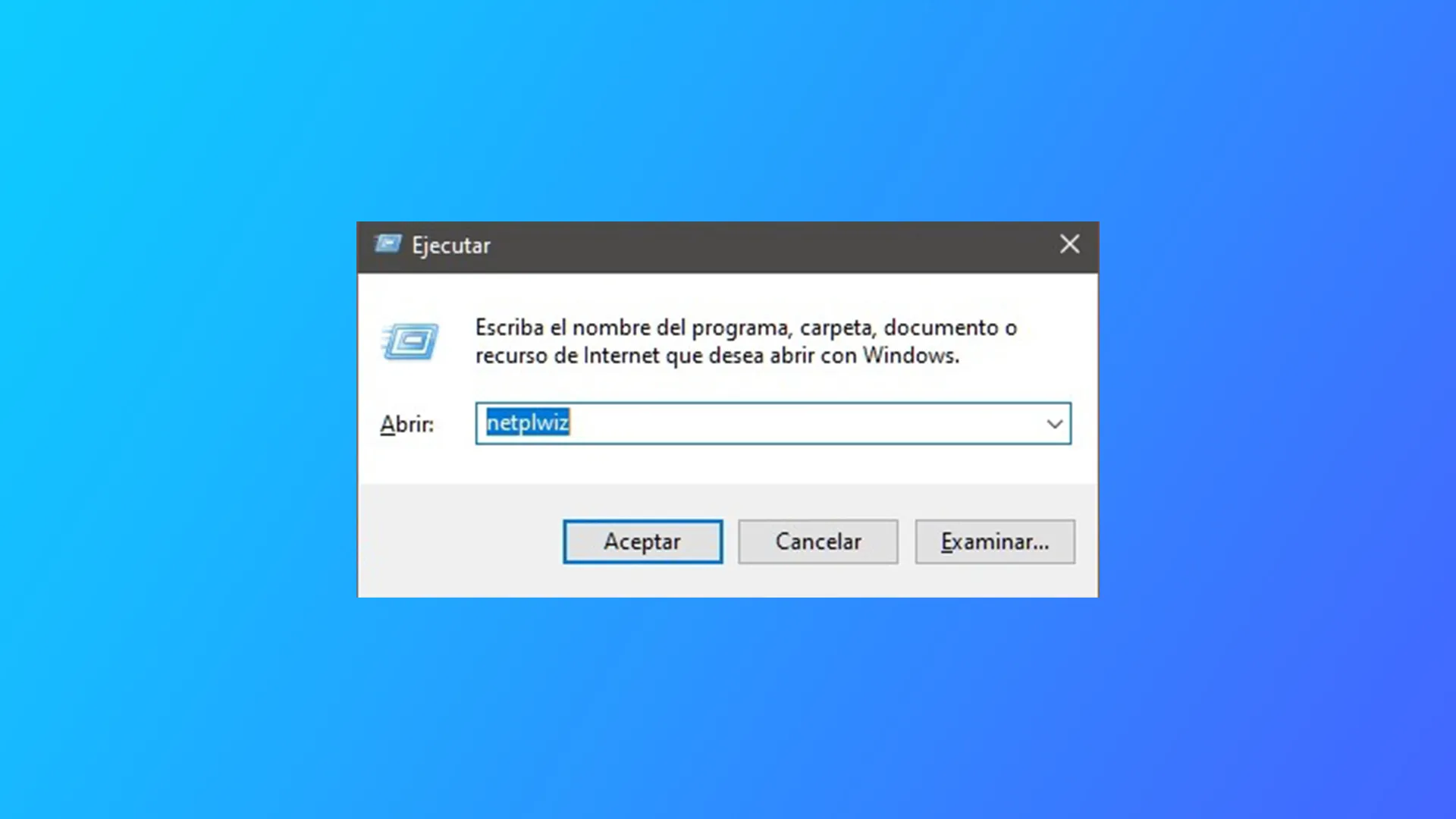
Have you ever wanted to display a custom message when logging into your Windows computer? This option can be very useful in both professional and personal environments. Windows offers several ways to set custom messages that appear before system access, and also allows you to modify behaviors such as automatic login or removing the lock screen, all through utilities like netplwiz , the Local Security Policy Editor (secpol.msc) , or even advanced changes to the Windows Registry.
In this article, we'll delve into all the ways available to customize Windows login behavior. You'll see detailed explanations on how to use system tools to control welcome messages, automate logins, configure group policies, modify registry keys, and much more. This comprehensive resource is designed to help you easily implement these options without leaving any area unexplored.
What is netplwiz and how do I use it?
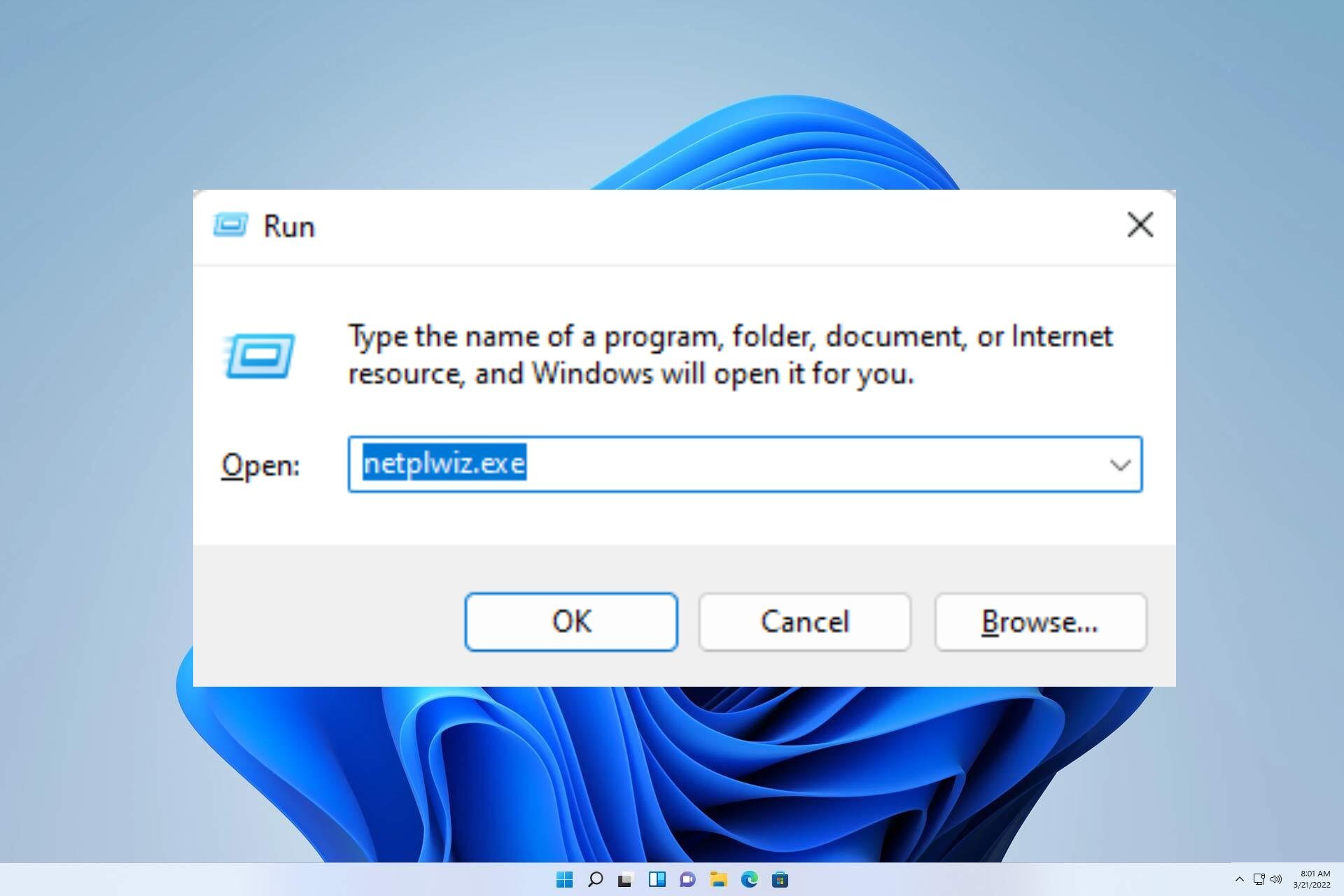
The netplwiz tool provides a shortcut to Windows user account management options. It allows you to enable automatic login , meaning you won't be prompted for your password every time you restart your computer. This is ideal for personal devices that aren't vulnerable to unauthorized access.
To enable this feature:
- Balance Win + R and writes netplwiz.
- In the pop-up window, uncheck the option "Users must enter a username and password to use the device.".
- Enter your password when prompted and confirm the changes.
This will automatically log your computer in with the selected user. It's important to note that this action may compromise your computer's security if it's physically accessible to other people.
Configure custom login messages with secpol.msc
If you want to display a custom message at login, such as legal notices or welcome messages, you can use the Local Security Policy Editor (secpol.msc) . This option is available in Pro, Enterprise, and Education editions of Windows.
Steps to configure it:
- Balance Win + R, writes secpol.msc and hit Enter.
- Go to Local Policies > Security Options.
- Look for these two options:
- «Interactive login: message title»
- Interactive login: message text
- Double-click on both and add the custom text you want to display on each one.
This message will appear before the login screen and can be useful for warnings, usage policies, or personalized greetings.
If you want to remove the lock screen completely, you can also check out how to clean your Windows registry to remove old or unnecessary settings that may be affecting the login screen display.
Modify the lock screen with the Windows Registry
If you want to completely remove the lock screen (not to be confused with the login screen), you can do so from the Registry Editor . This is useful for avoiding an extra step if you're the only one using the PC.
Steps:
- Open the editor with Win + R and writes regedit.
- Navigate to:
HKEY_LOCAL_MACHINE\SOFTWARE\Policies\Microsoft\Windows\Personalization - Create a new value DWORD (32-bit) called NoLockScreen and set its value to 1.
After restarting, the lock screen will no longer appear, and Windows will go directly to the login screen or to the desktop if autostart is enabled.

Delete profiles manually with netplwiz, PowerShell, or from the Control Panel
If you prefer to delete a user profile manually, you can do so from different interfaces:
- With netplwiz: Access from Run, select the user and click on Remove.
- From the Control panel: Go to User Accounts > Manage another account > Delete account.
- With PowerShell: writes
net user NombreUsuario /delfrom a window as administrator.
Be careful , as you will lose the associated files and data if you do not save them beforehand.
Advanced Options: Messages and Settings on Corporate or Domain Networks
In corporate networks, where computers are joined to a domain, configuring these options requires taking into account some additional considerations, such as the time it takes the system to connect to the domain controller or the use of Microsoft Entra ID accounts (formerly Azure AD).
It is possible to use the Registry Editor to set values as DefaultDomainName, DefaultUserName y AutoAdminLogon = 1 in the route HKEY_LOCAL_MACHINE\SOFTWARE\Microsoft\Windows NT\CurrentVersion\Winlogon. You can also check out how troubleshoot problems related to system processes to ensure proper configuration in these environments.
For Entra ID users, it is important to consider the reliance on internet connectivity for login and the possibility of using passwordless authentication systems, such as FIDO security keys or proximity devices, to facilitate secure access.
Other useful settings: lock time, permissions, and customization
You can also change the time it takes for the screen to lock or turn off:
- Modify this registry key:
HKEY_LOCAL_MACHINE\SYSTEM\CurrentControlSet\Control\Power\PowerSettings\7516b95f-f776-4464-8c53-06167f40cc99\8EC4B3A5-6868-48c2-BE75-4F3044BE88A7and changes Attributes and 2. - Then, from the advanced power options in the Control Panel, you can adjust the timeout.
The lock screen can also be customized from Windows Settings, under Personalization > Lock screen . Here you can choose images, quick notifications, or Windows Spotlight to enhance your experience.
Safety recommendations
Disabling the lock screen or enabling auto-start may be convenient, but it poses significant security risks:
- unrestricted access in shared environments.
- loss of privacy by not protecting sensitive data or passwords stored in browsers.
- Legal impact in companies with strict data protection requirements.
If you choose these features, complement them with additional measures such as disk encryption or automatic shutdown mechanisms when you step away from the computer.
There are multiple tools in Windows for modifying login behavior and displaying custom messages, such as updating all applications in Windows . From simple methods like netplwiz to advanced configurations using the registry, secpol.msc, or PowerShell, all are available if you know how to implement them. Each option has its advantages and risks, so it's advisable to adjust them according to the environment and the required level of security.

Table of Contents
- 1 What is netplwiz and how do I use it?
- 2 Configure custom login messages with secpol.msc
- 3 Modify the lock screen with the Windows Registry
- 4 Delete profiles manually with netplwiz, PowerShell, or from the Control Panel
- 5 Advanced Options: Messages and Settings on Corporate or Domain Networks
- 6 Other useful settings: lock time, permissions, and customization
- 7 Safety recommendations
