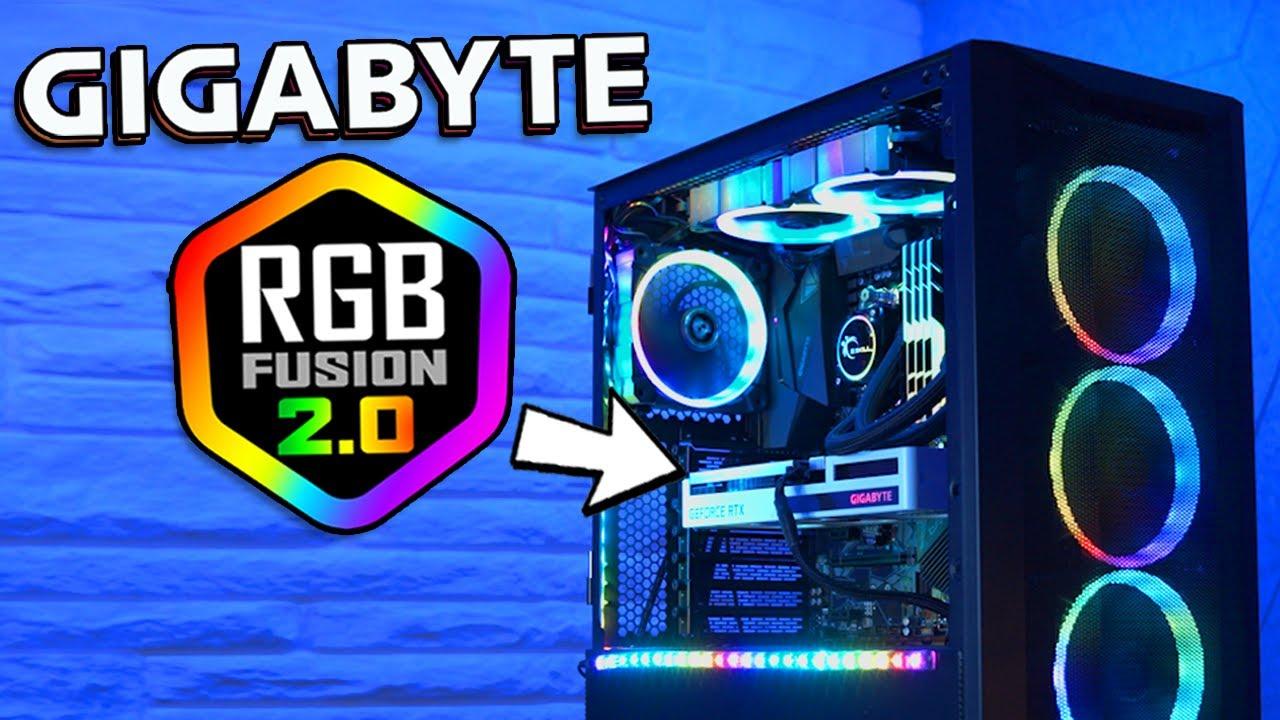
- Gigabyte RGB Fusion 2.0 centralizes RGB and ARGB lighting control on compatible motherboards, graphics cards, RAM, and peripherals.
- Choosing compatible components, connecting them to the correct header, and avoiding conflicts with other lighting programs are key.
- Profiles, global synchronization, and advanced modes allow you to easily adapt the effects to games, work, or multimedia.
- Many problems are solved by updating the BIOS. drivers and software, checking connections and uninstalling conflicting RGB apps.
Building a gaming PC with RGB or ARGB lighting has become almost a ritual: tempered glass cases, colorful fans, and motherboards ready to synchronize all the effects. But when it comes to controlling those lights, many people face the same question: how to manage everything from Gigabyte RGB Fusion or RGB Fusion 2.0 without going crazy and avoiding conflicts with other programs?
If you use a GIGABYTE or AORUS motherboard , such as the popular B550 AORUS ELITE V2, you'll likely want to connect fans, LED strips, and other ARGB components and control them all from a single software . This is where RGB Fusion and its improved version, RGB Fusion 2.0, come in. They allow you to customize colors, effects, brightness, and synchronize compatible devices, both internal (motherboard, graphics card, RAM) and peripheral (keyboard, mouse, etc.).
What are Gigabyte RGB Fusion and RGB Fusion 2.0?
Gigabyte RGB Fusion is GIGABYTE's official software for controlling the RGB and ARGB lighting of its motherboards, graphics cards, and other AORUS and compatible devices. With it, you can change LED colors, select dynamic effects, and coordinate all components that support this technology.
RGB Fusion 2.0 is an evolution of the original program , featuring a more modern interface, more customization options, and broader compatibility with newer hardware models . Its goal is to centralize all lighting control for your system in a single, easy-to-use application.
One of the strengths of RGB Fusion 2.0 is that it automatically detects compatible devices connected to your PC: motherboard, graphics card, memory modules, LED strips, RGB fans connected to their respective headers, and even some external peripherals. You can manage everything from a single window without having to open multiple different programs.
Furthermore, the tool is designed for the gaming environment : it not only allows you to change static colors, but also includes animations, modes reacting to music or games , and total synchronization between devices to create a uniform visual effect inside the tower and on your desktop.
Main differences between RGB Fusion and RGB Fusion 2.0
Although both programs share the same foundation , RGB Fusion 2.0 improves several key aspects compared to the previous version, both in usability and in features and compatibility with new hardware.
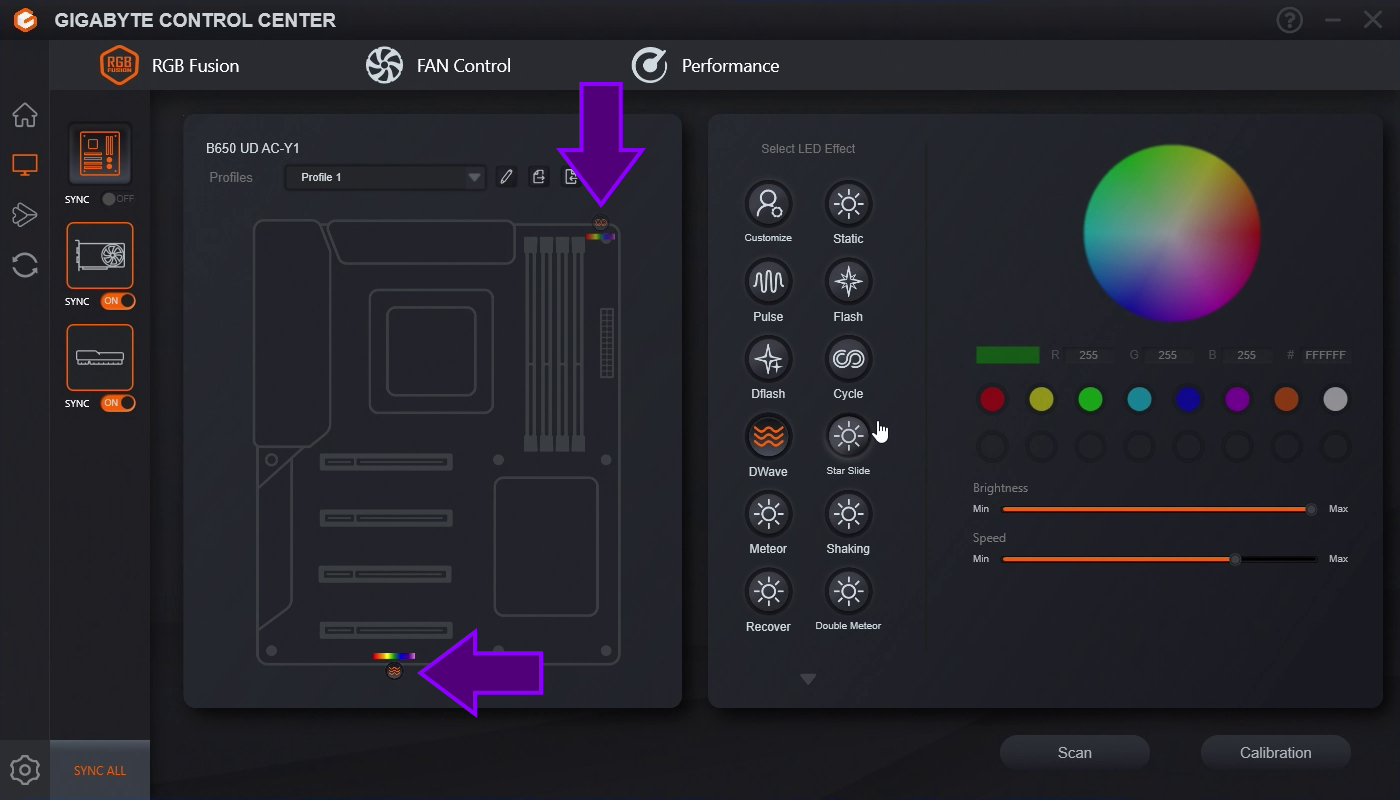
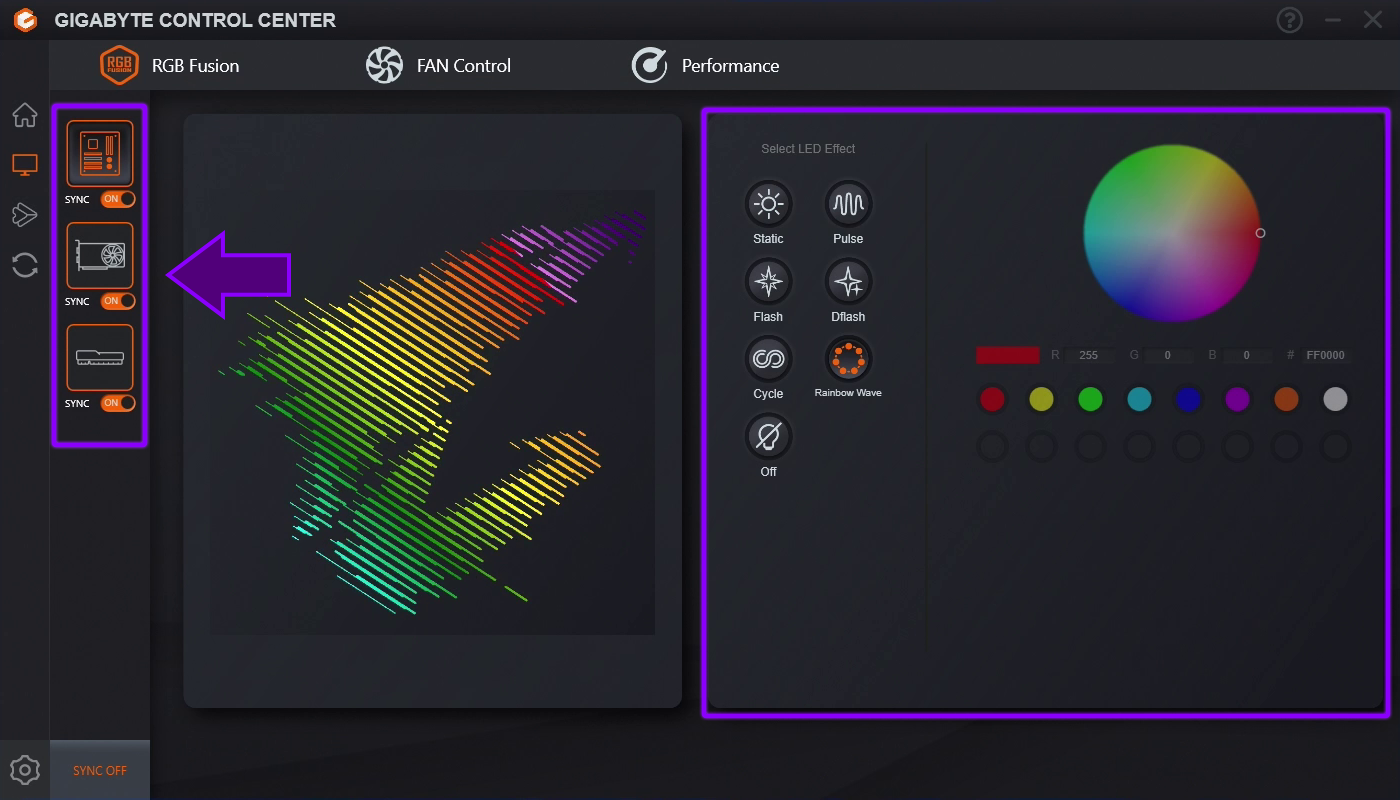
More intuitive and clear interface : RGB Fusion 2.0 features a redesigned interface that displays compatible devices connected to the system with clear icons or representations (motherboard, graphics card, RAM, keyboard, mouse, etc.). Simply click on each one to customize it, making things much easier compared to the more confusing menus of the previous version.
Enhanced Effect Synchronization : One of the great advantages of RGB Fusion 2.0 is the ability to apply the same effect to all devices with a single click. This way, you can have your motherboard, fans, RAM, and peripherals following the same color pattern and animation without having to configure them individually.
Advanced per-device control : Despite this global synchronization, it also allows you to treat each component independently. You can, for example, set the graphics card to a static color, the RAM to a wave effect, and the keyboard to a color cycle, all from the same application.
New lighting modes : RGB Fusion 2.0 adds extra effects compared to classic RGB Fusion, such as game modes, music-linked lighting, breathing patterns, and smoother transitions. This allows for the creation of much more personalized atmospheres that suit each user's style.
Expanded compatibility : As the updated version, RGB Fusion 2.0 offers support for more motherboards, graphics cards, and the latest memory models, as well as new AORUS peripherals. If you purchase recent hardware, using version 2.0 is practically mandatory to take full advantage of its features.
RGB and ARGB component compatibility on your Gigabyte motherboard
Before buying fans or LED strips , it's essential to understand what type of RGB connectors your Gigabyte motherboard supports. In the example of the B550 AORUS ELITE V2, the motherboard includes headers for classic RGB (12V, 4-pin) and for ARGB or addressable RGB (5V, 3-pin), which are typically used for more advanced effects.
The ARGB fans you want to install in your case , such as a Deepcool CC560 Limited, must be compatible with 5V, 3-pin connectors if you want to control them from the motherboard and RGB Fusion 2.0. Many fan kits include their own hub, but if that hub doesn't connect to the motherboard via a standard ARGB cable, you may only be able to control them with the manufacturer's controller or software.
To ensure everything is compatible with RGB Fusion , it's best to check the official list of supported products on the GIGABYTE or AORUS website. There you'll find memory modules, fans, LED strips, and other accessories certified to work with their lighting ecosystem.
It is also important to distinguish between RGB and ARGB : 12V RGB allows you to change the color of an entire strip or fan at once, while ARGB (addressable RGB, 5V) allows each LED to light up independently, which gives much more spectacular effects but requires explicit compatibility with that type of signal.
If you're going to combine components from different brands (for example, a Gigabyte motherboard with fans from another company), it's a good idea to check if the manufacturer indicates support for Gigabyte motherboards or RGB Fusion. Although some devices "work" with any 5V ARGB header, they aren't always detected at the software level and may only respond to basic effects.
How to control your PC's lighting with Gigabyte RGB Fusion 2.0
Once you have connected all your RGB/ARGB devices to your Gigabyte motherboard, the next step is to manage their lighting via software. RGB Fusion 2.0 centralizes this control, allowing you to forget about physical controllers or separate applications from each manufacturer, provided the components are compatible.
The RGB Fusion 2.0 interface is designed to be highly visual : upon opening it, you'll see the various detected devices (motherboard, graphics card, RAM, external accessories, etc.). Clicking on each one allows you to choose the exact color, either using a color wheel, selecting numerical RGB values, or entering a hexadecimal code for maximum precision.
In addition to color, you can modify parameters such as brightness and effect speed. This allows you, for example, to have soft, dim lighting for nighttime use, or something much more intense and faster if you want a striking effect in your gaming setup.
Device synchronization is another key feature : RGB Fusion 2.0 offers a button or mode to apply the same effect to all supported components. This allows you to make the case, motherboard, graphics card, and peripherals change color simultaneously, mimicking "wave" transitions, coordinated flashes, or complete rainbow cycles.
You can also create specific patterns for different situations . For example, you can set up one profile for work (soft white lighting), another for gaming (dynamic effects and more vibrant colors), and another for watching multimedia content (slower, more relaxed transitions), and switch between them whenever you want.
Advanced customization of lighting effects and profiles
One of the biggest advantages of Gigabyte RGB Fusion 2.0 is the freedom it offers when designing effects to your liking. You're not limited to just a couple of basic modes: the software includes options like breathing, blinking, color cycles, disco effects, music reactions, and even specific modes designed for gaming.
For example, you can simulate a heartbeat by having the LEDs light up red in a smooth on/off pattern. You can also use gradual transitions where the colors slowly change across the entire tower, or more aggressive animations reminiscent of nightclub lights.
One particularly interesting aspect is its integration with in- game actions . RGB Fusion 2.0 allows, in certain titles and configurations, the lighting to react to what's happening on screen: changes in health, alerts, damage, victories, or defeats. For example, you can configure it so that when you lose a match, all the LEDs turn bright red to add a dramatic touch to the scene.
Creating and saving profiles is essential to fully utilize these possibilities. You can have several lighting profiles ready: a discreet one for working, a colorful one for gaming, another for when you want your PC to be the center of attention, and switch between them without having to reconfigure everything each time.
Each device can have its own configuration , but you can also combine it with global synchronization. For example: all the internal components of the tower synchronized with a wave effect, while the keyboard maintains a different scheme to highlight the WASD keys and other gaming keys.
Make your RGB settings automatically applied when Windows starts
One of the most common problems with RGB Fusion is that if the program doesn't run when Windows starts , the lighting reverts to a default mode or fails to load the profile you configured. To avoid this, it's important to ensure the software starts with your system.
The most direct way is to check the Startup section in Task Manager . You can open it with Ctrl + Shift + Esc, go to the "Startup" tab, locate RGB Fusion in the list of programs, and make sure it's enabled. If it appears as "Disabled," simply right-click and select "Enable."
If the program isn't listed , you can add it to the startup folder manually. To do this, press Win + R, type shell:startup, and press Enter. In the folder that opens, create a shortcut to the RGB Fusion executable. This way, Windows will automatically launch the software every time you log in.
It's also essential to save your profiles within the application . After customizing the colors and effects, use the save profile option to ensure the program knows which settings to apply upon startup. If you don't save, it may always revert to the default scheme.
If the settings still don't stick , try running RGB Fusion as administrator at least once so it can properly write its configuration files. Doing this can prevent permission issues that might be preventing you from saving your preferences.
Synchronize all your PC lighting with RGB Fusion
One of the goals of using RGB Fusion 2.0 is to make the entire system look coordinated: the motherboard, graphics card, fans, RAM, keyboard, and mouse should all follow the same pattern if you're looking for a clean and coherent finish.
To achieve this, the first step is to ensure all devices are properly connected to the corresponding headers on the motherboard. Fans and ARGB strips should be connected to the 5V ARGB headers, 12V RGB strips to the four-pin headers, and USB or AORUS-specific peripherals must be connected and have their drivers installed.
Once RGB Fusion detects all the components , you can choose a global effect from the program's interface. Applying it to "all" devices synchronizes the color and animation, creating a uniform effect that runs throughout the computer case and your desktop.
It's important to note that not all devices support all advanced effects. Some accessories only support basic color changes or a limited number of modes. In those cases, they may be limited to a simpler effect while the rest of the system runs complex animations.
For optimal results, it's best to stick to components certified by GIGABYTE/AORUS or those whose manufacturer clearly states they are compatible with RGB Fusion. Otherwise, you may need to use two different programs and risk not achieving perfect synchronization.
Control RGB Fusion from your mobile device
GIGABYTE also offers a mobile app to control the PC's RGB lighting from your smartphone , which is quite convenient if you often change effects or if you want to adjust the lighting from the sofa without touching the keyboard.
The app is available for both Android and iOS and works as long as your PC and mobile device are connected to the same local network. Once installed, the application searches for compatible devices and allows you to connect to your computer.
After connecting your mobile phone to your PC using the app , you can modify colors, change effects, adjust brightness and speed, and even switch between profiles you have created in RGB Fusion 2.0, all from the phone's touchscreen.
This option is especially useful if your computer is in a hard-to-reach area or if you want to change the lighting environment without minimizing a game or closing a window on the desktop.
Provided the network is working properly and both devices are on the same segment, remote control is quite smooth and allows you to experiment with different combinations without needing to touch the mouse or keyboard.

Passionate writer about the world of bytes and technology in general. I love sharing my knowledge through writing, and that's what I'll do on this blog, show you all the most interesting things about gadgets, software, hardware, tech trends, and more. My goal is to help you navigate the digital world in a simple and entertaining way.